Product term
2026 iPhone Safety Features for Seniors Aging at Home
Last verified 2026-07-30
If a parent already has an iPhone in 2026, the best safety feature is not the newest camera or the fastest chip. It is the setting that works when they are scared, locked out, hard of hearing, out of cell range, or unable to explain their medication list to a paramedic.
That is the useful way to read “best iPhone for seniors 2026 features.” The phone can help, especially if it is an iPhone 14 or later, but only after someone sits down and turns the right tools on. Owning a feature is not the same as being protected by it.
Start With What the iPhone Can Do by Itself
Before buying anything else, separate the tools that live on the iPhone from the tools that require an Apple Watch. This is not a small distinction. A senior may keep a phone charged on the kitchen counter but leave a watch on the dresser. In an emergency, the difference matters.
| Safety tool | Works with iPhone alone? | What it is for | Main limitation |
|---|---|---|---|
| Medical ID | Yes | Shows health details and emergency contacts from the lock screen | Only helps if the information is filled in and kept current |
| Emergency SOS | Yes | Calls emergency services quickly | Still depends on the user being able to trigger it, unless another automatic feature is involved |
| Emergency SOS via satellite | Yes, on iPhone 14 and later | Connects to emergency help when cellular and Wi-Fi are unavailable | Requires conditions such as a clear view of the sky and is included free for two years on eligible models |
| Crash Detection | Yes, on iPhone 14 and later | Detects severe car crashes and can call emergency services if the user does not respond | Designed for vehicle crash scenarios, not general home monitoring |
| Sound Recognition | Yes | Listens for certain important sounds such as alarms or doorbells and alerts the user | It is an accessibility aid, not a substitute for working smoke alarms or hearing care |
| Check In | Yes, through Messages | Notifies a chosen contact when the person arrives or if progress stops | Best for planned trips, not silent emergencies at home |
| Fall Detection | No, requires Apple Watch | Detects hard falls and can call emergency services | May not detect every fall and calls emergency services rather than a staffed monitoring center |
For many families, that table is the real buying guide. If the senior is choosing between an older used iPhone and a newer model, iPhone 14 and later matter because they add Emergency SOS via satellite and Crash Detection. If the person is already carrying an iPhone 15, 16, or 17-series model in 2026, the better question is whether the safety settings are configured.
Medical ID Is the Setting Too Many Families Skip
Medical ID is not flashy. That is why it is easy to ignore. It can store medical conditions, allergies, medications, blood type, organ donor status, and emergency contacts, and it can be made available from the lock screen without unlocking the iPhone.[1]
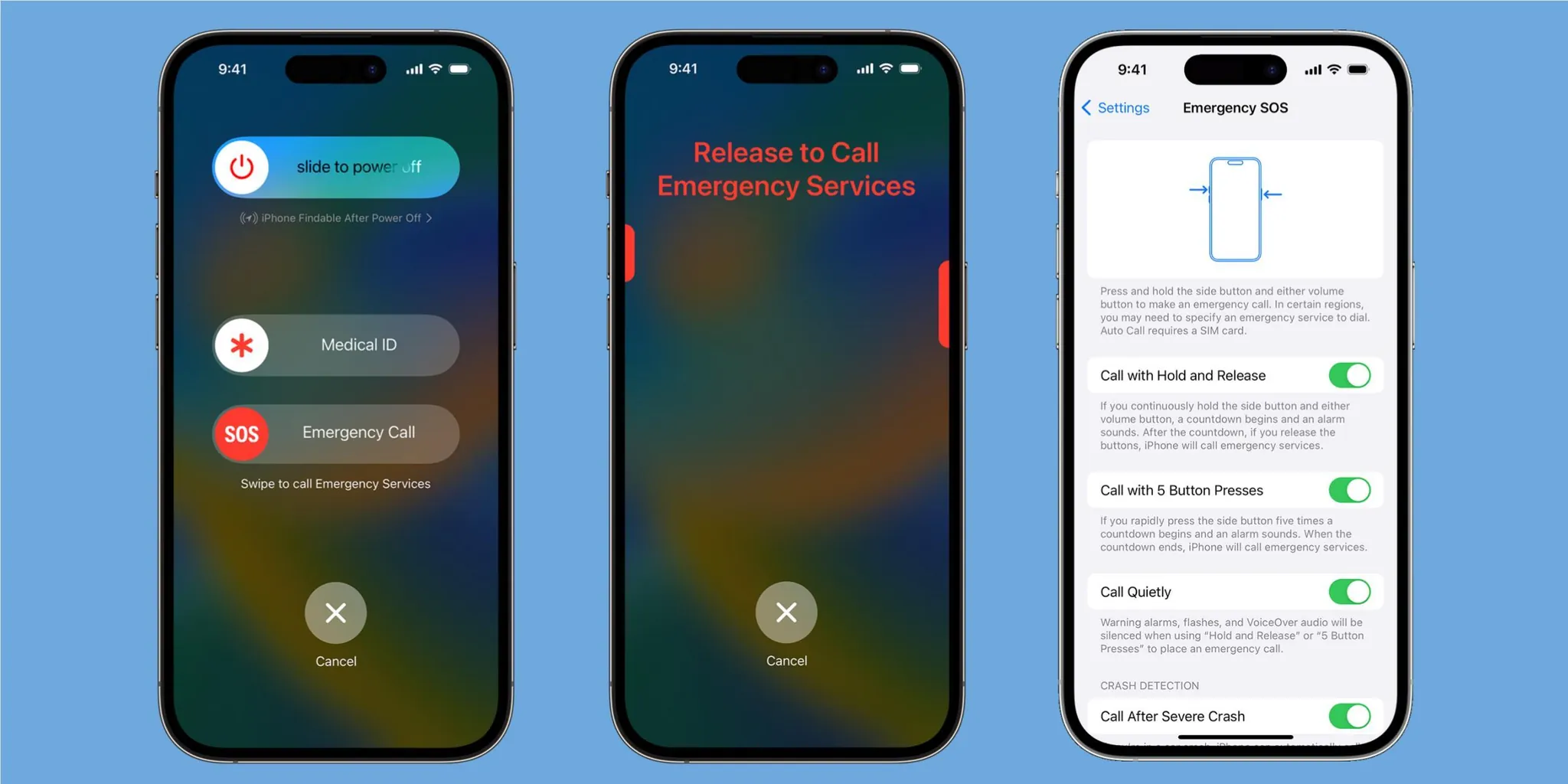
That lock-screen access is the point. If an older adult is confused after a fall, having chest pain, or unable to remember a medication name, the phone does not need to be unlocked for useful information to be visible to someone helping them.
The practical setup is simple enough to do at a kitchen table, but it deserves real attention:
- Open the Health app and review Medical ID.
- Add current conditions, allergies, and medications.
- Choose emergency contacts who will actually answer the phone.
- Turn on lock-screen access if the senior is comfortable with that information being visible in an emergency.
- Review it after medication changes, hospital visits, or a new diagnosis.
The privacy tradeoff is real. Some people will not want medical details accessible from a locked phone. But if the phone is being treated as part of an emergency plan, an empty Medical ID is a missed opportunity.
Emergency SOS Helps Only If the Person Knows How It Will Behave
Emergency SOS is meant for speed. On iPhone, it lets the user quickly call emergency services, and after the call ends the phone can notify emergency contacts if those contacts are set up.[1]
This is worth practicing without placing a real emergency call. The senior should know which buttons start the process, what the countdown looks or sounds like, and how to cancel if it was triggered accidentally. A caregiver should know the same thing, because accidental SOS calls are stressful when no one understands what just happened.
The setup conversation should include three decisions: who belongs in emergency contacts, whether those people are local enough to help, and whether they understand they may receive a location update during an emergency. A cousin across the country may be emotionally important; the neighbor who has a key may be more useful at 11 p.m.
Emergency SOS via satellite is for the edge case, not everyday backup
Emergency SOS via satellite is available on iPhone 14 and later and is designed for situations where cellular and Wi-Fi service are not available. Apple includes the service free for two years with eligible iPhone models.[1]
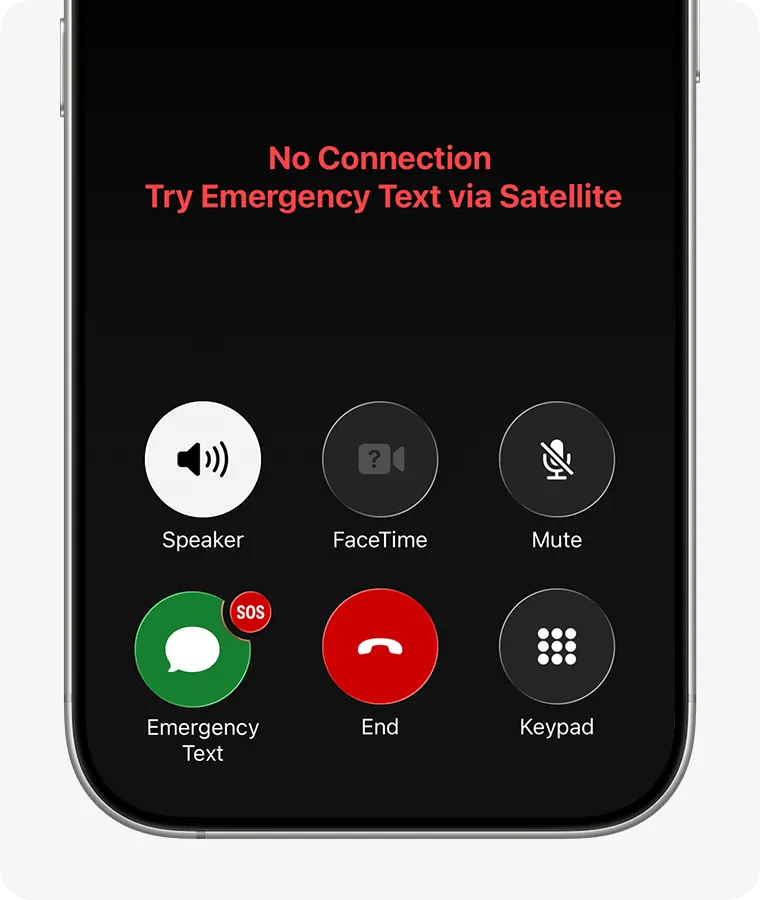
For an older adult who drives through rural areas, walks where service is unreliable, or lives near dead zones, this is one of the stronger reasons to favor iPhone 14 or later. It covers a frightening gap: no bars, no Wi-Fi, and no easy way to call.
It also has boundaries. Satellite communication depends on conditions such as a clear view of the sky, so it is not the same thing as a permanent emergency line from any room, hallway, basement, or covered porch.[1] Families should use Apple’s demo mode before relying on it, because the person who may need it later should not be seeing the satellite interface for the first time while frightened.
Sound Recognition Treats Hearing Loss as a Home-Safety Issue
Sound Recognition can listen for certain sounds and notify the user, including categories such as alarms, doorbells, and glass breaking.[1] For a senior with hearing loss, that can be more practical than another lecture about keeping the phone nearby.
This feature should be set up in the rooms where the phone is usually present. If the iPhone spends most of the day on the kitchen table, enabling alerts for a smoke alarm, doorbell, or appliance sound may help. If the phone is usually in a purse in another room, expectations should be lower.
Sound Recognition is not a reason to postpone hearing evaluation, replace smoke detectors, or ignore visual alert devices for someone with significant hearing loss. It is a useful layer because the phone is already there. It is not the whole plan.
Check In Is for Planned Movement, Not Silent Emergencies
Check In, inside Messages, can automatically let a chosen contact know when the person arrives safely at a destination or when progress is interrupted.[1] It is a good fit for predictable trips: driving to a doctor appointment, walking to a neighbor’s house, or getting home after an evening event.
It is less useful for the kind of emergency families fear most at home: a fall in the bathroom, confusion after taking the wrong medication, or a sudden illness when no trip was underway. Check In works best when the senior remembers to start it and the caregiver knows what kind of alert may arrive.
A simple family rule helps: use Check In for trips that would make someone worry if they did not hear back. Do not turn it into a running location monitor for every errand unless the older adult has clearly agreed to that.
Crash Detection Is Useful, but It Is Not Fall Detection
Crash Detection is built into iPhone 14 and later. It uses iPhone sensors and other signals to detect a severe car crash, shows an alert, and can call emergency services if the user does not respond.[1]
For an older driver, that is a meaningful safety feature. It is especially relevant for someone who drives alone, takes rural roads, or may not be able to reach the phone after a crash.
But families should not mentally file Crash Detection under “fall protection.” It is designed around severe vehicle crashes. It does not watch the hallway, the shower, the basement stairs, or the edge of the bed.
Fall Detection Requires Apple Watch
This is the misunderstanding to stop early: Fall Detection is not an iPhone-only feature. It requires Apple Watch. Apple says that if Apple Watch detects a hard fall, it can tap the wearer on the wrist, sound an alarm, show an alert, and call emergency services if the wearer appears immobile and does not respond.[2]
That can help if the person will actually wear the watch, keep it charged, and tolerate it overnight or during the parts of the day when falls are most likely. A watch left on a charger cannot detect a fall in the bathroom.
The other caveat is just as important: Apple describes Fall Detection around hard falls, and no fall-detection system should be treated as catching every possible fall.[2] A slow slide from a chair, a fainting episode with little arm movement, or a fall where the watch is not being worn may not produce the outcome a family expects.
Apple Watch Fall Detection also calls emergency services. That is different from a dedicated medical alert system with a monitoring center, where trained staff can speak with the user, call a caregiver, follow a response plan, or dispatch help depending on the situation. For some families, direct 911 calling is exactly what they want. For others, it is not enough human backup.
A Caregiver Setup Sequence That Can Be Done Today
The safest iPhone is usually not the newest one in the box. It is the one where the emergency information is accurate, the alerts go to the right people, and the senior has practiced the actions they may need under stress.
- Update the iPhone first. Install current iOS updates so safety and accessibility features are where Apple expects them to be.
- Set up Medical ID. Add conditions, allergies, medications, and emergency contacts, then decide whether lock-screen access should be enabled.
- Confirm emergency contacts. Choose people who understand their role and are likely to answer.
- Practice Emergency SOS without making a real emergency call. Show the senior the button sequence, countdown, and cancellation path.
- Use the Emergency SOS via satellite demo if the iPhone supports it. Practice outdoors so the clear-sky requirement is not abstract.
- Enable Sound Recognition for the sounds that matter in that home. Do not turn on every possible alert if it will create noise and confusion.
- Set a family rule for Check In. Use it for trips or situations where an arrival alert would reduce worry without turning the phone into a surveillance tool.
- If using Apple Watch, verify Fall Detection settings and wearing habits. The watch has to be on the wrist when it matters.
This setup should be done with the older adult, not quietly to them. The line between support and surveillance gets crossed quickly when location sharing, emergency contacts, and automated alerts are changed without a real conversation.
Which iPhone Makes Sense in 2026?
For safety features, the dividing line is simple: iPhone 14 and later are the models to look at if Emergency SOS via satellite and Crash Detection matter. The 2026 lineup, including newer iPhone 17 models, may offer other improvements, but the safety question does not require turning this into a full product ranking.
For many seniors, the better choice is the iPhone they can read, hold, charge, and answer reliably. A larger screen may help with readability. Familiarity may matter more than a newer body style. Battery health matters because an emergency phone with a dead battery is just a rectangle on the table.
If buying new or replacing an old phone, prioritize these practical requirements:
- iPhone 14 or later if satellite SOS and Crash Detection are important.
- A screen size the senior can read without strain.
- Strong battery life and a charging routine the person will actually follow.
- Enough storage that the phone does not constantly fail updates.
- Compatibility with Apple Watch if Fall Detection is part of the plan.
When the iPhone Is Enough, and When It Is Not
An iPhone can be enough as a supplemental safety layer when the senior is generally steady, cognitively able to use the phone, willing to keep it nearby, and mainly needs better emergency information, easier emergency calling, trip check-ins, or backup for occasional no-service situations.
Add Apple Watch when fall risk is a concern and the person will reliably wear it. The watch changes the equation because it can detect certain hard falls without the user pressing a phone button.[2] It does not eliminate the need to think about charging, wearing habits, false alarms, missed falls, or what happens after emergency services are called.
A dedicated medical alert system is still the safer choice when the senior has high fall risk, recent unexplained falls, significant mobility impairment, complex medical needs, memory problems that affect phone use, or long stretches alone where a human response plan matters. The deciding factor is not whether Apple’s tools are impressive. It is whether the person needs 24/7 monitoring-center backup rather than a phone feature that triggers a call or alert in specific scenarios.
The same-day decision is straightforward: configure the built-in iPhone tools if the senior already uses an iPhone; consider Apple Watch only if it will be worn consistently; choose a monitored medical alert system when the risk profile requires human backup beyond what a phone can provide.
References
- Apple Accessibility Features, Apple, https://www.apple.com/accessibility/features/
- Use Fall Detection with Apple Watch, Apple Support, https://support.apple.com/en-us/108896
Browse more in the Glossary.