
Product term
How to Set Up iOS Restricted Mode to Stop Senior Payment Scams
Last verified 2026-07-26
The moment that scares families is usually not dramatic at first. A text arrives. The older adult taps, replies, or follows instructions. A saved card, Apple Cash balance, shopping account, or in-app purchase path is still available. By the time a son, daughter, spouse, or sibling sees the statement, the phone has already done exactly what it was allowed to do.
That is why payment protection for a senior's iPhone has to be treated as a layered setup, not one magic switch. In June 2026, Fox News described an 81-year-old man with mild dementia who was charged more than $5,000 after scam texts reached his iPhone. His son did not contain the risk with one setting. He combined Screen Time limits, card removal, and carrier filtering to reduce the ways money could leave the phone again.[1]
That case is one family’s experience, not proof that the same setup prevents every loss. But the sequence is familiar enough to be useful: contact, confusion, payment access, cleanup. National numbers give the same problem a wider frame. Adults 60 and older reported $2.4 billion in fraud losses in 2024, according to FTC data summarized by Forbes, up 400% from 2020.[2] The point is not to frighten a parent with statistics. The point is to stop leaving payment doors open after the first warning sign.
Start with the payment paths the iPhone can block
Before changing settings, decide what you are trying to prevent. A senior who occasionally buys groceries through one trusted app needs a different setup from someone who has already sent money to a stranger. If real money has already been lost, it is reasonable to be more restrictive while the family sorts out cards, accounts, and authority.
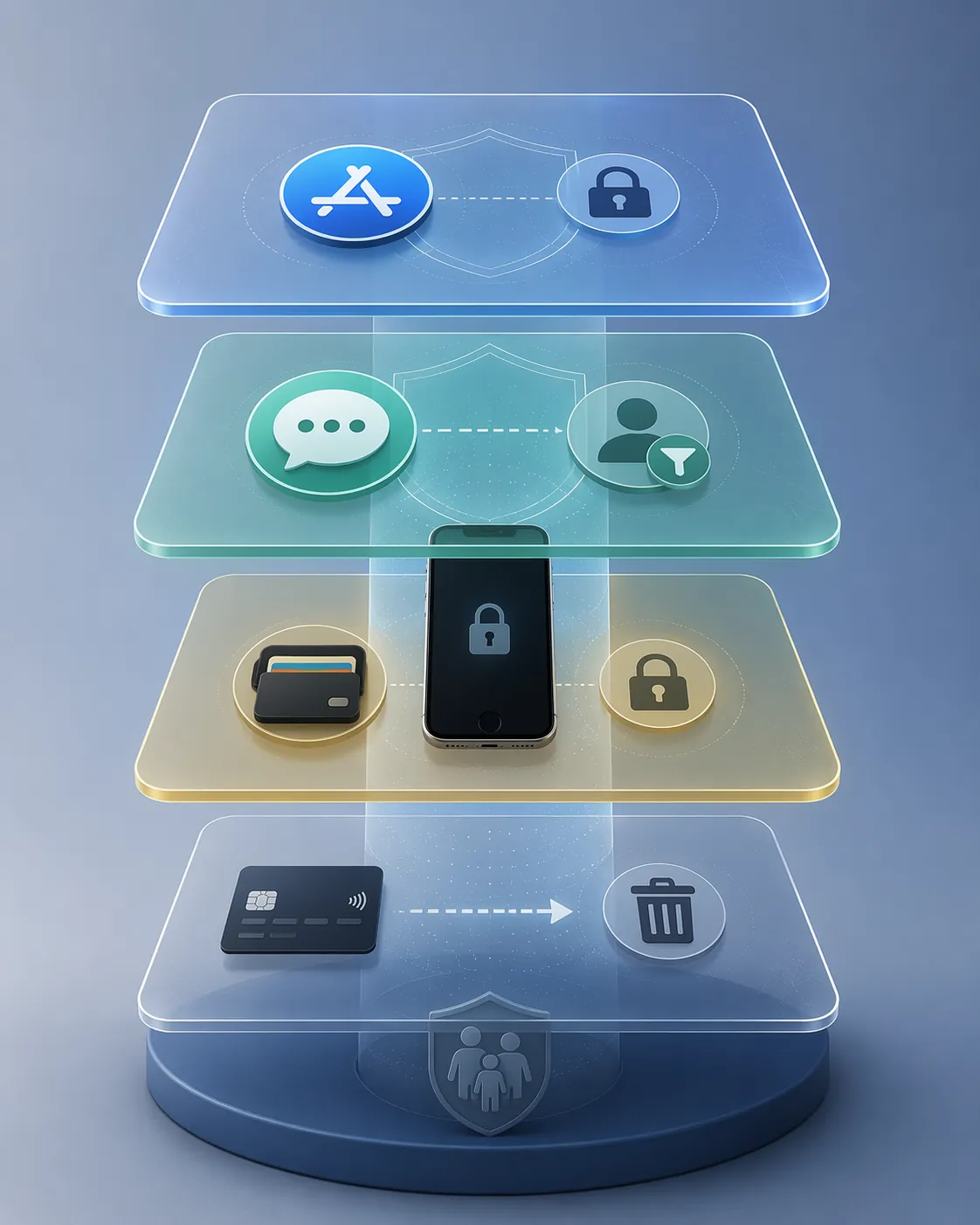
The practical order is simple: first block purchases and app changes inside Screen Time, then reduce unknown-message exposure, then lock Apple Cash if it is available, then remove saved payment credentials that would bypass the first three layers.
| Layer | What it closes | Main iPhone setting |
|---|---|---|
| Screen Time purchase restrictions | In-app purchases, new app installs, some account changes | Content & Privacy Restrictions |
| Communication Limits | Texts or calls from people who are not in Contacts | Screen Time > Communication Limits |
| Apple Cash Family lock | Apple Cash sends, receives, and purchases | Family Sharing Apple Cash controls |
| Payment credential removal | Saved cards in Wallet, Safari, apps, stores, and donation sites | Wallet, Safari AutoFill, and each account |
Layer 1: Turn on Screen Time restrictions for purchases and installs
Screen Time is the first stop because it can block common payment behavior before a scammer ever gets to the card. Apple documents that in-app purchases can be set to “Don’t Allow,” and app installation can also be set to “Don’t Allow” through Content & Privacy Restrictions.[3] That matters when a scammer pushes someone toward a new app, a fake support tool, a game purchase, or an in-app payment prompt.
- Open Settings on the senior’s iPhone.
- Tap Screen Time.
- If Screen Time is off, turn it on.
- Set a Screen Time passcode that the caregiver knows and the senior does not use for unlocking the phone.
- Tap Content & Privacy Restrictions and turn it on.
- Tap iTunes & App Store Purchases.
- Set Installing Apps to Don’t Allow.
- Set In-app Purchases to Don’t Allow.
- Set Deleting Apps to Don’t Allow if the senior is likely to remove protective apps or carrier tools by accident.
- Set Require Password to Always Require where that option appears.
The Screen Time passcode is not a decoration. If it is the same code the senior already knows, or if it is written on the same card as the device passcode, the restriction will not hold for long. Use a code that trusted caregivers can retrieve when needed, because someone will eventually need to approve a legitimate change.
This layer does create friction. App updates, new pharmacy apps, rideshare apps, or a legitimate banking app may need help from the caregiver. That is annoying, but it is a contained annoyance. Cleaning up a compromised card across subscriptions, utilities, and donation accounts is worse.
Do not rely on Apple Pay’s security claim alone
Apple Pay can be safer than swiping or typing a card. SQ Magazine, citing Apple communications, reports that Apple Pay’s fraud rate is about 60% lower than traditional credit and debit cards and that it eliminated more than $1 billion in fraud in the prior year.[4] That can be true and still miss the caregiver’s problem. A scammer does not need to break Apple Pay if they can persuade a confused person to approve a payment, buy something inside an app, or use a saved card somewhere else.
Layer 2: Limit unknown texts and calls with Communication Limits
Payment controls are cleaner when scam messages do not reach the senior in the first place. Apple’s parental-control documentation includes Communication Limits, where “During Screen Time” can be limited to Contacts Only.[5] The label sounds like it was written for children. The setting is still useful when the real risk is a lonely afternoon, a convincing fake bank text, and a saved payment method.
- Open Settings.
- Tap Screen Time.
- Tap Communication Limits.
- Under During Screen Time, choose Contacts Only.
- Review the Contacts app before turning this on, especially doctors, pharmacy numbers, transportation contacts, neighbors, and close relatives.
The Contacts cleanup is the part families skip, and it is the part that determines whether this setting feels protective or punitive. Add the people and services the senior actually uses. Remove stale numbers that could cause confusion. If a caregiver receives the calls anyway, put that caregiver’s number in Favorites and make sure emergency contacts are correct.
If scam texts have already become a fixation, also reduce the visual pull of Messages. Turn off unnecessary Messages notifications or badges so a filtered or suspicious text does not become the brightest thing on the screen. This is not a substitute for blocking; it is a way to stop the phone from constantly inviting attention back to the same trap.
Layer 3: Lock Apple Cash if the account exists
Apple Cash needs separate attention because it is not the same as a card stored in Wallet. Apple says a Family Sharing organizer can view and limit a child or teen’s Apple Cash activity, including locking the account, and Apple’s account-lock documentation explains that a locked Apple Cash account cannot be used to send or receive money or make purchases.[6][7]
Apple writes this documentation around child and teen accounts, not aging parents. That language is irritating when the caregiver is trying to protect a spouse with dementia or a parent who still wants to be treated as an adult. The important operational point is narrower: if the senior is in the organizer’s Family Sharing group and Apple Cash controls are available for that account, locking Apple Cash removes one direct money-movement path.
- Confirm the senior is in your Family Sharing group.
- Open Settings on the organizer’s iPhone.
- Tap Family.
- Select the senior’s name.
- Open Apple Cash controls if they are available for that family member.
- Lock the Apple Cash account.
After locking, test the practical result. Open Messages and Wallet and confirm Apple Cash is not available for sending money or making purchases. Do not assume the setting worked because the menu said it did. In a family emergency, the only thing that matters is what the senior can still do from the phone.
Layer 4: Remove saved cards from every place the phone can reuse them
This is the part that feels severe, and sometimes it should. Screen Time can block in-app purchases. Communication Limits can reduce unknown contact. Apple Cash can be locked. None of those automatically removes a card already stored in Wallet, Safari AutoFill, a shopping app, a food delivery account, a browser profile, or a donation platform.
Start with Wallet. Remove credit and debit cards the senior no longer needs on the phone. If one card must remain for transportation, groceries, or medication, consider using a card with a lower limit, strong bank alerts, and a caregiver who reviews transactions quickly. The right answer is not always zero cards; it is the fewest cards that still preserve necessary independence.
- Wallet: remove unnecessary credit and debit cards.
- Safari AutoFill: remove saved credit cards and check whether card details can still be filled from the browser.
- Shopping apps: remove stored cards from Amazon, grocery, pharmacy, delivery, travel, and retail accounts.
- Donation and charity accounts: remove stored cards where recurring or one-click gifts are enabled.
- Subscription accounts: check streaming, cloud storage, games, news, and app subscriptions that may still bill a compromised card.
- Email links: review accounts connected to old emailed receipts, because those links often lead back to saved payment profiles.
Expect this to take longer than the iPhone settings. The phone can be adjusted in minutes. Stored cards across years of accounts can take an afternoon, especially if password resets go to an email address the senior rarely checks. Keep a written log of which cards were removed and which accounts still need review. That log prevents the next caregiver from starting over during the next scare.
For more advanced cognitive decline, narrow the phone itself
Some families are not dealing with one bad week of scam texts. They are dealing with repeated confusion, compulsive tapping, or an inability to distinguish a family message from a fake bank warning. At that point, ordinary restrictions may still leave too much room.
Guided Access can keep an iPhone or iPad in a single app and control which features are available while that session is active, according to Apple’s instructions.[8] This can help during a visit, a telehealth appointment, a video call, or a situation where the senior only needs one app for a defined period.
Assistive Access is a broader simplification mode, often discussed as a senior-friendly iPhone setup because it reduces the interface to simpler apps and larger choices.[9] It may be appropriate when the full iPhone interface has become more confusing than useful. It is also a bigger emotional step. A person who still sees the phone as a symbol of competence may experience this as a loss, not a convenience.
Use these modes when the problem is no longer just payment access, but navigation and judgment across the whole device. If the senior can still handle calls, photos, family texts, and a few trusted apps, the earlier layers may preserve more independence.
Add carrier and bank safeguards after the phone is locked down
Carrier spam filtering belongs in the plan, just not as the only plan. Turn on enhanced spam and scam-text filtering through the mobile carrier if it is available. Some carriers offer app-based filters; others require account-level changes. The Fox News case is useful here because the family used carrier filtering along with iPhone restrictions and card removal, not instead of them.[1]
Bank alerts are the second outside layer. Set transaction alerts low enough that a caregiver sees suspicious activity quickly. Add trusted contacts where the bank or brokerage offers that option. If possible, separate everyday spending from savings so a compromised phone does not expose the account that pays the mortgage, rent, care costs, or taxes.
These steps do not make the senior responsible for catching the next scam. They move detection to people and institutions with a better chance of acting before the loss grows.
Know when settings are no longer the right tool
Phone restrictions can reduce opportunity. They cannot determine legal capacity, reverse cognitive decline, or give a caregiver authority over accounts they are not allowed to manage. If repeated losses continue, if the senior cannot understand payment consequences, or if family members are fighting over who may intervene, the next step is not another hidden setting.
At that boundary, families need proper financial and legal authority, such as power of attorney or other arrangements advised by a qualified professional. It is better to face that directly than to pretend an iPhone can carry the whole burden.
Restricted mode is useful when it is built as a perimeter: fewer unknown people can reach the senior, fewer apps can be installed, fewer purchase prompts can complete, Apple Cash can be locked, and saved cards are no longer waiting behind every tap. Scammers do not use one path to money. The phone should not be protected as if they do.
References
- How to protect elderly parents with dementia from scam texts on iPhone — Fox News
- FTC Report: Seniors Lost Billions to Scams in 2025 — Forbes, December 16, 2025
- Use Screen Time to turn off in-app purchases on your iPhone or iPad — Apple Support
- Apple Pay Statistics 2026: Sales, Markets, Fraud Data — SQ Magazine
- Use parental controls to manage your child's iPhone or iPad — Apple Support
- View and limit your child or teen's Apple Cash activity — Apple Support
- If your Apple Cash account is restricted or locked — Apple Support
- Use Guided Access on iPhone or iPad — Apple Support
- iPhone Senior Mode: A Guide to Assistive Access — The Senior List
Browse more in the Glossary.