
Caregiver decision guide
How to Choose an Easy-to-Use Laptop for an Older Adult
There is no 'senior-friendly' laptop brand — real ease of use comes from matching the operating system the older adult already knows, choosing a screen and keyboard sized for age-related vision and dexterity needs, and settling on who will help when something breaks. This criteria-based guide gives caregivers the checks to run before buying, with no brand rankings.
If you are searching for the “best easy to use laptop for seniors,” the most useful answer is not a brand name. It is a fit test. The laptop that feels simple to an older adult is usually the one that matches the operating system they already understand, gives them a screen and keyboard they can use without strain, and comes with a realistic plan for help when passwords, updates, printers, or video calls stop behaving.
That concern is not fussy or niche. AARP’s technology summary page, updated April 29, 2026, reports that 60% of adults 50 and older do not believe today’s technology is designed with them in mind, and 23% plan to buy a computer in 2026. Those figures come from AARP’s summary page and should be checked against the underlying report if you need to cite them formally, but they are enough to show why “senior-friendly” claims deserve a careful look rather than automatic trust. [1]

This is general buying guidance, not medical, legal, or financial advice. If vision, dexterity, memory, or hearing changes are new or worsening, a clinician, low-vision specialist, occupational therapist, or other appropriate professional may help identify needs that a laptop review cannot.
Start with the system the person already knows
Before looking at screen sizes or sale prices, ask one plain question: what computer, tablet, or phone does the older adult already use with the least frustration?
A Windows user who knows where the Start menu is, how to find downloads, and what the taskbar looks like may not find a Mac “easier” just because the hardware is polished. A longtime iPhone and iPad user may settle into a Mac more comfortably because messages, photos, passwords, and account prompts feel familiar. Someone whose life is mostly Gmail, Google Docs, online banking, YouTube, and video calls may do well with a Chromebook if they are already comfortable living in the browser.
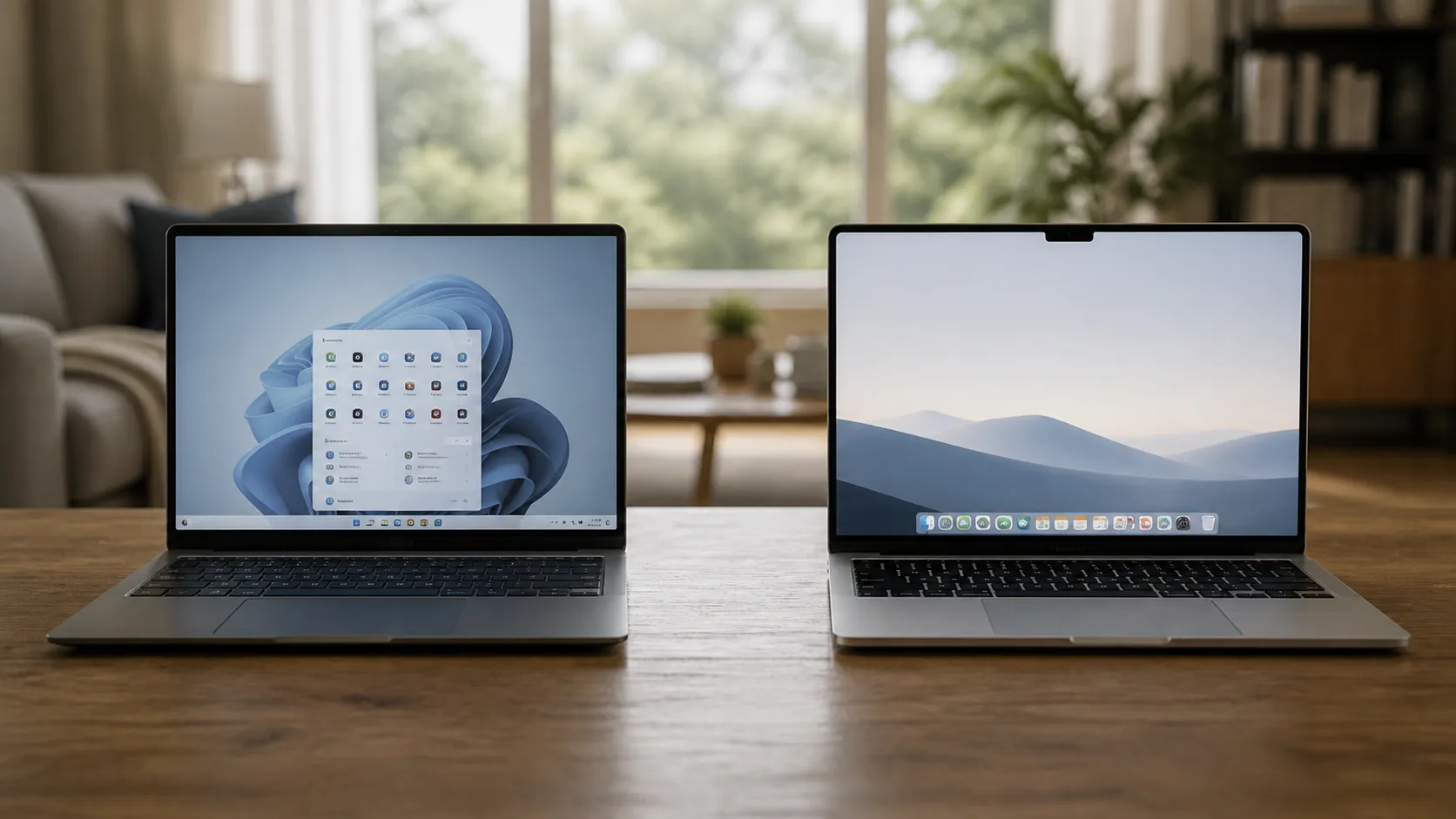
Wirecutter’s 2026 laptop guidance is helpful here because it resists the usual shortcut. Its testing included paid panelists with vision, dexterity, and cognitive needs, and it concluded that no operating system or laptop brand is inherently more accessible for older adults; testers tended to prefer whichever operating system they already knew. [2]
That finding changes the shopping conversation. The question is not “Mac or Windows for seniors?” It is “Which one will this person recognize when they are tired, annoyed, or trying to join a call two minutes late?”
If an older parent says they “hate computers,” do not assume a new interface will solve the problem. Sometimes resistance is about embarrassment, fear of scams, past failures, or the feeling of being made dependent. For that side of the decision, the companion guide on why an aging parent resists technology is worth reading before you buy hardware that may sit unopened.
The screen should make text larger without making the laptop harder to use
A small, sharp screen can still be a poor fit if the person has to lean forward, squint, or lose track of menus after text is enlarged. For many older adults, a 15- or 16-inch display gives enough room to scale up text and interface elements without crowding the screen. Wirecutter’s guidance favors that range, noting that larger displays now commonly weigh under 3.5 pounds, so “large enough to read” no longer has to mean “too heavy to move.” [2]
The important test is not the diagonal measurement by itself. Open the laptop in the store, at home, or during the return window and change the display scaling. Increase text size. Open email, a news site, photos, and the video-call app the person will actually use. Then watch what happens.
- Can the person read sender names, subject lines, browser tabs, and menu labels without leaning in?
- After text is enlarged, do important buttons still fit on the screen?
- Can they find the pointer and distinguish active windows from background windows?
- Does glare become a problem in the room where they usually sit?
- Can they keep a video call, email, and browser page open without the layout becoming confusing?
This is where a lightweight 13-inch laptop can disappoint even if reviewers praise it. Portability helps only if the person can comfortably read and navigate the screen they are carrying around.
Keyboard comfort matters more than it looks in a spec sheet
Typing is where many “easy” laptops become irritating. A keyboard can look clean in photos while still having cramped arrow keys, low contrast legends, shallow travel, or a power button placed where a delete key used to be.
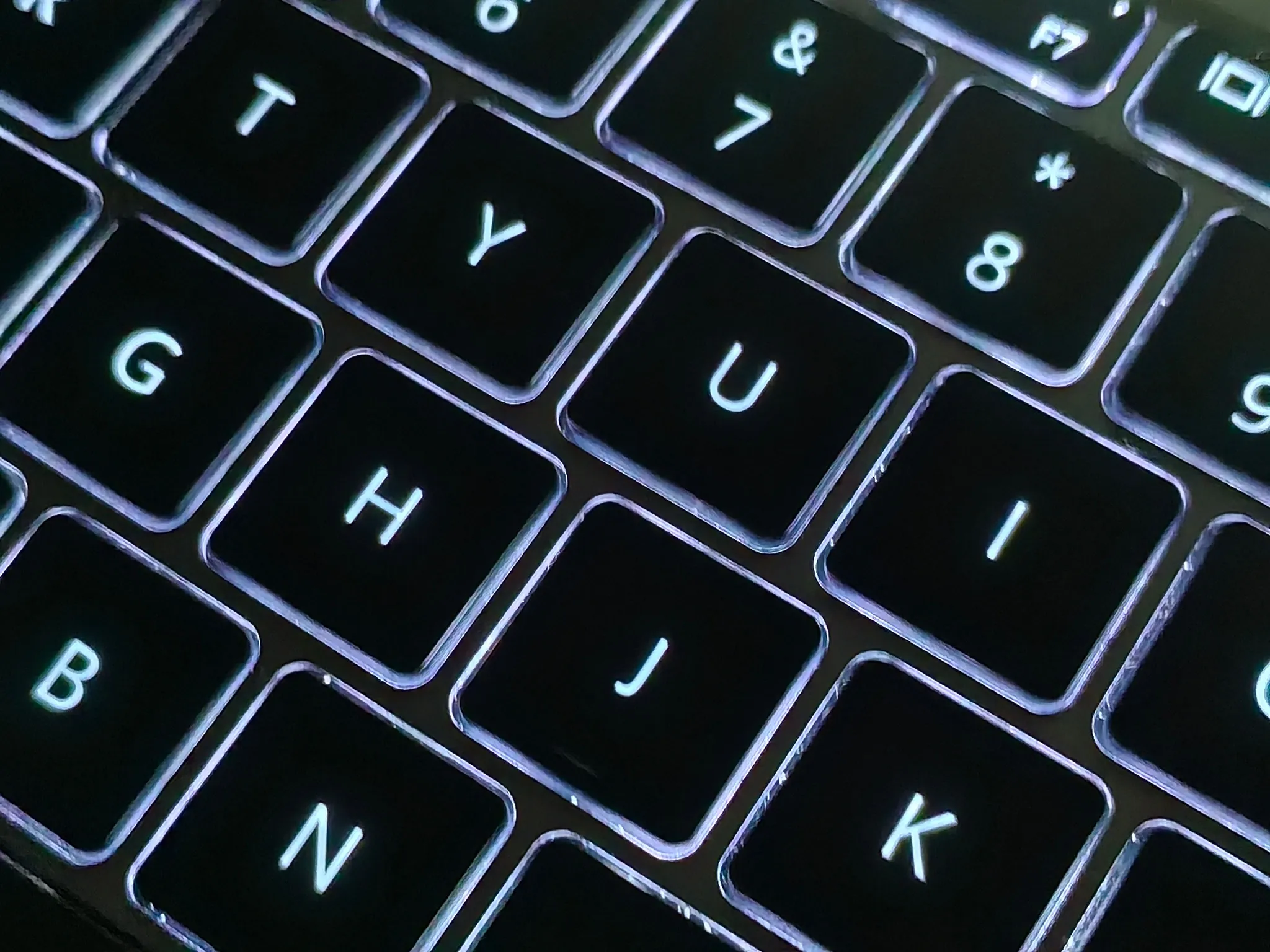
Wirecutter’s criteria call out well-spaced, backlit keys with large legends because those traits affect everyday tasks: typing a password, correcting an email address, finding the volume key, or pressing the right key during a call. [2]
A good keyboard check takes five minutes. Ask the older adult to type their own email address, a short sentence, and a password-like phrase with uppercase letters, numbers, and symbols. Do not coach unless they ask. Notice whether they can find Shift, Backspace, Enter, the brightness controls, and the volume keys. If they repeatedly hit the wrong key, the laptop has already told you something useful.
Backlighting is worth checking in the room where the laptop will be used. Some keyboards look legible under store lighting and become washed out at night. Others have keys that glow around the edges but leave the letters themselves hard to see. Large, high-contrast key legends are more useful than lighting that merely looks premium.
Choose a sign-in method the person can recover from
Passwords are often the first daily failure point. A laptop may have a beautiful screen and fast processor, but if the person cannot sign in calmly, it will feel hostile before they ever open a browser.
Biometric login can help, but it is not automatically trouble-free. Wirecutter’s guidance prefers face login where available, noting that fingerprint readers can be unreliable for some older adults because age-related skin elasticity changes may affect recognition. [2]
The practical test is simple: set up the sign-in method, restart the laptop, and have the older adult sign in several times without you touching the keyboard. Then ask what they would do if face login failed, the fingerprint reader did not recognize them, or the laptop asked for the account password after an update. If the backup path depends on a password stored in your phone, the laptop is not independent yet.
Video calls need a better webcam than many bargain laptops provide
For many families, the laptop is not mainly for documents. It is for seeing grandchildren, attending telehealth appointments, joining faith or community meetings, and talking with relatives who no longer live nearby. That makes the webcam and microphone part of the ease-of-use decision, not extras.
Wirecutter recommends a 1080p webcam for older adults’ laptops. [2] The point is not cinematic quality. A clearer camera can make faces easier to see, reduce the “can you see me?” ritual, and make the person feel less like they are failing at the call when the real problem is poor hardware.
Run a real call before the return window closes. Have the older adult join from the place they will usually sit. Check whether they can find mute, camera, speaker volume, and leave-call controls. If they use hearing aids, external speakers, headphones, or captions, test that setup too. The right laptop is the one that survives the ordinary call, not the one that looks best unopened.
Memory and storage: buy enough to prevent ordinary frustration
For basic browsing, email, documents, photos, and video calls, Wirecutter treats 8 GB of RAM as the floor and 16 GB as smoother. It also recommends SSD storage. [2] Those are not glamour specs. They affect how long the laptop takes to wake up, whether several browser tabs make it crawl, and whether updates leave the person staring at a machine that feels broken.
Storage deserves the same ordinary-language treatment. If the older adult keeps photos, scans, downloaded forms, or years of attachments locally, do not buy as if everything will live neatly in the cloud. If they mostly use webmail, streaming, online banking, and a few documents, storage is less likely to be the limiting factor. The purchase should match actual habits, not the buyer’s preferred way of organizing files.
When a Chromebook is the cleaner budget choice, and when it is not
Budget matters, but the cheapest laptop can become the most expensive one if it creates monthly support calls. The useful budget rule is narrow: if the older adult’s needs truly stay in the browser, a Chromebook under $600 may be cleaner and faster than many low-cost Windows laptops. Wirecutter and Wired both warn that cheap Windows machines are often burdened by bloatware and weaker construction, while lower-cost Chromebooks can be a better fit for browser-only use. [2][3]
That does not make Chromebooks universally easier. They can be the wrong choice if the older adult relies on Windows-only software, a familiar desktop workflow, an older printer or scanner that is awkward to connect, or a helper who only knows how to troubleshoot Windows or macOS. A clean operating system is useful only if it supports the person’s actual routine.
This is also where model lists age quickly. A laptop that was a good value in early 2026 may be replaced, discounted, or quietly revised later. If you use a review’s named models as examples, verify the current processor, memory, screen, return policy, and price before buying.
Weight and battery life should match where the laptop will live
A laptop does not need to be ultralight if it will stay on a desk. It does need to be manageable if the person will carry it from the kitchen to the recliner, pack it for travel, or move it out of the way when family visits.
ASUS’s vendor-authored buying guidance for seniors suggests 15- to 16-inch screens, weight under about 1.8 kg, or about 4 pounds, and a battery of at least 50 Wh. [4] Because this is manufacturer guidance, it should be treated as an industry baseline rather than independent proof. Still, it gives a reasonable starting point for the tradeoff: large enough to read, light enough to move, and with enough battery that the laptop is not always tethered to an outlet.
The best test is physical. Put the laptop, charger, and any needed mouse or case in the person’s hands. Ask them to carry it to the room where they will use it. If the charger brick is heavy, the cord is short, or the charging port is hard to see, that belongs in the decision too.
Decide who owns support before the box is opened

Every laptop eventually asks for something: an update, a password reset, a new browser permission, a printer fix, a scammy-looking pop-up, a cloud storage warning, or a video-call setting that changed after the last version. If nobody has agreed to help, “easy to use” becomes a promise made on the day of purchase and withdrawn later.
Support does not have to mean surveillance or control. It can mean writing down the support path, setting up password recovery, choosing a reputable repair option, agreeing on when remote help is acceptable, and making sure the older adult knows what not to click when a screen says their computer is infected.
The boundary matters. If you are buying the laptop mainly so you can manage bills, appointments, or communication from a distance, pause and separate the laptop decision from the broader monitoring decision. The guide to choosing monitoring technology for an aging parent is a better place to think through consent, responsibility, and who owns the ongoing work.
A pre-purchase fit check
Use this before paying, or during the return window while the laptop can still go back.
| What to check | What a good fit looks like |
|---|---|
| Operating system familiarity | The older adult recognizes the desktop, settings, files, browser, and update prompts well enough to recover from small surprises. |
| Screen size and scaling | Text can be enlarged without hiding important buttons or making the screen feel crowded. |
| Keyboard | Keys are well spaced, legends are easy to read, backlighting helps rather than washes out letters, and the person can type common information without repeated misses. |
| Sign-in | Face login, fingerprint login, PIN, or password works reliably, and the person understands the backup method. |
| Webcam and calls | The person can join, mute, adjust volume, turn the camera on or off, and leave a call from their usual seat. |
| Memory and storage | At least 8 GB of RAM for ordinary use, SSD storage, and enough space for the person’s real files and habits. |
| Weight and charging | The laptop and charger can be moved safely to the places where it will actually be used. |
| Budget tier | A low-cost Windows machine is not chosen solely because it is cheap; a Chromebook is considered only if browser-based use is enough. |
| Support | Someone has agreed how password recovery, updates, scams, printers, and remote help will be handled. |
The right laptop is the one the older adult can use on an ordinary Tuesday: read the screen, find the keys, sign in, join the call, and know who to ask when the machine does something unexpected.
References
- AARP Research Insights on Technology, AARP, April 29, 2026
- The 7 Best Laptops for Seniors of 2026, Wirecutter
- Chromebooks vs. Windows Laptops, Wired
- How to Choose a Laptop for a Senior, ASUS
Questions to bring to a clinician or OT
This is not medical, legal, or a family's final decision — only a framework. Bring these questions to a clinician, occupational therapist, or your local Area Agency on Aging.
Find Local HelpRelated reading
Noticed something outdated or inaccurate on this page? Flag a correction. We review every report against CDC, NIA, and AARP HomeFit guidance before updating a page.