
Caregiver decision guide
How to Set Up Alexa Voice Commands for Elderly Parents
An ordered, current checklist for setting up Alexa for an elderly parent — choosing the right Echo device, using the parent's own Amazon account, accessibility and voice-command basics, reminders and routines, and the fine print on Alexa's paid emergency-calling layer.
Before you plug in the Echo at your parent’s kitchen table, make six decisions in this order: choose the right model, keep it on your parent’s Amazon account, put it where their voice will actually reach it, make the accessibility settings boringly usable, add only a few commands they can practice, and test the help phrase before anyone relies on it.
That order matters. The mistakes that cause trouble later are usually made early: a device accidentally registered to the adult child’s account, a speaker placed across the room from the chair where Mom actually sits, a beautiful routine nobody remembers how to trigger, or an emergency feature everyone assumes is 911 when it is not.
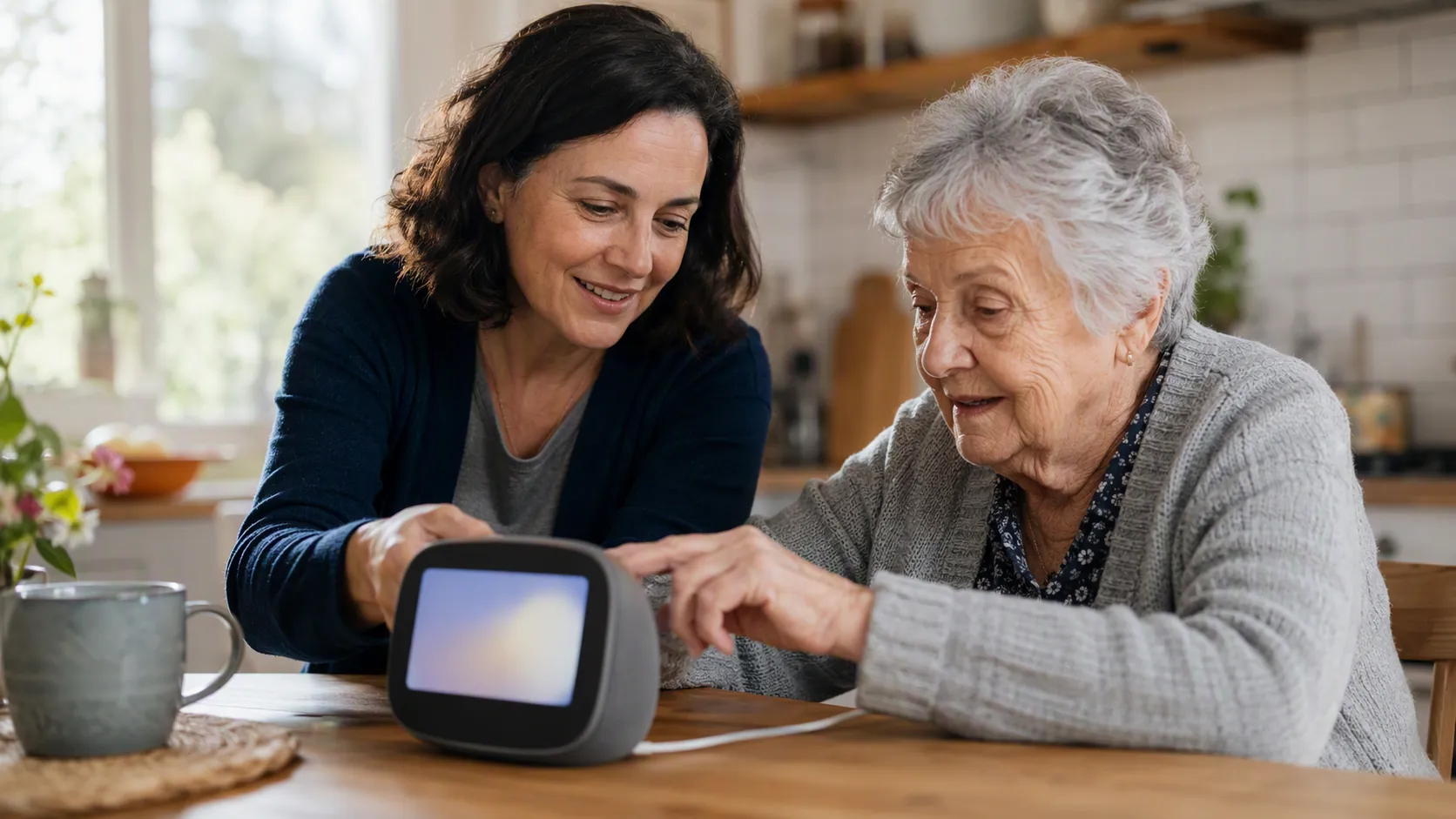
Before you buy or unbox: Echo Show or speaker-only Echo?
For many older adults, an Echo Show is the safer first choice because the screen gives feedback. It can show timers, reminders, weather, visual confirmations, and captions; a speaker-only Echo is usually simpler and lower-cost, but it gives fewer clues when Alexa misunderstood something or is waiting for a response.[1]
The screen does not make the setup magically easy. It just gives your parent more ways to recover when hearing, memory, or confidence wobbles. If your parent dislikes screens, has very limited space, or only needs a simple voice speaker for reminders and calls, an Echo Dot-style device may be enough. If they benefit from seeing words, buttons, or faces during calls, start with an Echo Show.
| Choice | When it usually fits | Tradeoff to notice |
|---|---|---|
| Echo Show with screen | Your parent benefits from visual confirmations, captions, video calls, visible timers, or caregiver-assisted setup. | More settings and more visual clutter to trim. |
| Speaker-only Echo | Your parent wants the simplest voice device, lower cost, and no screen. | Harder to tell whether Alexa heard correctly, misunderstood, or is waiting. |
If you are ordering the device for your parent, buy it as a gift at checkout so it does not automatically link to your Amazon account.[2] This is not just a tidy tech preference. Your parent’s reminders, contacts, subscriptions, voice history, shopping controls, and household settings should start under their name unless there is a clear reason otherwise.
Use your parent’s Amazon account, not yours
Set up the Echo with your parent’s Amazon account whenever possible. If they do not have one, create one with them, using a recovery email and phone number that will still be reachable if you are not sitting beside them. Write the login details in whatever password system your family already trusts; do not leave the only recovery path trapped on your phone.
This prevents several later messes: your own calendar reminders sounding in their house, their contacts mixing with yours, purchases landing under the wrong person, or a paid emergency feature being harder to manage because the wrong account owns it.
- Use your parent’s Amazon account for the Alexa app setup.
- Confirm the account email, phone number, and password recovery method while you are still there.
- If you must help from your own phone, sign into the Alexa app as your parent for setup, then sign out afterward.
- Do not enable purchasing, contacts, Drop In, or emergency services until you know which account owns the device.
Place the Echo where a tired person will actually use it
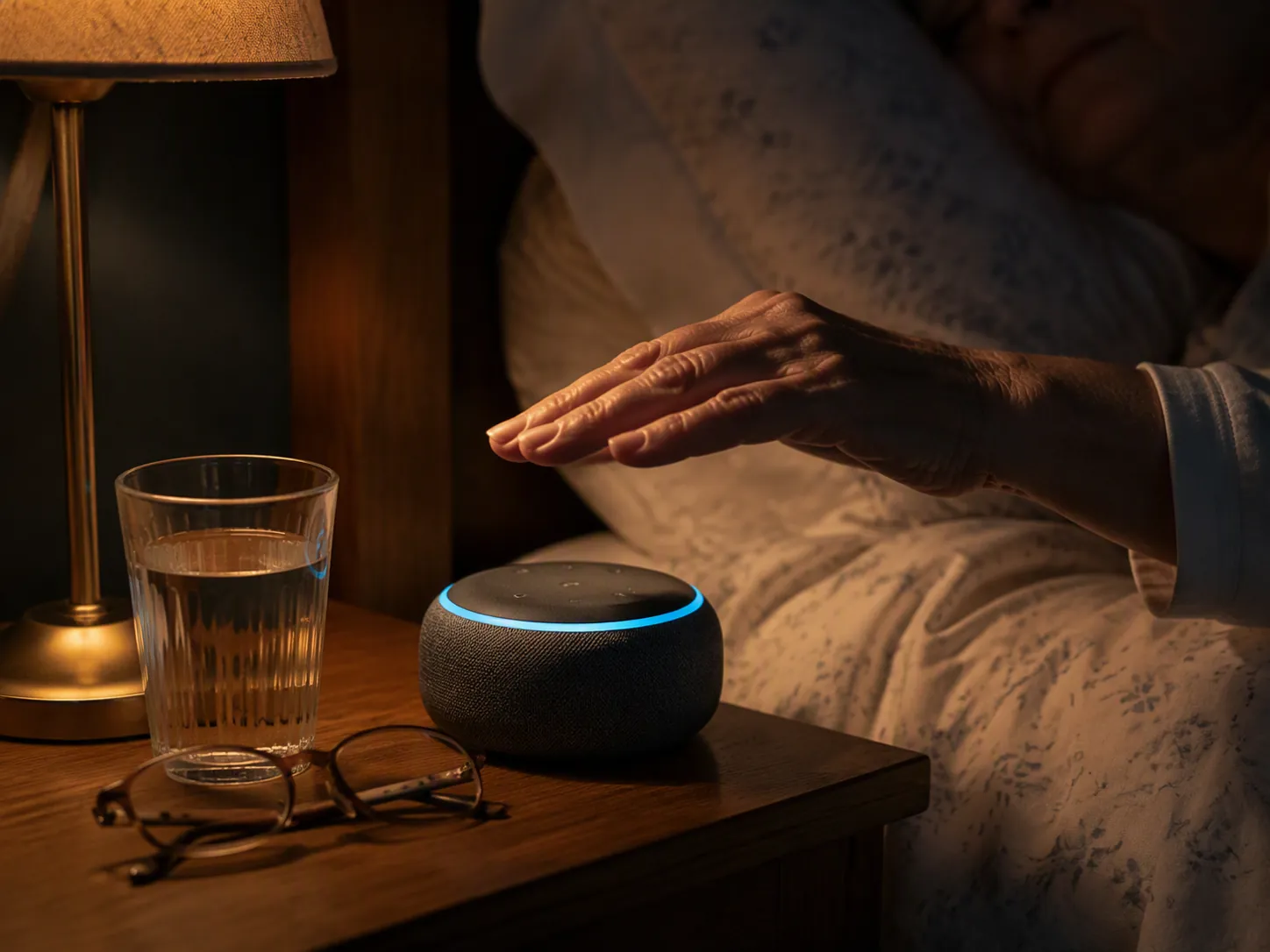
The best spot is not always the prettiest counter. Put the Echo near the place your parent already sits, stands, or reaches for help: a kitchen table, favorite chair, bedside table, or central room with a clear path for sound. Setup guides commonly recommend choosing a practical location with power, Wi-Fi, and easy access rather than hiding the device out of the way.[2]
Do a voice test from the chair, the doorway, and the bed if the device is meant to be heard from those places. If your parent has to shout across running water, a TV, or a hallway, the device is in the wrong place. If Wi-Fi is weak in the exact room where it is needed, solve that before you add routines or emergency features.
Set up the Echo in the Alexa app
Once the account and placement are settled, the basic device setup is straightforward: plug in the Echo, open the Alexa app, go to Devices, choose Add Device, select Amazon Echo, connect it to Wi-Fi, and test it with a simple command such as “Alexa, what’s the weather?”[1]
| Setup pass | What to do | Do not move on until |
|---|---|---|
| Power and Wi-Fi | Plug in the Echo and connect it through the Alexa app. | Alexa answers a basic command from the normal chair or bed. |
| Account | Confirm the app is signed into your parent’s Amazon account. | The device appears under your parent’s account, not yours. |
| Sound | Set a comfortable default volume. | Your parent can hear Alexa without flinching or asking you to repeat it. |
| Commands | Teach three to five phrases first. | Your parent can say them from memory or from a printed card. |
| Emergency layer | Only after the device works, decide whether to add Alexa Emergency Assist. | Everyone knows what the help phrase does and does not do. |
If you are helping with an Echo Show and cannot be there in person, Amazon supports loved-one setup help for Echo devices with screens.[3] Remote co-setup is useful, but I would still have someone local check the boring physical things: whether the cord is safe, whether the screen faces the right chair, whether the parent can hear the response, and whether the Wi-Fi holds.
Do the accessibility pass before teaching commands
A parent who cannot hear the answer, read the screen, or wait through Alexa’s timing will not use the device when it counts. Do this pass while your parent is present, not later from the couch at your house.
- Set volume by voice first: “Alexa, volume 6,” then adjust up or down. Alexa supports volume levels from 1 to 10.[1]
- On an Echo Show, turn on captions if your parent benefits from seeing Alexa’s responses; “Alexa, turn on all captions” is one supported route noted in setup guidance.[1]
- Consider Follow Up Mode so your parent does not have to repeat the wake word before every related command.[1]
- Turn on Adaptive Listening if your parent needs more time to finish speaking; Amazon describes Adaptive Listening as an Alexa accessibility feature that gives customers more time to complete a request before Alexa responds.[7]
This is also the time to decide whether the wake word works. If your parent has trouble saying “Alexa,” choose another available wake word in the app. The right wake word is the one they can say clearly at 2 a.m., not the one everyone else in the family likes.
Start with a tiny command set
Do not teach twenty commands on the first day. Start with the few phrases your parent will actually use, then print them in large type and leave the card next to the device. Setup guidance for seniors commonly recommends starting small, practicing daily, and keeping a printed cheat sheet nearby.[1]
| Purpose | Phrase to practice | Why it belongs on the first card |
|---|---|---|
| Check that Alexa is working | “Alexa, what’s the weather?” | Low-stakes test command; the answer is easy to judge. |
| Control sound | “Alexa, volume 6.” | Lets your parent fix a too-loud or too-soft device without the app. |
| Set a simple reminder | “Alexa, remind me at 8 p.m. to take my evening pills.” | Useful only if the wording is practiced and the reminder is heard. |
| Call the agreed contact | “Alexa, call [name].” | This must be tested with the real contact name Alexa recognizes. |
| Emergency Assist, if subscribed | “Alexa, call for help.” | Only use this line if you have set up and tested Alexa Emergency Assist. |
Use real names Alexa can understand. If your parent calls you “Jenny” but your contact entry is “Jennifer Miller mobile,” test which version works and write that exact phrase on the card. This is where a lot of voice-assistant setups quietly fail: the caregiver knows what they meant, but Alexa only knows what was configured.
Add reminders and routines sparingly
Reminders are often more useful than fancy routines because they are understandable: Alexa says something at a time your parent expects. Start with two to four. Medication prompts, trash night, hydration, a morning orientation cue, or a bedtime lock-up reminder are reasonable first candidates. Do not automate the whole house on day one.
A good first reminder is specific enough to act on and gentle enough not to become noise: “It’s 8 p.m. Please take your evening pills from the blue organizer,” if that matches the real household system. If your parent already uses a pill dispenser, written chart, or pharmacy packaging, Alexa should reinforce that system rather than replace it.
- Test every reminder at least once while you are present.
- Ask your parent what they heard, not whether they “understood.”
- Delete reminders that become annoying or confusing.
- Avoid reminders that create danger if missed; Alexa is not a medication-management guarantee.
For broader fall-risk planning, Alexa can sit beside a written home-safety plan, not instead of one. If you are reviewing rugs, lighting, footwear, medication side effects, and prior falls, use the Fall Prevention FAQ and the printable Fall Prevention Handout as the companion work.
Set up calling, contacts, and Drop In only after the basics work
Calling is worth setting up, but it should not be the first thing you test. First prove your parent can wake Alexa, hear the answer, and use the printed card. Then add the contacts they may actually call: you, a nearby neighbor, a sibling, or a primary caregiver.
On an Echo Show, video calling can be easier for some families because the screen confirms who is calling. Drop In can also be useful when everyone has agreed to it, but treat it as a permission-heavy feature. It is caregiver reassurance, not a substitute for your parent being comfortable using the device on their own.
Test the exact call phrase from the room where your parent will use it. “Alexa, call Sarah” is only helpful if Alexa knows which Sarah, chooses the right method, and your parent recognizes what happens next.
The emergency part: what Alexa can and cannot do
Read this part slowly. A working Echo does not mean your parent now has fall detection, 911 dialing, or a medical alert system. Those are different things.
By default, Alexa does not dial 911. Amazon’s current paid emergency layer is Alexa Emergency Assist. With that subscription set up, saying “Alexa, call for help” connects the caller to 24/7 Urgent Response agents operated by Rapid Response Monitoring Services; those agents can request police, fire, or ambulance dispatch based on the situation.[4]
Emergency contacts are part of the setup. Amazon says Alexa Emergency Assist can notify up to 25 emergency contacts, and that a primary emergency contact may be called to approve dispatch if the caller cannot be reached.[4][5] That is not the same as an Echo automatically knowing someone fell.
Alexa Together is no longer the current caregiver and fall-detection offering. Amazon’s own Alexa Together page now says the service is no longer available and directs customers toward Alexa Emergency Assist; the older Alexa Together bundle included caregiver features and third-party fall-detection integrations, but those are not part of the current Alexa Emergency Assist offering.[6]
| Situation | What to assume | What to do before relying on it |
|---|---|---|
| No paid emergency subscription | Alexa may call configured contacts, but “call for help” is not the paid Urgent Response service. | Set up normal calling and write the exact contact phrase. |
| Alexa Emergency Assist active | “Alexa, call for help” reaches Urgent Response agents who can request dispatch. | Configure emergency contacts and run the test phrase. |
| Parent falls and cannot speak | Alexa does not currently provide automatic fall detection on its own. | Use a separate fall-detection or medical alert plan if that risk needs coverage. |
| Power or internet goes out | Urgent Response calling from Echo devices will not work during power or internet outages. | Plan backup calling and outage safety ahead of time. |
| Alexa app with cellular data | Amazon says the Alexa app may still reach Urgent Response over cellular data. | Confirm the phone, app, account, and subscription are set up before counting on it. |
There is a test phrase, and you should use it while everyone is calm: “Alexa, test the emergency helpline.” Amazon lists that phrase for testing the Emergency Assist helpline.[4] Run the test from the actual device, in the actual room, with your parent saying the words if they can.
If you discuss Alexa-enabled 911 calling, be precise. Amazon’s Emergency Assist FAQ says 911 calling through Alexa requires linking a supported mobile number from AT&T, Verizon, or T-Mobile.[5] Do not describe that as the normal default behavior of an Echo sitting on the counter.
Also check the current subscription price at the moment you subscribe. Public pricing references have changed over time, and this is not a place to rely on an old screenshot or an article that still talks as if Alexa Together is active. The safe setup habit is to verify the current price inside Amazon’s current Emergency Assist flow before you explain the plan to your parent.
The outage caveat deserves its own family plan. Amazon says Urgent Response calling from Echo devices is unavailable during power or internet outages, though the Alexa app may connect over cellular data.[5] If your parent lives somewhere with frequent outages, review backup charging, cellular coverage, and power-dependent devices; this power-outage safety guide is the better place to continue that planning.
Do the safety housekeeping before you leave
Once voice, reminders, contacts, and any emergency layer are working, remove the things that will create confusion. Disable voice purchasing in the Alexa app under More, Settings, Account Settings, Voice Purchasing. Then trim unwanted notifications under Settings, Notifications.[1]
- Disable voice purchasing unless there is a specific reason to keep it.
- Turn off promotional or unnecessary notifications.
- Remove contacts your parent should not accidentally call.
- Check that the device name is simple, such as “Kitchen Echo” or “Bedroom Echo.”
- Tape or place the printed command card where your parent naturally looks.
The handoff test
Do not end setup when the app says the Echo is online. End when your parent can complete the short handoff test without you touching your phone.
- Your parent says the wake word from their normal chair or bed, and Alexa responds.
- Your parent adjusts or confirms the volume by voice.
- Your parent asks one confidence-building question, such as the weather.
- Your parent responds to or acknowledges one reminder.
- Your parent calls the agreed contact using the exact phrase on the printed card.
- If Alexa Emergency Assist is active, your parent practices “Alexa, test the emergency helpline,” and everyone understands that “Alexa, call for help” reaches Urgent Response, not automatic fall detection and not default 911.
- Everyone names the backup plan for a power, internet, or Wi-Fi outage.
That is the point where Alexa becomes useful: not because it has a long feature list, but because the parent can use the few important phrases alone. Treat it as a supplemental independence tool. It can help with reminders, calls, and a paid emergency-response path when properly configured, but it is not automatic fall detection, not a medical alert replacement, and not a guarantee of help when power or internet is down.
References
- How to set up Alexa for elderly parents, Asurion
- Alexa for Seniors: Benefits, Devices and Set-up, A Place for Mom, June 4, 2024
- Help Loved Ones Set Up Their Echo Devices with a Screen, Amazon Customer Service
- Alexa Emergency Assist: everything you need to know, Amazon
- Amazon Emergency Assist FAQs, Amazon
- Alexa Together launches to help customers remotely care for loved ones, Amazon, May 21, 2025 update
- Adaptive Listening, Amazon
Questions to bring to a clinician or OT
This is not medical, legal, or a family's final decision — only a framework. Bring these questions to a clinician, occupational therapist, or your local Area Agency on Aging.
Find Local HelpRelated reading
Noticed something outdated or inaccurate on this page? Flag a correction. We review every report against CDC, NIA, and AARP HomeFit guidance before updating a page.