
Caregiver decision guide
What does “enough memory” mean for a senior's laptop?
Laptop spec sheets use "memory" to mean two different things, and buying the wrong one leaves a senior's computer sluggish within a couple of years. Learn the plain-language difference between RAM and storage, how to check what a current laptop has, and the 2026 buying floors — 16GB RAM with a 256GB+ SSD for comfortable everyday use.
For an older adult's everyday laptop use in 2026, a laptop with 16GB of RAM and at least a 256GB SSD is the comfortable target. 8GB of RAM is a workable minimum, especially on ChromeOS, but it leaves less room for browser tabs, video calls, updates, banking pages, and other background activity to accumulate. [1]
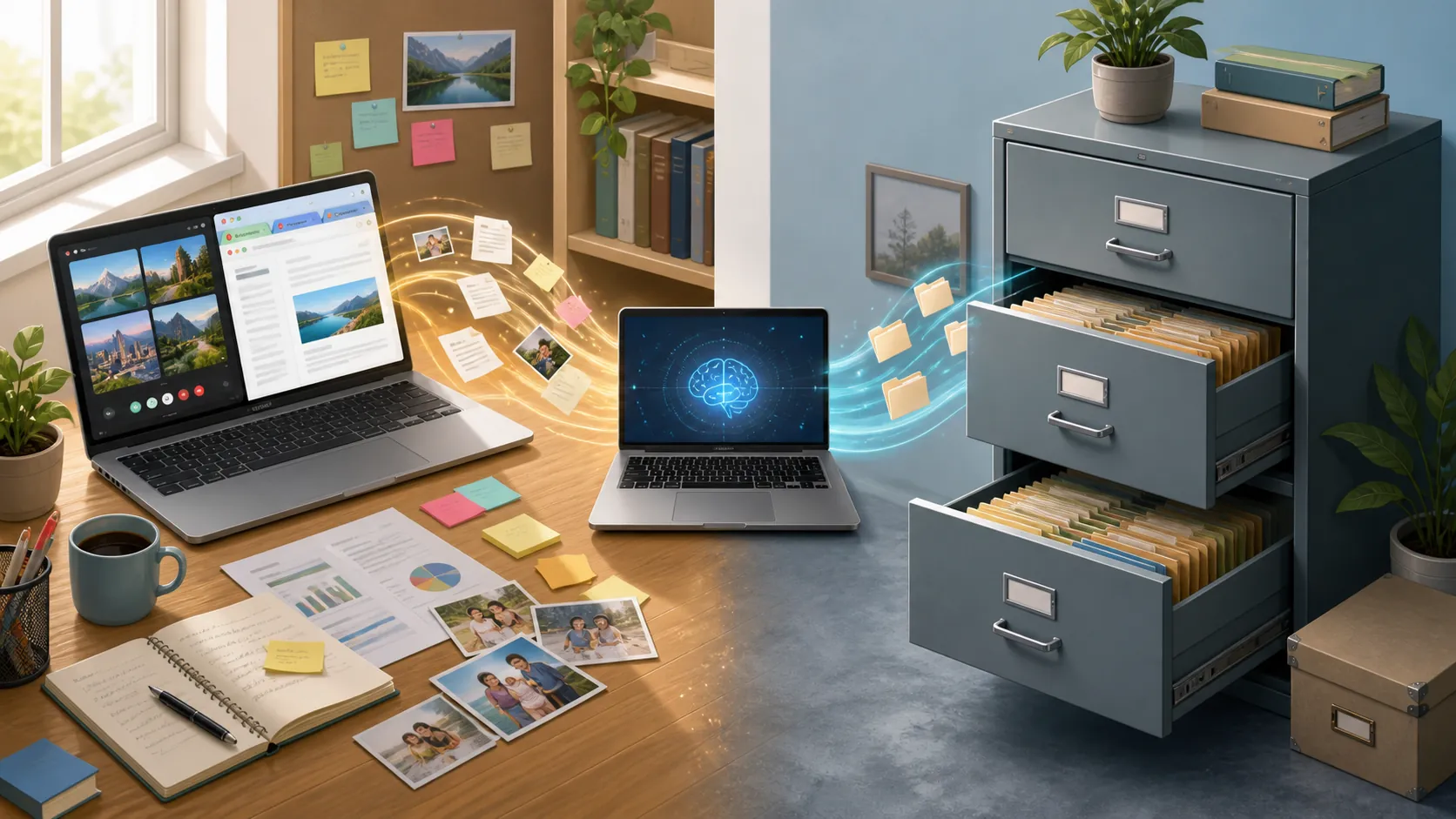
Memory Means Two Different Things
The confusing part is that RAM and storage are both measured in gigabytes. On a spec sheet, “8GB memory” and “256GB memory” can look like competing versions of the same feature. They are not.
Think of RAM as the desk where the computer is working right now. Open email, a telehealth appointment, a video call, several browser tabs, and a photo folder, and all of them need space on that desk. More RAM gives the laptop more active working room, which is why it affects how smoothly several tasks can stay open together.
Storage is the filing cabinet. It holds documents, downloaded files, applications, photos, and the operating system even when the laptop is turned off. A larger filing cabinet lets you keep more things, but it does not automatically make the desk larger or the current work faster. [2]
That distinction explains why a laptop advertised with 512GB can still feel sluggish. The 512GB may refer to storage, while the same machine has only 8GB of RAM. The computer has a generous filing cabinet but a crowded desk.
How Much RAM Is Enough?
For a Windows or Mac laptop used for email, web browsing, online banking, video calls, photos, and telehealth, 16GB of RAM is the sensible buying target in 2026. It gives everyday tasks more breathing room and is less likely to become the limiting factor as software and browser habits grow.
8GB is the floor rather than the comfortable choice. It can handle light use, but the margin narrows when a person leaves many tabs open, joins a video call while other programs are running, or lets updates and background services compete for memory. The laptop may still complete each task, but switching between them can become noticeably less comfortable. HP's 2026 guidance describes 8GB as a minimum for everyday use and 16GB as the recommended level. [1]
ChromeOS is the main exception. Because Chromebooks generally rely more heavily on browser-based work and have a different operating-system environment, 8GB can still be sufficient for ordinary browsing, email, streaming, and video calls. That does not make every 8GB Chromebook equally capable, but it does mean the operating system belongs in the decision.
The practical rule is straightforward: choose 16GB when the laptop is expected to last several years, when the buyer keeps tabs open, or when an adult child wants fewer performance complaints later. Choose 8GB only when the use is genuinely light, the price difference matters, and the machine's other limitations are understood.
Check whether the RAM is upgradeable before assuming it can be fixed later. Many thin-and-light laptops use soldered RAM, which means the memory cannot be replaced or expanded after purchase. In that situation, the amount installed on day one is the amount the laptop will have for its entire useful life. [1][3]
Storage: 256GB Is Usually Plenty
For many older adults, a 256GB SSD is a comfortable storage floor. It leaves room for the operating system, applications, documents, downloads, and a useful collection of photos without pushing the buyer into a large drive simply because the number sounds reassuring. Lenovo identifies 256GB SSD configurations as a common fit for documents, photos, and applications. [3]
An SSD is preferable to an older HDD because it has no spinning disk and generally provides quicker startup and file access. That improves the feel of the laptop, but it is a different improvement from adding RAM. An SSD can make opening the computer and loading files faster; it does not create more workspace for multiple open tasks.
Smaller 64GB to 128GB SSD configurations can be enough for very light use centered on browsing, documents, and a modest photo collection, particularly when streaming and cloud services hold much of the content. Dell gives that narrower use case as an example of where 64GB to 128GB may be ample. [4] The tradeoff is less spare room for updates, downloads, and locally stored photos, so the buyer needs to be comfortable managing space.
Check the Current Laptop Before Replacing It
A slow laptop does not always need to be replaced. First find out whether RAM is actually under pressure during the tasks that feel slow.
- On Windows, press Ctrl+Shift+Esc to open Task Manager, select Performance, and choose Memory. Watch the percentage while the usual browser tabs, email, photos, or video-call software are open.
- On a Mac, open the Apple menu, choose About This Mac, and check the Memory entry. This shows how much RAM is installed; Activity Monitor can then show how heavily memory is being used during normal work.
- Repeat the check during the problem, not immediately after a restart. If memory use stays above roughly 80 percent during ordinary work, RAM is a likely bottleneck. [1]
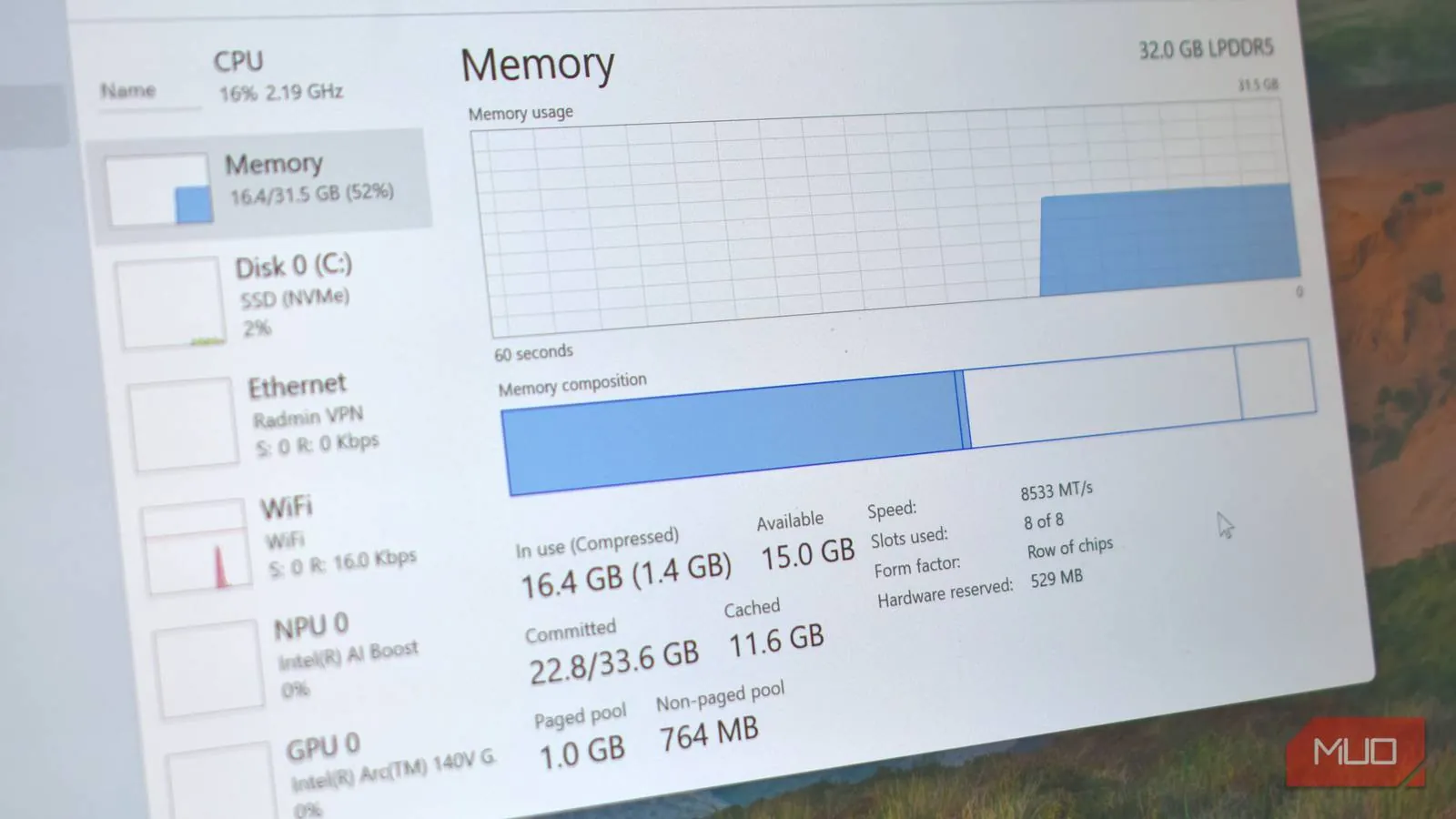
That check also helps separate RAM trouble from other causes. A nearly full storage drive, aging hardware, a slow internet connection, or an application problem can produce different symptoms. If memory use remains modest while the laptop is slow, buying more RAM may not address the real issue.
The Checkout Rule
When comparing laptops for an older adult, read the specification line by line instead of relying on the word “memory.” Confirm four things:
- The RAM amount: aim for 16GB on Windows or Mac; treat 8GB as the minimum, with more tolerance on ChromeOS.
- The storage amount: choose a 256GB or larger SSD for comfortable general use.
- The upgrade path: verify whether RAM is replaceable or soldered before purchase.
- The actual workload: include browser tabs, video calls, telehealth, banking, photos, and updates rather than describing the use as merely “basic.”
AARP's buying advice, published in 2022, also recommends buying more capacity than is needed immediately, including at least 16GB of RAM and an SSD. That is useful directional advice, but it is older guidance rather than a current independent test of 2026 laptops. [5]
The reason to leave this headroom is practical. Independent product reviews have noted that some budget laptops can feel sluggish within two to three years, even when they seemed adequate at purchase. [6] The person who notices that first may be the family member asked to investigate why the video call freezes or why the banking page takes so long to load.
So the useful answer to “best laptops for seniors with enough memory” is not a particular brand or a large storage number. For a typical 2026 purchase, look for 16GB of RAM, a 256GB or larger SSD, and confirmation that the RAM will not leave the buyer stuck with too little working room. Then check what the current laptop actually has before deciding whether replacement is necessary.
References
- How Much RAM Do I Need? A Guide for Every User (2026) — HP
- Understanding the Difference Between Memory and Storage — HP
- How Much RAM Memory Do I Need for My Laptop? — Lenovo
- What Are the Best Cheap Laptops for Seniors Who Just Want Simple Browsing and Email? — Dell
- Laptop Buying Guide: 5 Features to Look for in Your Next Computer — AARP, 2022
- The 7 Best Laptops for Seniors of 2026 — Wirecutter
Questions to bring to a clinician or OT
This is not medical, legal, or a family's final decision — only a framework. Bring these questions to a clinician, occupational therapist, or your local Area Agency on Aging.
Find Local HelpRelated reading
Noticed something outdated or inaccurate on this page? Flag a correction. We review every report against CDC, NIA, and AARP HomeFit guidance before updating a page.