
Caregiver decision guide
What's the Best Senior Smartphone for Accessibility Needs?
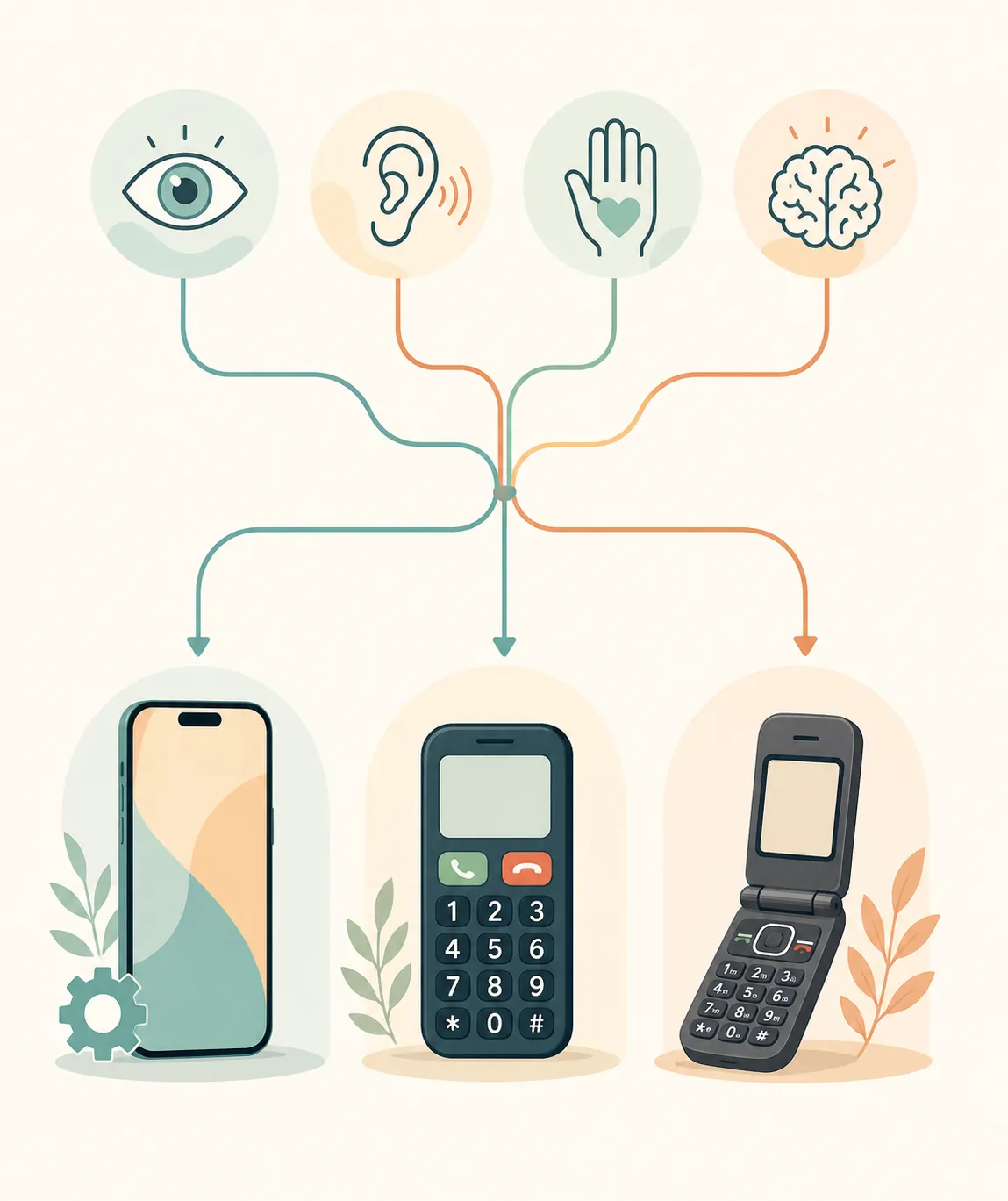
Choosing a phone for an older adult works best when you start with their primary accessibility need — vision, hearing, dexterity, or memory — instead of a generic best-of list. This guide maps each need to a phone category, from full-featured to caregiver-managed, and shows when configuring a phone they already own is the better first step.
The best smartphones for seniors with accessibility features are not a single shelf of “senior phones.” The better first question is narrower: what is the main thing the phone must make easier — seeing, hearing, touching, remembering, or getting help when something goes wrong?
That question matters because many older adults are not starting from zero. Pew Research Center reported that smartphone ownership among U.S. adults 65 and older reached 61% in 2021, while 96% of adults ages 18 to 29 owned smartphones in the same period.[1] The gap is real, but so is the adoption. Before a family spends money on a new device, it is worth asking whether the phone already on the kitchen counter can be made readable, louder, simpler, and safer.
Some 2025 estimates put ownership higher, but those figures should be checked directly against Pew’s own publication before they are used as a hard number. The safer conclusion is already enough: a large share of older adults already own smartphones, so configuration is often the first purchase decision.
Medical and safety note: this is equipment and setup guidance, not medical advice. A phone can support communication, emergency calling, location sharing, and reminders, but it cannot diagnose fall risk, cognitive change, hearing loss, or whether someone can safely live alone.
Start with the limitation, then choose the phone category
Families often argue about brand first. That usually skips the part that predicts daily success: whether the person can complete the task without help. A phone that technically has every feature may still fail if the owner cannot find the right screen after an update. A phone with fewer features may be the better tool if it prevents wrong taps, forgotten sequences, or weekly support calls.
| Primary need | What to test first | Likely best category |
|---|---|---|
| Vision | Can the person read caller ID, contacts, texts, menus, and emergency prompts without strain? | Full-featured smartphone with display settings, or simplified smartphone if menus remain too dense |
| Hearing | Can the person hear calls, use their hearing aids with the phone, and understand voicemail or captions? | Full-featured smartphone with verified hearing-aid compatibility and captioning support |
| Dexterity | Can the person unlock the phone, hit the intended control, charge it, and answer before the call drops? | Full-featured smartphone with voice/touch accommodations, or simplified smartphone with large controls |
| Memory or cognition | Can the person remember the sequence, avoid scam calls, and recover from wrong screens? | Caregiver-managed phone or basic calls-first phone |
| Low technology tolerance | Does the person want calls only and dislike updates, apps, and menus? | Basic flip phone or highly simplified smartphone |
| High technology tolerance | Does the person already text, use maps, take photos, or join video calls? | Configured iPhone, Pixel, or Galaxy |
This is also how serious reviewers tend to treat the category. Wirecutter, PCMag, SeniorLiving.org, and TheSeniorList do not all crown the same universal winner; they separate phones by profile — tech-comfortable users, people who prefer simplicity, users with cognitive decline, and people who mainly want reliable calls.[2][3][4][5]
Configure the phone in hand before buying a “senior” replacement
If the older adult already owns a recent iPhone, Google Pixel, or Samsung Galaxy, do not judge it by its factory setup. Judge it after someone has enlarged the text, reduced visual clutter, turned on the relevant hearing and touch accommodations, cleaned up the home screen, configured emergency information, and tested the phone with the person who will use it.
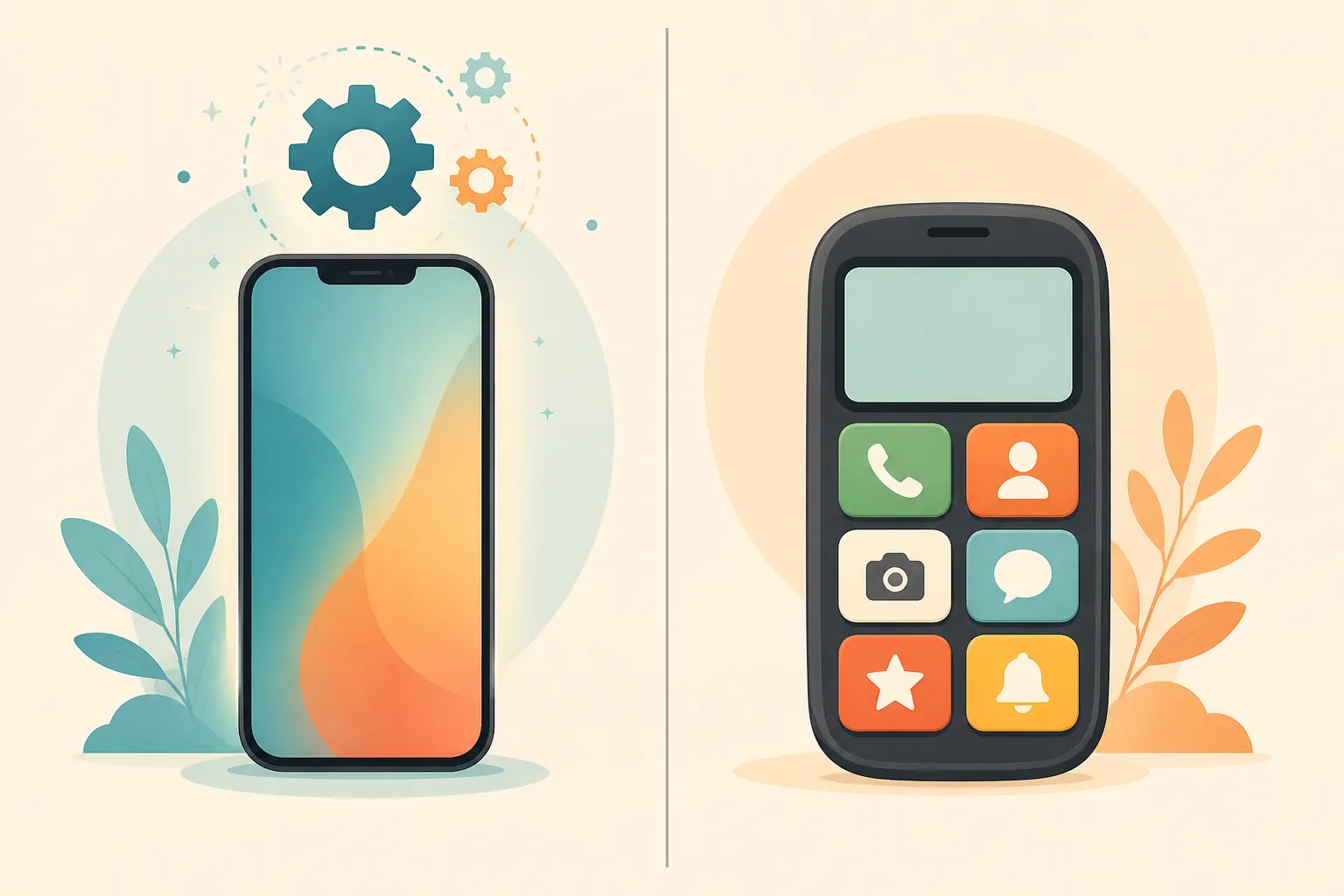
This is where mainstream phones have improved. Wirecutter’s testing found that the iPhone 16 lineup offered the most accessibility customization options both systemwide and per app, and its tested full-featured picks included the iPhone 16 Plus and Google Pixel 9.[2] That does not mean those are the only suitable models in 2026. It means the useful lesson from testing is broader than a model number: modern phones can often be adapted much further than families expect.
The model names in current roundups also do not line up cleanly. Wirecutter’s tested senior-phone picks reflect earlier-generation devices, while PCMag and SeniorLiving.org discuss newer examples such as iPhone 17 or 17e, Pixel 10a, Galaxy A57 or S26, and Jitterbug Smart5.[2][3][4] Treat that mismatch as a warning against buying by headline. Confirm the exact model, carrier version, operating-system version, accessibility feature, price, and hearing-aid rating before purchase.
Vision: make the information large, stable, and hard to miss
For vision, the job is not merely “big screen.” A large screen with tiny app labels, pale contrast, and notification clutter still creates work. The better test is whether the person can identify an incoming caller, open the right contact, read a short text, find the phone icon, and notice an emergency prompt in normal household lighting.
Start with the built-in display tools. Senior-friendly setup guides commonly recommend increasing text size, using bolder text or stronger contrast, enlarging display elements, simplifying the home screen, and placing essential contacts where they are easy to find.[6][7] On iPhone, this may mean larger text, display zoom, per-app display settings, spoken content, and a sparse home screen. On Android, it may mean display size, font size, magnification, high-contrast text, and a cleaned-up launcher.
If the person uses a Samsung Galaxy and wants fewer distractions, Easy Mode is one of the most practical mainstream-phone tools to test. Samsung lists the path as Settings > Display > Easy Mode, which enlarges on-screen items and changes the home-screen experience.[8] On iPhone, Assistive Access can present a more focused interface for selected apps and contacts, which can help when the normal home screen creates too many choices.[9]
Do the vision test after setup, not while standing at a carrier counter. Put the phone on a table, simulate a call from a family member, ask the person to read the caller name, answer, hang up, open contacts, and call back. If they need coaching for every step, a larger phone alone has not solved the problem.
Hearing: verify the phone with the hearing aid, not just the product page
For hearing, the most expensive phone is not automatically the safest choice. The questions are more specific: does it work with the person’s hearing aids, does the person understand the caller in a noisy room, can they use speakerphone comfortably, and would captioning help them complete calls independently?
In the U.S., hearing-aid compatibility is commonly discussed through M and T ratings. Phones rated M3/T3 or higher are generally considered hearing-aid compatible, while M4/T4 ratings indicate stronger compatibility.[4][10] Those ratings can vary by exact model, carrier variant, and firmware, so do not assume that a model name alone tells the whole story.
The regulatory direction is improving but does not remove the need to test. The Hearing Loss Association of America notes that the FCC adopted a rule in October 2024 requiring 100% of mobile handsets to be hearing-aid compatible after a transition period of 2 to 3.5 years, and it also emphasizes the consumer’s right to test a phone with their own hearing aid before buying.[11]
That last right is the practical one. Bring the hearing aids. Place and receive a real call. Try normal phone mode, speakerphone, Bluetooth if relevant, and any captioning app or live-caption feature the person expects to use. If a reviewer or salesperson says a phone is compatible, treat that as a starting point, not as proof for this person’s ears.
Dexterity: reduce precision work
Dexterity problems show up in small moments: missing the answer button, pressing two keys at once, struggling with Face ID or fingerprint unlock, dropping the phone while swiping, or failing to plug in a tiny charging cable. The solution may be a different phone, but it may also be a case, stand, charging dock, stylus, voice command, or simpler unlock method.
Mainstream phones are often strongest here if the person can tolerate the setup. Voice control, dictation, touch accommodations, longer press durations, back-tap shortcuts, virtual assistant commands, and one-tap calling can remove some fine-motor demands. Ability Central’s overview of iPhone and Android accessibility features includes tools such as AssistiveTouch, Voice Control, and Android accessibility shortcuts.[9]
The home environment matters too. If the person already uses smart speakers or could benefit from hands-free calling, medication reminders, or simple voice routines, connect the phone decision to the broader voice setup. The site’s guide to setting up Alexa voice commands for elderly parents is a useful companion when the problem is not only the phone screen but the number of small physical actions required throughout the day.
A quick dexterity test is more revealing than a specification sheet: ask the person to pick up the phone from a table, unlock it, answer a call, adjust volume, open a favorite contact, place a call, use speakerphone, and put it back on the charger. Watch the whole sequence. The weak point may be the phone, the case, the charger, the menu design, or the number of steps.
Memory and cognition: fewer choices may be safer than more features
Memory and cognitive changes change the phone decision more than any other category. A person may be able to press a large button but still become lost after a notification opens the wrong screen. They may answer calls but be vulnerable to scam callers. They may forget how to return to the home screen, accidentally change settings, or call the wrong person repeatedly.
This is when a full-featured smartphone can become too flexible. A locked-down home screen, selected contacts, call blocking, location sharing, and caregiver-managed settings may matter more than app choice. For some users, iPhone Assistive Access or Samsung Easy Mode is enough. For others, a purpose-built caregiver-managed phone is more realistic because it removes the menu system almost entirely.
Do not frame that move as taking independence away. If the person’s real goal is “I want to reach my daughter, my doctor, and 911 without getting stuck,” a simpler interface may preserve more independence than a powerful phone that creates panic every week.
How the main phone categories fit real households
Once the primary need is clear, the product categories make more sense. The examples below are not a ranking. They are reference points for different kinds of users. Prices, activation fees, plan costs, service features, storage, and carrier availability change frequently, so treat all mid-2026 figures as details to recheck before paying.
Full-featured smartphones: iPhone, Pixel, and Galaxy
This is the best starting category for older adults who already use apps, text family, take photos, use maps, or want video calls. It is also the best first stop when the person already owns a capable phone and the family has not tried accessibility settings yet.
An iPhone may be attractive when family members already use Apple devices, because support, location sharing, FaceTime, Medical ID, Emergency SOS, Check In, and Apple Watch pairing can all sit in the same ecosystem. A Pixel or Galaxy may make more sense for someone already comfortable with Android, Google services, Samsung Easy Mode, or a carrier plan tied to Android devices. The brand matters less than whether someone will configure it and be available when an update changes what the older adult sees.
This category is the most flexible and the easiest to overbuy. If the person wants only calls and becomes frustrated by layered menus, flexibility turns into support burden.
Simplified smartphones: Jitterbug Smart5 as an example
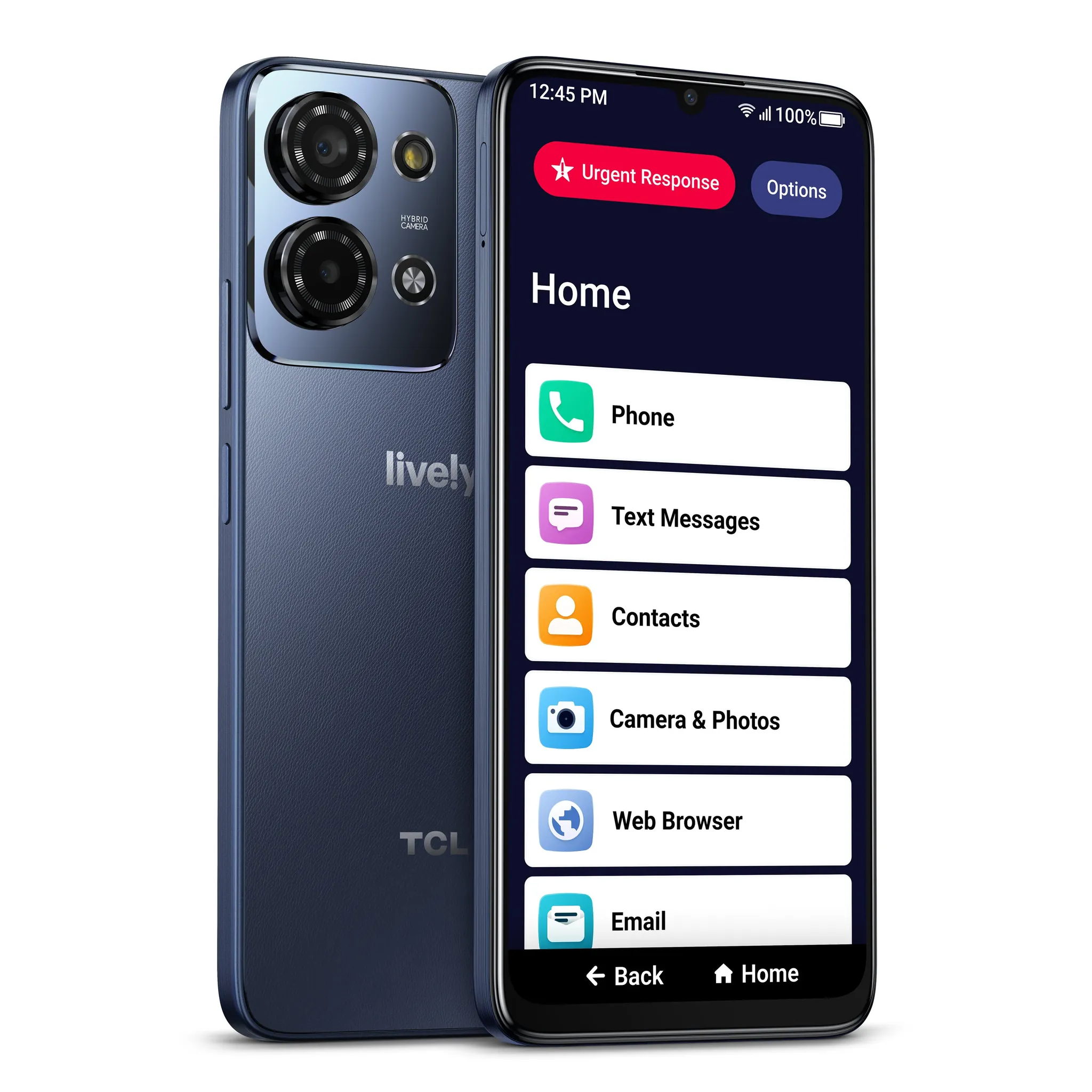
A simplified smartphone is for someone who still wants a touchscreen, photos, texting, and some smartphone functions, but does not want the dense layout of a standard iPhone or Android setup. The Lively Jitterbug Smart5 is a useful example of this tier: current review materials describe it as a 5G smartphone with Wi-Fi calling, a large-text list-based menu, 128GB of storage, and optional 24/7 Urgent Response services tied to monthly plans.[3][4]
Mid-2026 review figures place the Jitterbug Smart5 around $119.99, with optional service plans commonly described in the $19.99 to $49.99 per month range.[3][4] Those numbers should be verified before paying, including activation fees, taxes, emergency-service terms, and whether the plan supports the features the family expects.
The tradeoff is predictable: simpler menus can reduce confusion, but the user may give up some flexibility, app choice, carrier choice, or ecosystem integration. That may be a good trade if the person wants a phone that feels less like a small computer.
Caregiver-managed phones: RAZ Memory Cell Phone as an example
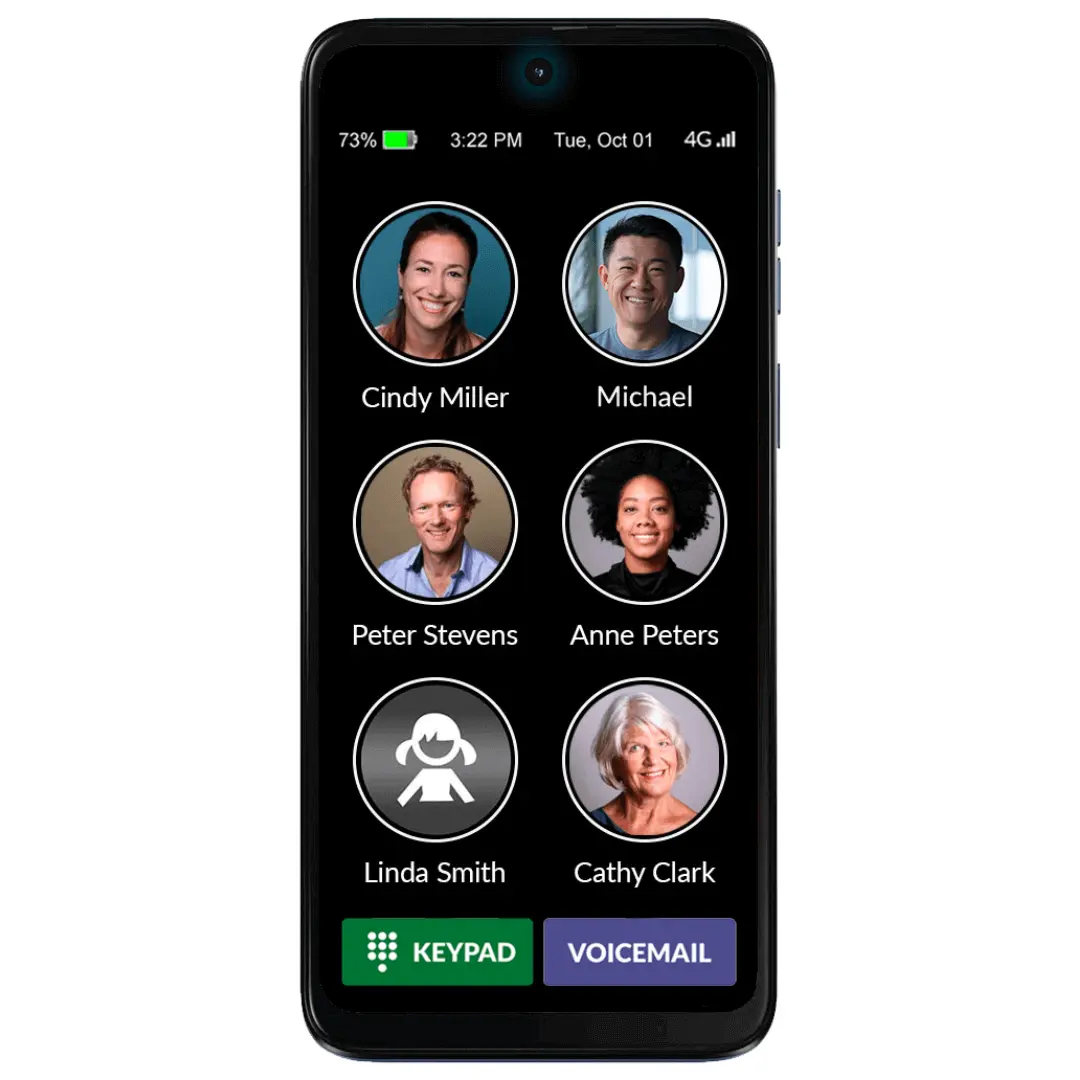
A caregiver-managed phone is not mainly for someone who wants a normal smartphone with larger text. It is for a person who needs the phone to stay almost the same every time they pick it up. RAZ Mobility describes the RAZ Memory Cell Phone as using photo-based tap-and-hold dialing, a single static home screen, GPS, and remote caregiver management through the RAZ Care app.[12]
Vendor-reported mid-2026 pricing places the RAZ Memory Cell Phone roughly in the $349 to $369 range, with optional emergency service described at about $99.99 per year.[12] Because those details come from a vendor-affiliated source and service terms can change, verify the device price, service cost, cellular compatibility, emergency-service process, and return policy before treating it as current.
This category makes sense when the caregiver’s ability to manage the phone remotely is part of the safety plan. It is not the right answer for every older adult with mild forgetfulness. It is a better fit when repeated wrong-screen problems, scam-call risk, or inability to navigate menus are already visible.
Basic flip phones: calls first, fewer distractions
A basic flip phone is still a reasonable choice when the person wants voice calls, a physical keypad, long standby time, and fewer app distractions. Current senior-phone roundups include calls-first examples such as the IRIS Easy Flip and Jitterbug Flip3.[3][4][5]
The tradeoff is that a basic flip phone may not support the family’s desired safety features in the same way a smartphone does. Location sharing, video calls, caregiver apps, medical ID screens, rich texting, and some emergency features may be limited or absent. If the family wants those features, be honest about who wants them and who will maintain them.
The handoff setup matters as much as the phone
A phone is not ready when the receipt prints. It is ready when the older adult can use it on a bad day and the helper knows what has been turned on, what has not, and what will happen in an emergency.
- Set up emergency calling: confirm Emergency SOS or the device’s equivalent, then practice the button sequence without actually placing an emergency call.
- Add lock-screen medical information: include emergency contacts, major conditions, allergies, and medications only if the older adult consents and understands where the information appears.
- Configure trusted contacts: pin or favorite the people the user calls most often, and remove old or confusing duplicate contacts.
- Decide on location sharing: make it consent-based when possible, and explain who can see location and when.
- Test Check In or similar trip-arrival features if the person walks, drives, or takes transit independently.
- Turn on accessibility settings one at a time: too many changes at once can make the phone feel unfamiliar.
- Write down the support plan: who resets passwords, who pays the bill, who handles carrier problems, and who gets called when the phone behaves strangely.
For iPhone households, the site’s detailed guide to configuring iPhone safety features for seniors is the better place to walk through Emergency SOS, Medical ID, satellite SOS, Crash Detection, and the important distinction between phone features and Apple Watch fall detection.
That distinction deserves attention. The National Council on Aging describes Apple Watch hard-fall detection as detecting a hard fall, sounding an alarm, waiting about one minute if the wearer remains immobile, starting a 30-second countdown, and then calling emergency services with location if the alert is not canceled.[13] NCOA also notes that Apple Watch requires an iPhone, ranges from $249 to $799, and connects to 911 rather than to a medical-alert monitoring center.[13]
So do not let “the phone has emergency features” become false reassurance. A smartphone can help a person call, share location, and display medical information. It does not make the home safer by itself, and it does not replace a fall-response plan. If falls are already part of the concern, pair the phone setup with a practical emergency-readiness review, such as the site’s fall scenario guide for what to do when a parent falls on a sidewalk.
A short test-before-you-buy routine
Before buying a new phone, run the same routine on the current phone after basic accessibility setup. If it fails, run it again on the candidate phone. The point is not to admire features. The point is to find the step where independence breaks.
- Read the screen: caller name, contact list, short text message, battery level, and emergency prompt.
- Hear a real call: test with hearing aids, speakerphone, Bluetooth if used, and captions if needed.
- Answer under mild pressure: let the phone ring and see whether the person can answer before voicemail.
- Call back without coaching: from missed call, from contacts, and from a favorite or photo button.
- Charge the phone: plug it in or place it on the charger correctly.
- Recover from a wrong screen: open an unrelated app or menu and see whether the person can return home.
- Use the emergency path: practice the button sequence or screen path without placing an actual emergency call.
If the current phone passes after configuration, spend the money on a better case, charger, stand, hearing-aid-compatible accessories, or caregiver setup time. If it fails because the interface remains too complex, then a simplified smartphone, caregiver-managed phone, or basic flip phone is not a downgrade. It is a better match.
What to verify before paying
The senior-phone market is full of small details that change the real cost and usefulness. Before buying, verify the exact model number, carrier compatibility, return window, activation fee, monthly plan, emergency-service fee, cancellation terms, hearing-aid rating, software-update policy, and whether the family can manage settings remotely if that is part of the plan.
For hearing-aid users, check the specific handset in the manufacturer’s materials or FCC database and test it with the person’s own hearing aid. For service-based phones, read what happens when the emergency button is pressed: whether it calls 911, a monitoring center, a family contact, or a vendor service. Those differences matter during a real emergency.
The cleanest decision is usually the least dramatic one: start with the person’s main limitation, configure a capable phone they already own when possible, and buy a purpose-built senior phone only when simplicity, static screens, physical controls, or caregiver management matter more than flexibility.
References
- Share of those 65 and older who are tech users has grown in the past decade, Pew Research Center, January 13, 2022
- The Best Cell Phones for Older Adults, Wirecutter
- The Best Phones for Seniors, PCMag
- Best Cell Phones for Seniors, SeniorLiving.org
- Easiest Cell Phones for Seniors, TheSeniorList
- Smartphone Accessibility Features for Seniors, ClearCaptions
- How to Set Up a Senior-Friendly Smartphone, All Seniors Foundation
- Using Easy Mode, Samsung Support
- 10 iPhone and Android Accessibility Features You Need to Know About, Ability Central
- Best Smartphones for Hearing Loss and Hearing Aids, HearingTracker
- Phones and Mobile Devices, Hearing Loss Association of America
- 4 Simple Cell Phones for Seniors: A Review, RAZ Mobility Assistive Technology Blog
- Apple Watch as Medical Alert System: What To Know, National Council on Aging
Questions to bring to a clinician or OT
This is not medical, legal, or a family's final decision — only a framework. Bring these questions to a clinician, occupational therapist, or your local Area Agency on Aging.
Find Local HelpRelated reading
Noticed something outdated or inaccurate on this page? Flag a correction. We review every report against CDC, NIA, and AARP HomeFit guidance before updating a page.