Caregiver decision guide
Stop Spam Calls on iPhone for Seniors Without Blocking the Doctor
A complete guide for caregivers to set up a multi-layer spam call blocking system on a senior's iPhone using iOS 26's Ask Reason for Calling, carrier tools, and other settings — without accidentally blocking calls from doctors, pharmacies, or family members.
The hard part of learning how to block spam calls on iPhone for seniors is not finding the strongest block. It is keeping the phone useful after you do it. A widowed parent may get calls from a cardiology office, an imaging center, a pharmacy delivery desk, an insurance reviewer, or a specialist using a number nobody has saved. If every unfamiliar caller goes straight to voicemail, the phone gets quieter, but the person you are trying to protect can also become harder to reach.
That is why the best first layer in 2026 is not the old “silence everything unknown” setting by itself. On an iPhone running iOS 26, Apple’s Ask Reason for Calling can make an unknown caller state who they are and why they are calling before the phone rings.[1] Six Colors described this iOS 26 call-screening option as the better fit for people who still need calls from numbers they do not recognize.[2]
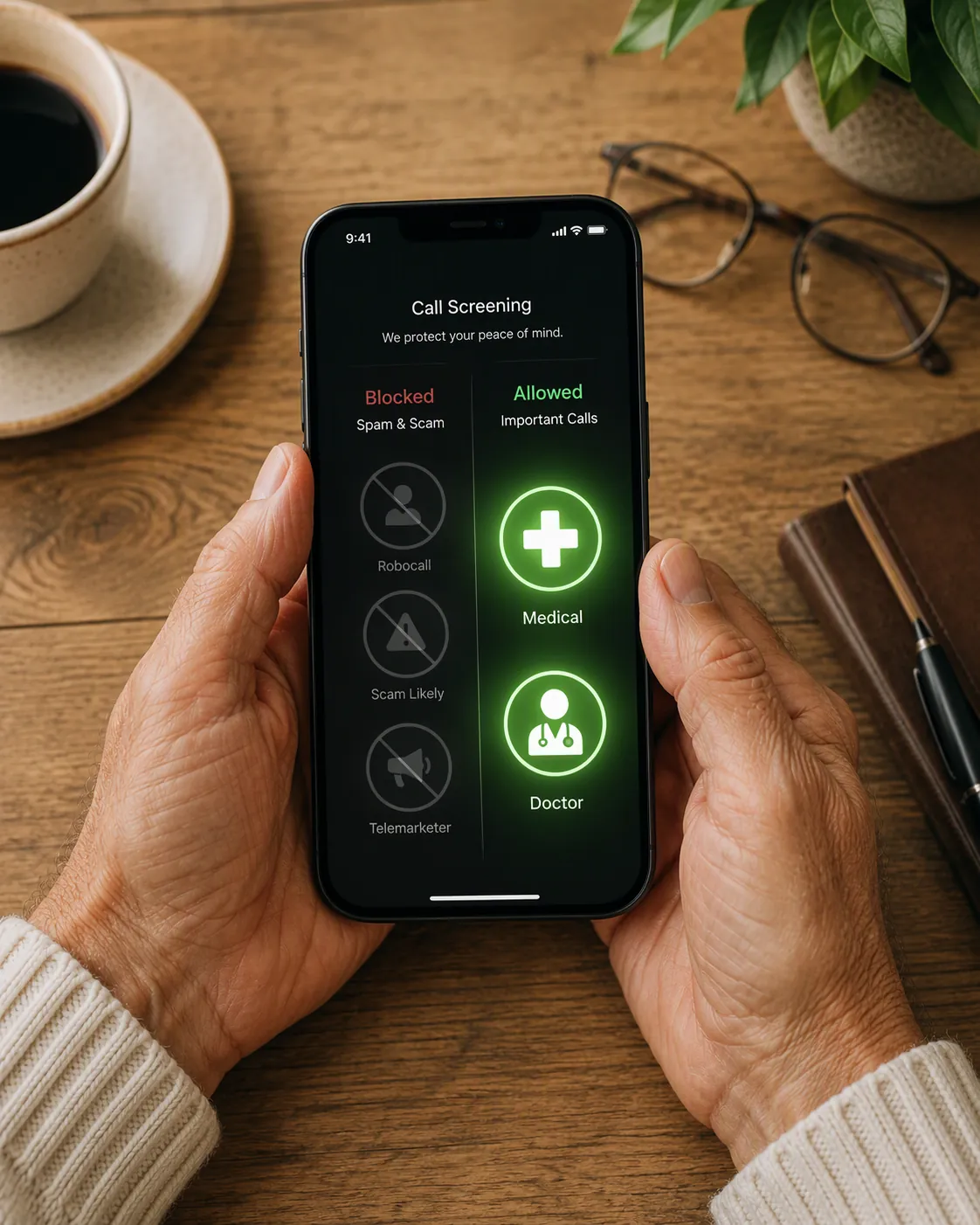
Spam calls are not a small nuisance for older adults. Monthly robocalls reached 2.56 billion through September 2025, a six-year high and 20% above 2024 levels, according to U.S. PIRG Education Fund and YouMail data.[3] Older adults lost more than $3 billion to fraud in 2025 across all fraud channels, not just phone calls.[4] For scam calls specifically, victims lost an average of $3,690 in the first half of 2025.[3]
The most exhausting version of this problem is not theoretical. During Medicare open enrollment, one Pennsylvania senior reported getting 50 to 60 Medicare scam calls per weekday, and he said he could not use Silence Unknown Callers because it “would filter out some medical calls.”[5] That is one person’s case, not an average. But it captures the practical bind: the phone cannot become a trap, and it cannot become a locked door either.
The Setup That Protects Without Cutting People Off
Use the iPhone like a layered screen door. First, make unknown callers explain themselves before the phone rings. Then turn on Apple’s built-in spam filtering. Then add the wireless carrier’s network-level filter. After that, block repeat offenders one by one. Only add a separate call-blocking app if those layers still leave too many calls coming through.
| Layer | What it does | Why it matters for seniors |
|---|---|---|
| Ask Reason for Calling | Screens unknown callers before the iPhone rings | Lets a medical office identify itself instead of being buried with spam |
| Built-in spam filtering | Labels or filters suspected spam in iPhone call settings | Reduces obvious junk without changing every contact |
| Carrier call filter | Blocks or labels scam calls before they fully reach the phone | Adds protection outside the iPhone itself |
| Manual blocking | Blocks repeat numbers from Recents | Stops the same nuisance number from calling again |
| Optional third-party app | Adds another spam database or call-identification layer | Useful only if the simpler layers are not enough |
Start With Ask Reason for Calling
Before changing anything, check the iPhone version. Ask Reason for Calling is an iOS 26 feature, so it will not appear on older iOS versions. On the senior’s iPhone, open Settings, tap General, then tap Software Update. If iOS 26 is available and the phone can install it, do the update at a time when the senior does not need the phone for an expected appointment call.
After the iPhone is on iOS 26, open Settings and go to the Phone settings. In the unknown-caller options, choose Ask Reason for Calling. Apple says this setting asks unknown callers to state their name and reason before the call is put through.[1] In everyday terms, the caller has to pass a small courtesy test before interrupting breakfast, a nap, or a blood pressure check.
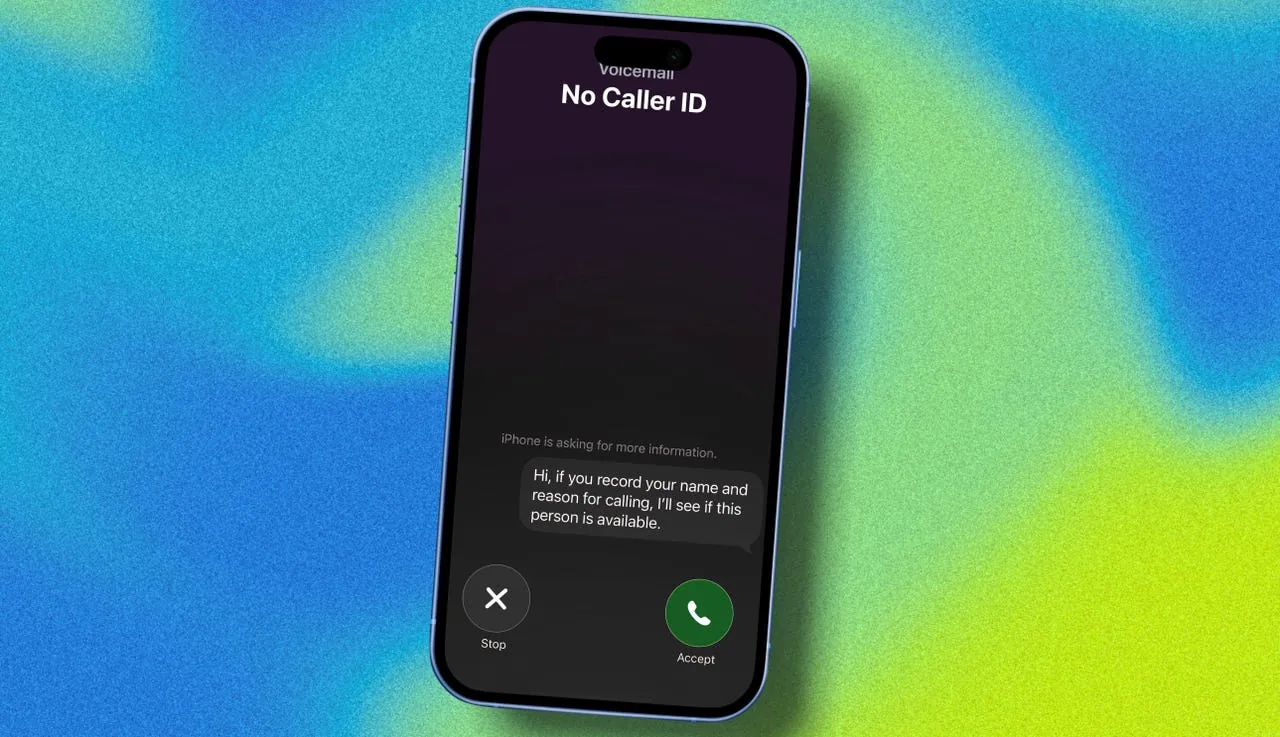
This is the layer to spend time testing. Use another phone that is not saved in the senior’s contacts. Call the iPhone. Watch what happens. The goal is not just to see whether the feature turns on; the goal is to know what your parent will see, what sound the phone makes, and how an unknown but legitimate caller can still get through.
- Call once from a saved contact and confirm the iPhone rings normally.
- Call once from an unsaved number and confirm the screening step appears.
- Practice what a real caller might say: “This is Dr. Lee’s office calling about tomorrow’s appointment.”
- Show the senior what the screened call looks like, without rushing.
- Write down how to turn the setting off if it causes trouble.
If the senior gets anxious when the screen changes, leave a short note near the charging spot: “Unknown callers may be asked why they are calling. If it is important, they can say so.” That note is not decoration. It prevents the evening phone call where someone says, “You changed my phone and now I don’t know what it’s doing.”
How Silence Unknown Callers Fits Now
Silence Unknown Callers used to be the blunt instrument. It sends calls from unfamiliar numbers to voicemail, which can be useful for some people but risky for seniors who receive legitimate calls from unsaved medical numbers.[1] RAZ Mobility also warns about a second problem: seniors may return missed calls or voicemail numbers and end up reaching scammers themselves.[6]
On iOS 26, use Silence Unknown Callers only in a way that still gives unknown legitimate callers a path to explain themselves through Ask Reason for Calling. If the iPhone offers separate choices, avoid the harshest version until you have tested it with the senior’s real life: the clinic that calls from a central switchboard, the pharmacy that uses a delivery number, and the neighbor who borrows a phone when their own battery dies.
Turn On the iPhone’s Built-In Spam Filtering
After unknown-caller screening is working, stay in the Phone settings and look for Call Filtering or spam-filtering options. Apple’s call-management settings are meant to help handle unknown callers and unwanted calls at the system level.[1] Turn on the built-in spam filtering available on that iPhone, then test again with a saved contact and an unsaved number.
Do not judge the setup by one quiet afternoon. Spam calls come in waves. Give the change a few ordinary days, and ask the senior two concrete questions: “Did any doctor or pharmacy say they could not reach you?” and “Did the phone interrupt you less?” Those answers matter more than whether the settings screen looks tidy.
Add the Carrier Filter Next
Carrier tools are worth using because they can label or block suspicious calls before the call fully reaches the iPhone. The main U.S. carriers offer their own tools: AT&T ActiveArmor, Verizon Call Filter, and T-Mobile Scam Shield. Start with the free tier. A paid upgrade may add features, but the first caregiver job is to reduce danger without adding another subscription nobody remembers signing up for.
Install the carrier’s app from the App Store or open the carrier account app already on the phone. Sign in with the wireless account if needed. Look for call protection, scam blocking, spam filtering, or caller ID settings. Turn on the basic scam-blocking or spam-labeling feature first, then avoid changing several aggressive options at once.
- For AT&T, look for ActiveArmor.
- For Verizon, look for Call Filter.
- For T-Mobile, look for Scam Shield.
- For prepaid or discount plans, check availability before assuming the same controls exist.
Plan variation is the annoying part. A feature that appears on one family member’s postpaid line may be limited, renamed, or missing on a prepaid line. If the app tries to push a paid plan before the basic filter is even enabled, slow down. The senior needs fewer dangerous calls, not a more confusing phone bill.
Once the carrier filter is on, make one more test call from a saved contact. Then wait for normal use. If a known family member suddenly appears as “Potential Spam,” save that number properly in Contacts and check whether the carrier app allows trusted numbers or reporting a mistaken label.
Block Repeat Offenders From Recents
Manual blocking still has a place, but it should not be the whole plan. Scammers can change or spoof numbers, so blocking one number at a time will not keep up with every campaign. It is still useful for repeat nuisance calls, local-looking numbers that keep returning, and unwanted callers who are not part of a spoofed robocall wave.
- Open the Phone app.
- Tap Recents.
- Find the number you want to block.
- Tap the information button next to the number.
- Scroll down and tap Block Caller.
Before blocking, glance at the call history. If the number might belong to a clinic, pharmacy, home health agency, or insurer, do not block it just because it is unfamiliar. Look up the organization from an official website, a printed discharge sheet, a prescription label, or a saved portal message. Then save the correct number in Contacts if it is legitimate.
Use a Third-Party App Only If the First Layers Are Not Enough
A third-party spam-blocking app can help, especially when a senior is still getting frequent junk calls after iOS and carrier filtering are on. PCMag has described using call-blocking tools such as Hiya as part of a broader effort to silence spam calls.[7] Treat this as an optional layer, not the foundation.
The tradeoff is clutter. Another app can mean another dashboard, another permission prompt, another subscription offer, and another place where a setting might get changed. If you add one, choose a free tier first, turn on only the call-identification or spam-blocking features you understand, and write down the app name for whoever helps with the phone next.
The Callback Rule Matters as Much as the Settings
A safer iPhone setup can still be defeated by one rushed callback. The rule should be simple enough to remember under stress: do not call suspicious numbers back from Recents or voicemail. If a message says it is from Medicare, the bank, a doctor, a pharmacy, an insurer, or a family member in trouble, call back using a saved contact, a number on an official card, a patient portal, a prescription label, or the organization’s official website.
This matters because the old voicemail-first approach can push seniors into calling scammers back.[6] A voicemail that sounds urgent is not proof. A missed call with a local area code is not proof. A caller who knows a first name, a Medicare enrollment period, or the name of an insurance company is not proof either.
For a parent who handles many appointments, make the safe path easier than the risky one. Save the cardiologist, primary care office, pharmacy, preferred hospital, insurance customer service line, nearby relatives, and regular transportation contacts. Use plain labels: “Dr. Patel Cardiology,” “Main Pharmacy,” “Blue Plan Member Services,” “Daughter Maria.” A contact list is not just convenience; it is part of the call-blocking system.
Register the Number, But Do Not Rely on It
The National Do Not Call Registry is still worth doing as basic housekeeping. The FTC says it can help stop sales calls from legitimate companies, and the FCC also points consumers to steps for reducing unwanted robocalls and texts.[8][9] Registering does not stop illegal scammers who already ignore the rules, so it belongs near the end of the setup, not at the center.
Use the Registry for what it can do: reduce lawful telemarketing calls. Do not tell a senior, “Now the scam calls are handled.” That false confidence can make the next fake Medicare, bank, or pharmacy call more dangerous.
What to Check Before You Hand the Phone Back
Do not finish by admiring the settings. Finish by proving the phone still works for the senior’s actual life. Sit with the iPhone for a few minutes and verify three outcomes.
- Known family still rings through: call from a saved contact and make sure the sound, vibration, and banner behave normally.
- Unknown legitimate callers can explain themselves: call from an unsaved phone and confirm Ask Reason for Calling gives that caller a way to state why they are calling.
- Obvious spam is easier to ignore: check that iPhone spam filtering and the carrier filter are active, and show the senior what a spam label or screened call may look like.
If one of those tests fails, loosen the setup before adding more tools. The safest arrangement is not the harshest one. It is selective friction: unknown callers have to identify themselves, obvious spam gets filtered earlier, repeat offenders can be blocked, and the senior still has a working phone when the doctor’s office calls from a number nobody thought to save.
References
- Manage unknown callers on iPhone — Apple Support
- Step up blocking unwanted calls and texts — Six Colors, Jan 2026
- Ringing in Our Fears 2025: Robocalls hit 6-year high — U.S. PIRG Education Fund
- Top Scams Affecting Older Adults — FTC, May 2026
- How Scammers Target Older Americans With Fraudulent Medicare Calls — The New York Times, Dec 2025
- Phone Scams: A Guide to Protecting Seniors and How to Stay Safe — RAZ Mobility
- I Was Fed Up With Spam Calls. Here's How I Silenced Them for Good — PCMag
- How To Block Unwanted Calls — FTC
- Stop Unwanted Robocalls and Texts — FCC
Questions to bring to a clinician or OT
This is not medical, legal, or a family's final decision — only a framework. Bring these questions to a clinician, occupational therapist, or your local Area Agency on Aging.
Find Local HelpRelated reading
Noticed something outdated or inaccurate on this page? Flag a correction. We review every report against CDC, NIA, and AARP HomeFit guidance before updating a page.