Caregiver decision guide
iPhone SOS Mode? Simple Fixes for Seniors
If your iPhone shows SOS in the status bar, don't panic. This guide explains what SOS mode means, why emergency calls still work, and how to fix it with simple steps like toggling Airplane Mode or restarting your phone.
If your iPhone suddenly says “SOS” or “SOS Only” at the top of the screen, take a breath before you press anything else. It usually does not mean you broke the phone. It means your iPhone cannot reach your regular cellular carrier right now, but in the United States, Canada, and Australia it may still be able to call emergency services through another available network. [1]
That distinction matters. Your daughter may not be able to reach you on a normal call. A pharmacy call may fail. A text may sit there unsent. But the word “SOS” is a safety state, not a message that the phone is ruined.
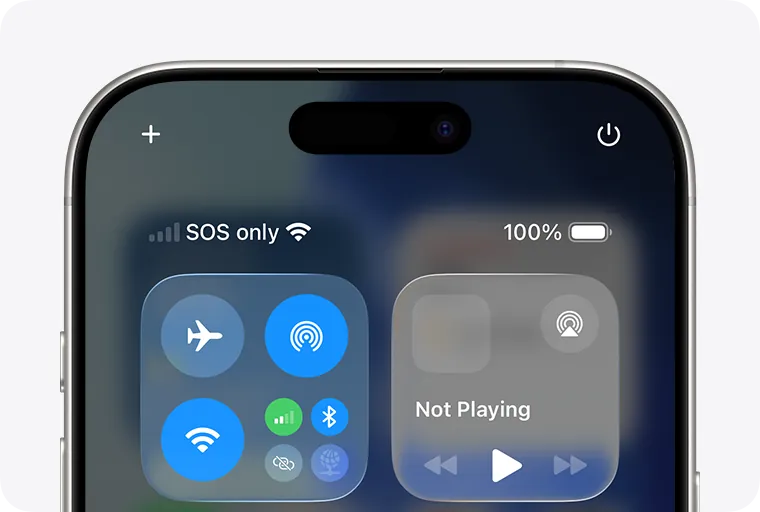
Start with the two fixes that are easiest to do at a kitchen table, in a parked car, or while someone talks you through it over the phone: turn Airplane Mode on and off, then restart the iPhone.
First, Try Airplane Mode
Airplane Mode briefly turns the phone’s wireless connections off, then lets the iPhone look for service again. Apple includes this as one of the first steps when an iPhone shows SOS or No Service. [1]
- Wake the iPhone so you can see the screen.
- Open Control Center. On most newer iPhones, swipe down from the top-right corner. On older iPhones with a Home button, swipe up from the bottom edge.
- Look for the orange airplane button. If it is gray, tap it once so it turns orange.
- Wait about 15 seconds. Count slowly if that helps.
- Tap the airplane button again so it turns gray.
- Wait another minute and look at the top of the screen. You are hoping to see your carrier name, signal bars, 5G, LTE, or another normal service mark instead of SOS.
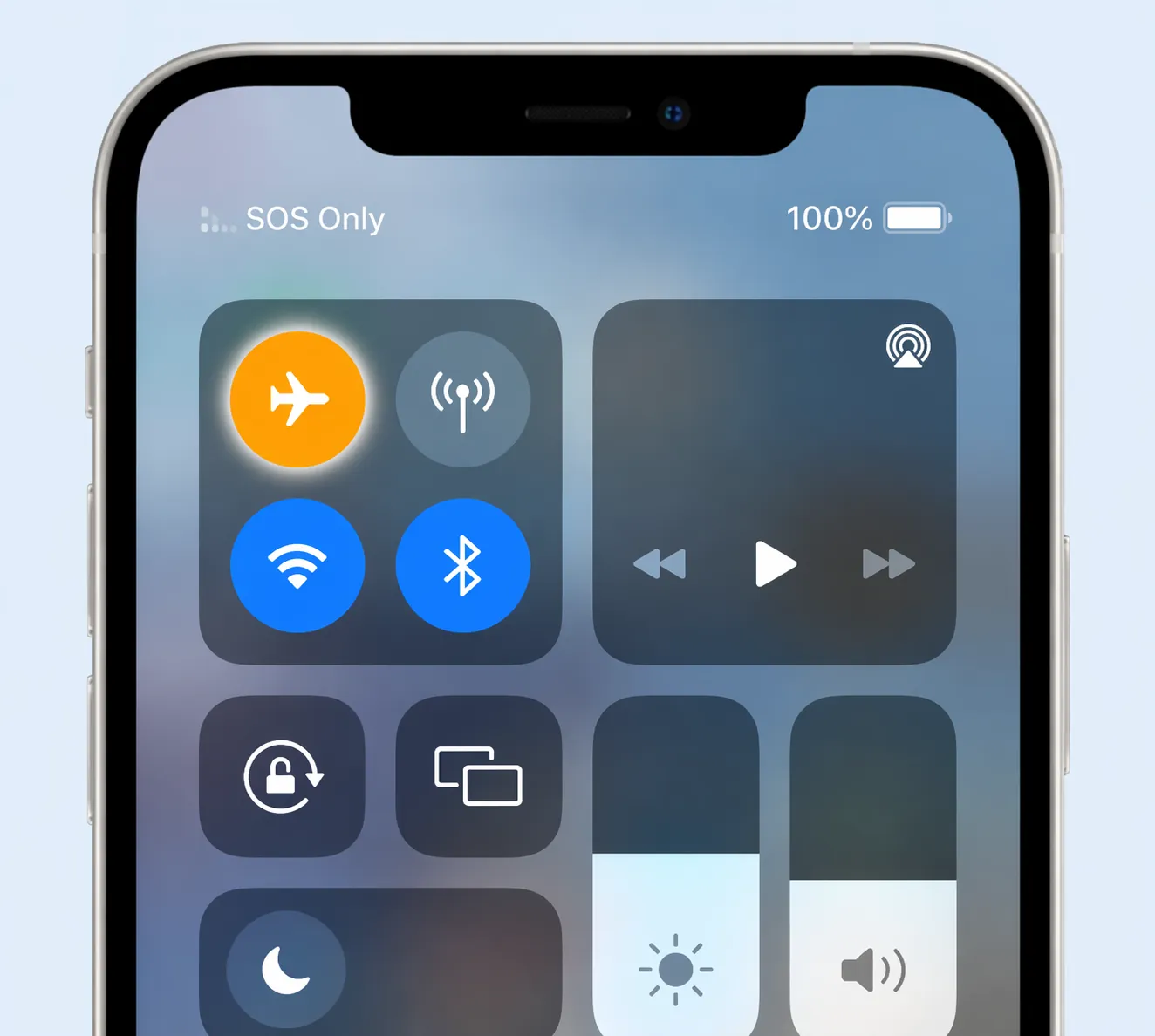
If the phone returns to normal, you can stop here. There is no need to dig through more settings just because you saw SOS for a few minutes.
If It Still Says SOS, Restart the iPhone
Restarting sounds almost too simple, but it is one of the official Apple steps for a phone that cannot connect to cellular service. [1]
For iPhones without a Home button
- Press and hold the side button and either volume button at the same time.
- When “slide to power off” appears, slide it.
- Wait about 30 seconds after the screen goes dark.
- Press and hold the side button again until the Apple logo appears.
- Let the phone finish starting. Then check the top of the screen.
For iPhones with a Home button
- Press and hold the side button or top button.
- When “slide to power off” appears, slide it.
- Wait about 30 seconds.
- Press and hold the same button again until the Apple logo appears.
- Wait for the phone to come back on, then look again for normal service.
If someone is helping from another city, this is a good moment for them to pause. The iPhone may take a little while to wake up and search for the carrier. Do not keep tapping while it is doing that.
Check the Simple Things Around You
If Airplane Mode and restart do not clear SOS, the next question is not “What did I do wrong?” It is “What is the phone able to reach from here?” CNET’s plain-language explanation describes SOS mode as the phone losing its normal cellular connection while still leaving emergency access available where supported. [2]
- Move near a window or step outside if it is safe. Thick walls, basements, elevators, and some medical buildings can weaken cellular signal.
- Ask whether another person nearby with the same carrier has service. If they also have trouble, the issue may not be your phone.
- Make sure Cellular Data is on by going to Settings, then Cellular. The switch should be on.
- If you recently traveled, moved, changed carriers, or replaced a phone, the account or SIM setup may need attention.
None of these checks require you to erase anything. They simply help separate a weak-signal problem from a phone setting or carrier-account problem.
Look at the SIM or eSIM Only If the Easy Fixes Failed
Your iPhone uses either a small physical SIM card, an eSIM built into the phone, or both. If that connection to your carrier is not working properly, SOS may remain on the screen. Apple’s troubleshooting path includes checking for carrier settings and contacting the carrier when service does not return. [1]
| What you notice | What to do next |
|---|---|
| You recently changed carriers | Call the new carrier from another phone or use Wi-Fi to check whether activation is complete. |
| You dropped the phone or removed the SIM tray | If your iPhone has a physical SIM card, ask a steady-handed helper to make sure the tray is fully closed. |
| Your phone uses eSIM | Do not delete the eSIM unless your carrier tells you to. Removing it can make reconnection harder. |
| You see a carrier-settings message | Accept the carrier-settings update if the phone offers one. |
Avast’s consumer troubleshooting guide puts SIM checks after Airplane Mode and restart, which is a sensible order for most people because it keeps the first steps simple and reversible. [3]
Update iOS When You Have Wi-Fi and Time
If the iPhone is still stuck in SOS and you have a working Wi-Fi connection, check for an iOS update. Apple recommends updating the iPhone as part of troubleshooting cellular connection trouble. [1]
- Plug the iPhone into power if the battery is low.
- Connect to Wi-Fi.
- Open Settings.
- Tap General.
- Tap Software Update.
- If an update is offered, follow the prompts and let the phone finish.
This is not the step to start when you are standing in a parking lot or waiting for a ride. Do it when the phone can sit safely on a charger and you do not need it for the next several minutes.
Reset Network Settings Only After the Gentler Steps
Reset Network Settings can help when the iPhone’s stored connection information is tangled. Apple lists it as a troubleshooting option, but it deserves a warning before you tap it. [1]
This reset does not erase your photos, contacts, or apps. It does erase saved Wi-Fi networks and passwords, cellular settings, VPN settings, and similar network information. If you do this at home, make sure you know your Wi-Fi password or have it written down.
- Open Settings.
- Tap General.
- Tap Transfer or Reset iPhone.
- Tap Reset.
- Tap Reset Network Settings.
- Enter the passcode if asked, then let the phone restart.
After the phone comes back on, reconnect to Wi-Fi if needed and check whether SOS has disappeared.
When to Call the Carrier or Apple
If the iPhone still says SOS after Airplane Mode, restart, a better location, cellular checks, an update if available, and a network reset, it is time to hand the problem to someone with account or repair tools.
- Call your cellular carrier if you recently changed plans, changed phones, traveled, missed a bill notice, or use eSIM.
- Ask the carrier whether there is an outage, account hold, activation problem, SIM problem, or eSIM issue.
- Contact Apple Support or visit an Apple Store or authorized service provider if the carrier says the account and SIM are fine.
- If you feel unsure, ask a trusted helper to sit with you. The goal is not to prove you understand every setting; it is to get your daily phone service back.
Use another phone, Wi-Fi, or a computer for those calls if your iPhone cannot make regular calls. If there is an immediate emergency, use emergency calling first.
Safety Setups for Another Day
Once normal service is back, there are a few settings worth reviewing when you are calm and not trying to fix SOS in a hurry.
Turn on Wi-Fi Calling if your carrier supports it
Wi-Fi Calling lets the iPhone make and receive calls over a Wi-Fi network when cellular coverage is weak. On an iPhone, the setting is under Settings, Phone, then Wi-Fi Calling. [1]
This is especially useful in homes where one room gets poor signal but the internet works well. Have your Wi-Fi password nearby before you start.
Know whether your iPhone has satellite emergency help
Emergency SOS via Satellite is available on iPhone 14 and newer models in supported countries; Engadget reported availability in 18 countries, citing Apple. [4]
That feature is not on older iPhones, so do not worry if you cannot find it. It is a newer backup for certain situations when cellular and Wi-Fi are unavailable, not the main fix for ordinary SOS mode.
Set up Medical ID
Medical ID can show important health information from the iPhone’s emergency screen, such as emergency contacts or medical notes you choose to enter. Senior-focused coverage has highlighted Medical ID as a useful preparation step for older adults. [5]
Do this with a trusted person if you prefer. It is not part of fixing SOS mode today, but it can help make the phone more useful in a real emergency.
A Calm Order to Follow
| Step | What to try |
|---|---|
| 1 | Remember that SOS usually means lost carrier service, not a broken phone. |
| 2 | Turn Airplane Mode on, wait about 15 seconds, then turn it off. |
| 3 | Restart the iPhone and give it a minute to reconnect. |
| 4 | Move to a better signal area and check Cellular settings. |
| 5 | Check carrier, SIM, or eSIM issues if service still does not return. |
| 6 | Update iOS when you have Wi-Fi and enough time. |
| 7 | Reset Network Settings only after writing down your Wi-Fi password. |
| 8 | Call the carrier or Apple if SOS remains. |
Most of the time, the safest first steps are not advanced settings. Try Airplane Mode, restart the iPhone, and give it a patient minute to find the carrier again. If those do not work, the next step is help from the carrier or Apple, not blame.
References
- If you see No Service, Searching, or SOS on your iPhone or iPad, Apple Support
- iPhone SOS Mode Explained, CNET
- iPhone SOS Mode, Avast
- iPhone stuck in SOS mode? Here’s how to fix it, Engadget
- Why setting up Medical ID on iPhones matters for older adults, Tribune Chronicle, 2025
Questions to bring to a clinician or OT
This is not medical, legal, or a family's final decision — only a framework. Bring these questions to a clinician, occupational therapist, or your local Area Agency on Aging.
Find Local HelpRelated reading
Noticed something outdated or inaccurate on this page? Flag a correction. We review every report against CDC, NIA, and AARP HomeFit guidance before updating a page.