
Caregiver decision guide
Should seniors upgrade their iPhone for accessibility?
Most accessibility features work on iPhone 11 and later — find out when a hardware upgrade actually makes sense for your aging parent.
If you are asking whether seniors should upgrade an iPhone for accessibility features, the practical answer is usually no. If your parent’s phone is an iPhone 11 or newer and it can run iOS 17 or later, start by configuring the phone they already know. iOS 26 still reaches back to the iPhone 11, so many families are not choosing between “old phone with no help” and “new phone with accessibility.” They are choosing between spending 20 careful minutes in Settings and buying another device that someone still has to set up afterward.[1]
That does not mean upgrades never make sense. It means the reason has to be specific: a physical shortcut button, crash detection, satellite emergency messaging, Apple Intelligence features, a failing battery, or performance trouble. “Senior-friendly” by itself is too vague to justify a $600–$1,200 purchase.
The Fast Decision Rule
Before shopping, check the model and the actual problem. The model tells you what software is available. The problem tells you whether a setting, a newer phone, or a different kind of device is more realistic.
| What is going wrong? | Try this first on the current iPhone | When hardware may matter |
|---|---|---|
| Text is too small, icons are hard to see, menus feel crowded | Display Zoom, larger text, bold text, contrast settings, Magnifier, Accessibility Reader where available | Upgrade only if the current screen size, battery, or performance is the real issue |
| Calls or alerts are missed | LED flash alerts, vibration patterns, louder ringtones, Sound Recognition, simpler notifications | Upgrade if the parent needs hardware emergency features such as crash detection or satellite SOS |
| Too many apps cause confusion | Assistive Access on iOS 17 or later, with a simplified home screen and reduced choices | A newer iPhone does not remove the main Assistive Access third-party app limitation |
| Tapping small targets is difficult | Touch accommodations, back tap, AssistiveTouch, Voice Control, Siri shortcuts where appropriate | Upgrade if a physical Action button would make one-tap access meaningfully easier |
| The parent wants AI help reading images, controlling the phone by natural language, or generating captions | Check what is available without Apple Intelligence first | Apple Intelligence accessibility features require iPhone 15 Pro or newer |
| The touchscreen itself is the barrier | Try a simplified setup only if the person is willing and able to practice | Consider a flip phone or different device category instead of another iPhone |
The uncomfortable part is that families often skip the middle column. They notice Dad missing calls, assume the phone is “too old,” and start comparing new models. But missed calls can come from Focus settings, quiet ringtones, tiny notification banners, hearing changes, or a home screen crowded with apps. A new phone can carry the same mess over from backup.
If It Is iPhone 11 or Newer, Configure First
The iPhone 11 matters because it is the practical cutoff for the current software path. AARP’s 2025 coverage of new phones notes that iOS 26 supports models back to the iPhone 11, which means phones from 2019 forward remain in the accessibility conversation rather than being automatically retired.[1]
The first setting to consider for cognitive load is Assistive Access, often described as a simplified iPhone experience for older adults. It works on any iPhone running iOS 17 or later, so the feature itself does not require a new phone.[2]
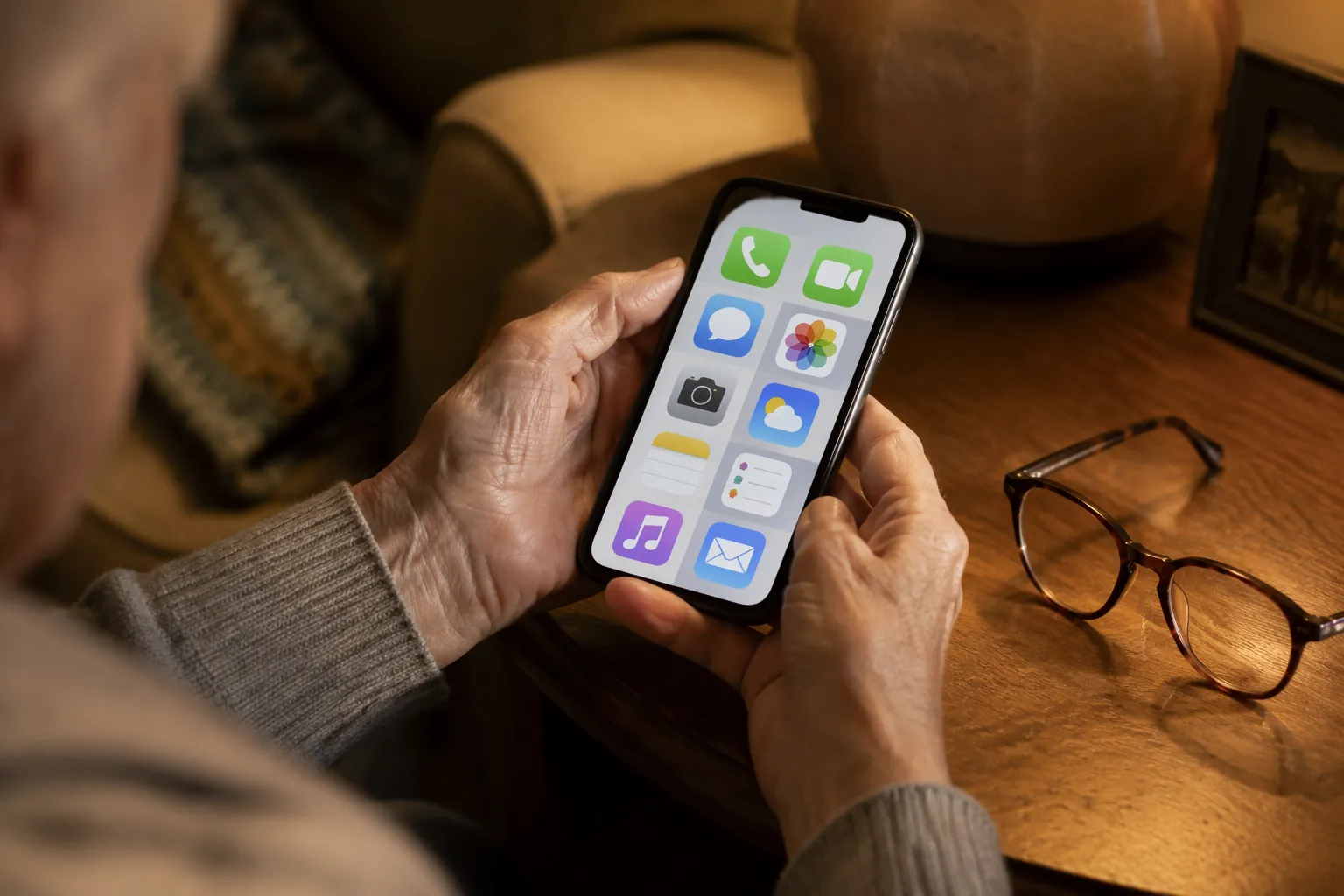
Assistive Access can make the iPhone look less like a pocket computer and more like a short list of intended actions: call, message, take a photo, look at photos, or play music. That can help when the daily failure is not “the processor is slow” but “Mom gets lost between apps before she can call anyone.”
There is a catch worth saying plainly. As of late 2025, The Senior List described Assistive Access as having five natively optimized apps: Calls, Messages, Camera, Music, and Photos. Third-party apps may still open in their standard interface.[2] So if the parent relies on a medication app, a senior center app, a telehealth portal, or a banking app, a newer iPhone will not magically make that app simple inside Assistive Access.
That limitation changes the purchase conversation. If the pain point is “too many choices before making a call,” Assistive Access may help on the existing phone. If the pain point is “the insurance app is impossible,” the issue may be the app experience, not the age of the iPhone.
Vision Problems Usually Do Not Require a New iPhone
For a parent who says the screen is too small, start with display settings before assuming the device is obsolete. Larger text, bold text, Display Zoom, button shapes, contrast controls, reduced transparency, and Magnifier are standard accessibility tools families can test without changing hardware. Fox Rehabilitation’s guide to hidden iPhone accessibility settings for older adults highlights settings such as Zoom, Magnifier, larger text, and spoken content as useful for age-related vision changes.[3]
VoiceOver is in a different category from simply making text larger. It changes how someone navigates the phone by speaking what is on screen and using gestures. For some older adults, that is liberating. For others, it is too much to learn late, especially if they are already anxious about touching the wrong thing. Try it with patience, not as a surprise setting that gets turned on and left for them to decode.
iOS 26 also brings accessibility additions such as Accessibility Reader, Sound Recognition with Name Recognition, and Share Accessibility Settings, according to AARP’s coverage.[1] Those are software reasons to update a supported phone, not automatic reasons to replace it.
Hearing and Alert Problems Are Often Settings Problems
When someone misses calls, the fix may be boring and effective: louder ringtone, vibration on ring, LED flash for alerts, fewer notification sources, and contacts set up so the important people can get through. Sound Recognition can also listen for certain sounds and notify the user, though it should not be treated as a substitute for purpose-built safety equipment.
Medical ID and Emergency SOS settings belong in this same pass. They do not make the phone easier to read, but they reduce the scramble when something goes wrong. The useful question is not whether the phone is new. It is whether emergency contacts, health details, and lock-screen access are actually configured.
Mobility Changes Need Fewer Taps, Not Necessarily a New Device
For shaky hands, arthritis, or slow tapping, look at Touch Accommodations, AssistiveTouch, Back Tap, Siri, and simplified home screens. The goal is to reduce precision work: fewer tiny icons, fewer swipes, fewer places where an accidental touch causes panic.
This is where a caregiver may need to sit beside the person and watch the actual failure. Are they missing the icon? Pressing too long? Forgetting which app to open? Getting stuck after an update prompt? Those are different problems. Buying a new phone before observing them can turn one known frustration into a larger unfamiliar one.
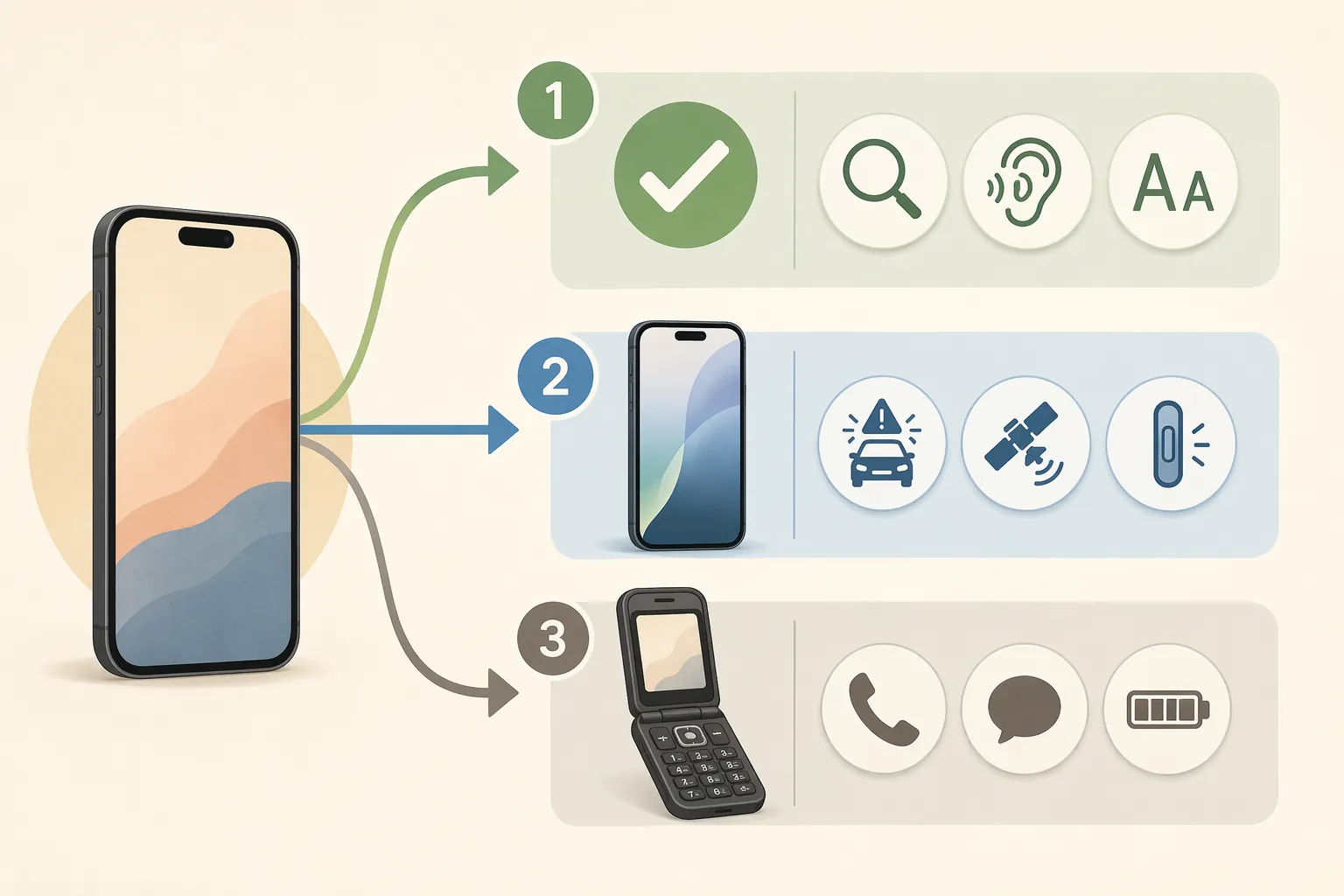
When a Newer iPhone Actually Changes the Accessibility Picture
A hardware upgrade becomes reasonable when the needed feature is tied to newer chips, sensors, radios, or buttons. This is the part marketing tends to blur, because “better accessibility” sounds like one big bundle. It is not.
Apple Intelligence Accessibility Features
Apple’s accessibility announcements in 2025 and 2026 include Apple Intelligence-powered features such as richer image descriptions in VoiceOver, generated Live Captions, and more natural-language Voice Control capabilities.[4][5] These are the clearest accessibility-related reasons to look beyond an iPhone 11, 12, 13, 14, or standard iPhone 15.
The hardware line is important: Apple Intelligence features require an iPhone 15 Pro or newer.[4][5] If a parent would benefit from AI-assisted descriptions of what is on screen or more flexible voice control, then the current phone may truly be the blocker.
Even here, check availability before buying. Apple Intelligence features have been rolling out over time, and language or regional availability can affect what a person can actually use at the time of purchase.[4][5] A feature that looks persuasive in an announcement is not helpful if it is not available in the parent’s language, region, or daily use.
Crash Detection and Satellite SOS
Crash detection and Emergency SOS via satellite are not just settings you unlock on an older model. They are hardware-dependent features available on iPhone 14 and later models. For an older adult who still drives, travels through areas with poor cellular coverage, or lives where off-grid emergency communication is a real concern, that can be a legitimate upgrade reason.
That is a narrower case than “accessibility.” It is a safety case. It may be worth the money for one parent and irrelevant for another who no longer drives, stays within strong cellular coverage, or already uses another emergency response device.
The Action Button
The Action button, available starting with iPhone 15 Pro models, can be useful because it gives a physical shortcut to a selected action. For someone who struggles to find Magnifier, Voice Memos, Translate, a shortcut, or another frequently used tool, a real button can remove several steps.
The test is simple: is there one action the person needs often enough that a button would change daily use? If yes, the Action button may matter. If no, it is just another feature to explain.
Do Not Let Price Be the Only Filter
Configuring the current iPhone costs $0. That is why it should come first. But “free” is not the same as “best” if the phone has a dying battery, barely enough storage, a cracked screen, or performance problems that make every tap feel uncertain.
AARP reported the iPhone 17 at $799 in its 2025 new-phone coverage, while also noting that older adults should weigh whether their current phone already meets their needs.[1] Real out-of-pocket cost depends on trade-in value, carrier offers, storage choice, availability, and whether the family is buying unlocked or through a plan. Treat current pricing as something to verify, not as a fixed rule.
Wirecutter’s 2026 cell phone guide puts the restraint well: “If you have an older iPhone and are happy with it, we don’t think you need to upgrade.”[6] That line is not anti-technology. It is a reminder to separate a working phone from a marketing cycle.
A 20-Minute Configure-First Pass
This is not a full tutorial, but it is enough to tell whether the existing phone deserves a fair trial before anyone shops.
- Check the model and software: confirm whether the phone is iPhone 11 or newer and update to the latest supported iOS version.
- Fix the visible annoyances first: increase text size, turn on bold text, try Display Zoom, clean up the home screen, and remove unnecessary notification noise.
- Test the main failure: place a call, receive a call, read a message, open the camera, find photos, and trigger any emergency contact workflow.
- Try Assistive Access if confusion is the problem: set it up around the few actions the person actually uses, not every app the family thinks they might need.
- Add hearing and safety settings: LED flash alerts, vibration, Sound Recognition where useful, Medical ID, and Emergency SOS contacts.
- Watch the parent use it: do not judge success by whether the settings look tidy; judge it by whether calls, messages, alerts, and help requests are easier.
The most revealing step is watching. A caregiver can make the screen beautiful and still miss the fact that the parent cannot remember whether to tap Phone, Contacts, Recents, or Favorites. That is the kind of problem Assistive Access may reduce. It is also the kind of problem a new iPhone will not fix by itself.
When the iPhone May Not Be the Right Answer
There is a point where preserving the familiar device becomes its own kind of stubbornness. If the person cannot adapt to a touchscreen after simplification, keeps triggering the wrong controls, or becomes distressed whenever the screen changes, another iPhone may simply be a more expensive version of the same barrier.
That is when a specialized senior flip phone, a simpler mobile phone, a wearable emergency device, or another technology category may be more honest. The trade-off is real: fewer apps and less flexibility, but also fewer places to get lost. For some families, that is not a downgrade. It is a better match.
The decision should end with the failure you are trying to prevent. If the current phone is iPhone 11 or newer, update and configure it first. Consider a newer iPhone for Apple Intelligence accessibility tools, crash detection, satellite SOS, a useful Action button shortcut, or separate hardware problems such as battery and performance. If the touchscreen remains the obstacle, stop comparing iPhones and choose a device category the person can actually use.
References
- What Older Adults Should Know About New Phones — AARP
- iPhone Senior Mode: A Guide to Assistive Access — The Senior List
- 9 Hidden iPhone Accessibility Settings for Older Adults — Fox Rehabilitation
- Apple unveils powerful accessibility features coming later this year — Apple Newsroom, May 2025
- Apple unveils new accessibility features, and updates with Apple Intelligence — Apple Newsroom, May 2026
- The Best Cell Phones for Seniors in 2026 — Wirecutter / NYT
Questions to bring to a clinician or OT
This is not medical, legal, or a family's final decision — only a framework. Bring these questions to a clinician, occupational therapist, or your local Area Agency on Aging.
Find Local HelpRelated reading
Noticed something outdated or inaccurate on this page? Flag a correction. We review every report against CDC, NIA, and AARP HomeFit guidance before updating a page.