
Caregiver decision guide
6 Steps to Fix Your Phone When It Says No Service
Learn the exact six steps to take when your phone shows 'No Service' or 'SOS Only' — from restarting and toggling airplane mode to checking the SIM card — and know when to stop troubleshooting and call your carrier for help.
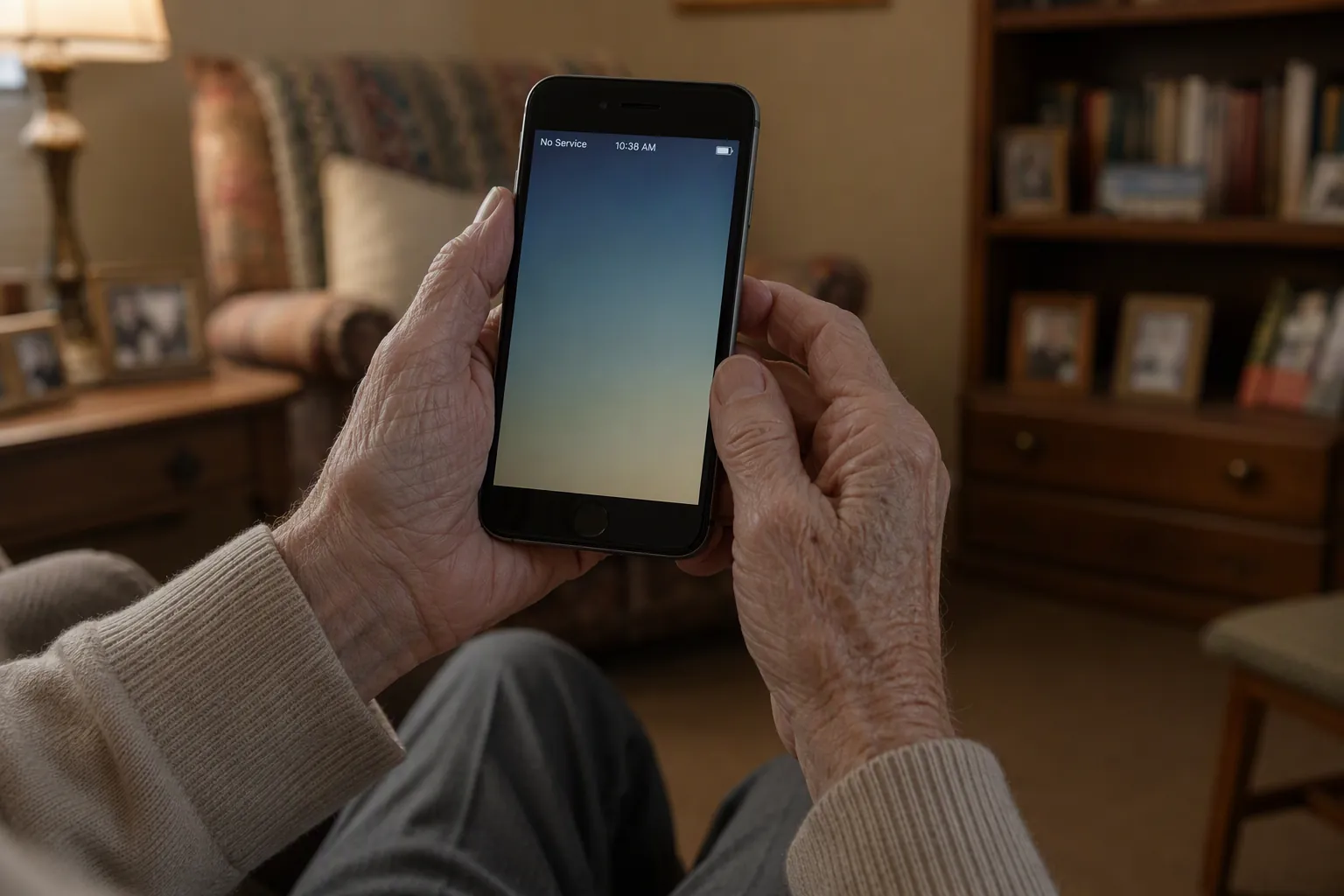
If the phone suddenly says “No Service,” “SOS Only,” or “Emergency Calls Only,” start with safety, not settings. If someone is hurt, in danger, or needs urgent medical help, try calling 911 first. On many phones, “SOS Only” or “Emergency Calls Only” means the phone may still be able to reach emergency services even when normal calling is not working.
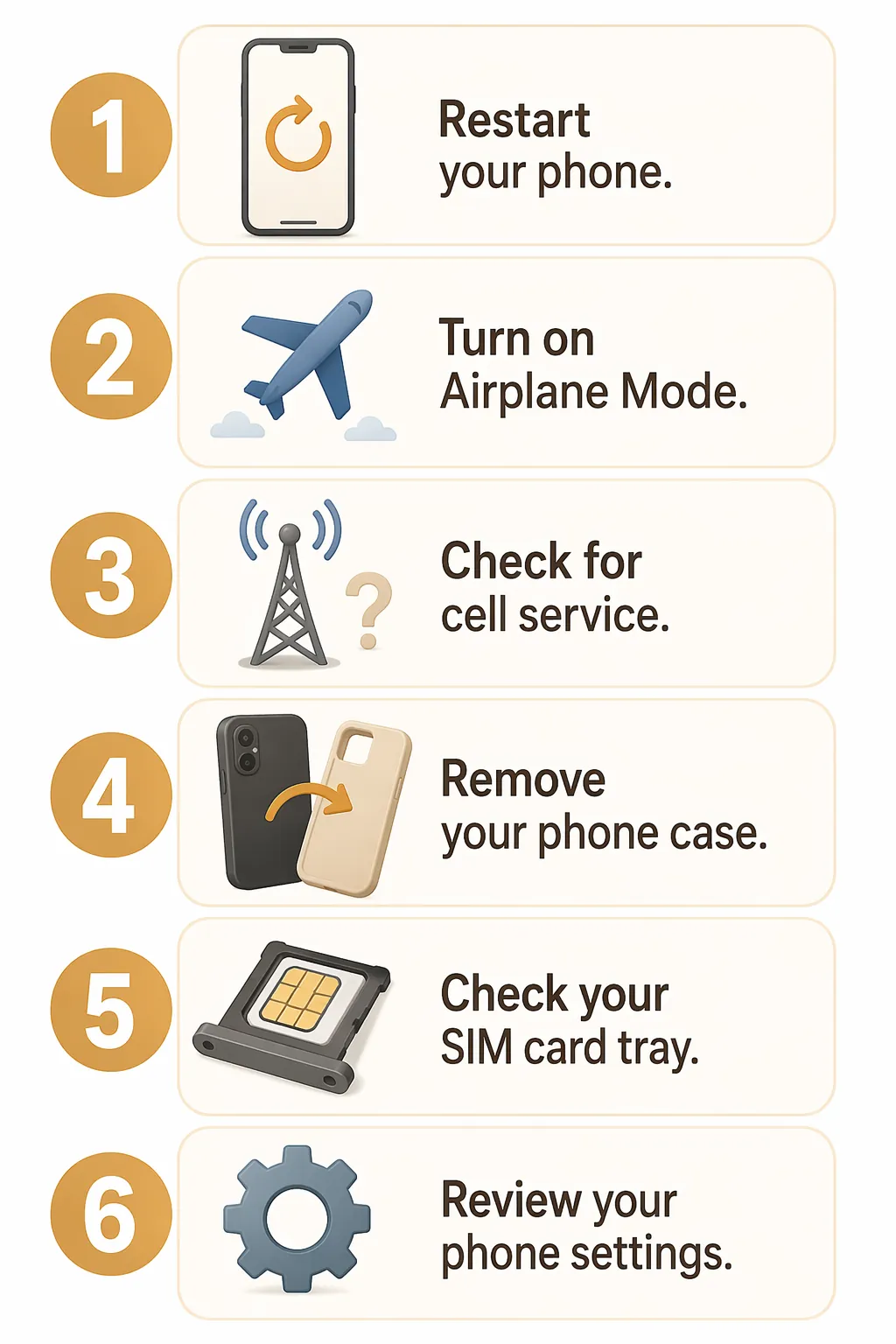
For ordinary troubleshooting, do these six steps in order. Stop as soon as the bars, LTE, 5G, or the carrier name comes back. Do not keep changing settings after the phone is working again.
- Restart the phone.
- Turn Airplane Mode on, wait 15 seconds, then turn it off.
- Check whether your carrier has a real network outage.
- Remove the phone case and check the signal again.
- Turn the phone off and carefully reseat the SIM card, if the phone has one you can remove.
- Reset network settings only after the easier steps fail.
Step 1: Restart the Phone
Restarting is first because it is simple, reversible, and recommended across major carrier troubleshooting pages for signal or no-service problems. T-Mobile, Verizon, and AT&T all point customers toward basic restart or reboot steps before deeper fixes.[1][2][3]
On a smartphone, hold the power button until the power screen appears. Some newer phones require holding the power button and a volume button together. Choose “Power Off” or “Restart.” If the phone is a flip phone, hold the red power/end button until it shuts down, wait a few seconds, then turn it back on.
After it turns back on, wait a full minute. Watch the top of the screen. If the carrier name, bars, LTE, or 5G returns, stop here. If it still says “No Service,” “SOS Only,” or “Emergency Calls Only,” go to Step 2.
Step 2: Use Airplane Mode to Make the Phone Look Again
Airplane Mode is not just for airplanes. Turning it on briefly shuts off the phone’s wireless connections; turning it off makes the phone search again for a cell signal. CNET describes this as a kind of hard reset for the phone’s cellular connection and recommends waiting about 15 seconds before turning Airplane Mode off again.[4]
On many smartphones, swipe down from the top of the screen and tap the airplane icon. If the person holding the phone has trouble swiping, do not rush them into a settings menu. Ask them to look for an airplane symbol near the top of the screen. Once it is on, count slowly to 15, then tap the airplane again to turn it off.
Wait another minute. If the bars come back, stop. If the phone still has no normal service, do not remove the SIM card yet. First find out whether the carrier itself is having trouble.
Step 3: Check for a Real Carrier Outage Before You Take the Phone Apart
This is the step that saves the most wasted effort. If the carrier has an outage nearby, the phone may not be broken. Verizon makes an important distinction: “A mobile network outage is not the same as having no coverage or a weak signal.”[2]
Use whatever still works: home Wi-Fi, a caregiver’s phone, a tablet, or a computer. Verizon has a network status page, AT&T provides outage and stay-connected guidance, and T-Mobile points customers to signal troubleshooting and tools through its support resources.[1][2][3]
| If you find this | What it means | What to do next |
|---|---|---|
| Carrier confirms an outage in the area | The phone may be fine | Stop changing phone settings. Use Wi-Fi, texting if available, or another phone until service returns. |
| No outage is shown, but only this phone has no service | The problem may be with the phone, SIM, account, or local signal | Continue to Step 4. |
| Several phones on the same carrier have no service in the same home | A local carrier issue or weak indoor signal is more likely | Check outage status again before changing individual phone settings. |
If calling is unreliable but a text message will send, use texting as a backup. Massachusetts emergency guidance notes that text messages may sometimes get through when voice calls do not, though this should not replace calling 911 in an emergency when a call is possible.[7]
Step 4: Remove the Phone Case
This sounds too simple until it works. Some thick rugged cases, metal-reinforced cases, and magnetic accessories can interfere with how a phone’s internal antennas receive signal. Verizon and SignalBooster.com both identify cases or physical obstruction as possible signal problems.[2][5]
Take the case off if it can be removed without forcing it. If the person holding the phone has stiff fingers, arthritis, or poor grip strength, do not ask them to pry at a tight case while standing. Have them sit at a table, put a towel down so the phone will not slide, and remove the case slowly.
Once the case is off, wait a minute and look again. If service returns, leave the case off for now and test again later in a different room. If nothing changes, continue to the SIM card step only if it is physically manageable.
Step 5: Check the SIM Card Carefully
The SIM card is the small card that helps the carrier identify the phone on its network. Some phones use a removable SIM card. Others use an eSIM, which is built into the phone and cannot be taken out. If there is no SIM tray, or if opening it feels risky, skip this step and call the carrier.
Before touching the SIM card, turn the phone off. Put the phone on a table with good light. If the phone came with a small SIM tool, use that. If not, a caregiver may be better suited to help in person. Do not use a knife, do not dig into the phone, and do not continue if the tray will not open easily.
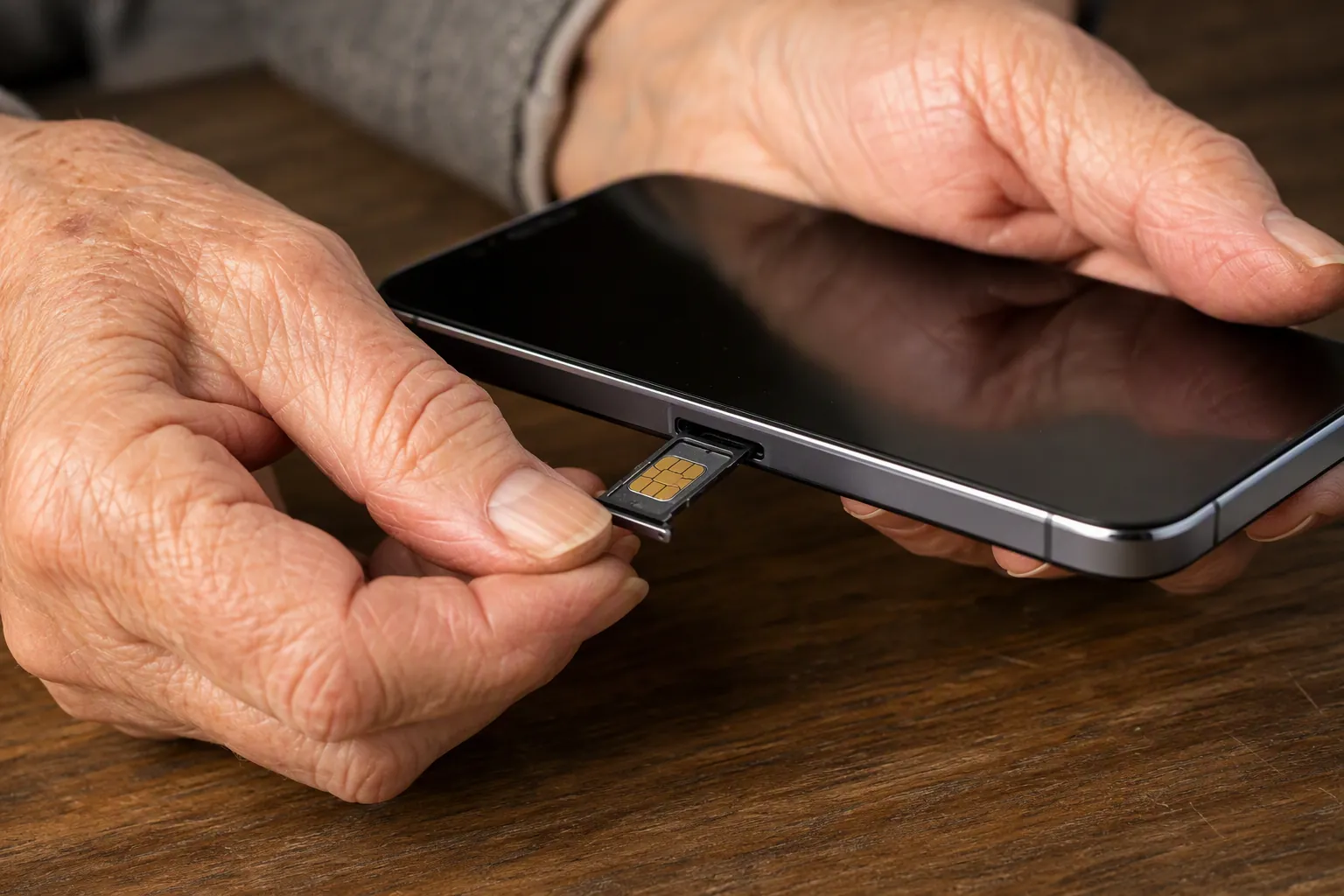
If the tray opens, slide it out gently. Check whether the card is sitting flat in the tray. If it looks crooked, reseat it so it lies flat, then slide the tray back in. If the SIM card is cracked, bent, missing, or too small for the tray, stop and contact the carrier for a replacement. Carrier support guidance treats SIM problems as a reason to continue with account or device support rather than forcing more at-home fixes.[1][2][3]
Turn the phone back on and wait. If service returns, stop. If “SOS Only” or “Emergency Calls Only” keeps coming back after a restart, Airplane Mode, outage check, case removal, and SIM reseating, Step 6 is the last phone setting to consider. If resetting network settings feels too risky, stop here and call the carrier or ask a caregiver to call.
Step 6: Reset Network Settings Only as the Last Phone Step
A network settings reset is not the same as erasing the whole phone, but it is still disruptive. It can remove saved Wi-Fi passwords, Bluetooth pairings, and cellular connection settings. Carrier support pages and CNET place this kind of reset after simpler steps, not before them.[1][3][4]
Only do this if the person has the home Wi-Fi password available and can reconnect important Bluetooth devices later, such as hearing aids, a car connection, or a medical alert accessory that uses the phone. If those connections are hard to restore, it may be safer to call the carrier or ask a caregiver to be present.
On an iPhone, the setting is usually under Settings, General, Transfer or Reset iPhone, Reset, then Reset Network Settings. On many Android phones, it is under Settings, System, Reset options, then Reset Wi-Fi, mobile, and Bluetooth. The exact words vary by model. Read the final confirmation screen before tapping anything.
After the reset, the phone may restart. Wait for it to reconnect. If normal service returns, stop and reconnect Wi-Fi. If it still says “No Service,” “SOS Only,” or “Emergency Calls Only,” stop troubleshooting the phone at home.
When to Stop and Call the Carrier
Stop changing settings and call for help in any of these situations:
- The carrier status page confirms an outage.
- The SIM card is cracked, bent, missing, or will not sit flat.
- The phone still says “SOS Only” or “Emergency Calls Only” after Step 6.
- Resetting network settings would disconnect Wi-Fi, Bluetooth hearing aids, medical devices, or other connections the person cannot easily restore.
- The person holding the phone is getting anxious, tired, or confused.
Use plain words when you call: “The phone says No Service,” or “The phone says SOS Only.” Then say what has already been tried: restart, Airplane Mode, outage check, case removal, SIM reseat, and network settings reset if you did it. That saves time and keeps the support call from starting over at the beginning.
For Verizon, the customer service number is 800-922-0204. For T-Mobile or AT&T, use the number printed on the bill, the carrier app, or the carrier support website. For Lively or Jitterbug phones, Lively lists support through its Help Center, and the support number is 1-800-733-6632.[6]
A Short Note for Lively and Jitterbug Phones
Lively and Jitterbug phones are often chosen because the menus are simpler, but the basic no-service logic is the same: restart first, check for an outage, avoid risky tinkering, and call support when the phone still will not register on the network. Lively maintains a Help Center for device and service support through Best Buy Health.[6]
If the phone is a flip phone and there is no easy Airplane Mode button, do not hunt through every menu. Restart it, check whether the carrier has an outage, move near a window if safe, and then call Lively support or ask a caregiver to call.
After Service Comes Back
Once the bars are back, the job is done. Reconnect Wi-Fi if needed, test one outgoing call, and send one text message to a trusted person. Then leave the phone alone.
Later, when no one is under pressure, set up Wi-Fi Calling if the carrier and phone support it, write down the home Wi-Fi password in a safe place, and keep emergency contacts easy to find. Those are prevention steps for a calmer day, not extra troubleshooting to do while the phone is already failing.
References
- Signal issues / no service troubleshooting, T-Mobile Support.
- Wireless outage & network notifications FAQs, Verizon Support.
- Network Outages: How to Stay Connected, AT&T Wireless.
- 9 Reasons Your Phone Keeps Dropping Calls and How to Fix Every One, CNET.
- 10 Easy Fixes To Improve Weak Cell Phone Signal, SignalBooster.com.
- Lively Help Center, Lively.
- Stay Connected in an Emergency, Mass.gov.
Questions to bring to a clinician or OT
This is not medical, legal, or a family's final decision — only a framework. Bring these questions to a clinician, occupational therapist, or your local Area Agency on Aging.
Find Local HelpRelated reading
Noticed something outdated or inaccurate on this page? Flag a correction. We review every report against CDC, NIA, and AARP HomeFit guidance before updating a page.