
Caregiver decision guide
How to Set Up Mac Voice Dictation for Arthritis
This step-by-step guide shows seniors with arthritis or hand pain how to set up Mac's free Dictation and Voice Control tools, enabling hands-free email, notes, and computer navigation in under 10 minutes with no extra software or hardware.
If typing hurts, your Mac may already have the two voice tools that matter most: one for putting words on the screen, and another for moving around the computer without as much mousing.
| Tool | Where to turn it on | What it does |
|---|---|---|
| Dictation | System Settings > Keyboard > Dictation | Turns your speech into typed text in Mail, Notes, Messages, web forms, and other text fields. |
| Voice Control | System Settings > Accessibility > Voice Control | Lets you open apps, click visible items, scroll, go back, and use the Mac with spoken commands. |
That distinction saves a great deal of frustration. Dictation is for writing. Voice Control is for operating the Mac. Many people turn on Dictation, discover they still have to use the mouse to get into the right box or press Send, and decide voice tools did not help. Usually, they have only turned on half of what they need.

The need is not unusual. The CDC reported that 53.9% of U.S. adults age 75 and older had diagnosed arthritis in 2022, and the World Health Organization notes that about 73% of people with osteoarthritis are over 55.[1][2] AbilityNet’s osteoarthritis computing guidance reports that 84% of people with arthritis experience difficulties using a computer.[3] Voice input, in that context, is not a novelty feature. It is a normal computer adaptation for painful hands.
A quiet-room test can make dictation look impressively fast. Wirecutter’s 2026 testing found Apple Dictation reached about 94% accuracy in quiet conditions on Apple Silicon Macs, and it cites speech-to-text speed around 150 words per minute compared with about 80 words per minute for average typing.[4] Those numbers are useful, but they are not a promise. Background noise, a soft voice, an accent the system handles poorly, an older Mac, a poor microphone, or a busy kitchen table can all change the result.
Before you start, check the Mac and choose a quiet spot
Set aside about 10 minutes when the room is quiet. Sit close enough to the Mac that you do not have to raise your voice. If the Mac is usually used on a lap, move it to a table for setup; leaning over a trackpad while trying to speak clearly is an unnecessary nuisance.
- Open the Apple menu in the top-left corner.
- Choose About This Mac.
- Notice the macOS version and whether the Mac uses Apple Silicon or Intel, if that information is shown.
- If you cannot find Voice Control in the settings below, the Mac or macOS version may be too old for the exact steps in this guide.
This guide is a practical computer setup guide, not medical advice. If hand pain is worsening, if computer use triggers flares, or if tremor, vision, fatigue, or memory changes are part of the problem, an occupational therapist can help match the computer setup to the person rather than forcing the person to match the computer.
Turn on Dictation first
Dictation is the smaller, easier win. It lets you speak into places where you would normally type: a new email, a note, a search box, a message to family, or a form field on a website.
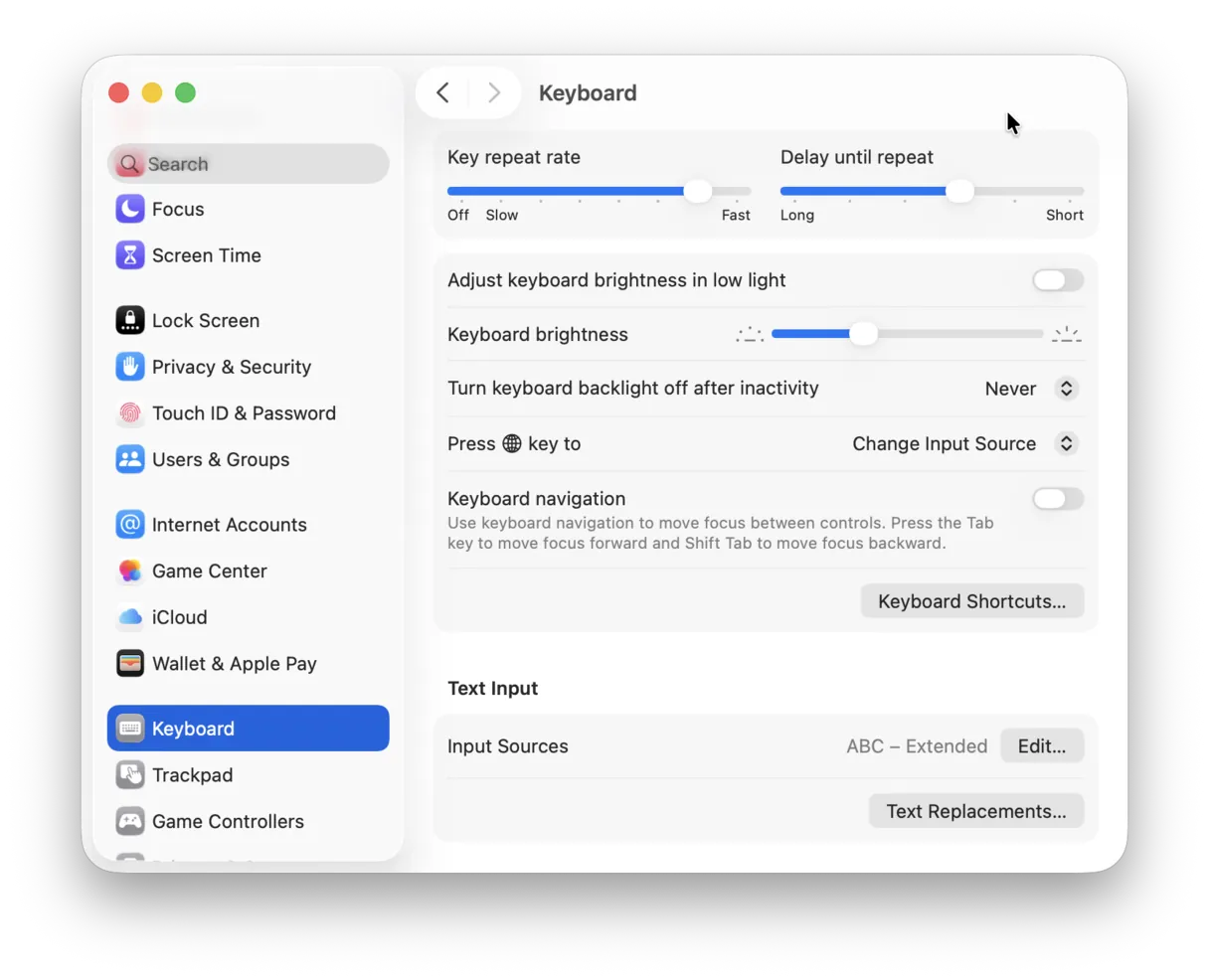
- Open System Settings.
- Choose Keyboard.
- Find Dictation.
- Turn Dictation on.
- Choose the language you will speak most often.
- Look at the shortcut setting. The common default is pressing the Fn key twice, though keyboards and macOS versions vary.
AbilityNet’s macOS 15 Sequoia dictation instructions follow this same basic route through System Settings > Keyboard > Dictation.[5] If the Mac asks for permission to use the microphone, allow it; dictation cannot hear you without microphone access.
The shortcut deserves more attention than most setup screens give it. A double-press may be easy for one person and painful for another. What you want to avoid is any setup that requires holding down a key while speaking. Sustained finger pressure is exactly the kind of movement that can aggravate painful finger joints. A toggle-style command, where dictation starts and then stops, is usually kinder than push-to-talk.
Test Dictation in Notes before trying email
Do not begin with a long email. Start in Notes, where a mistake does not matter.
- Open Notes.
- Create a new note.
- Click once in the note body.
- Start Dictation using the shortcut shown in your settings.
- Say one short sentence.
- Stop Dictation.
For the first test, say something ordinary, such as: “I am testing dictation period.” The word “period” tells the Mac to insert punctuation. If you want the next sentence on a new line, say “new line.” If you want a comma, say “comma.”
| What you want | What to say |
|---|---|
| End a sentence | period |
| Add a comma | comma |
| Start the next line | new line |
| Start a separate paragraph | new paragraph |
| Ask a question | question mark |
| Add an exclamation point | exclamation point |
It is tempting to speak the way one speaks to a person and expect the Mac to clean everything up. Sometimes it will. For less editing afterward, speak punctuation deliberately, pause briefly between sentences, and keep the first few attempts short.
Try one short email
Once Notes works, open Mail and try a message that is small enough to fix if the Mac mishears you.
- Open Mail.
- Start a new message.
- Click in the body of the email.
- Start Dictation.
- Say: “Hi Anna comma new line I am trying dictation on my Mac period new line Love comma Mom.”
- Stop Dictation and read what appeared before sending.
The review step matters. Even good dictation can confuse names, medications, addresses, and family nicknames. For a casual note, one wrong word may be harmless. For anything financial, legal, or medical, read it back slowly before sending.
Now turn on Voice Control so the mouse can rest too
Dictation reduces typing. Voice Control reduces the reaching, clicking, dragging, and trackpad work that often hurts just as much. This is the part many people miss, and it is the part that changes the Mac from “I can speak some text” to “I can get around with less help.”
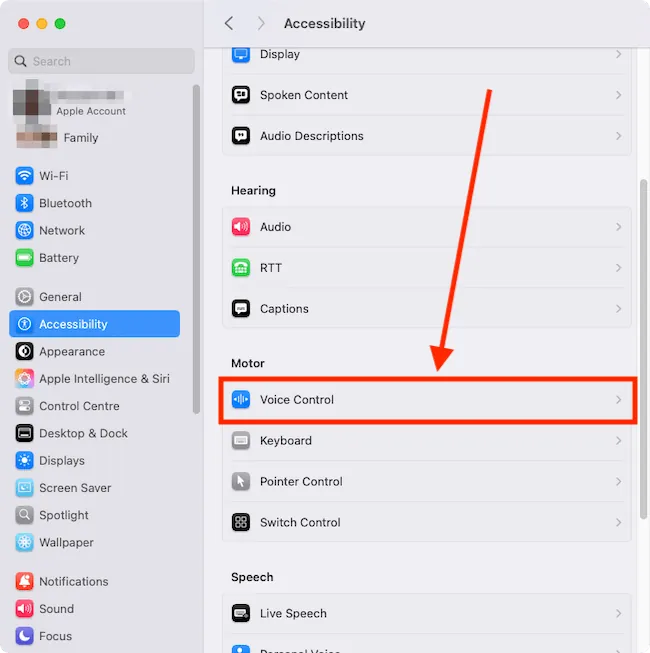
- Open System Settings.
- Choose Accessibility.
- Choose Voice Control.
- Turn Voice Control on.
- Choose the language you will use.
- Turn on or choose item numbers if that option is shown.
- Learn where the grid overlay option is, because it helps when the Mac cannot identify a button by name.
Voice recognition is widely treated as an assistive technology option for people who have difficulty using a keyboard or mouse, including people with arthritis-related computer problems.[6][7] The first setup goal is not to memorize every command. It is to learn the few commands that keep email and notes usable.
The first Voice Control commands to practice
| Task | Command to try |
|---|---|
| Open an app | Open Mail |
| Open Notes | Open Notes |
| Click a visible button or menu item | Click Compose |
| Click by number when numbers are showing | Click 12 |
| Move around a crowded screen | Show Grid |
| Scroll a page or email list | Scroll down |
| Return to the previous screen or page | Go back |
| Begin entering spoken text | Start dictating |
| Stop entering spoken text | Stop dictating |
Practice with Mail before there is any urgent message to send. Say “Open Mail.” Wait. Then say “Click Compose.” If item numbers are visible, you may be able to say the number beside the Compose button instead. If the button does not have a useful name or the Mac guesses wrong, use the grid: say “Show Grid,” then choose the numbered area that contains the target.
The grid can look fussy the first time. Its virtue is that it does not require a steady hand. Instead of trying to land a pointer on a small button, you narrow the screen by number until the Mac knows where to click. For painful hands or tremor, that can be the difference between finishing the task and giving up.
A five-minute practice routine
Use this practice routine once or twice. The point is to make the commands familiar before relying on them for a real message.
- Say “Open Notes.”
- Create or select a blank note, using “Click” plus the visible button name or number.
- Say “Start dictating.”
- Dictate two sentences with punctuation: “This is my first voice note period new line I am learning the commands period.”
- Say “Stop dictating.”
- Say “Scroll down,” then “Scroll up,” if the note or window allows it.
- Say “Open Mail.”
- Say “Go back” or use item numbers to move away from anything you opened by mistake.
A helper should resist taking over the mouse too quickly during this practice. It is faster in the moment, but it teaches the person that voice control is something to be rescued from. If the person is safe and not distressed, wait long enough for them to try the command, pause, and try once more.
Fix the common points of failure
The Mac types the wrong words
Move to a quieter room, sit closer to the microphone, and try again with shorter sentences. Built-in laptop microphones can work, but they also hear fans, televisions, dishes, and other people. Wirecutter’s Apple Dictation accuracy figure was a quiet-environment benchmark, not a noisy-room guarantee.[4]
Dictation stops too soon
Some macOS versions and hardware setups may limit a dictation session to a short burst, sometimes around 30 seconds. If dictation stops, start it again and continue. For longer writing, speak in smaller sections: one paragraph, stop, read, correct, then continue.
The shortcut hurts
Return to System Settings > Keyboard > Dictation and look at the shortcut choices. If double-pressing a key is painful, choose the least painful available option, use a menu command when practical, or rely more on Voice Control’s spoken start and stop commands. Avoid any third-party tool that demands holding a key down while speaking unless a clinician has helped confirm it does not aggravate symptoms.
Voice Control clicks the wrong thing
Use item numbers instead of names. Button names are not always obvious. A button that looks like a paper airplane may not respond to the word “send,” and a web page may have several buttons with similar labels. Numbers remove some of that guesswork.
If numbers still do not get you close enough, use the grid. It is slower than a perfect spoken command, but slower is acceptable when the alternative is a painful click.
Nothing seems to happen
Check three simple things before assuming it failed: the microphone permission, the selected language, and whether the cursor is actually inside a place where text can be typed. Dictation will not put words into an email until the body of the email is active. Voice Control will not always know what to click if the command is vague.
When Apple’s built-in tools are enough, and when they are not
For many everyday tasks, built-in Dictation and Voice Control are the right first attempt because they cost nothing, require no extra hardware, and are already part of the Mac. They are especially worth trying for email, short notes, web searches, messages, and basic navigation.
They may not be enough if the person writes long documents every day, uses specialized medical or technical vocabulary, needs very high accuracy with names, or cannot tolerate repeated correction. Apple Dictation also does not offer the same custom vocabulary depth that some dedicated dictation tools advertise.
Wirecutter’s 2026 comparison named Wispr Flow its top pick and reported about 98% accuracy in its quiet-room testing, compared with about 94% for Apple Dictation; it also lists Wispr Flow at $15 per month.[4] That may be worthwhile for some heavy dictation users, but the same caution applies: a quiet test with a good microphone is not the same as every kitchen, accent, voice, or Mac.
Other paid tools, including Voibe and Superwhisper, appear in vendor comparison pages as options for people who want on-device dictation or one-time purchase models. Voibe’s own arthritis dictation comparison lists Voibe at $149 lifetime and Superwhisper at $249 lifetime, but that is vendor material, not independent testing.[8] Treat those pages as a way to learn what exists, not as the final word on what will work for a particular person’s hands and voice.
Dragon is best left out of current Mac planning. The Mac version is no longer a current option, so it should not be the tool a family spends an afternoon trying to find or install.
A sensible stopping point
Stop the setup once these things are true: Dictation is on, Voice Control is on, the person has dictated a short note, the person has opened Mail or Notes by voice, item numbers or the grid have been tried, and everyone understands that accuracy will be better in a quiet room than in a noisy one.
If that much works, do not rush to buy software. Practice with the built-in tools for a few days on low-stakes tasks. If that much does not work, or if the setup still leaves the person in pain, bring in an occupational therapist or another assistive-technology professional before adding subscriptions and gadgets.
For many seniors with arthritis, the first barrier is not the absence of new technology. It is that the useful accessibility tools were already on the Mac, waiting behind settings nobody had opened.
References
- Diagnosed Arthritis in Adults Age 18 and Older: United States, 2022 — CDC NCHS
- Osteoarthritis — World Health Organization
- Osteoarthritis and Computing — AbilityNet
- Best Dictation Software of 2026 — Wirecutter
- How to use dictation in macOS 15 Sequoia — AbilityNet
- Voice Recognition Overview — AbilityNet
- Rheumatoid Arthritis & Computing — NRAS
- Best Dictation Software for Arthritis (2026 Comparison) — Voibe
Questions to bring to a clinician or OT
This is not medical, legal, or a family's final decision — only a framework. Bring these questions to a clinician, occupational therapist, or your local Area Agency on Aging.
Find Local HelpRelated reading
Noticed something outdated or inaccurate on this page? Flag a correction. We review every report against CDC, NIA, and AARP HomeFit guidance before updating a page.