
Caregiver decision guide
How to Choose a Budget Smartphone for Seniors in 2026
Mainstream budget smartphones from Samsung, Google, and Motorola outperform senior-specific models when configured with built-in accessibility modes. This guide compares the best options and explains how to set them up for an aging parent.
The kitchen-table version of this decision is usually more honest than the store display version. You are not just buying a phone for an older parent. You are buying the thing they will use to answer your call, read a pharmacy text, find the camera, ignore scammy notifications, and get unstuck when a screen looks unfamiliar.
For many families looking for the best budget smartphones for seniors in 2026, the answer is not a phone labeled “senior.” It is a mainstream Android phone set up carefully. The Samsung Galaxy A17 5G is the clearest example: PCMag’s 2026 review lists it at $199.99 with a 6.7-inch screen, Samsung Easy Mode, 15 hours and 45 minutes of battery life, carrier flexibility, and six years of software support.[1] Those are not flashy caregiver bragging rights. They are the things that keep a phone usable six months after the box is gone.
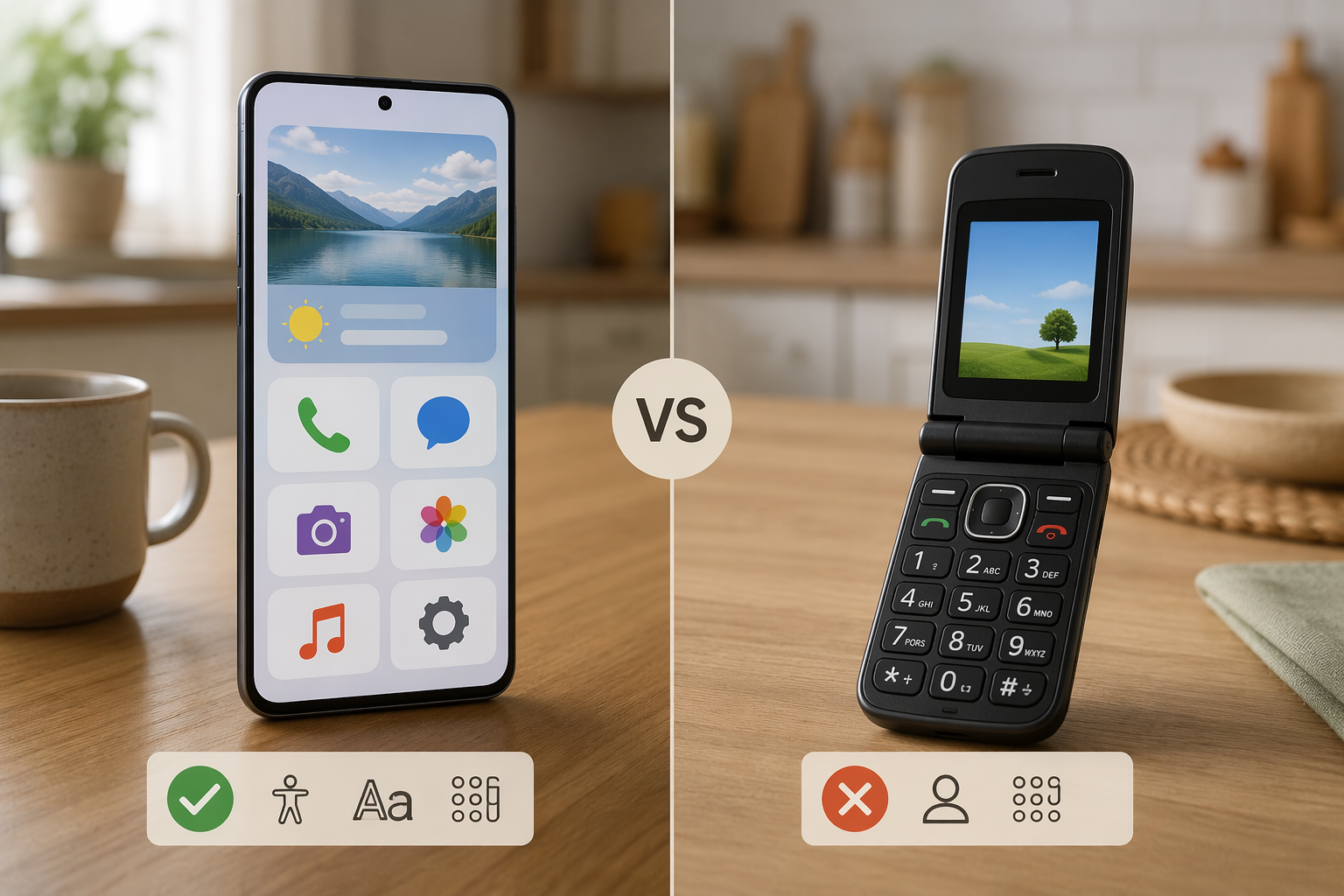
| Phone type | Why it may work for an older parent | What to check before buying |
|---|---|---|
| Samsung Galaxy A17 5G | Large 6.7-inch screen, Easy Mode, long tested battery life, six-year software support, works on any carrier.[1] | Confirm current device price, carrier bands, activation fees, and whether your parent likes Samsung’s interface. |
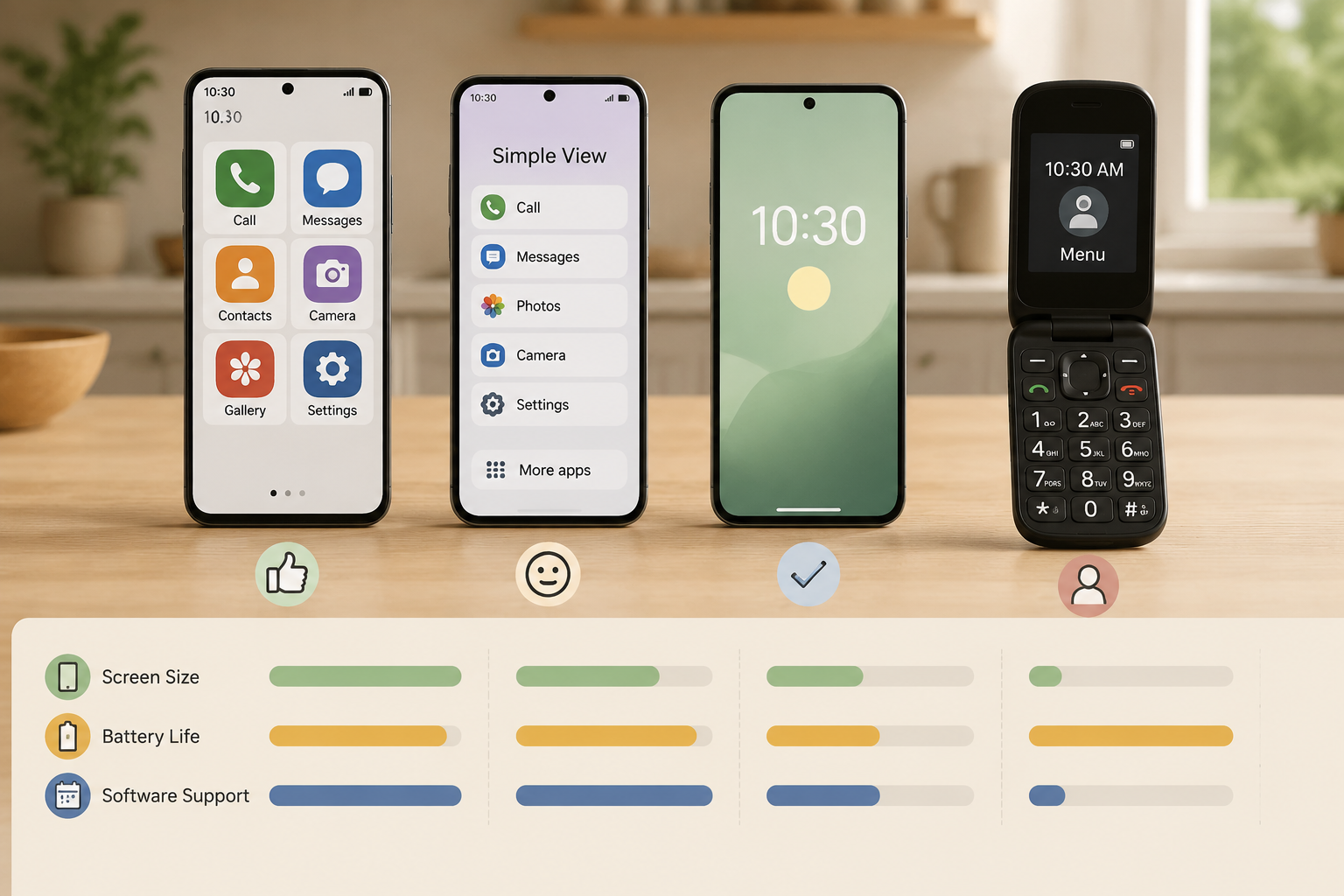
| Google Pixel 10a | Pixel Simple View can switch to larger text and icons, 3-button navigation, high-contrast wallpaper, and a 4-by-4 app grid designed for older users.[2] | Costs more than the A17; confirm the current sale price and whether Google’s layout feels familiar. |
| Moto G Play 2026 / Moto G Power 2026 | Clean Android, strong battery reputation, headphone jack, and fewer extra apps to explain; Wirecutter names the Moto G Power as its budget Android pick.[3] | May need a third-party launcher or extra setup to feel as simplified as Samsung Easy Mode or Pixel Simple View. |
| Jitterbug Smart4 or IRIS Easy Flip | Senior-specific service, simplified menus, and in some cases stronger hearing-aid compatibility. | Network lock-in, dated Android on some models, smaller screens on flip phones, and possible lag. |
Why the Samsung Galaxy A17 5G is the budget phone to beat
The Galaxy A17 5G looks ordinary, which is part of its appeal. It is not trying to announce that its owner needs a special device. After setup, it can still present big icons, readable text, and a calmer home screen through Samsung Easy Mode, which PCMag describes as enlarging icons, simplifying the home screen, and increasing touch sensitivity.[1]
The 6.7-inch display matters more than camera megapixels here. A larger screen gives you room to increase text size without turning every message into a cramped puzzle. It also makes the phone more forgiving for hands that do not land perfectly on a tiny target. A flip phone’s compactness can be comforting, but a small screen becomes a daily tax when the parent is trying to read a text from the doctor’s office or identify which grandchild is calling.
Battery life is another unglamorous caregiver issue. PCMag measured the A17 5G at 15 hours and 45 minutes in its battery test.[1] That does not guarantee your parent will get the same result, because screen brightness, signal strength, apps, and habits all change real-world use. But it does mean the phone starts from a better place than a device that needs charging every time someone forgets to close a video call or leaves navigation running.
The six-year software support window is the part many shopping lists underrate.[1] Older adults often keep a phone until it breaks, not until the next model looks tempting. A cheaper phone with a short support runway can become expensive if you have to replace it early because apps stop behaving, security updates end, or the operating system is too old for routine services.
Carrier flexibility is just as practical. The A17 5G works on any carrier, according to PCMag’s review.[1] That keeps your parent from being forced into a service relationship they may not want. If they have had the same number, same coverage, and same billing rhythm for years, changing the network can create more confusion than the phone itself.
The cost comparison is closer than the labels suggest
A senior-branded phone can look cheaper at checkout. That is not the same as being cheaper to live with. Based on available 2026 pricing, a $199.99 Galaxy A17 5G on a $20-per-month Consumer Cellular plan totals about $679 over two years. An IRIS Easy Flip at $59 on the same plan totals about $599 over two years. The mainstream Samsung costs about $80 more across that period, before taxes, fees, promotions, and activation charges.
That $80 difference buys a much larger screen, a current Android version, longer stated software support, and the option to move carriers. For a parent who can still use a smartphone with coaching, that is a reasonable trade. For a parent who truly needs a keypad, a flip design, or a service model built around human support, the math may change.
Pricing is especially slippery in 2026. The Jitterbug Smart4 was listed at a $119.99 sale price in June 2026, but that reflected a discount and normal pricing may be higher. SeniorLiving.org also found the Jitterbug Smart4 sluggish in testing, with a 2-to-3-second lag, and notes that it runs Android 13 and is locked to Lively’s network.[4] That does not make it a bad phone for every older adult. It does mean the low sale price should not end the conversation.
Where Pixel and Moto fit
The Google Pixel 10a is the more expensive mainstream option in this group. PCMag’s review lists it at $482.99, with a 6.3-inch AMOLED display and 12 hours and 15 minutes of battery life.[5] That is not the bargain-bin choice. It becomes interesting if the caregiver already understands Pixel settings, likes Google’s accessibility tools, or wants a phone that is relatively easy to keep clean and updated.
Pixel Simple View is the reason to consider it for an older parent. Android Central describes Simple View as switching the phone to 3-button navigation, larger text and icon sizes, a high-contrast wallpaper, and a 4-by-4 app grid specifically intended to help older users.[2] That solves several common problems at once: the parent who cannot remember gesture navigation, the parent who taps the wrong small icon, and the parent who gets lost on a busy home screen.
Motorola is the plain-spoken alternative. The Moto G Play 2026 sits around $180, while the Moto G Power 2026 is around $300. Wirecutter names the Moto G Power as its budget Android pick, and the Moto line’s practical strengths are clean Android, long battery life, and a headphone jack.[3] That headphone jack is not nostalgic if your parent owns wired earbuds they understand or uses an accessory that does not need Bluetooth pairing every week.
The catch is that Moto’s simplicity is not the same thing as a full senior mode. It may be easier for a tech-comfortable caregiver to customize, but it can take more work to create the same large-button, low-clutter experience that Samsung and Pixel offer with built-in modes. If you are the person who will be doing setup, that matters.
Senior-specific phones are contrast points, not punchlines
There are good reasons an older adult may prefer a senior-specific phone. A flip phone can feel familiar. A physical keypad can be easier for someone who never liked touchscreens. Some senior phones emphasize live help, simplified menus, and emergency features in ways mainstream phones do not present as clearly out of the box.
Hearing-aid compatibility is one place to slow down. Senior-specific phones such as the Jitterbug Flip2 have M4/T4 hearing-aid compatibility, while many budget smartphones are M3/T3. If your parent depends heavily on hearing aids and call clarity is the main job, that rating can matter more than screen size.
Cognitive decline changes the decision, too. A RAZ Memory Cell Phone costs $349 to $369 and is not really a budget phone, but it is built for a different problem: reducing choices for someone who may not be able to manage a normal smartphone.[6] If your parent repeatedly cannot find the call button, cannot recognize contacts, or becomes frightened by routine screens, the question is no longer “Which cheap Android is best?” It is whether the phone should be simplified beyond what standard accessibility settings can safely provide.
That is also the moment to step outside a shopping guide. If phone trouble is part of a wider pattern, CareWise’s guide on helping an older adult who can’t use their phone is a better next read than another comparison chart.
The setup matters more than the box
A normal Android phone becomes senior-friendly only after someone does the boring work. If you hand over the phone with the default home screen, promotional apps, tiny status icons, and every notification turned on, the device has already failed its first test.
Start with the accessibility mode
On a Samsung phone, turn on Easy Mode before you teach anything else. Then adjust the font size, screen zoom, touch-and-hold delay, and home screen layout. Put Phone, Messages, Camera, Photos, Contacts, Maps, and the pharmacy or health portal app where the parent can see them without swiping through multiple screens.
On a Pixel, turn on Simple View if available. The larger text, larger icons, high-contrast wallpaper, 3-button navigation, and 4-by-4 app grid give the phone a structure that is easier to describe over the phone: “Tap the circle,” “Tap the back triangle,” “Look at the bottom row.”[2]
On a Moto, use the clean starting point to your advantage. Increase font and display size, switch to 3-button navigation if gestures are confusing, remove extra widgets, and consider a reputable launcher only if the default layout still feels too busy. Do not install a launcher just because it looks clever to you. Install it only if it makes the parent’s next action more obvious.
Build the home screen around real calls for help
- Put the most-used contacts on the first screen, preferably with photos if your parent recognizes faces faster than names.
- Remove apps they will not use in the first month, including duplicate browsers, shopping apps, games, and carrier promotions.
- Turn off nonessential notifications so medication texts, family messages, and calendar reminders are not buried under retail alerts.
- Set up emergency contacts, medical information, location sharing if appropriate, and any fall-detection or monitoring apps your family has agreed to use.
- Add a written unlock code and charging routine somewhere safe, because “I forgot my passcode” is not a rare support ticket.
If you are using the phone as part of long-distance caregiving, the smartphone opens options a flip phone usually cannot: video calls, shared calendars, location sharing, medication reminders, secure messaging, and remote troubleshooting. CareWise’s remote monitoring guide for long-distance caregivers can help you decide which of those tools are useful and which are just extra noise.
Teach the recovery move, not just the feature
The parent does not need a tour of Android. They need a few repeatable moves: answer a call, end a call, read and reply to a text, take a photo, return to the home screen, adjust volume, charge the phone, and restart it. The restart matters. A phone that feels “broken” may only need to be powered off and back on, but that is not obvious to someone who is afraid of losing everything.
One useful test is to hand the phone back after setup and ask your parent to call you, send you a short text, find a photo, and get back to the home screen without coaching. If that turns tense, the setup is not finished. The answer may be larger text, fewer icons, a different case, a printed one-page guide, or a slower teaching session. CareWise has a separate guide on helping an aging parent learn technology without frustration because the teaching method is part of the purchase.
If your parent resists the smartphone entirely, do not treat that as irrational by default. They may be protecting a routine that still works, avoiding embarrassment, or remembering the last device that made them feel foolish. The guide on why some older adults resist technology is useful when the obstacle is not the spec sheet.
A practical buying rule
Choose the Galaxy A17 5G if you want the strongest budget case: low device price, large screen, Easy Mode, long tested battery life, broad carrier flexibility, and six years of software support.[1] It is the first phone I would compare against any senior-branded model before paying for a locked-down device.
Choose the Pixel 10a if Simple View, Google’s accessibility ecosystem, and a cleaner Google-first experience are worth the higher price to your family.[2][5] This is especially reasonable if the caregiver already uses Pixel phones and will be the person answering “Where did my messages go?” calls.
Choose a Moto G model if you want a lower-cost Android phone with a clean interface, good battery expectations, and a headphone jack, and you are willing to do more of the simplification yourself.[3]
Choose a senior-specific phone if the parent truly needs a keypad, senior-focused service, stronger hearing-aid compatibility, or a much narrower interface because of cognitive impairment. If dementia is already part of the picture, start with stage-appropriate guidance such as CareWise’s technology guide for dementia caregivers rather than assuming a larger smartphone screen will solve the problem.
The decision rule is simple enough to keep you honest: buy the mainstream budget phone with the best accessibility mode, support horizon, carrier fit, and screen your parent can comfortably use. Then spend as much care on setup and teaching as you spent on the purchase. A phone that looks ordinary but is configured well is often kinder than a “simple” phone that becomes limiting, slow, or hard to escape later.
References
- Samsung Galaxy A17 5G - Review 2026, PCMag.
- My parents struggled to use their Pixel phones, so I made them easier by turning on Simple View, Android Central.
- The Best Budget Android Phone of 2026, Wirecutter.
- Best Cell Phones for Seniors in 2026, Tested and Reviewed, SeniorLiving.org.
- Google Pixel 10a Review - Best Mid-Range Android, PCMag.
- 4 Best Cell Phones for Seniors in 2026, RAZ Mobility.
Questions to bring to a clinician or OT
This is not medical, legal, or a family's final decision — only a framework. Bring these questions to a clinician, occupational therapist, or your local Area Agency on Aging.
Find Local HelpRelated reading
Noticed something outdated or inaccurate on this page? Flag a correction. We review every report against CDC, NIA, and AARP HomeFit guidance before updating a page.