From Frustration to Confidence: A Family Caregiver’s Framework for Teaching Technology to Older Adults
PERSPrivacy & Consent CoveredReviewed: 2026-06-18
From Frustration to Confidence: A Family Caregiver’s Framework for Teaching Technology to Older Adults
Adult children often respond to a parent’s tech struggles by taking over and doing it for them — but research shows this backfires. This guide presents a structured, evidence-based teaching framework that addresses the real barriers older adults face, so you can help your parent build confidence and independence with technology.
Features Covered in This Explainer
fall detection, battery life, two-way communication, automatic fall detection
The difference between fixing and teaching is the difference between dependency and confidence.
The Real Problem Isn’t Age — It’s How We Teach
If you’ve ever watched your parent struggle with a smartphone and felt the urge to grab it, tap a few buttons, and hand it back with a cheerful “There you go,” you’re not alone. It’s the fastest way to solve the immediate problem. But research suggests it’s also the fastest way to ensure the problem repeats.
A 2017 focus group study published in PMC by Vaportzis and colleagues captured a telling pattern. When older adults (ages 65–76) who had never used a tablet were asked about their experiences with family members, one participant described it bluntly: “My daughter comes and helps me, but she does [quick noise]. There you are mother.” Another said family members “just do it for me.” The result? The task gets done, but the learning doesn’t happen.
Here’s the encouraging counterpoint: after just a brief exposure to a tablet in a supportive setting, 66.6% of those same participants rated themselves Likely or Very likely to use a tablet in the future. The desire to learn was already there. What was missing was a method of teaching that matched how adults actually learn.
This article is built on a single premise: the most effective way to help an older adult with technology is not to fix it for them, but to guide them through it. We’ll walk through the real barriers, the psychology of why “just doing it” backfires, and a step-by-step protocol you can use starting today.
The Four Barriers That Keep Older Adults from Adopting Technology
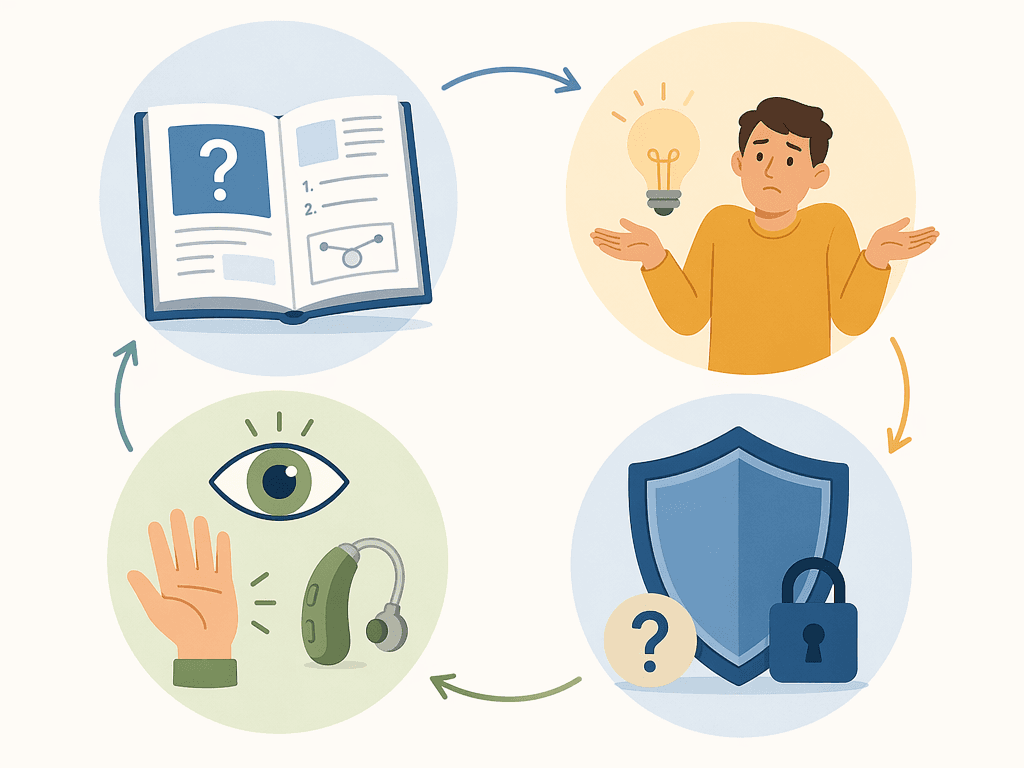
Before you can teach effectively, it helps to understand what’s actually blocking your parent. The Vaportzis study identified four distinct barriers. Knowing which one is at play changes how you approach the conversation.
The four barriers to technology adoption identified in the Vaportzis et al. focus group study (2017).
Barrier
What It Looks Like Day to Day
Why It Matters for Caregivers
Lack of instructions and guidance
Your parent says “I don’t know what to press” or “There’s no manual for this.” They may have the device but no clear path to using it.
Generic user manuals are written for technical audiences. Your parent needs instructions that assume no prior knowledge and use plain language.
Lack of knowledge and confidence
They avoid trying new features because they’re afraid of “breaking” something. They may have been told they’re “not good with technology.”
Confidence is fragile. A single failed attempt can reinforce the belief that they can’t learn. Success needs to be scaffolded in small, repeatable steps.
Health-related barriers
Small text is hard to read. Buttons are too close together. Hearing loss makes video calls frustrating. Arthritis makes tapping or swiping painful.
These are not cognitive issues — they are design mismatches. The right device settings or a different device can often resolve them entirely.
Cost
Your parent may be using an outdated device because they don’t see the value in upgrading, or they worry about expensive data plans.
Cost concerns are often tied to perceived value. If they don’t understand what a device can do for them, any price feels too high.
These barriers exist against a backdrop of high adoption. According to AARP’s 2026 Tech Trends survey, about 9 in 10 adults ages 50 and older now own smartphones — a 35% increase since 2016. Two-thirds of older adults agree that technology enriches their lives and helps them with daily tasks and aging. The desire and the hardware are already there. The gap is in the teaching.
Why ‘Just Doing It’ Backfires — The Guide-Don’t-Do Method
When you take over a task — tapping the right button, logging into an account, fixing a setting — you solve the immediate problem. But you also send an unintended message: “This is too hard for you. Let me handle it.” Over time, that message erodes the older adult’s sense of agency and reinforces the belief that technology is something other people do.
The Vaportzis study grounds this observation in two established learning theories.
Adult Learning Theory (Knowles, 1984) holds that adults learn best when they understand why something is relevant to their lives, when they can direct their own learning, and when they can draw on their existing experience. Handing someone a solved problem skips all three conditions.
Selection Optimization Compensation (SOC) Theory (Baltes, 1997) describes how older adults adapt to age-related changes by selecting fewer, more meaningful goals, optimizing their performance through practice, and compensating with alternative strategies. When a family member completes a task for them, it removes the opportunity to practice and optimize — the very processes that build competence.
The alternative is what we call the guide-don’t-do method. Instead of completing the task, you walk alongside your parent as they complete it themselves. You provide the next step when they’re stuck. You explain why a step matters. You let them make mistakes in a safe environment. This approach treats the older adult as an active learner, not a passive recipient.
A Step-by-Step Teaching Protocol for Family Caregivers
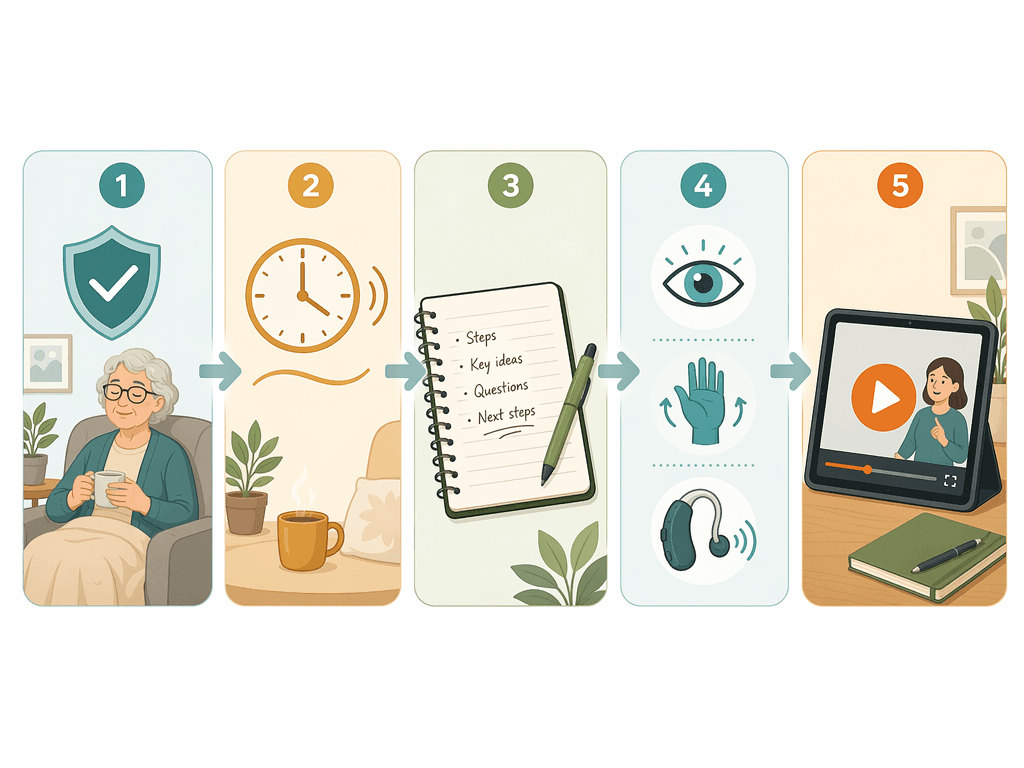
The following protocol is designed to be used in short sessions — 20 to 30 minutes max. Fatigue and frustration set in quickly, so keep sessions focused and end on a positive note.
1. Start with Security
Before you teach any feature, address the fear that sits underneath everything else. The AARP 2026 survey confirms that data privacy and security concerns are the #1 barrier to technology adoption among older adults. Your parent may be afraid of scams, of accidentally sharing personal information, or of “breaking” something that can’t be fixed.
Spend the first session on safety basics: how to recognize a phishing email, why they should never share passwords over the phone, and how to use the device’s built-in privacy settings. Show them that the device has controls they can trust. Once they feel secure, they’ll be far more willing to explore.
2. Go Slow — Break Tasks into Small Steps
A task like “send a photo by text” involves a dozen micro-steps: open the messaging app, find the conversation, tap the attachment icon, select the photo, confirm the selection, tap send. To an experienced user, this is one fluid action. To a novice, it’s a chain of unfamiliar decisions.
Teach one micro-step at a time. Let your parent practice that step until it feels comfortable before adding the next one. Repeat the same sequence across multiple sessions. Repetition is not a sign that they aren’t learning — it’s how adult brains build procedural memory.
3. Write It Down
One of the most effective tools you can create costs nothing: a handwritten, step-by-step guide. Use large print. Number each step. Include simple sketches if helpful. Keep it to one task per page.
A written reference reduces the anxiety of having to remember everything. It also gives your parent independence — they can try the task on their own without waiting for you to be available. Laminate the page or put it in a clear plastic sleeve so it survives kitchen-table use.
4. Adapt for Physical Needs
Many technology frustrations are actually accessibility problems. Before assuming your parent “just doesn’t get it,” check the basics:
Increase the font size in the device settings. Most smartphones can display text large enough to read without glasses.
Enable voice-to-text for typing. If arthritis makes tapping a keyboard painful, dictation can be a game-changer.
Consider a larger device. A tablet with a simplified home screen is often easier to use than a phone with tiny icons.
Adjust touch sensitivity or enable assistive touch features so that taps and swipes don’t require as much pressure.
5. Use Video Tutorials
Some people learn better by watching than by reading. Video tutorials let your parent see the exact screen they’re working with and follow along at their own pace. Senior Planet offers free, senior-friendly video classes in English, Spanish, and Cantonese. Their content covers everything from basic smartphone navigation to online safety and video calling. In a recent year, Senior Planet served upwards of half a million people — a testament to the demand for this kind of instruction.
Where to Find Free and Low-Cost Tech Help
You don’t have to be the only teacher. In fact, sometimes it’s better if you’re not. As Prof. Skye N. Leedahl of the University of Rhode Island told WIRED: “Sometimes learning from non-family members works best, because we tend to be more patient with other people.” The emotional stakes are lower, and the dynamic is more neutral.
Reputable resources for older adults learning technology, ranging from free to paid.
Resource
What It Offers
Cost
Best For
Senior Planet
Free live and on-demand classes on smartphone basics, online safety, video calling, and more. Available in English, Spanish, and Cantonese.
Free
Older adults who prefer structured group learning or video tutorials they can rewatch.
Cyber-Seniors
Free one-on-one tech support pairing seniors with trained student volunteers across North America. Sessions are conducted over the phone or video call.
Free
Older adults who need personalized, patient help from someone outside the family.
Candoo Tech
Single sessions ($75) and annual memberships ($228/year) with tech support tailored to older adults. Founded by Liz Hamburg in 2019.
Paid (single session or annual)
Families who want a dedicated, vetted professional for ongoing support.
Local Library Programs
Many public libraries offer free one-on-one tech help, device checkout, and beginner classes. Availability varies by location.
Free (usually)
Older adults who prefer in-person help and already visit their local library.
If your parent is hesitant about working with a stranger, offer to sit in on the first session. Most services welcome a family member’s presence, especially during the initial setup.
When to Bring in a Professional Tech Support Service
There comes a point where your own time, patience, and expertise hit a ceiling. You’re balancing work, your own family, and the emotional weight of caregiving. Teaching your parent how to use a new app may be one task too many — and that’s not a failure. It’s a signal that it’s time to bring in a professional.
Consider professional support if:
Your parent’s technology needs exceed your own knowledge (e.g., setting up home monitoring devices, managing complex privacy settings, troubleshooting connectivity issues).
Your teaching sessions are becoming a source of tension or conflict. If you feel your frustration rising, your parent almost certainly feels it too.
Your own energy is depleted. The Working Caregiver’s Survival System guide offers a broader framework for managing your time and avoiding burnout, and recognizing when to delegate is a key part of that.
Two services worth knowing about:
Quincy was founded in 2020 and offers tech support plans starting at $5/month, with 14 free minutes per month for Medicare recipients. It’s designed specifically for older adults and their families.
The Smarter Service offers annual memberships starting at $125/month and assigns the same concierge each time, so your parent builds a relationship with a single trusted helper.
Bringing in a professional isn’t giving up. It’s recognizing that your role as a caregiver includes knowing when to ask for help — for your parent’s sake and your own. For a broader view of how to prioritize and structure your caregiving responsibilities, the Senior Care Assistance Triage guide provides a time-horizon framework for deciding what to handle now, what to plan for next week, and what to delegate to others.
For individualized recommendations:An occupational therapist or your primary care provider can assess your specific situation and recommend the monitoring category and feature set that best fits the person's functional level, living environment, and caregiver availability. This explainer provides educational context, not a personalized recommendation.



Comments
Join the discussion with an anonymous comment.