
Caregiver decision guide
Helping Elderly with Technology: A Caregiver’s Step-by-Step Guide to Teaching Smartphones, Tablets & Smart Home Devices
This guide provides adult children with a research-backed, learner-centered framework for teaching their aging parents how to use smartphones, tablets, and smart home devices. It addresses the four real barriers to adoption—lack of perceived value, fear of breaking something, ignorance of features, and privacy anxiety—and offers a practical, step-by-step teaching method that builds confidence and independence.

Why the ‘Hand-It-Over-and-Hope’ Approach Fails
The numbers suggest a solved problem. According to AARP’s 2026 Tech Trends research, roughly 9 in 10 adults ages 50 and older now own a smartphone — a 35% increase since 2016. Nearly three-quarters of this age group bought some form of technology in 2025, and two-thirds agree that technology enriches their lives. On the surface, the digital divide among older adults appears to be closing.
But ownership is not the same as confident, independent use. A 2022 study published in Frontiers in Computer Science (Harris et al., 80 participants, mean age 71.5) found that among older adults who already own smartphones, smart security devices, and digital home assistants, the single most commonly cited barrier to use was not cost or complexity — it was ignorance of features. People had the devices in their hands but did not know what the devices could do for them.
This gap between owning and using is where the standard caregiver approach — hand over a smartphone, install a few apps, and hope for the best — consistently breaks down. The device arrives without a roadmap. The older adult encounters confusing setup instructions, unfamiliar terminology, and no clear reason to persist. Within days, the phone sits in a drawer or is used only for incoming calls.
The core thesis of this guide is straightforward: effective technology adoption among older adults does not come from a simpler device or a more powerful one. It comes from a learner-centered teaching framework that directly addresses the four real barriers that research has identified. The rest of this article walks through those barriers, provides a readiness assessment tool, and delivers a step-by-step method you can use starting today.
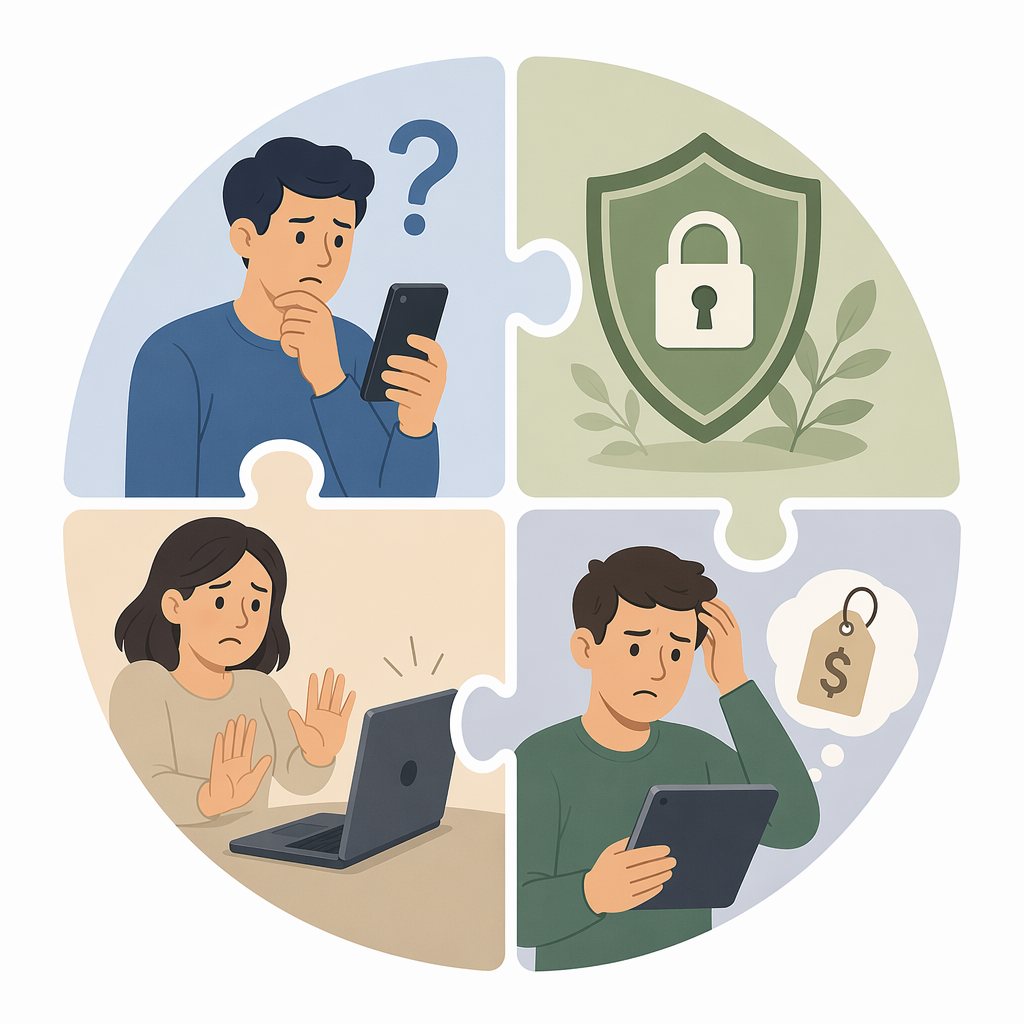
The Four Real Barriers to Technology Adoption
Before you can teach effectively, you need to understand what is actually blocking your parent from using their device. The research points to four distinct barriers, and the right teaching strategy depends on which one is most active.
1. Lack of Perceived Value
If your parent does not see what a smartphone or tablet can do for them personally, motivation will be zero. The AARP data shows that two-thirds of adults 50+ agree technology enriches life — but that still leaves one-third who are not convinced. The value proposition must be concrete: video calls with grandchildren, medication reminders that reduce anxiety, or the ability to check tomorrow’s weather without waiting for the evening news.
2. Fear of Breaking Something
Many older adults approach technology with a deep-seated anxiety that one wrong tap will delete everything, incur a charge, or permanently break the device. This fear is rational from their perspective — they lack the mental model of how software works, so every action feels high-stakes. The Frontiers study confirms that confusing setup instructions and difficult initial configuration are significant barriers even for current users.
3. Ignorance of Features
This is the most common barrier among people who already own devices. They know the device exists. They may even know how to turn it on. But they do not know what it can do. The Frontiers study found that across smartphones, smart security, and digital home assistants, ignorance of features was the top barrier for users. The device is a black box with unknown capabilities.
4. Privacy and Security Anxiety
Among older adults who do not use smart technology at all, privacy is the number one concern. The AARP 2026 research identifies data privacy and security worries as the top barrier for non-users, and the Frontiers study confirms that privacy is the most commonly endorsed concern for non-users across all three technology categories (smartphones, smart security, and digital home assistants). This is not irrational caution — older adults are disproportionately targeted by online scams, and many have heard enough news about data breaches to be wary.
| Barrier | Who It Affects Most | Primary Teaching Response |
|---|---|---|
| Lack of perceived value | Non-users and skeptics | Lead with relevance — show a specific, personal benefit first |
| Fear of breaking something | New users and hesitant adopters | Create a safe environment — emphasize that nothing is permanent |
| Ignorance of features | Current device owners | Teach features one at a time with written reference guides |
| Privacy and security anxiety | Non-users and cautious users | Address concerns directly — teach scam awareness and strong passwords |
Assessing Readiness: A Framework for Caregivers
Jumping straight into teaching without understanding where your parent stands is a recipe for frustration on both sides. A brief readiness assessment helps you tailor your approach to their current motivation level, existing knowledge, and specific fears.
Before your first teaching session, have a conversation that covers these five areas:
- Current device use: What devices do they already use regularly? A basic flip phone? A TV remote? A desktop computer? Their current comfort level tells you how far you need to bridge.
- Personal interests: What would they actually want to do? Video call a grandchild who lives across the country? Check blood sugar readings? Read the local newspaper? Listen to audiobooks? The answer determines which features you teach first.
- Biggest fears: Ask directly: “What worries you most about using this?” The answer will likely fall into one of the four barriers above. Listen without dismissing the concern.
- Learning preference: Do they prefer to read instructions, watch someone demonstrate, or try it themselves while you guide? Older adults who prefer hands-on learning will not benefit from a written manual alone.
- Time and energy: Are they willing to set aside 20–30 minutes twice a week for practice? If not, start with a smaller commitment and build from there.
| Readiness Level | Signs | Recommended Starting Point |
|---|---|---|
| Eager but inexperienced | Expresses interest, asks questions, but has never used a smartphone | Start with the single most motivating feature (e.g., video calling) |
| Reluctant but willing | Agrees to learn but expresses doubt or fear | Begin with accessibility modifications and a low-pressure exploration session |
| Current user, limited features | Uses the device for calls only, unaware of other capabilities | Teach one new feature per session using the written reference method |
| Resistant | Refuses to engage, cites privacy concerns or lack of need | Address the specific barrier first — do not push the device until the concern is acknowledged |
A Step-by-Step Teaching Method: Relevance, Pacing, Reference, Practice
The following four-step method is designed to directly counter the barriers described above. It is grounded in the principle that the older adult must remain in control of the device at all times. Your role is to guide, not to take over.

Step 1: Relevance-First — Show, Don’t Tell
Never start with settings, menus, or general orientation. Start with a single, emotionally resonant use case. If your parent wants to see their grandchild, open the video calling app and show them the grandchild’s name on the screen. If they worry about forgetting medications, show them how a reminder notification looks and sounds. The goal is to create a "wow moment" — a visceral demonstration that this device does something they genuinely care about.
This directly addresses the lack of perceived value barrier. Once your parent sees the device as a tool for connection or safety rather than an abstract piece of electronics, motivation follows.
Step 2: Slow Pacing — One Skill at a Time
Teach one discrete skill per session. A single session might cover only how to open the video calling app and tap a contact name. The next session might cover how to answer an incoming call. The session after that might cover how to adjust the volume during a call.
Avoid jargon completely. Do not say "tap the icon." Say "touch the blue circle with the phone symbol." Do not say "swipe left." Say "put your finger here and gently slide it to the left." Repeat key concepts across multiple sessions — repetition is not a sign of failure; it is how learning solidifies.
Step 3: Written Reference — A Large-Print, Jargon-Free Guide
After each session, create a one-page reference sheet that your parent can keep by the device. Use large print (at least 16-point font), simple language, and step-by-step numbered instructions. If possible, include a screenshot with each step circled or highlighted.
This reference sheet serves two purposes. First, it reduces the fear of breaking something — your parent knows they can check the sheet instead of guessing. Second, it builds independence: they do not need to call you every time they forget the next step.
Step 4: Active Practice — They Do, You Watch
This is the most important rule of the entire method: never take the device out of your parent’s hands. It is tempting to grab the phone and say "let me just show you," but that reinforces the message that the device is too hard for them to handle. Instead, guide them verbally: "Move your finger to the top right corner. Do you see the green button? Press it gently."
Let them make mistakes. Let them tap the wrong thing. Let them take twice as long as you would. Every time they successfully complete an action themselves, their confidence grows. A 2024 study published in the Journal of Applied Gerontology evaluated a structured digital literacy program at the Curry Senior Center in Berkeley (90 low-income participants, median age 68). After one year, approximately 60% of participants reported less loneliness, 60% reported better self-rated health, and 60% reported more confidence in their technology skills. The program combined device access with structured, hands-on training — exactly the kind of active practice this method emphasizes.
| Step | What You Do | What Your Parent Does | Barrier Addressed |
|---|---|---|---|
| 1. Relevance-first | Demonstrate a single, personal use case | Observes and expresses interest | Lack of perceived value |
| 2. Slow pacing | Teach one skill per session; avoid jargon | Follows along at their own pace | Fear of breaking something; ignorance of features |
| 3. Written reference | Create a large-print, step-by-step guide | Keeps the guide by the device for independent reference | Fear of breaking something; ignorance of features |
| 4. Active practice | Provides verbal guidance only | Performs every action themselves | All four barriers — builds confidence directly |
Accessibility Modifications: Making Devices Easier to See, Hear, and Use
Before you start teaching features, take 15 minutes to adjust the device’s built-in accessibility settings. These modifications reduce physical friction and make the entire learning process smoother.
| Modification | Where to Find It | What It Does |
|---|---|---|
| Increase font size | Settings > Display & Brightness > Text Size | Makes all on-screen text larger and easier to read |
| Enable display zoom | Settings > Display & Brightness > View (iPhone) or Display size (Android) | Zooms the entire interface, not just text |
| Turn on high-contrast mode | Settings > Accessibility > Display & Text Size > Increase Contrast | Makes buttons and text stand out more against backgrounds |
| Enable voice assistant | Settings > Accessibility > Siri (iPhone) or Google Assistant (Android) | Allows hands-free control: "Hey Siri, call my daughter" |
| Turn on captions | Settings > Accessibility > Subtitles & Captioning | Shows text captions for video calls and streaming content |
| Adjust touch sensitivity | Settings > Accessibility > Touch > Touch Accommodations | Increases the time the device waits before registering a tap, reducing accidental inputs |
| Enable hearing aid compatibility | Settings > Accessibility > Hearing Devices (iPhone) or Hearing Aids (Android) | Pairs the device with Bluetooth hearing aids for clearer audio |
For smart home devices like voice assistants and smart lights, accessibility is often built into the voice interface itself. A smart speaker that responds to "turn on the living room lights" requires no screen reading, no fine motor control, and no menu navigation — which is why many older adults find voice-controlled devices less intimidating than smartphones.
When to Bring in Outside Help: Resources for Ongoing Support
Even with the best teaching method, there will be times when your own patience runs thin, your schedule does not allow another session, or your parent simply prefers learning from someone who is not their child. The following resources provide free or low-cost technology support specifically designed for older adults.
| Resource | Type | Cost | Best For |
|---|---|---|---|
| Cyber-Seniors | Phone support by student volunteers | Free | One-on-one troubleshooting and basic skill building over the phone |
| Senior Planet from AARP | Online classes, articles, and tech help | Free | Structured online courses on specific topics (e.g., using Zoom, avoiding scams) |
| Candoo Tech | Virtual coaching for older adults | Paid (subscription or per-session) | Personalized, ongoing support for older adults who need consistent help |
| Geek Squad | Online and in-person support | Paid (per-service or membership) | Device setup, troubleshooting, and hardware issues at Best Buy locations |
Consider bringing in outside help when: you find yourself feeling frustrated during sessions; your parent has expressed that they "don't want to bother you" with questions; or the device has a technical issue (e.g., a broken screen or software glitch) that is beyond basic teaching. A neutral third party can sometimes make progress where a well-meaning family member cannot.
Building Ongoing Confidence: Practice Routines and Refresher Sessions
Technology adoption is not a one-time event. Skills fade without practice, and new features or updates can disrupt what was previously learned. The goal is to build a sustainable habit of use that keeps your parent engaged and confident over the long term.
Simple Practice Routines
- Weekly video call: Schedule a recurring 10-minute video call at the same time each week. This creates a natural, low-pressure reason to use the device.
- Daily text message: Ask your parent to send you a one-sentence text message every morning. It can be as simple as "Good morning" or "It's raining today."
- Weather check: Teach them to open the weather app each morning to check the forecast. It is a low-stakes task with immediate practical value.
- Photo sharing: Encourage them to take one photo per week of something they find interesting — a bird at the feeder, a flower in the garden — and share it with the family group chat.
Celebrate Small Wins
Every time your parent successfully performs a new action on their own, acknowledge it. A simple "You did that all by yourself — that's great!" reinforces the neural pathway that connects effort with success. The Berkeley study found that confidence in technology skills improved alongside actual skill gains, suggesting that positive reinforcement is not just nice — it is part of the learning mechanism.
Look for "wow moments" that create emotional resonance. Show your parent how to find their childhood home on a map app. Help them pull up a video of a favorite musician from decades ago. These moments transform the device from a source of anxiety into a source of delight.
Next Steps: From Basic Tech Skills to Smart Home Safety
Once your parent is comfortable with their smartphone or tablet — able to make video calls, send messages, check the weather, and use a few apps — they may be ready to explore how technology can support their safety and independence at home.
Smart home devices like voice-controlled lights, smart plugs that turn off appliances automatically, and voice assistants that can call for help in an emergency build on the same skills your parent has already developed. The voice assistant they learned to use for weather checks can also be programmed to say "Call my daughter" or "Turn off the kitchen lights."
For a structured approach to introducing these devices, see our guide on The Smart Home Integration Ladder for Senior Safety, which walks through a staged approach from simple voice assistants to full-home monitoring. The teaching method you have learned here — relevance-first, slow pacing, written reference, active practice — applies just as well to smart speakers, smart lights, and medical alert systems as it does to smartphones.
Questions to bring to a clinician or OT
This is not medical, legal, or a family's final decision — only a framework. Bring these questions to a clinician, occupational therapist, or your local Area Agency on Aging.
Find Local HelpRelated reading
Noticed something outdated or inaccurate on this page? Flag a correction. We review every report against CDC, NIA, and AARP HomeFit guidance before updating a page.