
Product term
Turn your old smartphone into a senior-friendly smart display
Last verified 2026-07-25
The phone in the drawer is tempting because the expensive part has already been paid for. If it is an old Android phone, still able to charge, still able to connect to 4G LTE or newer service, and still bright enough to read from a chair or bedside table, it can become a small senior-friendly smart display instead of another forgotten gadget.
The useful version is not a general-purpose phone handed back to a parent with a hopeful “just tap this.” It is a stripped-down screen with a large clock, one-tap family calling, an SOS path, medication reminders, a few photos, and settings locked down well enough that airplane mode, tiny icons, and mystery pop-ups do not undo the whole project after you leave.
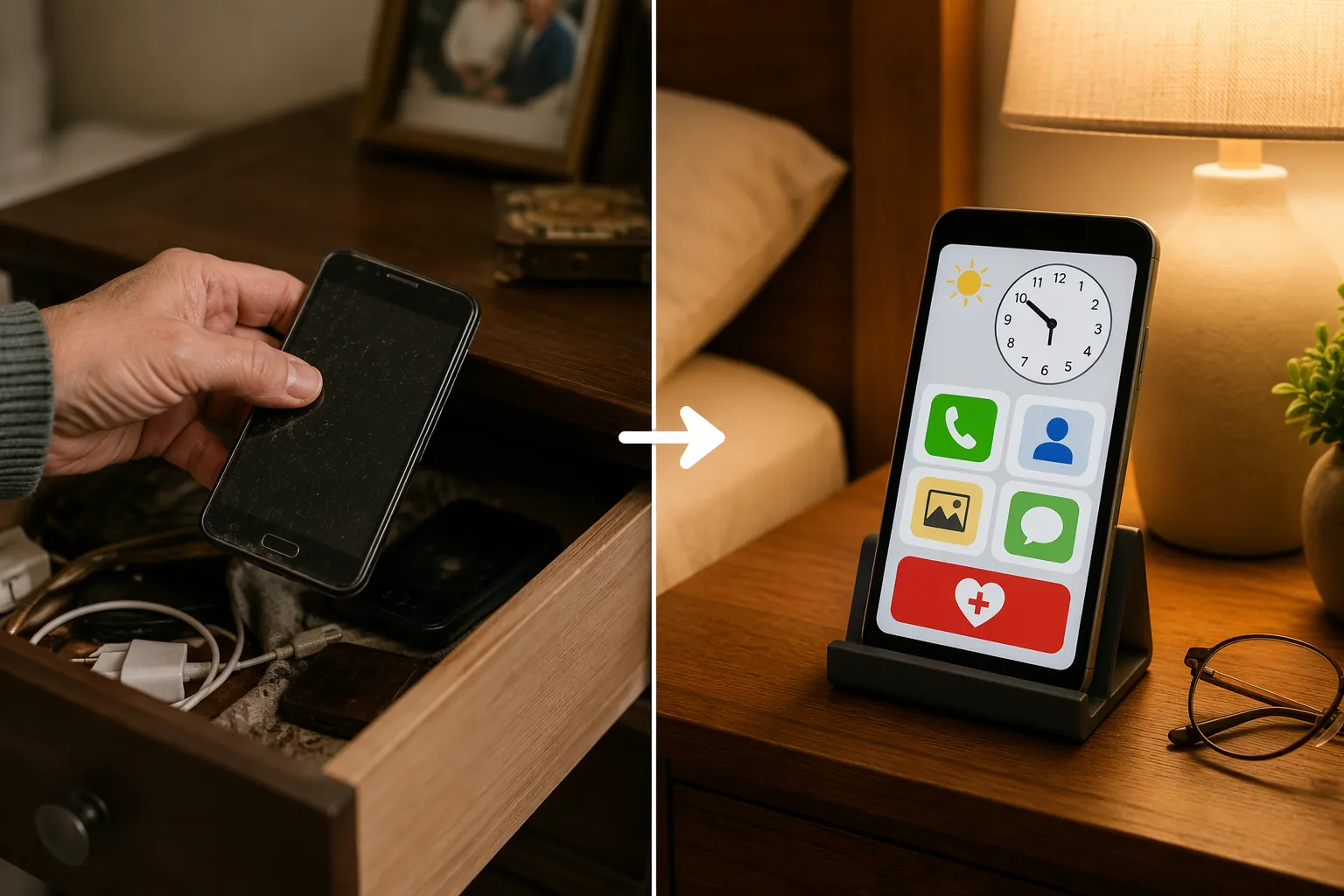
Cost is the reason many families try this first. A senior launcher can be free or about $10, while dedicated senior phones can cost $200–500 and medical alert systems often add $30–50 per month. BIG Launcher, for example, lists a one-time launcher purchase and positions itself as an alternative to Jitterbug, Doro, and Emporia-style senior phones; it also reports more than 2 million downloads, a 4.3-star rating from 7,960 reviews, support for 69 languages, and a Vodafone Smart Accessibility Award.[1]
That does not make the drawer phone a medical alert system. It has no guaranteed wearable fall detection, no large physical emergency button, no promise of hearing aid compatibility, and no special speaker hardware. If your parent needs those, compare this setup with fall-detection fitness bands or a medical alert watch before relying on a repurposed phone as the main safety device.
Check the phone before you build anything around it
The first decision is whether this phone deserves the job. If it fails here, do not spend the afternoon decorating the home screen.
- It must be Android. iPhones do not allow third-party launchers to replace the home screen in the same way. Apple’s simplified access tools can help, but they do not create the same always-on launcher-style transformation.
- It should support 4G LTE or newer. Very old pre-4G phones are a poor choice for emergency use after the 3G shutdown.
- The battery must be healthy enough for short outages, or the phone must live on a charger in one reliable place.
- The screen must be readable from where your parent actually sits or sleeps, not just readable in your hand during setup.
- WiFi is enough for photo frame features and some app-based calling, but family phone calls and SMS alerts need active cellular service unless every contact path is deliberately WiFi-based.
- In the U.S., a cellular phone without an active SIM can still call 911 if it has power and can connect to a network, but it should not be treated as a full family contact device unless you have tested the exact communication path you expect your parent to use.
If you do not have a suitable spare phone, it may be safer to buy a simple modern Android handset than to rescue something too old. The buying criteria are different from a normal upgrade; a budget smartphone for seniors should be judged by battery, signal, volume, screen brightness, and update support before camera specs.
The setup flow
This is the whole build in plain order. Some steps take two minutes; the launcher and lockdown steps deserve more care because they decide whether the device survives normal use.
| Step | What you are trying to prevent |
|---|---|
| Choose the old Android phone | Starting with hardware that cannot be trusted in an emergency |
| Reset and update it | Old accounts, clutter, outdated apps, and confusing notifications |
| Install a senior launcher | Tiny icons, app drawers, gestures, and accidental navigation |
| Configure contacts and SOS | A parent needing help but not knowing which icon to press |
| Add medication reminders | Missed doses that nobody else notices |
| Add clock and photo-frame behavior | The phone being ignored because it looks like a spare phone |
| Lock down settings | Airplane mode, removed widgets, changed volume, and broken layouts |
| Set up remote caregiver access | Weekend troubleshooting trips for small changes |
| Test from the real chair or bedside | A setup that works in your hand but not in your parent’s routine |
1. Reset, update, and remove the old life of the phone
Back up anything worth saving, then factory reset the phone. Sign in with a dedicated Google account if you do not want your parent’s display tied to your personal email, photos, contacts, and calendar. Run system updates, update Google Play services, and remove apps that will only create questions: shopping apps, old banking apps, games, social media feeds, and anything with noisy notifications.
Before installing anything special, make the basic Android accessibility changes: increase font size, increase display size, raise touch-and-hold delay if shaky hands are an issue, turn on captioning if useful, and choose a simple ringtone and alarm sound that can be heard from the next room. General senior-proofing guides usually start here because these settings still matter underneath the launcher.[2][3]
2. Pick the launcher by the problem you actually have
The launcher is the part your parent will live with. It replaces the normal Android home screen with something simpler: bigger buttons, fewer choices, clearer contacts, and sometimes an SOS button. This is where the old phone starts acting like a senior-friendly smart display instead of a spare phone.
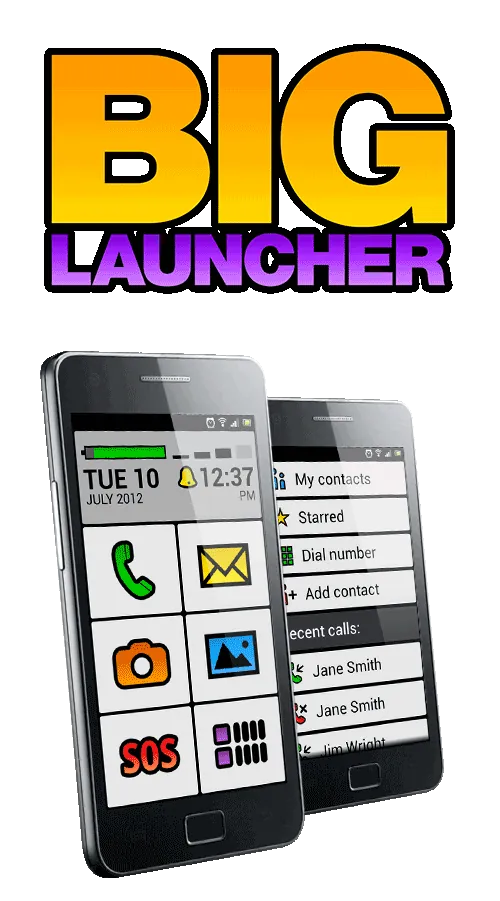
BIG Launcher is the strongest first choice when safety communication is the main reason for the project. Its home screen uses oversized buttons and a large clock, and its SOS feature can send GPS coordinates by SMS to preconfigured contacts with one tap. It also includes a caregiver PIN so the layout is not easily changed by accident.[1]
The small print matters. BIG Launcher is not simply “free forever”; the launcher is listed as a one-time purchase, and related BIG Phone and BIG SMS components may be separate purchases depending on the setup.[1] That is still inexpensive compared with buying a dedicated device, but it is better to know before you promise a sibling that this will cost nothing.
BaldPhone is worth considering when touch control or cognitive load is the bigger issue. Its progressive accessibility levels can add touch delay and arrow-only scrolling, and it includes a pill widget for medication reminders. The catch is installation: it is free and open source, but it is distributed through F-Droid or GitHub rather than Google Play, which adds a sideloading barrier for families who do not want another maintenance chore.[4]
Elder Launcher and Simple Launcher are lighter choices for simpler needs. Elder Launcher is described as a free, lightweight launcher with minimal permissions and a contact-focused home screen. Simple Launcher is also described as free, with no ads, layout lock, and an SOS button.[4] These can be enough for a parent who mainly needs fewer icons and easier calling, not a more controlled safety hub.
| Launcher | Use it when | Watch for |
|---|---|---|
| BIG Launcher | You want the most complete senior-phone-style setup, including SOS GPS by SMS and caregiver PIN | One-time cost and possible separate phone/SMS add-ons |
| BaldPhone | Touch delay, simplified scrolling, and medication widget matter more than polish | F-Droid or GitHub installation is harder for nontechnical caregivers |
| Elder Launcher | You want a light, free, contact-centered home screen | Less of a full safety-hub feel |
| Simple Launcher | You want free large icons, layout lock, and a basic SOS option | Feature depth may be enough only for straightforward situations |
3. Build the home screen around three actions
Do not fill the screen because there is room. The home screen should answer three needs quickly: call for help, contact family, and see the next reminder.
- Put emergency help in the most obvious position. If the launcher supports SOS, configure the contacts before showing it to your parent.
- Add one-tap contacts for the people who will actually answer. Use names your parent uses, not formal contact names.
- Keep medication reminders visible and audible. If missed-dose notification to a caregiver is needed, use a medication app that supports that path rather than a silent calendar entry.
- Remove duplicate routes. If there is one button for “Call Linda,” do not also leave three messaging apps and the full contacts app on the main screen.
Medisafe is a common choice for medication reminders because it can notify a caregiver when doses are missed.[5] That feature is more important than a pretty pill icon. A reminder that only flashes on a bedside phone no one is looking at may help with routine, but it does not give the family any signal when the routine breaks.
For calling, make the contact list painfully short. One primary caregiver, one backup, one nearby neighbor or facility desk if appropriate, and emergency services. A long list looks kind until someone is scared and trying to read.
4. Add clock and photos, but do not let them take over
The “smart display” part is useful when it makes the phone visible. A large clock, today’s date, and a rotating family photo album can make the device feel like something that belongs on the nightstand rather than a spare phone waiting to be ignored.
Practical walkthroughs of repurposed Android phones often use always-on bedside assistant, dashboard clock, or photo-frame setups with apps such as Fotoo or cloud-synced Google Photos albums.[6][7] Borrow that idea, but keep it subordinate to the safety screen. If the photo frame hides the SOS button or medication alert, it is decoration getting in the way.
Set the display timeout and charging behavior carefully. An always-on screen may be helpful on a bedside stand, but it also means the phone needs a safe charging cable, a stable stand, and enough brightness for daytime without lighting the room at night.
5. Lock it down as if accidental changes are expected
This is the step that decides whether the setup is a gift or a future argument. A senior-friendly display should not depend on your parent remembering which settings not to touch. It should assume settings will be touched.
- Set the senior launcher as the default home app so the normal Android launcher does not reappear after a restart.
- Use the launcher’s layout lock or caregiver PIN if available, especially with BIG Launcher or Simple Launcher.[1][4]
- Remove or hide Settings from the main screen unless your parent truly uses it.
- Disable nonessential notifications so medication reminders and calls are not buried under app noise.
- Turn off battery optimization for medication, calling, launcher, and remote-access apps if Android is delaying alerts.
- Keep volume buttons from becoming the only way to hear alerts; set call, alarm, and notification volume separately and test them.
Android lockdown is always a compromise because this is still a consumer phone, not a sealed medical device. Guides on senior-proofing Android usually rely on a mix of simplified launchers, accessibility settings, notification cleanup, and app removal rather than one perfect switch.[2][3]
6. Add remote access before the first problem
Remote caregiver access is not glamorous, but it is the difference between fixing a setting in two minutes and driving across town because the screen “looks different.” AirDroid Personal is one option commonly discussed for remote control and troubleshooting on Android devices.[4]
Set it up while the phone is in your hand. Confirm permissions, unattended access if the app requires it, and any account login steps. Then write down where the charger is, what account controls the device, which app handles medication reminders, and which contacts receive SOS or missed-dose alerts. The person who gets the Saturday night call may not be the person who built the phone.
Test it where your parent will actually use it
A setup that works at your kitchen table is not finished. Put the phone on the nightstand, recliner table, kitchen counter, or assisted-living side table where it is supposed to live. Sit where your parent sits. Reach with the weaker hand if that is the real hand. Read it without your own reading glasses if your parent often forgets theirs.
- Can your parent wake the screen or is the clock already visible?
- Can they call the primary caregiver with one tap and no scrolling?
- Can they find emergency help without deciding between several similar red icons?
- Does the medication reminder make a sound loud enough to notice from the next room?
- Does a missed-dose alert reach the caregiver who agreed to receive it?
- After a restart, does the phone return to the senior launcher instead of the regular Android screen?
- Can you adjust something remotely without asking your parent to navigate menus?
Do not test emergency calling by placing unnecessary live 911 calls. Test the configured family contacts, SOS messages to relatives if the launcher supports them, volume, WiFi, cellular signal, charging, and restart behavior. If local emergency communication depends on a landline that may be changing, fold this phone into a broader plan rather than treating it as a stand-alone fix; the same is true if your parent’s building has evacuation procedures or backup power concerns. CareWise’s guide to landline phase-out and senior emergency communication and an emergency evacuation plan for an aging parent are better places for that larger safety work.
When the old phone is safe enough, and when it is not
The repurposed phone is credible when it can do the boring things reliably: stay charged, stay visible, make an emergency call, reach family with one tap, display medication reminders clearly, resist accidental layout changes, and let a caregiver fix small problems remotely. That is enough for many aging-at-home situations where the parent mostly needs a safer communication station in a predictable place.
It is not enough when the risk moves away from the table. If your parent may fall in the hallway, wander outside, miss alerts because of hearing loss, need help away from home, or cannot reliably press an on-screen SOS button, a dedicated senior phone, medical alert device, or smartwatch-style emergency device is the more honest answer. The old Android phone can still sit by the bed as a family display, but it should not be asked to do hardware work it was never built to do.
References
- BIG Launcher official site, BIG Launcher
- Make Android Senior Friendly, MakeUseOf
- How to senior proof an Android phone, Beagle
- 7 Best Android Launchers for Elderly, AirDroid
- Senior-Friendly Smartphone Setup Guide, All Seniors Foundation
- I repurposed my old Android phone as an always-on bedside assistant, MakeUseOf
- How to Turn Your Old Android Phone Into a Dashboard Clock or Photo Frame, How-To Geek
Browse more in the Glossary.