
Caregiver decision guide
iOS 27 accessibility features for seniors, explained
A practical preview of the iOS 27 accessibility update for seniors, organized by vision, hearing, and dexterity needs — with honest notes on which features require Apple Intelligence hardware, which languages and regions are supported at launch, and what caregivers can do before the update ships this fall.
The practical question behind iOS 27 accessibility features for seniors is not whether Apple announced something clever. It did. The question is whether an older adult’s actual iPhone, in the country and language they use every day, will get the part that matters: a camera view described aloud, captions generated on the device, or Voice Control that understands a plain instruction instead of a memorized command.
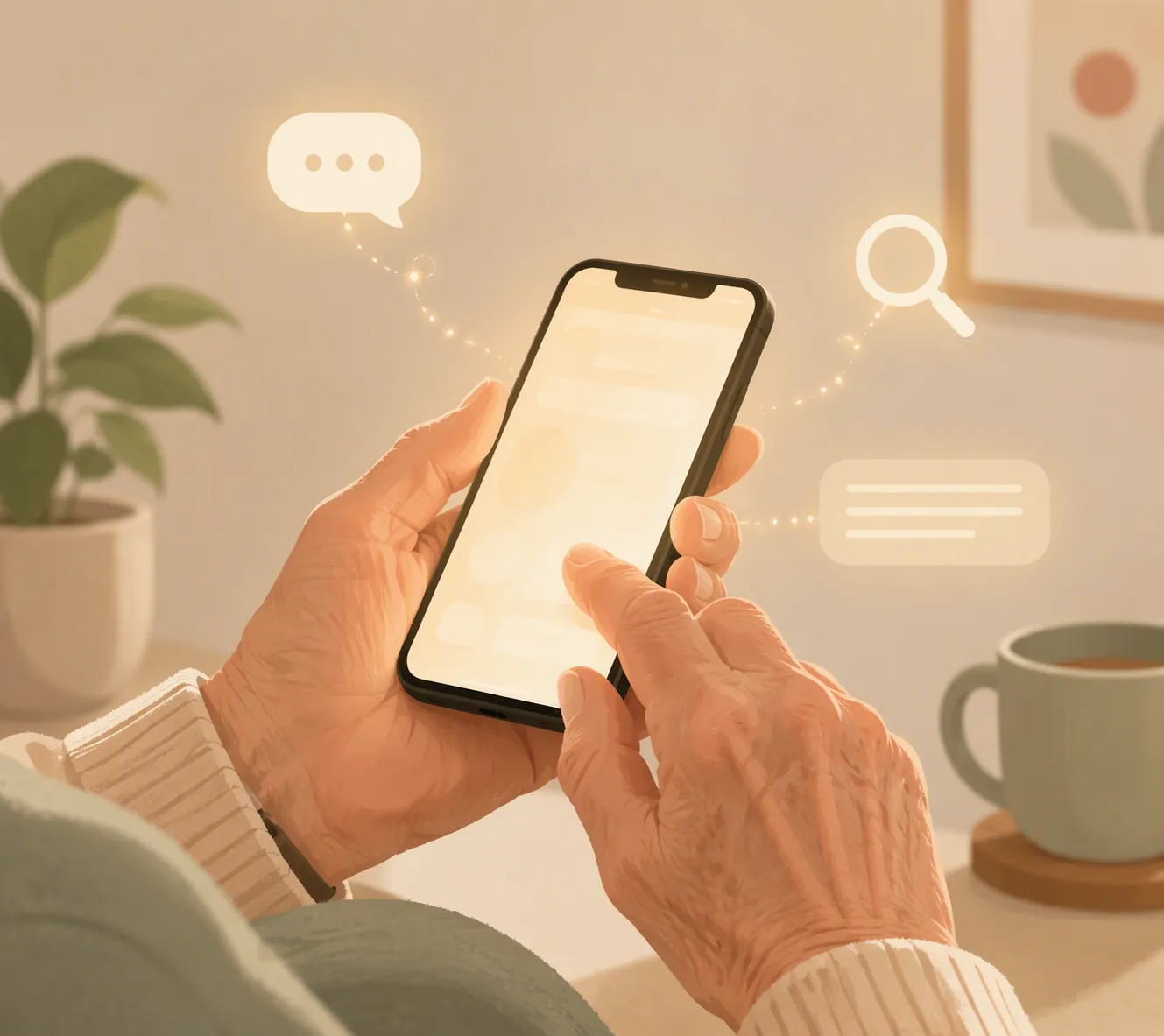
That distinction matters because iOS 27 and Apple Intelligence are not the same gate. Apple’s iOS 27 preview says the operating system supports iPhone 11 and later, plus iPhone SE 2nd generation and later.[1] But Apple’s May 2026 accessibility preview puts many of the most important new accessibility features under the Apple Intelligence umbrella, and those features also come with language and region limits.[2]
As of Aug. 3, 2026, this is still a preview for features Apple says are coming later in the year, not final setup guidance. That is a useful thing to keep in mind before telling a parent, “Your phone will be able to do this in the fall.” It may. It may not. Or it may do only the part that does not depend on Apple Intelligence, English, or a launch country.
The short version before the feature tour
| Need | iOS 27 feature to watch | Why the fine print matters |
|---|---|---|
| Vision | VoiceOver Image Explorer, Live Recognition, AI-assisted Magnifier commands, Accessibility Reader summaries and translation | These are among the Apple Intelligence-powered accessibility updates Apple previewed, so the parent’s iPhone model matters beyond basic iOS 27 compatibility.[2] |
| Hearing | On-device generated subtitles; hearing-aid pairing and handoff improvements | Generated subtitles are launching in English in the U.S. and Canada, so they are not a universal captioning promise at launch.[2] |
| Dexterity and control | Natural-language Voice Control; setup-time Touch Accommodations | Natural-language Voice Control is launching in English in the U.S., Canada, the U.K., and Australia.[2] |
Macworld also treated Apple’s May accessibility announcement as an early look at iOS 27 features, which is helpful context: these are not random experiments floating outside the next iPhone software cycle.[3] Still, the announcement is not the same thing as a final support page. The difference is exactly where family caregivers tend to get trapped.
Vision: when the iPhone can describe more of what it sees

The vision features deserve the most attention because several of them sound similar until you imagine a real moment: a parent trying to identify a pill bottle, find a dropped key on a patterned rug, read a sign in a waiting room, or understand what is in a photo someone sent.
VoiceOver Image Explorer is the clearest example. Apple describes it as a way for VoiceOver users to get richer information about images, powered by Apple Intelligence.[2] For an older adult with low vision, the value is not abstract “AI.” It is fewer moments where the phone says only that an image exists, leaving the person to ask someone else what it shows.
Live Recognition through the Action button could be even more practical, depending on the iPhone model and how Apple ships it. Apple says users will be able to launch Live Recognition with the Action button so the iPhone can describe what the camera sees.[2] A physical button shortcut matters because accessibility often fails in the three menus before the feature. If the shortcut is available on the phone in question, it could let a person raise the iPhone, press one familiar control, and hear useful information without hunting through settings.
There is a hardware catch inside that sentence. The Action button itself is not on every iPhone that can install iOS 27, and Apple Intelligence features are not the same as the general iOS 27 update. AppleVis, a community site focused on Apple accessibility, also flagged the Apple Intelligence hardware caveat when discussing the previewed features.[4] So a caregiver should separate two questions: can this iPhone install iOS 27, and can this iPhone use this specific Apple Intelligence accessibility feature?
The Magnifier changes are another good example of Apple doing something small that could reduce a lot of fussy tapping. Apple previewed AI-assisted Magnifier controls that respond to spoken commands such as “zoom in” and “turn on flashlight.”[2] For a person with low vision and shaky hands, that can be more useful than a beautifully designed slider. The command does not require exact aim, and it does not assume the user can comfortably see the control they are trying to adjust.
Accessibility Reader sits slightly apart from the camera features. Apple says it will offer summaries and translation, also as part of the broader accessibility updates previewed for later in the year.[2] That could help when a senior can technically enlarge text but still struggles with dense paragraphs, unfamiliar wording, or a page in another language. The careful way to think about it is as reading assistance, not as a promise that every medical form, insurance letter, or bank notice will be safely simplified without review.
For vision support, the most promising iOS 27 idea is not one feature name. It is the phone moving from “I can magnify this” toward “I can help interpret this.” That is a meaningful step for older adults who already carry an iPhone. It is also exactly the place where eligibility needs to be checked before anyone makes plans around it.
Hearing: generated subtitles are useful, but the launch is narrow
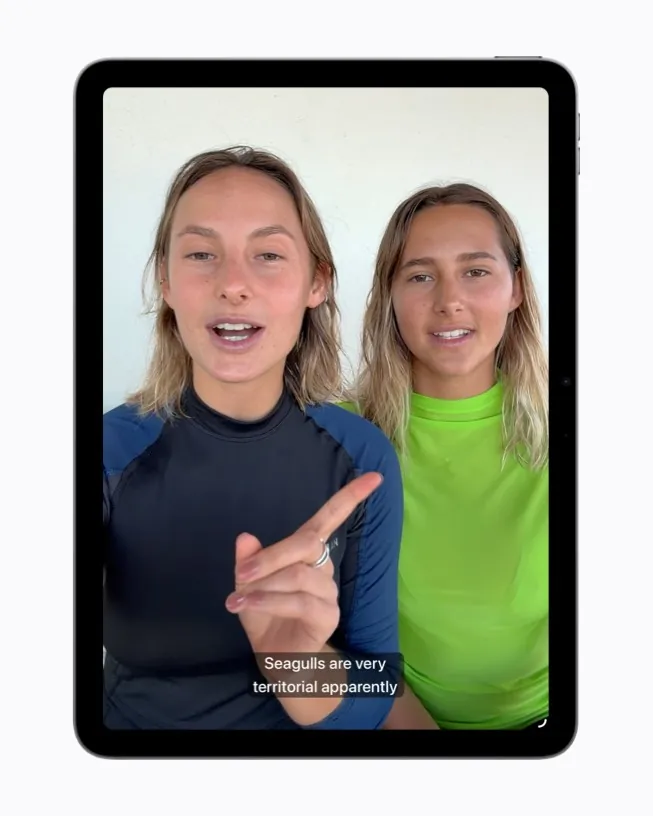
Generated subtitles may be the iOS 27 feature that caregivers understand fastest. If a video, call, or audio source does not provide captions in the right place, the iPhone generating subtitles on device could remove a common barrier. Apple says generated subtitles will launch in English in the U.S. and Canada.[2]
That launch limit is not a side note. It decides whether the feature belongs in a parent’s fall plan at all. A senior using English in the United States or Canada may be in the first supported group. A bilingual household, a parent whose phone region is set differently, or a user outside those countries should not assume the feature will appear in the same way on day one.
The on-device part is still important. Captions that do not depend on a separate captioning service can be more convenient in everyday situations, especially when the older adult is moving between apps or content sources. But “generated” also means the usual caution applies: captions can be wrong, names can be misheard, and high-stakes information still deserves confirmation.
Apple’s hearing-related preview also includes hearing-aid pairing and handoff improvements.[2] Those changes are less flashy than generated subtitles, but they may matter more for someone who already uses hearing aids with an iPhone. Pairing problems are one of those small technical failures that can quietly shut a person out of phone calls, video chats, or directions. A smoother handoff can mean fewer moments where the sound goes to the wrong place and everyone in the room starts troubleshooting.
This is also where it helps not to overstate what iOS 27 can do. Better iPhone hearing support does not replace a hearing evaluation, a properly fitted hearing aid, or clear communication habits. It can, however, make a familiar device less hostile during ordinary media and calls.
Dexterity and control: plain-language commands may matter more than new menus
Voice Control has always had an appealing promise for people who have trouble tapping, swiping, or holding a phone steadily. The hard part is that traditional voice commands can require a user to remember the system’s preferred phrasing. That is not a small hurdle for someone who is tired, in pain, has tremor, or is already frustrated by the screen.
Apple’s iOS 27 preview adds natural-language Voice Control, with examples such as telling the phone to “tap the purple folder.” Apple says the feature will launch in English in the U.S., Canada, the U.K., and Australia.[2] The practical improvement is that the person can describe the target instead of memorizing the command format. If that works reliably, it reduces the translation step between what the user wants and what the phone expects to hear.
Again, the region and language line belongs in the main paragraph, not hidden at the end. A parent in the supported English launch regions may benefit early. A parent outside them may still install iOS 27 but not receive this particular plain-language behavior at launch.
Touch Accommodations at setup is quieter but worth noticing. Apple says iOS 27 will let users configure Touch Accommodations during setup.[2] That could help a senior who presses too long, taps repeatedly by accident, or cannot reliably perform the gestures the phone expects. The setup timing matters because many accessibility settings are discovered only after the device has already become difficult to use. If the phone asks earlier, a caregiver may be able to make the device more forgiving before the first frustrating afternoon.
Apple also announced the Hikawa Phone Grip & Stand as an accessibility-focused accessory available now.[2] It should not be confused with an iOS 27 feature, but it belongs in the same practical conversation. For some older adults, the barrier is not the software at all; it is holding the phone at a stable angle long enough to read, tap, or make a call.
The availability check: do not stop at “Can it install iOS 27?”

The easiest mistake is to look up the iOS 27 compatibility list, see the parent’s iPhone there, and assume the whole accessibility package is coming. Apple’s iOS 27 preview says iPhone 11 and later and iPhone SE 2nd generation and later can run the OS.[1] That is the first gate only.
For the headline accessibility features, the better check is feature by feature:
- If the feature is described as powered by Apple Intelligence, confirm that the parent’s specific iPhone supports Apple Intelligence before promising it.
- If the feature has a launch language, check the language the parent actually uses on the phone, not just the language the caregiver speaks.
- If the feature has a launch region, check the phone’s region and the country where the parent uses it.
- If the feature depends on a physical control, such as the Action button, confirm that the parent’s iPhone model has that control.
- If the feature is still in preview, wait for Apple’s final support page before writing down exact setup steps.
That sounds fussy until you are the person across the table explaining why an iPhone that successfully updated still does not have the feature someone read about. The disappointment is avoidable if the promise is narrower: “Let’s see whether your phone gets this specific feature,” not “iOS 27 will fix this.”
What caregivers can do before the fall release
This is not the moment to memorize settings paths. Apple can still change names, menus, and behavior before the final iOS 27 release. It is the moment to gather the information that will decide whether the update is worth attention for one older adult.
- Write down the exact iPhone model, not just “an iPhone.”
- Check whether the parent uses English and which region the iPhone is set to.
- Identify the real barrier first: seeing objects and text, hearing media and calls, or physically controlling the phone.
- Watch for Apple’s final iOS 27 and accessibility support pages after release.
- Avoid buying new hardware solely for a previewed feature until Apple confirms final device eligibility.
If a hardware upgrade eventually comes into the conversation, make it a specific tradeoff. A newer iPhone may bring Apple Intelligence eligibility, different physical controls, and other safety features, but the reason to upgrade should be the feature the person will actually use. For a broader device-decision frame, our guide to the iPhone 18 Pro Max release date and senior safety features may help place iOS 27 in the larger upgrade cycle.
It is also worth keeping iPhone features in proportion. Software can preserve independence when it removes a daily obstacle on a device someone already knows. It cannot solve every home-safety, memory, mobility, or caregiving problem. If you are comparing phone-based help with other assistive tools, the same practical standard applies: choose the technology that reduces a real task burden, not the one with the newest label. That is the same lens we use when looking at assistive technology that helps seniors live at home.
iOS 27 looks like a meaningful accessibility step for older adults because it moves help closer to the moment of need: describe what the camera sees, subtitle what is playing, understand a spoken instruction, forgive an imperfect tap. But it is not a guaranteed upgrade for every senior. The useful answer this fall will be the careful one: which iPhone, which language, which region, and which feature?
References
- iOS 27 Preview, Apple
- Apple unveils new accessibility features, and updates powered by Apple Intelligence, Apple Newsroom, May 19, 2026
- Apple just gave us a peek at some of iOS 27's new features, Macworld
- Apple previews new accessibility features coming later this year, including improved visual descriptions, automatic subtitles, and more, AppleVis
Questions to bring to a clinician or OT
This is not medical, legal, or a family's final decision — only a framework. Bring these questions to a clinician, occupational therapist, or your local Area Agency on Aging.
Find Local HelpRelated reading
Noticed something outdated or inaccurate on this page? Flag a correction. We review every report against CDC, NIA, and AARP HomeFit guidance before updating a page.