
Caregiver decision guide
Which Voice Assistant Is Best for Seniors With Hearing Loss?
Choosing a voice assistant for a senior with mild-to-moderate hearing loss comes down to screen captioning, not speaker volume. Compare Alexa, Google, and Apple on the accessibility features that matter, and match the platform to the devices your parent already uses.
The usual buying question is, “Which is the best voice assistant for seniors with hearing loss?” The more useful first question is plainer: when the assistant answers, can your parent read the answer without guessing?
For mild-to-moderate hearing loss, a smart display with captions is usually a better first purchase than a louder smart speaker. A louder answer can still be missed, especially if the TV is on, dishes are running, or the device is across the room. A captioned answer gives your parent a second way to receive and confirm what was said.
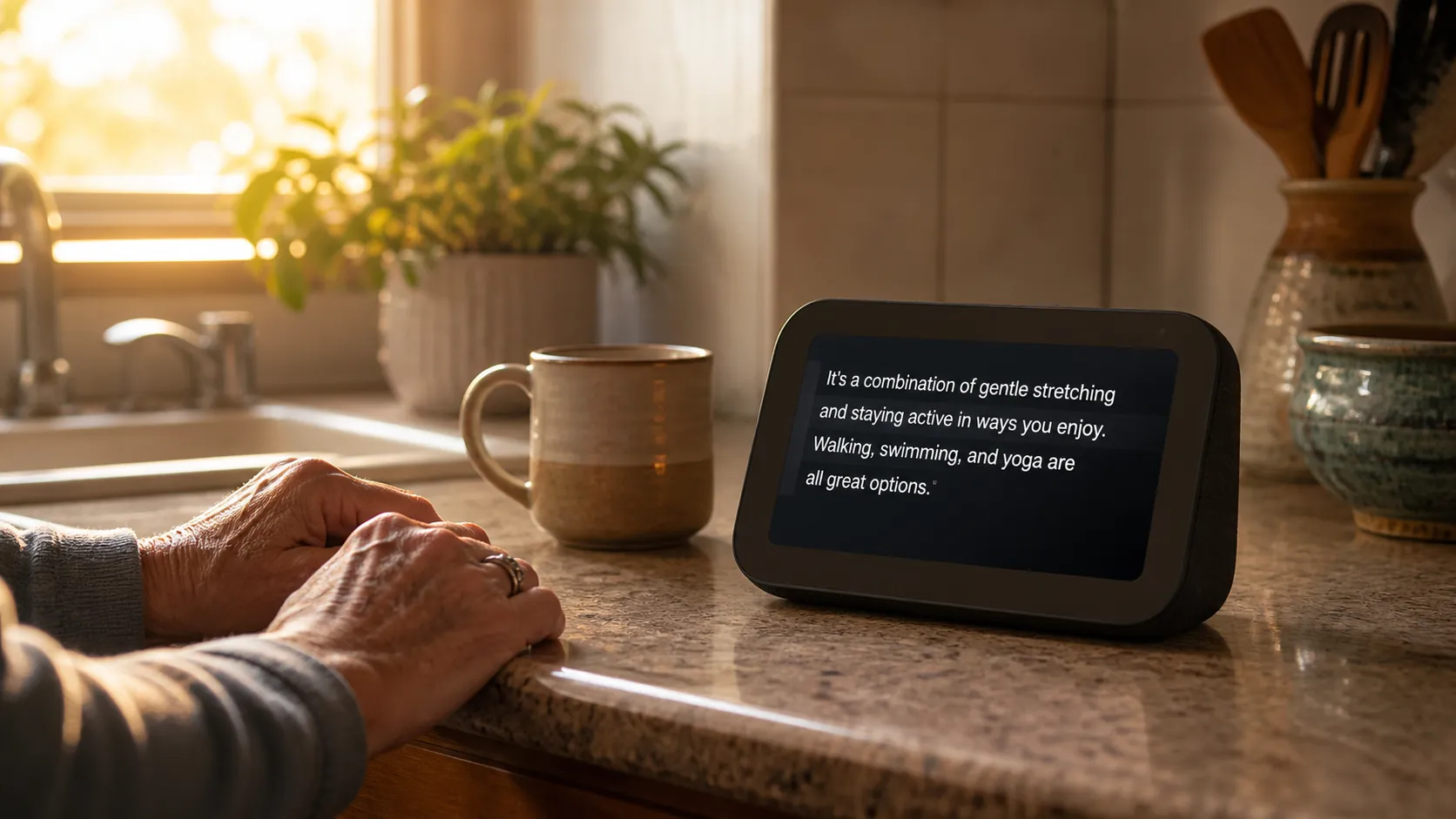
That is not a niche concern. NIDCD estimates that disabling hearing loss affects 22% of U.S. adults ages 65 to 74 and 55% of those 75 and older. It also reports that fewer than one in three adults age 70 and older who could benefit from hearing aids have ever used them.[1] So setup should not assume perfect hearing-aid use, perfect hearing-aid batteries, or a parent who will keep repeating a command until the device finally gets it right.
Start with captions, not speaker volume
A voice assistant has two separate jobs. First, it has to understand the senior. Then the senior has to understand it. Product pages tend to emphasize the first job: microphones, wake words, routines, and compatible devices. For hearing loss, the second job is where many purchases fail.
A screen changes the interaction. If the assistant says the weather, the timer status, a reminder, or a recipe step, the senior can look down and check the words. If they did not catch the first half of the answer, they do not have to ask again, feel corrected, or pretend they heard. That small dignity matters more than another few notches of volume.
This is why the first practical shortlist is not “Alexa versus Google versus Siri” in the abstract. It is Echo Show versus Nest Hub versus the Apple/iPhone hearing-accessibility setup your parent may already use. A screen-equipped device is not automatically perfect, but it gives you something visible to test before you ask your parent to depend on it.
The features that actually decide the purchase
Amazon documents several hearing-accessibility features for Alexa devices, including Alexa Captioning, Call Captioning, Real Time Text, Tap to Alexa, speech-speed controls, equalizer settings, and Bluetooth options for compatible hearing devices.[2] Google says its smart displays can show captions for the Google Assistant’s spoken responses, with controls for caption font size and style, and captions can be turned on by saying “turn on captions.”[3] Apple’s hearing-accessibility strength is concentrated in iPhone and related services, including Made for iPhone hearing devices, Live Listen, LED flash alerts, RTT calls, FaceTime, and Headphone Accommodations that can use audiogram data.[4]
| Decision point | Alexa / Echo Show | Google / Nest Hub | Apple / Siri |
|---|---|---|---|
| Can the assistant’s answer appear on a screen? | Yes. Alexa Captioning can show supported Alexa responses on Echo Show devices and in the Alexa app.[2] | Yes. Google smart displays can caption the Assistant’s spoken responses.[3] | Not the same countertop-display comparison. Apple’s advantage is mainly through iPhone accessibility and communication features.[4] |
| Can the senior tap instead of speak? | Yes. Tap to Alexa lets users handle supported tasks by tapping icons instead of issuing voice commands.[2] | Nest Hub has touch controls, but Google’s cited hearing-accessibility documentation centers more on captions and caption styling.[3] | Yes on iPhone and iPad through the broader touch interface; Siri itself is strongest when paired with iOS accessibility settings.[4] |
| Can speech be slowed or adjusted? | Yes. Alexa supports multiple speech speeds, including “Alexa, speak slower,” and offers equalizer controls.[2] | Google’s cited smart-display hearing feature is caption display and style control, not a comparable speech-speed package.[3] | Apple offers Headphone Accommodations and other audio adjustments on supported devices.[4] |
| Can alerts be visual? | Echo Show’s screen can make many interactions visible; Amazon also documents communication accessibility features.[2] | Nest Hub’s display makes Assistant responses visible when captions are enabled.[3] | iPhone can use LED flash alerts for notifications.[4] |
| Best fit | No strong phone ecosystem preference, or you want the richest single smart-display accessibility set to try first. | Parent already uses Android, Google Calendar, Gmail, Google Photos, or Google Home. | Parent already uses iPhone, FaceTime, AirPods, Made for iPhone hearing devices, or Apple health/accessibility settings. |
Alexa and Echo Show: the strongest single-device accessibility case
If you are buying one device for a kitchen counter, side table, or nightstand and there is no strong phone ecosystem to protect, Echo Show deserves the longest look. The reason is not that Alexa is magically better with older adults. It is that Amazon has put several hearing-related accommodations in one place: on-screen captions for Alexa responses, Tap to Alexa, slower speech, equalizer controls, and communication accessibility options.[2]
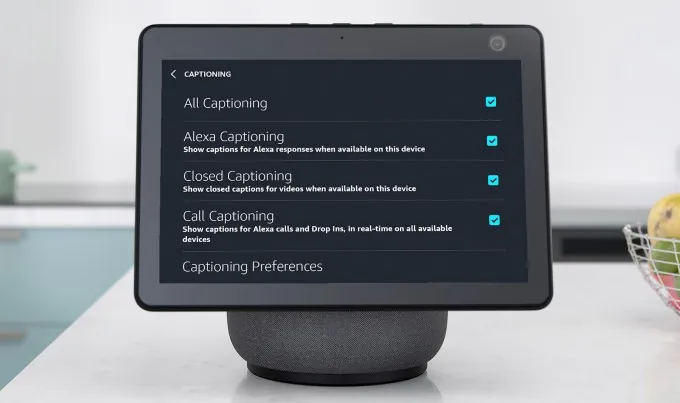
The two features I would test first are Alexa Captioning and Tap to Alexa. Captions answer the “did they understand it?” problem. Tap to Alexa answers a different one: what happens when your parent knows what they want but does not want to say the phrase again? Tapping a visible option is often less aggravating than being told, politely, that the assistant did not understand.
Speech speed is also worth setting during the first visit, not after frustration sets in. Amazon says Alexa has seven speech speeds, controlled by phrases such as “Alexa, speak slower.”[2] A slower answer will not solve every hearing problem, but it can make short responses less slippery, especially for reminders, timers, and weather.
There are device-generation boundaries, so check the exact model before you buy or gift one. A North Dakota Assistive walkthrough lists the accessibility path as Settings > Accessibility on supported Echo Show models and identifies support on specific Echo Show generations and related screen devices.[5] That kind of model checking is tedious, but it is less tedious than shipping a device to a parent and discovering that the one feature you bought it for is not where you expected it to be.
Google and Nest Hub: a practical alternative for Google households
Nest Hub should not be treated as an afterthought. Google’s smart displays can caption the Google Assistant’s spoken responses, and Google documents controls for caption font size and caption style.[3] For a parent who already uses Android, Google Calendar, Gmail, Google Photos, or a Google-based smart-home setup, that may be the cleaner choice.
The buying logic is similar to Echo Show: do not buy a voice-only speaker first if the hearing issue is already causing missed information. Buy the screen, turn on captions, and test it in the actual room. If the parent can read the answer comfortably from where they sit or stand, you have solved more of the real problem than a spec sheet can show.
Google’s advantage is usually ecosystem fit. If your parent’s reminders, photos, contacts, and smart-home devices already live in Google services, a Nest Hub may create less account confusion. That matters because the caregiver is often the one who gets the follow-up call when a calendar, contact list, or photo account does not behave as expected.
Apple and Siri: strongest when the iPhone is already the center
Apple is harder to compare as a single countertop-display purchase because its best hearing tools are not gathered in a Nest Hub-style or Echo Show-style kitchen screen. Apple’s case is strongest when the parent already uses an iPhone and is comfortable enough with it that changing platforms would create more trouble than it solves.
For hearing loss, the iPhone ecosystem is serious. Apple supports Made for iPhone hearing devices, Live Listen, RTT calls, FaceTime, LED flash alerts, and Headphone Accommodations that can use an audiogram to adjust audio.[4] If your parent already answers FaceTime calls, reads notifications, and keeps the iPhone nearby, Siri may be less about a new gadget and more about improving the device they already trust.
This is also where the “best” device may not be the flashiest smart display. If the parent’s daily habits are already built around iPhone, start with iOS hearing settings, hearing-device compatibility, and communication tools before adding another platform to the counter. For a broader look at whether Apple’s senior-friendly features fit a parent’s actual phone habits, see this iPhone guide for seniors.
Phone calls are the place to be most careful
A smart display can make quick video calls easier for some families, but it should not be sold to your parent as “the solution” for phone conversations. Amazon documents Call Captioning and Real Time Text features, and Apple documents RTT calling, but feature availability depends on supported devices, services, and participants.[2][4]
ClearCaptions, a captioned-phone vendor, argues that smart-speaker calls are not the same as dedicated captioned phone calls and that a captioned phone remains the better tool when phone conversations are the main need.[6] That company has a commercial interest in the answer, so I would not treat it as neutral. But the practical boundary lines up with the platform documentation: calling features exist, yet they are not a universal replacement for a dedicated captioned telephone.
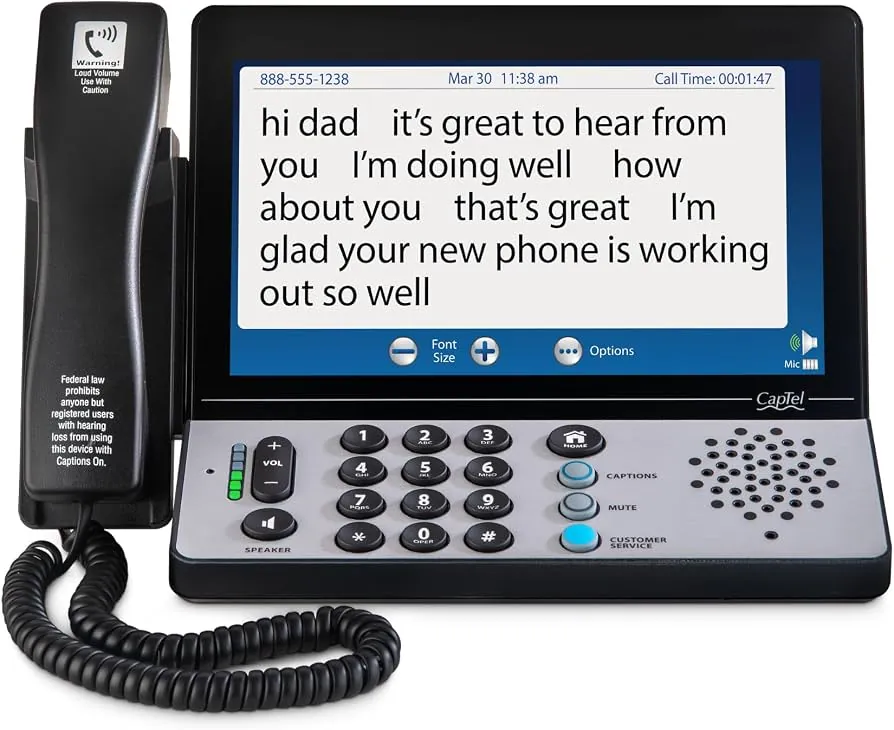
If your parent’s biggest frustration is missing words on phone calls with doctors, banks, relatives, or pharmacies, shop for a captioned phone separately. Let the voice assistant handle timers, reminders, weather, music, lights, and quick visual answers. Do not make it carry the job of accessible telephone service unless you have tested that exact call path with the people your parent actually calls.
A cautious buying rule by household
| Parent’s situation | Best first direction | Why |
|---|---|---|
| No strong phone ecosystem preference | Start with an Echo Show. | It puts captions, tap-based use, speech-speed control, and other hearing-accessibility settings in one visible device.[2] |
| Android or Google household | Start with a Nest Hub. | Google smart displays support captions for Assistant responses, and the account setup is likely to fit existing Google services.[3] |
| iPhone is already central | Start with Apple’s iPhone/Siri hearing settings before adding another platform. | Made for iPhone hearing devices, Live Listen, FaceTime, RTT, LED alerts, and Headphone Accommodations may matter more than a separate smart display.[4] |
| Severe hearing loss or call-heavy needs | Use a dedicated captioned phone for calls, plus a smart display only for secondary tasks. | Smart-assistant call features have device and service limits; a captioned phone is the more defensible tool for phone conversations.[2][4][6] |
| Hearing aids are part of the plan | Confirm compatibility with the audiologist or hearing-device provider before buying. | Streaming and Bluetooth behavior varies by hearing-device brand, model, and generation; platform support does not guarantee a smooth match for every device. |
That last line is not a formality. Hearing-aid compatibility is exactly the kind of detail that looks simple online and becomes complicated in a living room. If the hearing aids are central to the plan, ask the audiologist what pairs reliably with that model and what the parent will actually have to do when something disconnects.
Before you buy, picture the room
A good voice assistant in the wrong spot becomes another unplugged gadget. A Place for Mom recommends placing the device where the senior interacts most, such as a nightstand or living room, keeping it away from TVs and windows, and positioning it at least six inches from the wall.[7] Those placement details matter more for hearing loss than they may sound: background sound, glare, and distance can all make a captioned display less useful.
- Set it up in the room where your parent will actually use it, not in your house as a clean test.
- Turn on captions before the first demonstration.
- Ask your parent to read a few answers from their normal chair, bed, or kitchen position.
- Test one quiet-room command and one realistic-room command, such as with the TV or dishwasher on.
- If gifting an Amazon device, use the gift option at checkout so it does not automatically sync to the buyer’s account.[7]
- Write down the two or three commands your parent is most likely to use, instead of demonstrating every feature.
If the larger concern is a parent living alone, the voice assistant is only one piece of the safety and connection plan. Daily check-ins, emergency planning, and low-friction communication routines deserve their own attention; this aging-in-place safety and connection guide covers that broader context.
For most seniors with mild-to-moderate hearing loss, start with a screen. If the parent uses Google services every day, make that screen a Nest Hub. If there is no strong ecosystem preference, an Echo Show is often the easiest single-device accessibility trial. If the parent already lives on an iPhone, work from Apple’s hearing tools and Siri habits first. And if the real problem is phone calls, buy or request a dedicated captioned phone instead of pretending a smart speaker has solved it.
References
- Quick Statistics About Hearing, NIDCD.
- Hearing Accessibility, Amazon.
- Accessibility in Google Home and Nest, Google Home/Nest Help.
- Hearing accessibility features in iOS, Apple Support.
- Alexa Makes It Possible for Those with Hearing Loss, North Dakota Assistive.
- Smart Speakers for Seniors with Hearing Loss, ClearCaptions.
- Alexa for Seniors, A Place for Mom.
Questions to bring to a clinician or OT
This is not medical, legal, or a family's final decision — only a framework. Bring these questions to a clinician, occupational therapist, or your local Area Agency on Aging.
Find Local HelpRelated reading
Noticed something outdated or inaccurate on this page? Flag a correction. We review every report against CDC, NIA, and AARP HomeFit guidance before updating a page.