
Caregiver decision guide
Technology Caregiving: A Framework for Helping Aging Parents with Digital Daily Living Tasks
A practical guide for adult children who provide tech support for their aging parents. Learn how to use a 'digital activities of daily living' framework to shift from doing-for to teaching-with, preserving your parent's autonomy and your own peace of mind.

The Universal Frustration Scene
It starts with a phone call. Your mother's phone says something about a software update, and now she can't find the photos your sister sent. Or your father's email password has changed again, and he's locked out of his banking app. You walk through the steps over the phone — "Tap the settings icon, it looks like a gear" — but nothing matches what she sees on her screen. Twenty minutes later, you're both frustrated, and the original problem is still unsolved.
If this sounds familiar, you are not alone, and you are not failing. What you are doing — the unpaid, unplanned, often daily work of helping an aging parent navigate technology — has a name: technology caregiving. And like any other form of caregiving, it works better when you have a framework, not just a troubleshooting checklist.
What the Data Says: Tech Adoption Among Older Adults
The stereotype that older adults simply refuse to adopt technology is outdated. According to a 2025 Pew Research Center survey, 78% of adults aged 65 and older now own a smartphone, up from roughly 18% a decade earlier. That is a massive shift in device ownership. Yet ownership does not equal fluency. The same survey found that only 14% of adults 65+ go online almost constantly, compared to 63% of adults aged 18–29. And while 70% of older adults have home broadband, a significant 17% are "smartphone dependent" — they have a smartphone but no broadband at home.
The gap between owning a device and using it confidently is where most technology caregiving happens. Pew's 2014 survey — still the most detailed source for attitudinal data on this topic — found that 77% of older adults said they would need someone to help walk them through learning a new device. Only 18% felt comfortable learning on their own. Those numbers have almost certainly shifted as devices have become more intuitive, but the underlying pattern persists: owning a smartphone does not mean feeling confident using it for anything beyond calls and texts.
The scale of the need is enormous. Over 50 million Americans — close to 20% of the population — use some type of assistive device, according to the Family Caregiver Alliance. And a 2018 AARP survey found that 76% of adults 50 and older want to age in place, which increasingly means managing digital tools for healthcare portals, prescription refills, video calls with family, and online banking. Technology is no longer optional for independent living; it is infrastructure.
The Three Biggest Barriers to Tech Adoption
Understanding why a parent struggles with technology is the first step toward helping effectively. Research points to three primary barriers that are both common and actionable.
1. Confidence and Self-Efficacy
In a 2017 focus group study published in Frontiers in Psychology, researchers led by Dr. Eleftheria Vaportzis interviewed 18 older adults aged 65–76 who were novice tablet users. A recurring theme was a lack of confidence: participants described feeling "a bit inadequate" and expressed fear of breaking the device or making an irreversible mistake. This anxiety is not about intelligence or capability — it is about unfamiliarity with a system that punishes mistakes with confusing error messages. For a deeper exploration of this psychological dimension, see our guide on understanding the psychology of tech resistance.
2. Health-Related Limitations
The same focus group study identified physical barriers that are often overlooked by younger caregivers: arthritis that makes tapping small icons painful, vision changes that make tiny text unreadable, and reduced dexterity that makes swipe gestures difficult. Pew's 2014 data reinforces this: around two in five seniors report a physical or health condition that makes reading or participating in daily activities difficult, and this group is significantly less likely to go online (49% vs. 66%) or own digital devices compared to healthier peers.
3. Poorly Designed Instructions
Vaportzis and her team found that participants were sharply critical of instruction manuals, which one described as "written by the techies." When instructions assume prior knowledge, use inconsistent terminology, or bury essential steps in dense paragraphs, they become a barrier rather than a bridge. This is one barrier you can directly control by creating your own simple, large-print guides.
The Technology Caregiving Framework: Digital Activities of Daily Living
The core insight of technology caregiving is that tech support should be treated as a structured practice, not as ad-hoc troubleshooting. The most useful way to structure it is to borrow a concept from occupational therapy: activities of daily living (ADLs). Just as a caregiver might assess whether a parent can safely bathe, dress, or prepare meals, a technology caregiver can assess a parent's ability to perform digital activities of daily living.
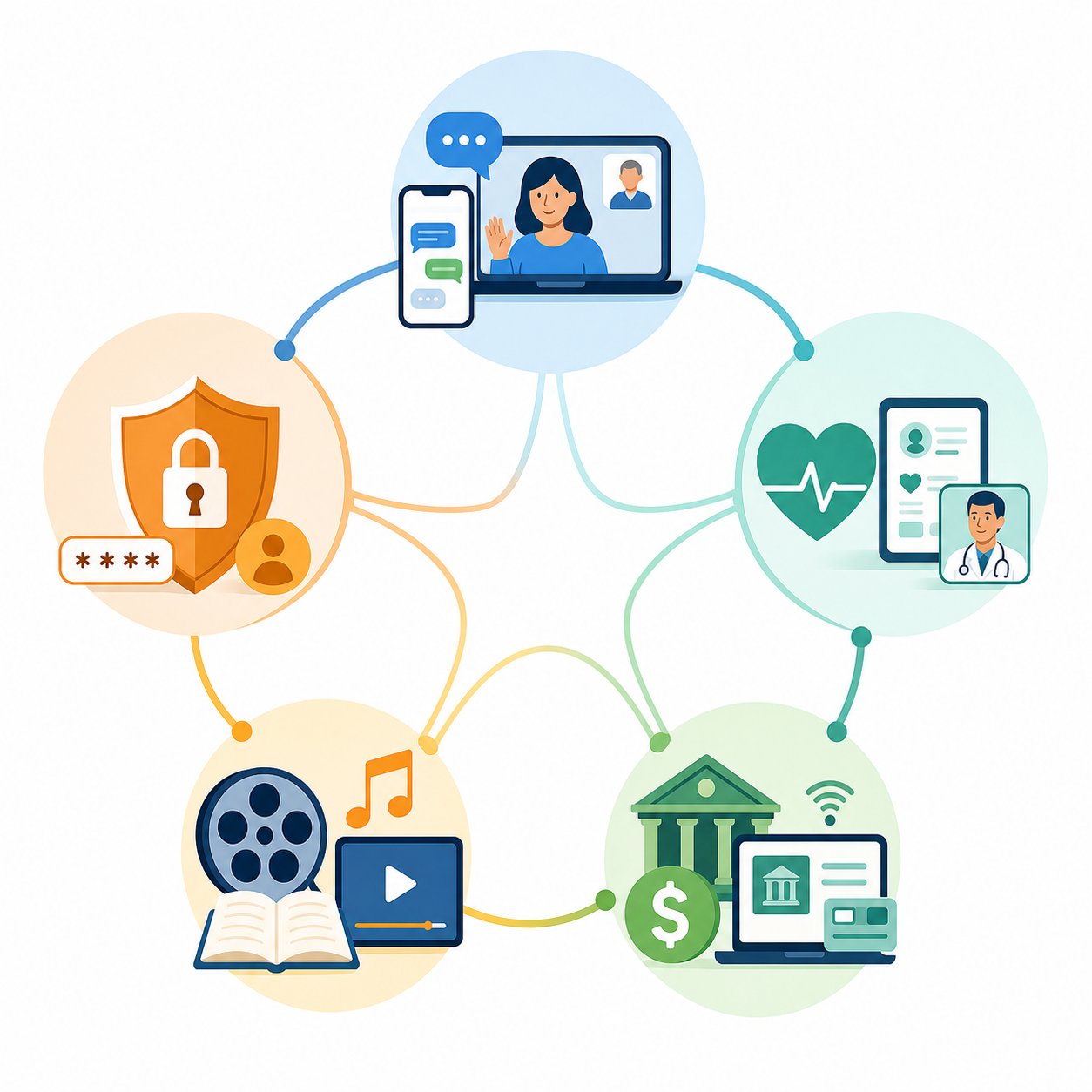
Here are the five key digital ADL domains and what to assess in each:
| Digital ADL Domain | What to Assess | Simplest Starting Tool |
|---|---|---|
| Communication | Can they send and receive text messages? Start a video call? Check voicemail? | A simplified launcher app or a tablet with a dedicated video-calling app |
| Health Management | Can they log into a patient portal? Refill a prescription online? Use a telehealth link? | A password manager and a printed one-page login guide |
| Finances | Can they check a bank balance? Pay a bill online? Spot a phishing email? | A single banking app with biometric login (fingerprint or face ID) |
| Entertainment | Can they find a photo album? Play a game? Watch a streaming show? | A tablet with a curated home screen showing only 3–4 apps |
| Safety | Can they use a medical alert device? Answer a doorbell camera? Lock doors remotely? | A smart speaker with voice commands for emergency calls |
The guiding principle, from the Family Caregiver Alliance, is to pick the simplest product that meets the need. Do not buy a flagship smartphone for someone who only needs to make video calls and check the weather. A tablet with a simplified home screen, a single-purpose communication device like the GrandPad, or even a basic phone with large buttons may serve the need better — and with far less frustration.
A Teaching Protocol That Actually Works
Once you have assessed the digital ADL domains and chosen the right tool, the next question is how to teach. The evidence from Vaportzis et al. (2017) and from practical guides like Sunrise Senior Living's 2026 resource points to a clear, repeatable protocol.
- Start with security. Before teaching any skill, set up strong passwords, two-factor authentication, and a password manager. Your parent cannot learn safely if they are afraid of being hacked or losing access.
- Use slow pacing. One skill per session. Do not try to cover texting, email, and photos in the same afternoon. The Vaportzis study found that after just a brief hands-on exposure session, 66.6% of participants said they would be Likely or Very likely to use a tablet in the future — but that success depended on unhurried, patient instruction.
- Let them touch the device. This is the single most important rule. The Vaportzis study found that participants whose family members "fix it for them" rather than teaching were a major frustration point. You guide verbally; they perform the action. Your hand hovers near the screen but does not take over.
- Write it down. Print a large-font, step-by-step guide for each skill. Use screenshots with numbered arrows. Sunrise Senior Living's guide recommends printing these guides and keeping them near the device. A handwritten notebook on the kitchen table — visible in the opening image of this article — is a powerful learning tool.
- Use built-in accessibility features. Before teaching anything, enable large text, high-contrast mode, and simplified home screen layouts. On iPhones, the home button model (iPhone SE) eliminates confusing gesture navigation. On Android, simplified mode reduces the interface to essential apps. These adjustments remove the physical barriers identified in the Vaportzis study before they become learning obstacles.
When to Outsource: Tech Support Services for Seniors
There is a limit to how much technology caregiving one person can provide, especially when you are managing it from a distance alongside work and family responsibilities. Outsourcing is not a failure — it is a strategic decision that can preserve your relationship with your parent. As Prof. Skye Leedahl of the University of Rhode Island told WIRED in 2024, "Sometimes learning from non-family members works best, because we tend to be more patient with other people."
| Service | Cost | Best For | Format |
|---|---|---|---|
| Cyber-Seniors | Free | One-on-one tech support by trained student volunteers; available in English, Spanish, and French | Phone (844-217-3057), 8 am–6 pm ET |
| Senior Planet (from AARP) | Free | Online courses, one-on-one Zoom training, and in-person locations in NY, MD, CO, TX, FL, and CA | Online and in-person; call (888) 713-3495 |
| Candoo Tech | $75 per session or $228/year for individual membership | Remote tech support for ongoing issues and device setup | Remote sessions |
| Quincy | From $5/month | Remote tech support plus fraud protection (email, text, voicemail, social media monitoring) | Remote subscription service |
| The Smarter Service | From $125/month | In-person support in CA, AZ, IN, and OH | In-person visits |
For a broader look at the full range of services that support aging in place — beyond just tech support — see our complete guide to home helps for the elderly.
Accessibility Adaptations and Smart Home Integration
Beyond teaching, the most impactful thing you can do is adapt the device environment to match your parent's physical and cognitive needs. These adjustments reduce frustration before it starts.
- Simplified mode on Android: Reduces the home screen to large icons and essential apps. Hides settings and menus that can cause confusion.
- Home button iPhones:
- Large-text and high-contrast settings: Available on both iOS and Android. Enable these before the first use, not as an afterthought.
- Voice assistants: Amazon Alexa and Google Nest can make calls, set reminders, control lights, and answer questions without requiring any screen interaction. For someone with arthritis or vision loss, voice commands can be transformative.
- Smart home devices: Smart plugs, video doorbells, and automated lighting can support aging in place by reducing the need to get up, find light switches, or answer the door. For more on how technology supports aging in place alongside structural modifications, see our decision framework for home modifications.
The Emotional Payoff: Preserving Connection and Independence
Technology caregiving is hard work, and it is easy to focus on the frustrations — the repeated questions, the forgotten passwords, the phone calls that stretch into an hour. But the payoff is real and significant.
Every skill your parent learns independently is a small restoration of autonomy. A video call that they initiate themselves, a prescription refill they manage online, a photo they find and share — these are not just tasks. They are acts of independence that preserve dignity and reduce isolation. And every patient teaching session you complete is an investment in your relationship, not just in their tech skills.
Start small. Pick one digital ADL domain — communication is usually the best place to begin. Assess what they can already do. Choose the simplest tool. Teach one skill per session using the protocol above. And when you need backup, the services listed in this guide are there for exactly that reason.
You are not a tech support hotline. You are a technology caregiver. Treating it as a structured practice — with a framework, a teaching protocol, and a clear boundary for when to outsource — will make the work sustainable for you and empowering for your parent.
Questions to bring to a clinician or OT
This is not medical, legal, or a family's final decision — only a framework. Bring these questions to a clinician, occupational therapist, or your local Area Agency on Aging.
Find Local HelpRelated reading
Noticed something outdated or inaccurate on this page? Flag a correction. We review every report against CDC, NIA, and AARP HomeFit guidance before updating a page.