
Caregiver decision guide
The Caregiver's Tech Coaching Playbook: How to Teach an Older Adult to Use Any Device
A structured 5-step coaching method for adult children who are the primary tech support for their aging parents. Move from reactive help-desk to proactive coach by addressing security anxiety first, then building muscle memory through spaced practice and accessibility adaptations.

The Resistance Is Real: Why Older Adults Say No to Tech
If you have ever watched your parent push a smartphone across the table and say, "I just can't do this," you know the feeling. It is easy to interpret that moment as stubbornness or a lack of ability. But the data tells a different story.
According to AARP's 2026 Tech Trends report, about 9 in 10 adults ages 50 and older now own a smartphone — a 35% increase since 2016. Texting has overtaken email as the preferred communication method. Nearly two-thirds say technology enriches their lives and helps with daily tasks. The audience is not tech-averse; it is tech-anxious about the unfamiliar.
The number one barrier to adoption is data privacy and security. An AARP study found that 85% of adults ages 50–64 are concerned about online privacy and data protection. That fear is rational, not irrational. When your parent hesitates to enter a password or download an app, they are not being difficult — they are being cautious about a digital world that feels designed to trick them.
Beyond anxiety, there are real usability barriers. In 2023, 40% of people aged 65 and older reported at least one usability or accessibility barrier online. A 2021 survey found that 58% of older adults struggle with small text on websites. These are not character flaws; they are design failures that a structured coaching approach can overcome.
Pre-Work: Assess Actual Needs vs. Assumed Needs
Before you teach anything, step back. Most caregivers make the same mistake: they assume what their parent needs and start teaching from that assumption. The result is a mismatch — you are demonstrating a feature they will never use, while the tool they actually need sits untouched.
Instead, identify the specific daily tasks your parent wants to accomplish. These usually fall into four categories:
- Communication: Video calls with grandchildren, texting friends, emailing the doctor's office.
- Health management: Medication reminders, telehealth appointments, checking test results on a patient portal.
- Safety: Using a medical alert system, setting up a smart speaker for emergency calls, sharing location with family.
- Entertainment and connection: Streaming shows, listening to audiobooks, viewing family photos shared via a digital frame.
Ask your parent directly: "What is one thing you wish you could do on this device that feels hard right now?" Their answer will tell you where to start. If they cannot name anything, observe what they already do. A parent who calls their grandchild every day may benefit most from learning video calling. A parent who forgets their afternoon medication may need a simple reminder app.
The 5-Step Coaching Method: From Reactive Help-Desk to Proactive Coach
This is the core of the playbook. The five steps are sequenced deliberately. Do not skip Step 1. Do not jump to Step 5 before Step 3. Each step builds on the one before it, creating a foundation of trust, muscle memory, and confidence.
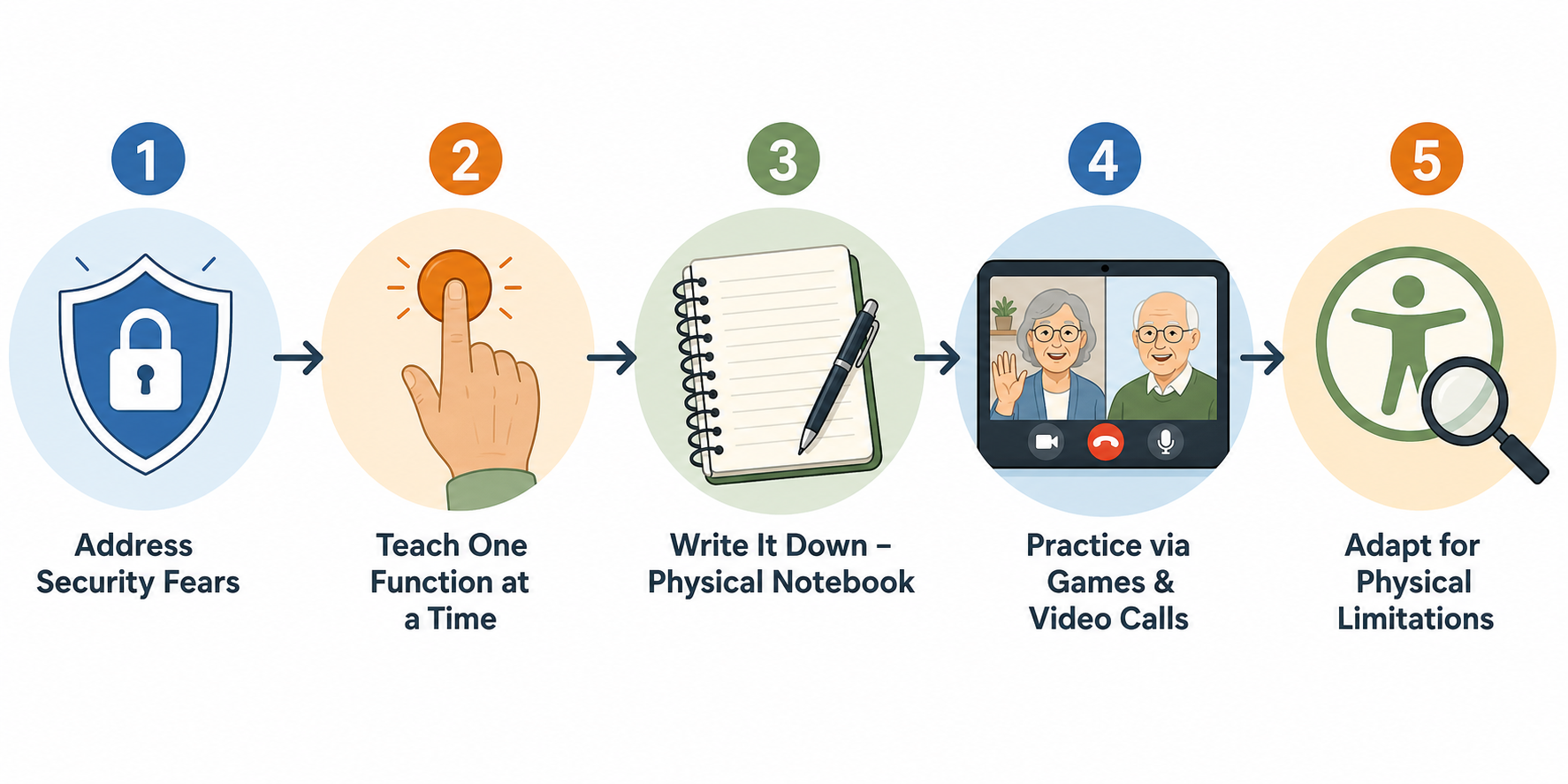
Step 1: Address Security Fears First
Before you teach a single function, you must neutralize the fear that blocks learning. Your parent needs to know that their private information will not be stolen, that they will not accidentally buy something, and that clicking the wrong button will not break the device.
Start with a simple, honest conversation. Acknowledge their concern: "You are right to be careful. There are scams out there, and I want to help you avoid them." Then teach three foundational safety habits:
- Never share passwords or PINs with anyone who calls or emails asking for them.
- Only download apps from the official app store on the device.
- If a message says "you won a prize" or "your account is locked," show it to you before clicking anything.
This step is not about teaching every privacy setting. It is about establishing a trust protocol — a simple rule your parent can follow when they feel uncertain. Once they know they have a safe way to handle doubt, their brain can relax and focus on learning.
Step 2: Teach One Function at a Time
The most common coaching mistake is the information dump. You sit down, open the device, and show your parent ten things in one session. They nod along, but by the next day, they remember nothing.
Instead, pick one function and teach only that until it becomes automatic. If the goal is video calling, the single function is: open the app, tap the contact's name, tap the video icon. That is it. Do not also show them how to send a text message, change the ringtone, or check the weather. Those are separate sessions.
Use the "I do, we do, you do" method:
- I do: You perform the action while your parent watches and narrates what you are doing.
- We do: You guide their hand through the action, letting them tap the screen themselves.
- You do: They perform the action alone while you watch and offer encouragement.
Repeat the "you do" step until they can complete the function without prompting. This may take three repetitions or thirty. The goal is not speed; it is automaticity.
Step 3: Write It Down in a Physical Notebook
Digital instructions — bookmarks, PDFs, notes apps — are invisible to someone who cannot find them. A physical notebook sitting next to the device is always visible. It does not require a password. It does not require scrolling.
Create a dedicated "device manual" notebook with your parent. For each function they learn, write the steps in large, clear text. Use the same language every time. For example:
- "To call Sarah: Open the green app with the phone icon. Tap Sarah's name. Tap the video camera button."
- "To charge the tablet: Plug the white cord into the bottom. Plug the other end into the wall. The red light means it is charging."
Let your parent write the steps themselves if they are able. The act of writing reinforces memory far more than reading. If handwriting is difficult, you write while they dictate. Keep the notebook in a consistent spot — next to the coffee maker or beside the armchair where they use the device.
Step 4: Practice via Games and Video Calls (Spaced Repetition)
Learning a new device function is like learning a new physical skill. One session is not enough. The brain needs repeated exposure over time to build procedural memory.
Schedule short, low-pressure practice sessions. Five to ten minutes, three times a week, is more effective than a single hour-long session once a month. Use activities that feel like play, not homework:
- Play a simple word game or puzzle app together during a video call.
- Send each other a daily text — a photo of the garden, a weather update, a funny meme.
- Use the video calling feature for a regular "coffee date" where the focus is connection, not instruction.
The key is spaced repetition: practice on day one, again on day two, then skip a day, then practice again. Each gap forces the brain to retrieve the memory, strengthening the neural pathway. After two to three weeks of this rhythm, the function will feel automatic.
Step 5: Adapt for Physical Limitations Using Accessibility Features
If your parent is still struggling after Steps 1 through 4, the problem may not be their understanding — it may be the device's interface. Modern smartphones, tablets, and computers include powerful accessibility features that are often hidden in settings menus. Adjusting these can transform the experience.
Start with the most common adjustments:
| Accessibility Feature | What It Does | When to Use It |
|---|---|---|
| Larger text / display zoom | Increases font size across the entire interface | Your parent squints, holds the device far away, or complains about small text (58% of older adults report this issue) |
| Bold text and high contrast | Makes text thicker and increases color contrast | Your parent has trouble reading light gray text on white backgrounds |
| Touch accommodations (tap duration, ignore repeated taps) | Adjusts how the screen registers touch input | Your parent's fingers shake, or they accidentally trigger actions by tapping twice |
| Voice control / dictation | Lets the user speak commands or dictate text instead of typing | Typing is slow or painful due to arthritis; your parent prefers speaking |
| Simplified home screen (guided access or easy mode) | Removes clutter, hides unused apps, and limits navigation | Your parent gets confused by too many icons or accidentally opens the wrong app |
Enable these features together. Show your parent what each one does and let them choose what feels better. Many older adults resist accessibility settings because they feel like an admission of decline. Frame it differently: "This feature makes the device work the way you want it to. Let's see if it helps."
When to Bring in a Third Party
Sometimes the best thing you can do as a coach is recognize when you are not the right teacher. The emotional dynamic between parent and adult child — history, roles, expectations — can interfere with learning. Your parent may be more receptive to a neutral third party who has no family baggage.
Consider handing off to a professional service if you notice any of these signs:
- Your coaching sessions consistently end in frustration or arguments.
- Your parent says things like "you are too impatient" or "you make me feel stupid."
- You live far away and cannot provide consistent in-person practice.
- Your parent needs help with a device or platform you do not use yourself.
Several reputable organizations offer tech support specifically for older adults. The table below summarizes the most well-known options.
| Service | What They Offer | Cost | Contact |
|---|---|---|---|
| Senior Planet from AARP | Free 1-on-1 training via Zoom; live online classes; has served over half a million people | Free | 888-713-3495; available 9 am to 8 pm ET, Mon–Fri |
| Cyber-Seniors | Free 1-on-1 tech support from trained student volunteers | Free | 844-217-3057; available 8 am to 6 pm ET, US and Canada |
| Candoo Tech | Personalized tech coaching and setup; remote support | $75 per single session; $228/year for singles; $340/year for couples | Via their website |
| The Smarter Service | In-person tech support and training (available in parts of CA, AZ, IN) | $125/month annual membership | Via their website |
If your parent is low-income or lives in a community with a senior center, also check for free local programs. The National Council on Aging (NCOA) partnered with AT&T in 2024 to increase digital literacy for 100,000 older adults through in-person workshops and self-paced online modules. Organizations like OATS/Senior Planet and SeniorNet also operate learning centers in multiple states.
Quick-Reference Checklist for Common Tools
The following checklist maps the 5-step coaching method to four common device categories. Use it as a quick reference when you are setting up a new tool or troubleshooting an existing one.
| Device Category | Key Feature Dimensions to Evaluate | Coaching Steps That Apply Most |
|---|---|---|
| Video calling (tablet or smartphone) | Camera quality, speaker volume, ease of initiating a call, ability to receive calls without unlocking the device | Step 2 (one function: make a call), Step 3 (notebook with contact names and icons), Step 4 (schedule a weekly video call as practice) |
| Medication reminders (smartphone app or smart speaker) | Voice vs. text reminders, repeat scheduling, ability to confirm "taken," caregiver notification if dose is missed | Step 1 (privacy: the app should not share health data without consent), Step 2 (one function: set one reminder), Step 3 (write the reminder time in the notebook) |
| Smart speakers (voice-controlled assistants) | Voice recognition accuracy, volume control, emergency calling capability, privacy (mute button, data retention settings) | Step 1 (privacy: show the mute button and explain what the device listens for), Step 2 (one function: ask for the weather or set a timer), Step 5 (adjust voice recognition for accent or speech patterns) |
| PERS / medical alert systems | Fall detection (automatic vs. manual), battery life, range (home-only vs. cellular), response time, two-way communication, water resistance | Step 1 (privacy: explain what data is sent and who receives alerts), Step 2 (one function: press the button and practice a test call), Step 3 (notebook: write the steps for charging and testing) |
For a deeper dive into teaching specific devices — including how to handle common troubleshooting scenarios and what to do when your parent gets stuck between steps — refer to our step-by-step guide to teaching smartphones, tablets, and smart home devices.
The Evidence: Why This Approach Works
This playbook is not guesswork. It is grounded in research on how older adults actually learn and use technology.
A study published in the Journal of Applied Gerontology tracked 90 low-income seniors (median age 68) through the Curry Senior Center's digital literacy program in San Francisco. Participants received an iPad, a Fitbit, and a digital scale, along with training and internet support. After one year, the results were striking:
- About 60% of participants rated their health as better than the year before.
- About 60% reported less loneliness.
- About 60% had more confidence in their technology skills.
These outcomes did not come from handing someone a device and walking away. They came from structured, ongoing support — exactly the kind of coaching this playbook describes.
The broader data reinforces the same message. AARP's 2026 Tech Trends report confirms that the vast majority of older adults already own smartphones and use them regularly. The barrier is not capability; it is confidence in the face of new or unfamiliar tools. When you address security anxiety first, teach one function at a time, anchor learning in a physical notebook, space practice over time, and adapt the interface to physical needs, you remove the barriers that make technology feel overwhelming.
Your role as a coach is not to know everything about every device. It is to create the conditions under which your parent can learn. That shift — from reactive help-desk to proactive coach — is what makes the difference between a device that collects dust and a tool that genuinely improves daily life.
Questions to bring to a clinician or OT
This is not medical, legal, or a family's final decision — only a framework. Bring these questions to a clinician, occupational therapist, or your local Area Agency on Aging.
Find Local HelpRelated reading
Noticed something outdated or inaccurate on this page? Flag a correction. We review every report against CDC, NIA, and AARP HomeFit guidance before updating a page.