Caregiver decision guide
When Tech Struggles Signal Cognitive Decline: A Caregiver's Guide to Adapting Devices for Dementia
For adult children and spousal caregivers of older adults with early-to-moderate cognitive decline, this guide explains how technology difficulties can be an early sign of dementia and provides a staged approach to adapt, simplify, and take over tasks while preserving independence.
Recognizing When Tech Struggles Signal Cognitive Change
Every caregiver has watched a parent fumble with a smartphone or get frustrated by a software update. It is easy to chalk it up to generational differences or simple stubbornness. But when the pattern shifts — when a person who once managed online banking confidently suddenly cannot recall their password, or when they begin confusing a text message for an email — the explanation may be neurological, not behavioral.
Douglas Scharre, MD, a neurologist and director of the Center for Cognitive and Memory Disorders at Ohio State Wexner Medical Center, has observed that difficulty with technology — confusing emails and texts, an inability to recall passwords, being thrown off by upgrades — can be early signs of dementia or other cognitive impairment. These are not moments of willfulness. They are symptoms of a brain struggling with executive function, memory retrieval, and abstract reasoning.
The behaviors that should raise a caregiver's attention include:
- Repeatedly forgetting passwords that were once automatic, even when written down nearby.
- Confusing the functions of different apps or communication channels (e.g., treating a text thread like a search engine).
- Becoming visibly anxious or agitated when a familiar interface changes after an update.
- Blaming the device for being "broken" when the error is clearly user-driven (e.g., caps lock on, wrong input field).
- Abandoning devices they previously used daily, citing confusion or fear of making a mistake.
The Ohio State Approach: A Staged Strategy for Adapting Technology
Dr. Scharre and his team at Ohio State have developed a practical framework for caregivers that moves through three stages: adapt, simplify, and take over. The goal is not to strip away independence but to match the technological environment to the person's current cognitive capacity.
The core techniques recommended by the Ohio State team include:
- Write out steps for each technology. Create a simple, large-print instruction sheet for every device or app the person uses. Place it next to the device.
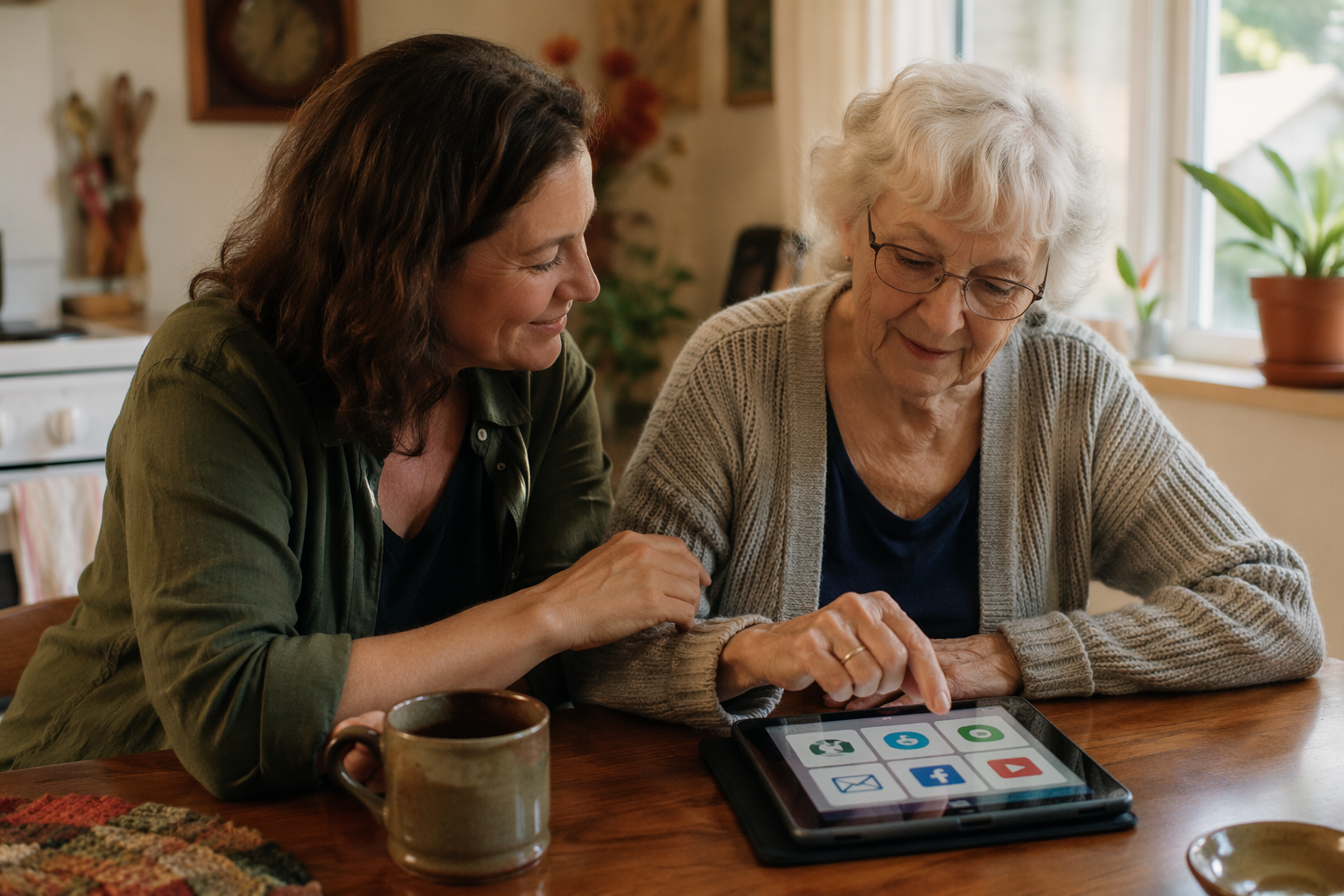
- Sit together to do tasks. Do not hand over a device and walk away. Work through the task side by side, narrating each step.
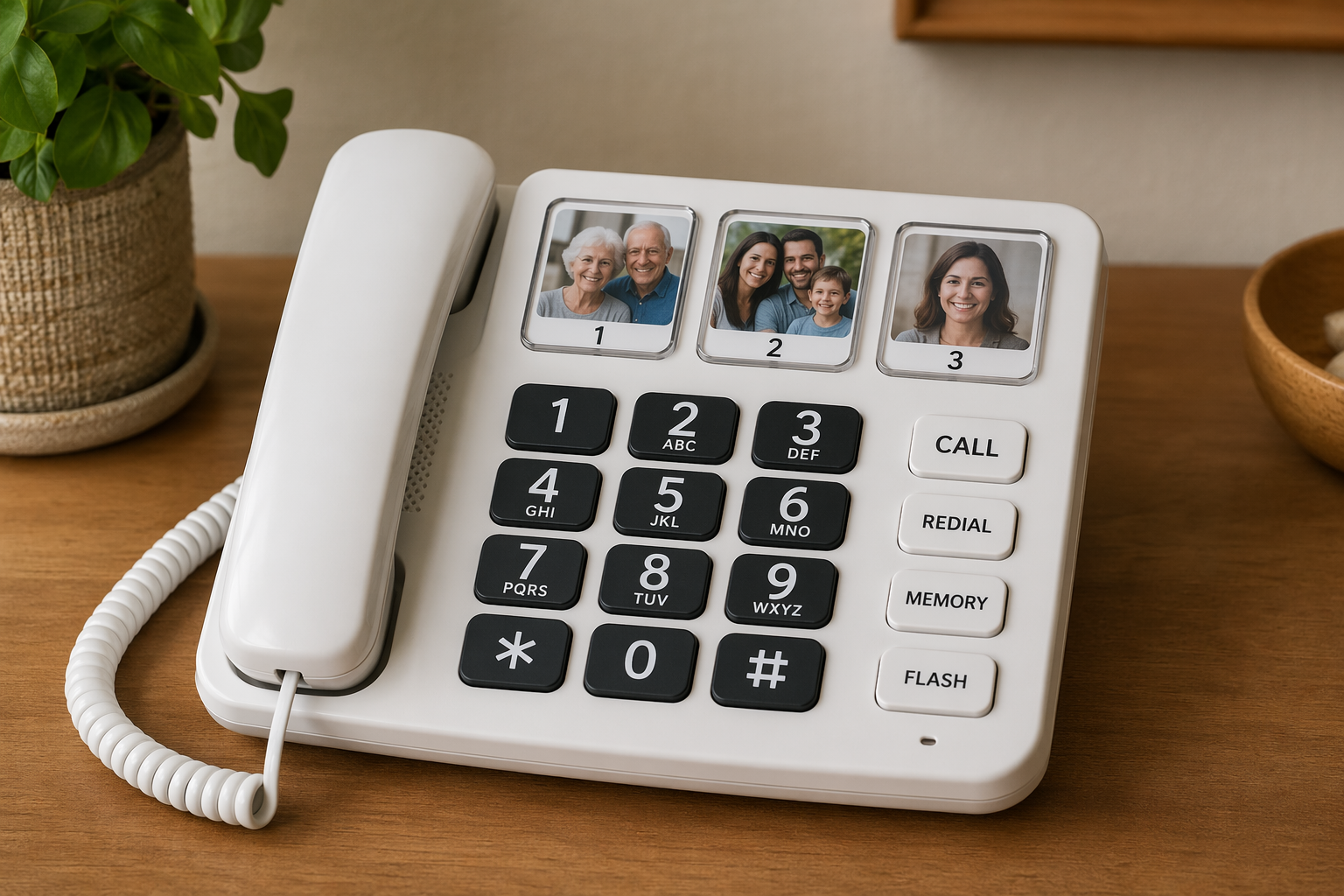
- Simplify devices. Replace complex smartphones with pre-programmed landlines that have large buttons and photo memory buttons. Consider simplified tablets with locked-down interfaces.
- Use whiteboards for reminders. A physical whiteboard near the phone or computer can display daily passwords, appointment times, or a single instruction like "press the green button to call Sarah."
- Limit financial access. As cognitive issues worsen, reduce the person's direct access to online banking, credit cards, and investment accounts to prevent accidental loss or scam victimization.
| Stage | What It Means | Example Action |
|---|---|---|
| Adapt | Modify the existing device or environment to reduce cognitive load | Create a step-by-step cheat sheet; increase font size; remove unused apps from the home screen |
| Simplify | Replace complex devices with purpose-built alternatives | Swap a smartphone for a large-button landline with photo memory buttons; use a simplified tablet launcher |
| Take Over | Assume responsibility for tasks that require abstract reasoning or security awareness | Manage online banking and bill pay yourself; change the person's email address to reduce scam exposure |
Device Adaptations for Cognitive Impairment
When a standard smartphone or tablet becomes a source of daily frustration rather than utility, it is time to consider purpose-built alternatives. The right device does not need to be the most powerful or feature-rich — it needs to be the one the person can actually use without assistance.
Several device categories are particularly effective for people with early-to-moderate cognitive decline:
- Large-button phones and pre-programmed landlines. These devices replace the need to navigate a contacts list or remember phone numbers. Photo memory buttons — physical buttons with a small picture of the person under a clear cover — allow the user to call a loved one by pressing a face, not a name.
- Simplified tablet launchers. Products like the GrandPad or third-party launcher apps (e.g., BaldPhone, Senior Launcher) replace the standard tablet interface with a simplified grid of large icons for only the essential functions: phone, messages, photos, and one or two apps. Everything else is hidden.
- Passive remote monitoring. When wearable devices and pendants fail because the person forgets to put them on or removes them, passive home sensors (motion, door, stove) can provide safety monitoring without requiring any action from the user. For a detailed comparison of these approaches, see our guide on wearable vs. passive elderly monitoring systems.
Passwords and Account Management Strategy
Password management is often the first domain where cognitive decline becomes visible. A person who once maintained a mental map of a dozen passwords may suddenly be locked out of every account. The caregiver's job is to create a system that is secure, accessible, and respectful.
The Ohio State team recommends maintaining a physical password list with secure storage. A small notebook kept in a locked drawer — not a sticky note on the monitor — can serve as the single source of truth. The caregiver should hold a copy as well.
| Strategy | How It Works | Security Level |
|---|---|---|
| Physical password notebook | All passwords written in a single notebook; stored in a locked drawer; caregiver holds a duplicate | Moderate — requires physical security of the notebook |
| Shared password manager | Caregiver and older adult share a family plan (e.g., 1Password Families, Apple Family Sharing); caregiver can access accounts when needed | High — encrypted; requires the older adult to remember one master password or use biometric unlock |
| Email address change | Create a new, simpler email address for the older adult; use the old address only for account recovery and forward it to the new one | High — reduces scam exposure and simplifies the inbox |
| Account recovery setup | Add the caregiver's phone number or email as a recovery option for all critical accounts (banking, insurance, healthcare portals) | High — prevents permanent lockout |
A critical principle: do this together, not secretly. Sit down with your parent and explain that you are setting up these systems to protect them from scams and lockouts, not to take control. Transparency preserves trust, which is far harder to rebuild than a password.
When to Take Over Specific Tech Tasks
There is no single right moment to take over bill paying, online banking, or email management. The decision depends on the person's specific cognitive profile and the consequences of a mistake. A missed utility payment is inconvenient. A misdirected wire transfer or a signed-up scam subscription can be financially devastating.
Consider taking over a task when you observe any of the following:
- Repeated late payments or double payments on bills that were previously handled on time.
- Inability to recognize phishing emails or scam phone calls, even after repeated explanations.
- Giving out personal information (Social Security number, bank account details) to unsolicited callers or emails.
- Signing up for subscriptions, donations, or services without remembering having done so.
- Visible distress or anxiety when attempting to manage finances or email independently.
When you do take over, keep the person engaged in other ways. If they can no longer manage online banking, perhaps they can still sort the mail, water the plants, or set the table. Preserving a sense of contribution and competence in non-technical domains is essential for emotional wellbeing.
Scam Vulnerability and Protective Measures
People with dementia are at significantly elevated risk of being scammed via technology. Dr. Scharre notes that patients with Alzheimer's, Lewy body, frontotemporal, or vascular dementia are less suspicious than they should be — a direct consequence of the cognitive changes affecting judgment and risk assessment. A person who was once financially savvy may now find a convincing phishing email or a high-pressure phone call entirely credible.
Protective measures should be put in place proactively, not after a loss occurs:
- Limit direct access to funds. Remove credit card numbers from stored online profiles. Set up alerts for any transaction over a small threshold (e.g., $50).
- Use spam filters and call blocking. Enable the highest level of spam filtering on the person's email account. Use carrier-level call blocking or a third-party service to screen robocalls and scam calls.
- Change email addresses. As recommended by Ohio State, creating a new, simpler email address for the person and retiring the old one can dramatically reduce scam exposure. The old address can be forwarded to the new one and monitored by the caregiver.
- Monitor accounts regularly. Set a recurring calendar reminder to review bank and credit card statements together. Look for small, recurring charges that may indicate a subscription scam.
- Register the person's phone number on the National Do Not Call Registry and state-level no-call lists. While this will not stop all scammers, it reduces the volume of legitimate telemarketing calls that can confuse the person.
The SAGE Test: A Free Screening Tool for Early Cognitive Changes
If you are noticing the patterns described in this article — password confusion, difficulty with upgrades, increased scam vulnerability — and wondering whether they signal something more than normal aging, the Self-Administered Gerocognitive Exam (SAGE Test) is a free, at-home screening tool developed at Ohio State that can help provide clarity.
The SAGE test takes approximately 15 minutes to complete and covers orientation, language, memory, executive function, and visuospatial skills. It is designed to be taken at home without clinical supervision, though the results should be reviewed by a healthcare provider. The test does not diagnose dementia — only a physician can do that — but it can detect early cognitive changes that warrant further evaluation.
For caregivers who are unsure whether the tech struggles they are witnessing are significant, the SAGE test offers a concrete, low-barrier next step. If the results suggest cognitive impairment, you can bring the completed test to a primary care appointment and start a conversation about next steps — including the adaptations described in this guide.
Balancing Safety with Dignity
The most difficult part of this process is not choosing the right device or setting up the password manager. It is the emotional weight of watching a parent lose capacities they once took for granted, and the delicate work of stepping in without making them feel diminished.
Preserving a person's sense of agency is not just a kindness — it is clinically important. Research shows that perceived usefulness is the single strongest predictor of technology adoption among older adults, and that technology anxiety negatively relates to both perceived ease of use and intention to use. When a person feels that a device is being forced on them or that their competence is being questioned, resistance is a natural response, not a symptom.
Practical strategies for preserving dignity include:
- Let the person choose. When introducing a simplified device, offer two or three options and let them select. Even a constrained choice preserves a sense of control.
- Keep them involved. If they can no longer manage online banking, ask them to review the printed statement with you and confirm that the charges look correct.
- Celebrate what still works. If they can still send a text message or look at photos on a tablet, make that the focus of your shared time. Do not dwell on what has been lost.
- Use the language of partnership, not takeover. "Let's do this together" is very different from "I need to handle this for you."
As cognitive decline progresses, the balance will shift further toward safety. There may come a point when even simplified devices are no longer usable, and the caregiver must take over all technology-mediated tasks. This is not a failure. It is the natural trajectory of a progressive condition. For guidance on recognizing when additional care steps are needed, see our framework on when home care isn't enough.
Questions to bring to a clinician or OT
This is not medical, legal, or a family's final decision — only a framework. Bring these questions to a clinician, occupational therapist, or your local Area Agency on Aging.
Find Local HelpRelated reading
Noticed something outdated or inaccurate on this page? Flag a correction. We review every report against CDC, NIA, and AARP HomeFit guidance before updating a page.