
Caregiver decision guide
Why Your Parent Won't Use That Device: 4 Barrier Profiles and What Actually Works
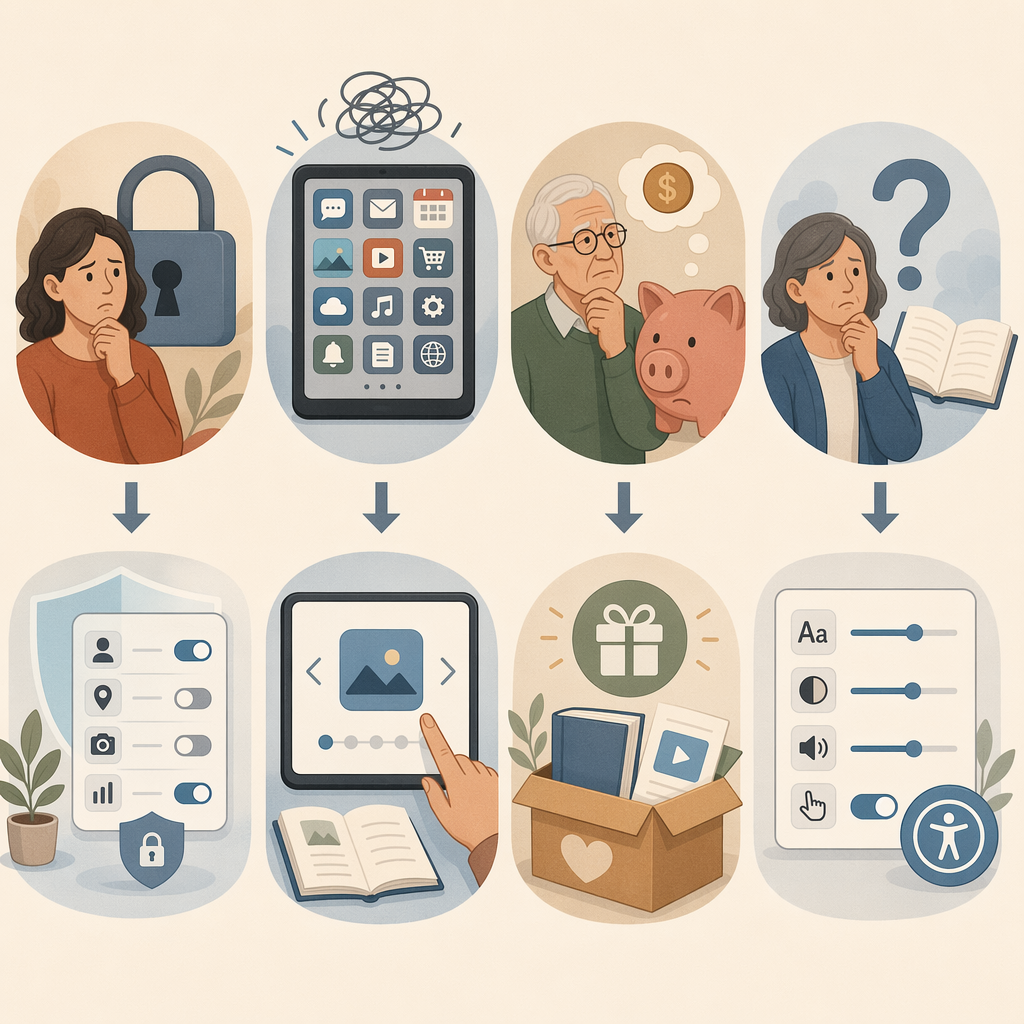
Older adults' technology resistance isn't a single problem — it breaks into four distinct profiles: privacy-concerned non-users, feature-overwhelmed current users, cost-constrained seniors, and low-confidence learners. This article helps family caregivers identify which profile fits their parent and provides targeted, research-backed strategies for each.
The Stereotype Problem: Older Adults Actually Like Technology
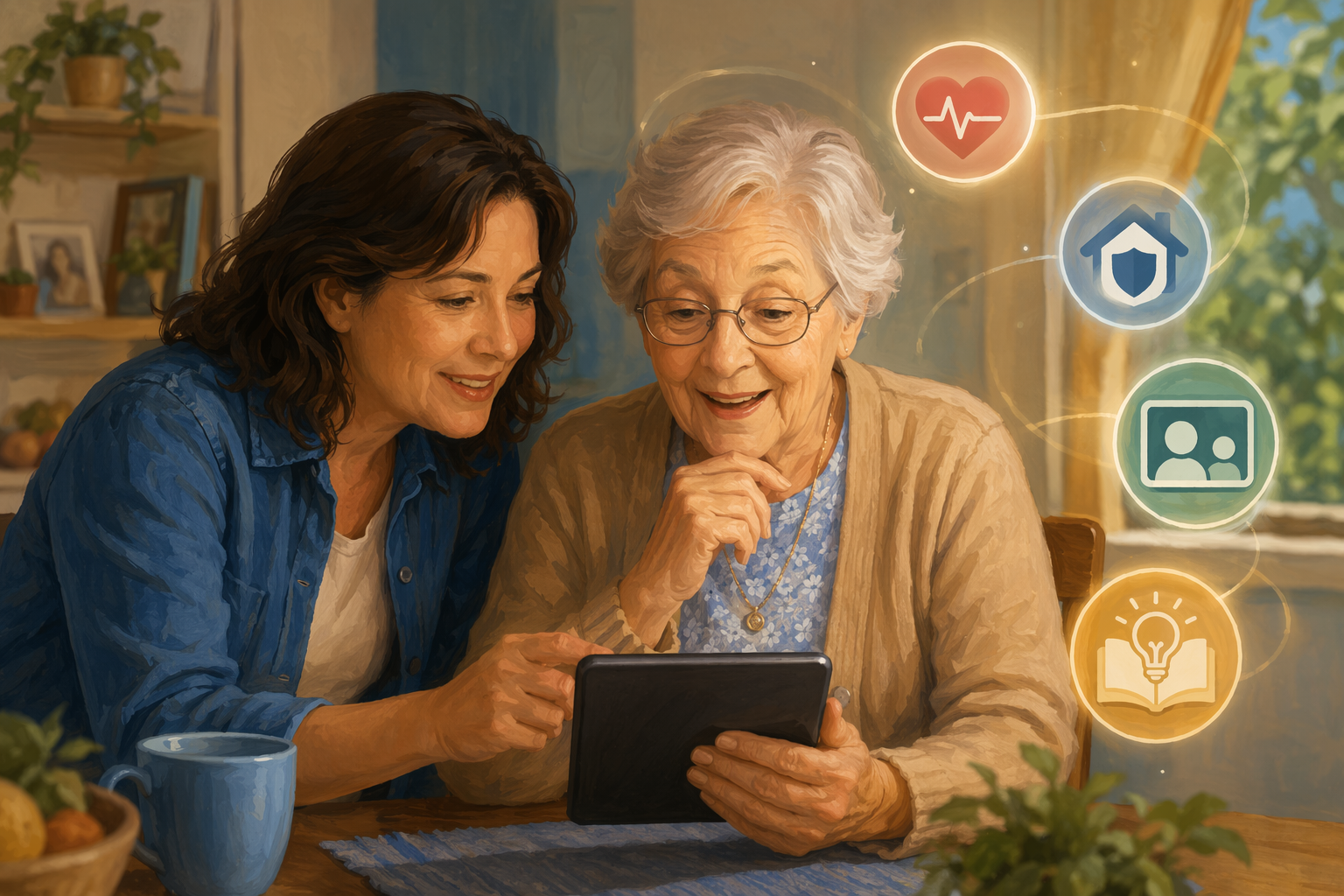
If you have tried to convince a parent to use a medical alert pendant or a smartphone and been met with a flat "no," it is easy to conclude they are simply "not tech people." That assumption, however, does not hold up against the evidence. A peer-reviewed study of 80 older adults (ages 65–90, mean age 71.5) published in Frontiers in Computer Science found that participants held predominantly positive attitudes toward technology. They were not hostile to it. They were not unwilling. They faced specific, solvable barriers that had nothing to do with generational stubbornness.
The same study revealed a critical insight: the barrier that stops a non-user is different from the barrier that frustrates a current user. Privacy concerns are the top reason non-users avoid devices across smartphones, smart security systems, and digital home assistants. Among current users, the number one obstacle is not inability — it is ignorance of features. They own the device but do not know what it can do.
This distinction matters because it means a single approach — "be patient and keep showing them" — will fail for most people. What works for a privacy-concerned non-user will not work for a feature-overwhelmed current user. The first step is not teaching. It is diagnosing which barrier profile fits your parent.
Barrier Profile 1: The Privacy-Concerned Non-User
For older adults who do not currently use a technology, the single largest barrier is concern about data privacy and security. The Frontiers study found this was the top barrier for non-users across all three device categories examined: smartphones, smart security systems, and digital home assistants. Analysis of AARP's 2026 Tech Trends data confirms that data privacy and security worries are the number one barrier to adoption among adults 50 and older.
This is not an irrational fear. News headlines about data breaches and unauthorized listening are everywhere. For someone who did not grow up with the internet, the idea that a device in their home is "always listening" or tracking their location can feel like a legitimate threat, not a convenience.
Strategies That Work for This Profile
- Start with transparent explanation. Before you set up anything, explain exactly what data the device collects, who has access to it, and why. For a personal emergency response system (PERS), that means saying: "This pendant only sends your location when you press the button or if it detects a fall. No one is listening to your conversations."
- Set up privacy controls together. Sit down with your parent and go through the device's privacy settings. Show them how to turn off microphone access for apps that do not need it, how to review location history, and how to delete voice recordings. Knowing they have control changes the equation.
- Begin with low-privacy-risk activities. Video calls with grandchildren involve minimal data exposure and have an immediate emotional payoff. Once trust is established with that use case, introduce devices that require more data sharing, such as a smart speaker or a health monitor.
- Avoid dismissing their concerns. Phrases like "it's fine, everyone uses these" invalidate their legitimate caution. Instead, acknowledge the risk and explain the safeguards: "You are right to be careful. Here is how this device protects your information."
Barrier Profile 2: The Feature-Overwhelmed Current User
This is the most counterintuitive profile — and the most common. Your parent already owns a smartphone or a tablet. They use it for phone calls and maybe text messages. But they do not use the calendar, the camera, the medication reminder app, or the video calling feature. The Frontiers study found that for current users, the number one barrier was "ignorance of features" — not that the features were too hard to use, but that the user did not know they existed.
This is a design and communication problem, not a learning problem. Modern smartphones pack hundreds of features behind menus and icons that are not self-explanatory. If no one ever shows your parent how to use the voice-to-text feature or how to set a recurring medication reminder, they will never discover it on their own.
Strategies That Work for This Profile
- Teach one feature at a time. Do not give a tour of the entire device. Pick the single most useful feature — video calling with grandchildren, or a medication reminder — and teach only that. Wait until it becomes a habit before introducing the next feature.
- Create a printed quick-reference guide. Write down the 3–5 most useful functions with step-by-step instructions and labeled screenshots. Tape it to the refrigerator or keep it next to the device. A physical reference is far more useful than a digital manual for this profile.
- Use a "cheat sheet" format. A single page with numbered steps and a screenshot for each step is ideal. Avoid paragraphs of text. The goal is something they can glance at while holding the device.
- Focus on the feature's purpose, not its mechanics. Instead of saying "tap the green icon with the camera," say "this button lets you see your granddaughter's face while you talk to her." The "why" drives adoption.
| Feature | Why It Matters | One-Time Setup Time | Printed Guide Needed? |
|---|---|---|---|
| Video calling (FaceTime, WhatsApp, Zoom) | Face-to-face connection with family | 10–15 minutes | Yes |
| Medication reminders (phone alarms or app) | Reduces missed doses; supports independence | 15–20 minutes | Yes |
| Voice-to-text (dictation) | Easier than typing for arthritic hands or low vision | 5–10 minutes | Optional |
| Camera and photo sharing | Captures and shares daily moments | 10 minutes | Yes |
| GPS/navigation (Google Maps, Apple Maps) | Safety when driving or walking outside familiar areas | 15 minutes | Yes |
Barrier Profile 3: The Cost-Constrained Senior
Many older adults are interested in technology but live on fixed incomes that make devices, data plans, and subscriptions feel out of reach. The median income for older adults in the United States was $27,398 in 2023. In that same year, 4.1% of adults 65 and older had only a phone without any internet access at home. For someone on a tight budget, a $300 medical alert watch with an $80 monthly fee is not a minor expense — it is a significant financial decision.
Cost-constrained seniors are not rejecting technology. They are making a rational calculation about priorities. The intervention here is not about changing their attitude — it is about finding affordable pathways.
Strategies That Work for This Profile
- Leverage free digital literacy programs. Organizations like Cyber-Seniors and Senior Planet offer free one-on-one tech training over the phone or video call. Many local libraries and senior centers also run free workshops. These programs often provide guidance on finding low-cost devices and internet plans.
- Check the Affordable Connectivity Program (ACP). Although funding status changes, the ACP has provided discounts on internet service for eligible low-income households. Check the FCC's website for current availability and eligibility requirements.
- Look for free or inexpensive device programs. Some nonprofit organizations refurbish and donate smartphones and tablets to low-income seniors. Local Area Agencies on Aging often maintain lists of such programs in your region.
- Emphasize that essential features are available on lower-cost devices. A basic smartphone with a prepaid plan can handle video calls, medication reminders, and text messaging. A simple PERS button without fall detection costs significantly less than a smartwatch with GPS. Match the device to the actual need, not the most advanced option.
Barrier Profile 4: The Low-Confidence Learner (Physical and Accessibility Barriers)
This profile includes older adults who want to learn but face physical or sensory challenges that make standard device interfaces difficult or impossible to use. The numbers are stark: 58% of older adults report problems with small text on websites, according to the World Health Organization, 45% of people aged 60 and older have a vision impairment that affects their ability to use digital devices, and 40% of older adults report experiencing at least one online accessibility barrier.
When a parent says "this is too hard" or "I can't see that," the problem is often not their willingness or intelligence — it is that the device's default settings are not designed for their body. The solution is accessibility, not patience.
Strategies That Work for This Profile
- Adjust device accessibility settings first. Before teaching anything, go into the device settings and enable: larger text (often called "Display & Text Size" on iOS or "Font Size" on Android), bold text, zoom/magnification, voice control or dictation, and high-contrast mode. These changes alone can transform a device from unusable to manageable.
- Use structured practice through games. Simple puzzle games, word games, or card games on a tablet provide low-stakes practice with tapping, swiping, and navigating menus. The learning happens incidentally, without the pressure of a "lesson."
- Adapt teaching to physical needs. If arthritis makes tapping difficult, enable voice control or use a stylus. If tremors make precise tapping hard, increase the touch sensitivity or use a device with a larger screen. If hearing is an issue, connect hearing aids via Bluetooth or use visual alerts instead of sounds.
- Consider whether persistent struggles may signal cognitive changes. If a parent who previously used a device competently begins struggling with familiar tasks, or if new learning does not stick after repeated practice, it may be worth discussing with their doctor. Some technology difficulties can be early signs of cognitive decline.
The Evidence-Based Teaching Approach: Start With 'Why'
Once you have identified which barrier profile fits your parent, the teaching approach itself must be tailored. A one-size-fits-all coaching method will miss the mark because the "why" differs for each profile.
| Barrier Profile | The 'Why' That Drives Adoption | Teaching Priority |
|---|---|---|
| Privacy-concerned non-user | Control and safety — knowing their data is protected | Transparency about data practices; setting up privacy controls together |
| Feature-overwhelmed current user | Simplification — reducing the device to what matters | One feature at a time; printed cheat sheets; focus on immediate usefulness |
| Cost-constrained senior | Value — getting essential functions without waste | Free/low-cost resources; matching device to actual need; avoiding upsells |
| Low-confidence learner | Mastery — building competence through accessible design | Accessibility settings first; low-stakes practice through games; adapted teaching methods |
Across all four profiles, certain evidence-based practices consistently improve outcomes. The Curry Senior Center's Senior Vitality program, evaluated in a study published in the Journal of Applied Gerontology, provides a useful model. The program served 90 racially and ethnically diverse low-income seniors (median age 68) and included an iPad, a Fitbit, a digital scale, training on internet use and social media, and assistance getting home internet service. After one year, about 60% of participants had reduced loneliness, 60% had improved self-rated health, and 60% had more confidence in their technology skills.
The key elements of that program — meaningful use cases, structured practice, and ongoing support — translate directly to a family caregiving context.
Universal Teaching Principles
- Start with a meaningful use case. Video calls with grandchildren, medication reminders that prevent missed doses, or a PERS button that lets them walk the dog without fear — the first feature you teach must solve a problem they actually care about.
- Use written materials. A printed guide with screenshots and numbered steps is more effective than verbal instructions, especially for older adults who may have working memory challenges. Keep it to one page per feature.
- Practice through games. Puzzle games, word games, and simple card games on a tablet build motor skills and navigation confidence without the pressure of a formal lesson.
- Schedule short, regular sessions. Fifteen minutes twice a week is more effective than a two-hour session once a month. Short sessions prevent fatigue and frustration.
- Celebrate small wins. The first successful video call, the first medication reminder that went off correctly, the first time they used voice-to-text — these moments build momentum. Acknowledge them.
Building a Long-Term Support Ecosystem
Initial teaching is only the first step. Technology confidence fades without reinforcement, and devices change with software updates. A 2024 AARP report found that 75% of Americans aged 50 and older plan to age in place, which means their relationship with technology will need to last for years. Building a sustainable support ecosystem is essential.
Elements of a Sustainable Support System
- Identify a 'tech buddy.' This can be a family member, a neighbor, or a volunteer from a program like Cyber-Seniors or Senior Planet. The tech buddy is a single, consistent person your parent can call or text when something stops working or when they want to learn something new.
- Use local library and senior center programs. Many public libraries offer free drop-in tech help hours. Senior centers often run device-specific workshops. These provide in-person support that does not rely on family availability.
- Set up remote assistance tools. Apps like TeamViewer or built-in screen-sharing features on smartphones and computers allow you to see your parent's screen and guide them through a problem from anywhere. This is especially valuable for long-distance caregivers.
- Schedule periodic check-ins. A 10-minute call every two weeks to ask "is anything on your phone not working the way you want?" can catch small frustrations before they become reasons to abandon the device.
- Watch for changes in tech use as a health signal. If a parent who previously used their device regularly suddenly stops, or if they start making frequent errors with tasks they once handled easily, it may be worth a conversation with their doctor. Technology struggles can sometimes be an early indicator of underlying health changes.
The goal of this framework is not to turn every older adult into a power user. It is to identify the specific barrier that is blocking your parent, apply the strategy that matches that barrier, and build the support structure that keeps them connected, safe, and independent over the long term. When the right intervention meets the right profile, the resistance that felt like a wall often turns out to be a door.
Questions to bring to a clinician or OT
This is not medical, legal, or a family's final decision — only a framework. Bring these questions to a clinician, occupational therapist, or your local Area Agency on Aging.
Find Local HelpRelated reading
Noticed something outdated or inaccurate on this page? Flag a correction. We review every report against CDC, NIA, and AARP HomeFit guidance before updating a page.