
Caregiver decision guide
The Hidden Barriers to Senior Tech Adoption — and What Caregivers Can Do About Each One
If your parent resists technology, 'be patient' isn't enough. This guide helps you identify which of four distinct barriers — physical, cognitive, emotional, or access — is actually blocking them, and what to do about it.

Why 'Just Be Patient' Isn't Enough
You've been here: your parent stares at a tablet screen, thumb hovering over the wrong button. You say, "No, tap the green icon." They tap the blue one. You reach over and do it yourself. They sigh. You feel guilty. They feel defeated. The device goes back in the drawer.
The standard advice — "be patient, go slow, repeat yourself" — sounds reasonable but fails in practice because it treats every struggle as the same problem. It assumes the barrier is always a lack of instruction. In reality, an older adult's resistance to technology can stem from at least four fundamentally different sources: a physical limitation they cannot overcome with willpower, a cognitive load that exceeds their working memory, an emotional reaction that has nothing to do with the device itself, or a practical access barrier that no amount of patience can fix.
Applying the wrong solution — adjusting font size when the real issue is privacy anxiety, or explaining the steps again when the problem is arthritis pain — wastes everyone's time and deepens the frustration. What caregivers need is not more patience but a diagnostic lens: identify the specific barrier first, then choose the intervention that matches it.
The Four-Barrier Framework: A Diagnostic Approach
Before you teach, coach, or troubleshoot, ask one question: What is actually blocking my parent from using this? The answer usually falls into one of four categories.
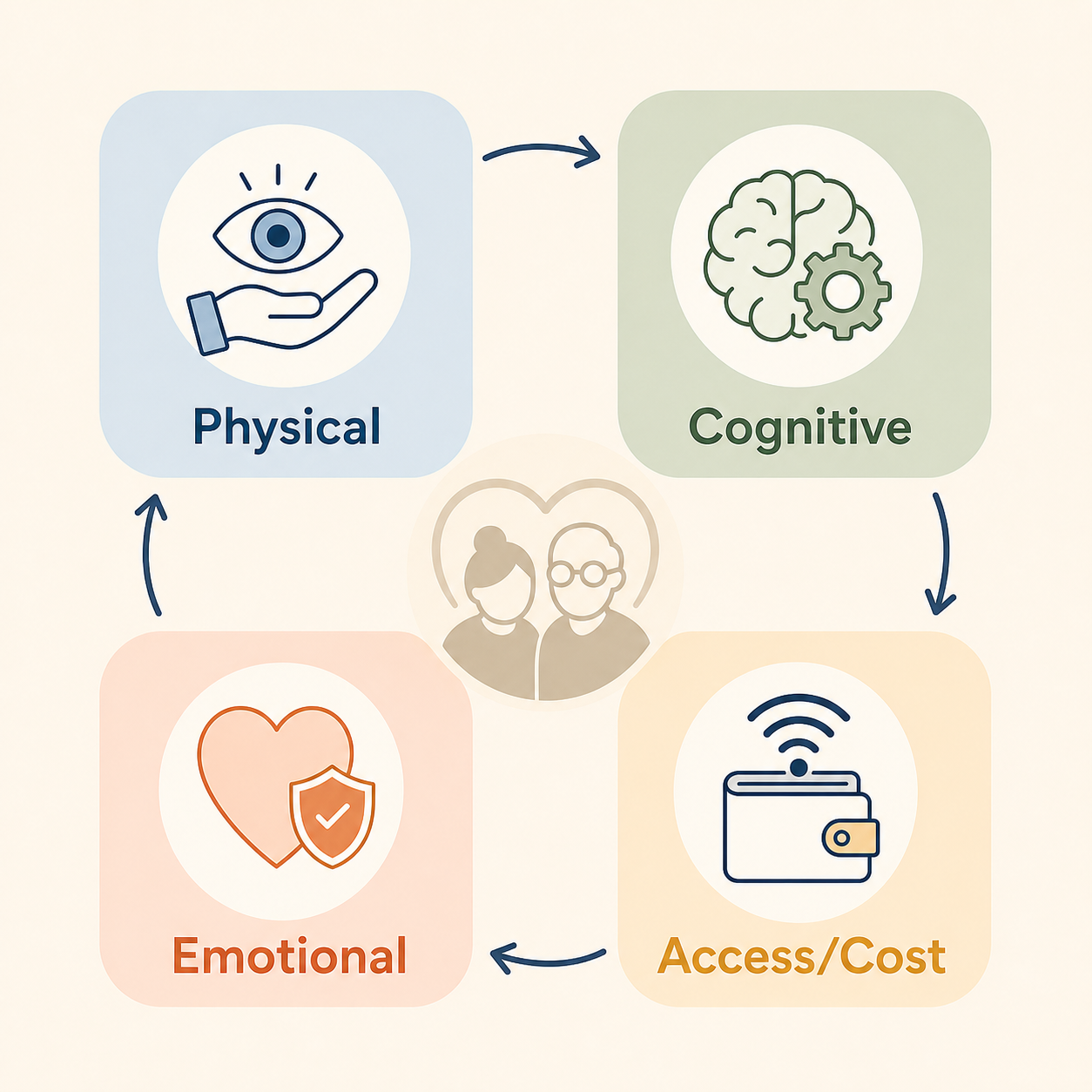
Consider these real scenarios:
- Your mother cannot read the text on her phone, so she holds it at arm's length and still squints. She is not being stubborn — she has a vision impairment that affects an estimated 45% of adults aged 60 and older, according to the World Health Organization.
- Your father can follow a recipe but freezes when a video call app asks him to "accept permissions" and "allow notifications" before he has even seen his grandson's face. His brain is not declining; it is being asked to hold too many unfamiliar steps in working memory at once.
- Your aunt refuses to use a medication reminder app even though she forgets doses. She says she "doesn't trust it." What she means is she is afraid one wrong tap will delete her contacts or expose her bank account — a fear shared by 85% of adults ages 50 to 64, per an AARP study cited by Papa.
- Your neighbor's mother would love to video chat, but her only internet connection is a phone line. She is part of the 4.1% of adults 65 and older who, according to FCC data, still rely on phone-only access with no home internet.
Each of these situations requires a different first move. The sections below walk through each barrier in detail and match it to specific caregiver actions.
Physical Barriers: Vision, Dexterity, and Hearing
Physical limitations are the most straightforward barrier to identify but the easiest to misinterpret. When an older adult cannot use a touchscreen, caregivers often assume they "don't get it" when the real problem is that they cannot see or feel it.
The WHO estimates that 45% of adults aged 60 and older have some form of vision impairment that affects their ability to read small text, distinguish icons, or navigate digital interfaces. A 2021 survey found that 58% of older adults reported problems with small text size on websites. This is not a learning issue — it is a design issue.
Dexterity challenges are equally common. Age-related changes in fine motor control, arthritis, and reduced tactile sensitivity make precise tapping, swiping, and pinch-to-zoom movements painful or impossible. Standard smartphone screens assume a level of finger precision that many older adults simply do not have.
Hearing loss compounds the problem. Video calls, voice assistants, and audio alerts are useless if the user cannot hear them. Many devices default to audio-only notifications, leaving older adults with hearing loss unaware of incoming calls or alarms.
Adaptations That Work
- Enable the device's built-in accessibility settings: increase font size to maximum, enable high-contrast mode, and turn on bold text. These settings alone can resolve the majority of vision-related complaints.
- Use simplified launcher apps that replace the standard home screen with large, high-contrast buttons labeled in plain text (e.g., "Call Daughter," "Photos"). This eliminates the need to distinguish tiny icons.
- Activate voice control and speech-to-text. Most smartphones and tablets allow users to dictate messages, make calls, and open apps by voice, bypassing dexterity and vision barriers entirely.
- For hearing loss, enable captions on video calls and streaming services. Set the device to use visual alerts (flashing light or screen flash) for incoming calls and notifications instead of relying on ringtones.
- Consider a large-button phone or a tablet with a physical stand and stylus if touchscreen precision is a persistent issue.
For a full walkthrough of how to adjust these settings and introduce them without overwhelming your parent, see The Caregiver's Tech Coaching Playbook.
Cognitive Barriers: Processing Speed and Executive Function
Normal age-related cognitive changes affect how older adults learn new digital tools. Processing speed slows. Working memory — the ability to hold multiple pieces of information in mind simultaneously — becomes more limited. Executive function, which governs task-switching and following multi-step procedures, requires more effort.
This is not dementia. It is the typical cognitive profile of a healthy older brain. Yet most technology is designed for younger users who can hold five steps in working memory without breaking a sweat. When a 75-year-old encounters a login screen that requires an email address, a password, a two-factor code, and a checkbox agreeing to terms, their brain is being asked to do something it is no longer optimized for.
A 2023 survey found that 40% of adults aged 65 and older reported at least one usability or accessibility barrier when using the internet. The most common complaints were not about understanding the concept of the internet — they were about navigation, multi-step processes, and confusing layouts.
The 'Why Before How' Principle
The single most effective adjustment for cognitive barriers is to explain the purpose of a task before explaining the steps. Older adults learn new tools more effectively when they understand the goal first. "This app will remind you to take your blood pressure pill at 8 p.m. every night" is a better opening than "Tap here, then scroll down, then tap again."
Additional strategies include:
- Break every task into single steps. Do not say "open the app and tap the camera icon." Say "tap the blue icon that says Camera." Wait for them to do it. Then say "now tap the round button at the bottom."
- Write down the steps in large print and keep the paper next to the device. This offloads the demand on working memory.
- Repeat the same sequence in the same order every time. Consistency builds procedural memory.
- Limit new information to one or two features per session. Do not try to teach texting, calling, and photos in the same sitting.
For a complete guide to teaching methods that respect cognitive load, refer to The Caregiver's Tech Coaching Playbook.
Emotional Barriers: Fear, Privacy Anxiety, and Loss of Identity
Emotional barriers are often the most powerful — and the most invisible. An older adult who refuses to use a tablet may not be rejecting the technology at all. They may be rejecting the feeling of incompetence that comes with not knowing how to use it.
Three emotional drivers commonly block tech adoption:
- Fear of irreversible mistakes. Many older adults believe one wrong tap will delete everything, cost them money, or "break" the device permanently. This fear is rational in a world where apps constantly ask for permissions, subscriptions auto-renew, and "cancel" buttons are often hidden.
- Privacy anxiety. According to an AARP study cited by Papa, 85% of adults ages 50 to 64 are concerned about their privacy and data protection while online. This is not generational paranoia — it is a legitimate response to a digital ecosystem that monetizes personal data. For older adults who grew up in a world where privacy was the default, the constant surveillance of modern apps feels invasive and unsafe.
- Loss of identity. An adult who has been competent and independent for 70 years does not want to feel like a child being taught how to use a toy. Every time a caregiver reaches over and taps the screen for them, it reinforces a message of dependence. The resistance is not to the device — it is to the role of being the one who needs help.
Addressing emotional barriers requires a fundamentally different approach than addressing physical or cognitive ones. You cannot fix fear with a settings menu. You cannot resolve privacy anxiety with a faster processor.
What works: validate the fear before you try to solve it. Say "You are right to be careful. Let me show you exactly what this app can and cannot see." Walk through the privacy settings together. Show them how to turn off location tracking and camera access. Let them control the device while you narrate.
For a complete conversation framework that addresses privacy anxiety without dismissing it, see Helping Elderly with Technology: A Caregiver's Guide to Privacy, Trust, and the Conversation That Actually Works.
For strategies that preserve your parent's sense of dignity and autonomy while introducing monitoring or safety technology, read How to Help Aging Parents Accept Monitoring Technology Without Damaging Trust or Dignity.
Access and Cost Barriers: Connectivity and Affordability
The final barrier has nothing to do with the older adult's abilities or attitudes. It is structural: they simply do not have the infrastructure or budget to use the technology you are asking them to adopt.
According to FCC data from 2023, 4.1% of adults aged 65 and older reported having only a phone with no internet access at home. That figure represents millions of older adults who are entirely offline not by choice but by circumstance. Rural broadband gaps, fixed incomes, and the rising cost of data plans all contribute.
Even among those who have internet, the quality may be insufficient for video calls, telehealth appointments, or streaming. A low-income older adult on a fixed Social Security check may have to choose between a data plan and a prescription.
Practical Solutions
- Low-cost internet programs: The FCC's Affordable Connectivity Program (if still active in your area) and providers like Comcast's Internet Essentials offer broadband for $10–$15 per month for qualifying low-income households.
- Refurbished devices: Nonprofits and some local libraries offer low-cost or free refurbished tablets and laptops. These devices are often pre-configured with accessibility settings.
- Library access: Many public libraries lend Wi-Fi hotspots and tablets for extended periods. They also offer free computer and internet access with staff available to help.
- Senior-specific discounts: Some mobile carriers offer discounted plans for customers 65 and older. Check for senior plans that include unlimited talk and text with a limited data allowance at reduced rates.
For a broader list of services, technology options, and cost-saving programs, see Home Help for Elderly Adults: A Complete Guide to Services, Costs, and Technology for Aging in Place.
Interventions Mapped to Each Barrier
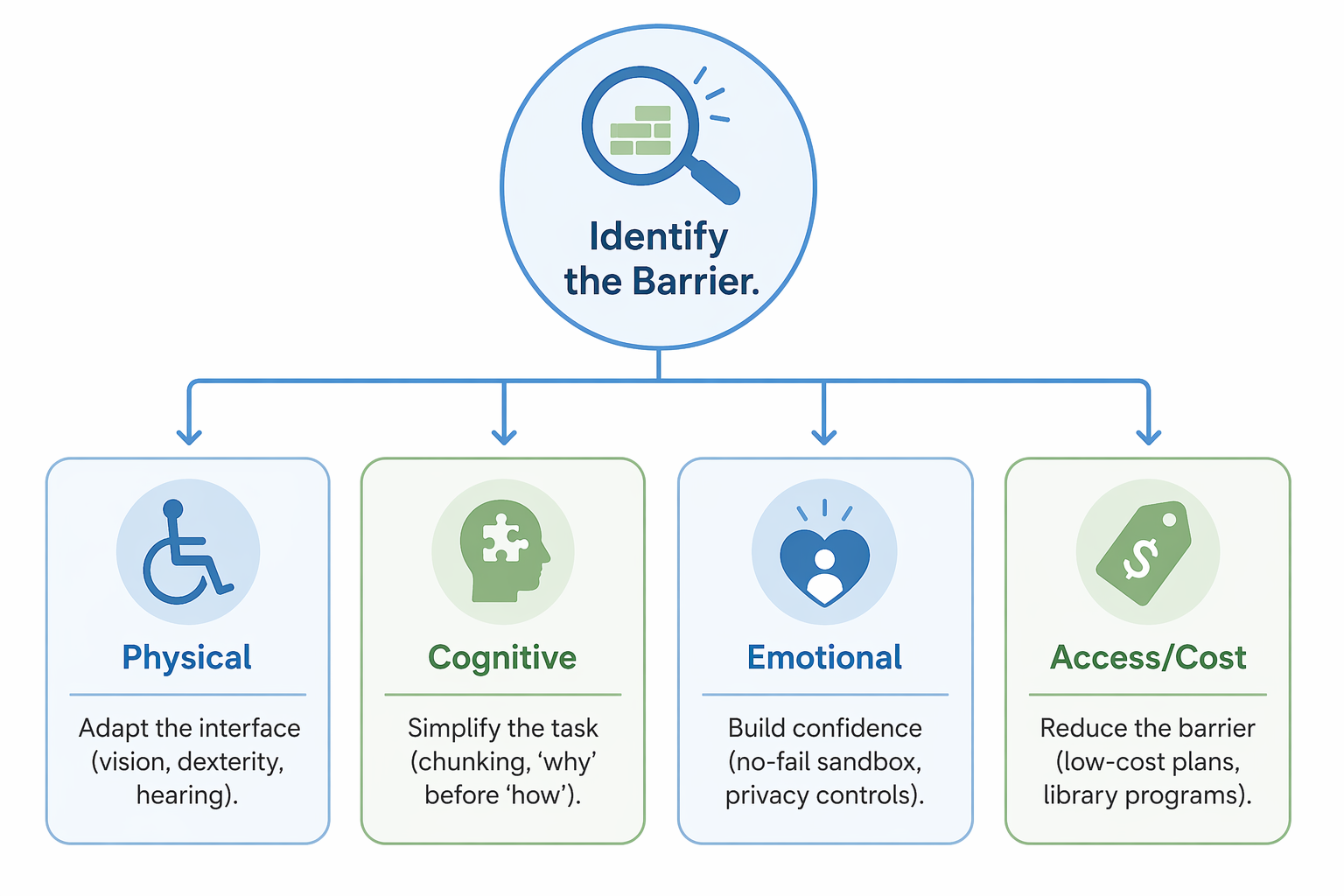
The following table summarizes the four barrier types and the most effective caregiver response for each. Use it as a quick-reference tool when you encounter resistance.
| Barrier Type | What It Looks Like | First Intervention | Where to Go Deeper |
|---|---|---|---|
| Physical (Vision, Dexterity, Hearing) | Squinting at screen, tapping wrong spot, missing audio alerts | Enable accessibility settings: max font size, high contrast, voice control, captions | Tech Coaching Playbook |
| Cognitive (Processing speed, Executive function) | Gets lost in multi-step tasks, forgets sequences, avoids new features | Use 'why before how': explain purpose first, then one step at a time. Write steps down. | Tech Coaching Playbook |
| Emotional (Fear, Privacy anxiety, Loss of identity) | Refuses to try, says 'I don't trust it,' gets defensive or embarrassed | Validate the fear. Walk through privacy settings together. Let them control the device. | Privacy Conversation Framework, Monitoring Technology Acceptance Guide |
| Access/Cost (No internet, No device, Can't afford data) | Has phone only, no home internet, or uses outdated device | Explore low-cost internet programs, refurbished devices, library resources | Home Help for Elderly Adults Guide |
When to Bring in Professional Help
Sometimes the best thing a caregiver can do is step back and let someone else take over. If you have tried multiple approaches across multiple sessions and your parent remains frustrated, anxious, or unwilling, professional tech support may be the right next step.
Professional services offer two advantages: they remove the emotional charge from the parent-child relationship, and they bring experience with a wide range of barriers and devices. Here are the most accessible options:
- Cyber-Seniors: A nonprofit that connects older adults with trained student volunteers for free one-on-one tech support over the phone. Students are patient, knowledgeable, and accustomed to teaching beginners. No cost, no membership required.
- Senior Planet from AARP: Offers free online classes (about 50 per week) in English, Spanish, and Chinese. Classes cover everything from basic smartphone use to online safety and telehealth. Open to anyone 60 and older; no AARP membership required.
- Candoo Tech: A paid service that provides personalized virtual coaching for older adults and their families. Coaches help with device setup, troubleshooting, and ongoing support. Suitable for families who need more than a one-time session.
- Local library programs: Many public libraries host free or low-cost tech help sessions, often staffed by volunteers or librarians. Call your local branch to ask about "tech tutor" or "digital literacy" programs.
The goal is not to hand off all tech support forever. It is to get your parent past the initial barrier so they can build confidence and eventually manage the device on their own. Once the foundation is in place, you can return to the role of backup support rather than primary teacher.
Questions to bring to a clinician or OT
This is not medical, legal, or a family's final decision — only a framework. Bring these questions to a clinician, occupational therapist, or your local Area Agency on Aging.
Find Local HelpRelated reading
Noticed something outdated or inaccurate on this page? Flag a correction. We review every report against CDC, NIA, and AARP HomeFit guidance before updating a page.