The Technology Caregiver Mindset: How Adult Children Can Shift from Frustrated Tech Support to Effective Digital Mentors
PERSPrivacy & Consent CoveredReviewed: 2026-06-19
The Technology Caregiver Mindset: How Adult Children Can Shift from Frustrated Tech Support to Effective Digital Mentors
If you are the go-to tech support for an aging parent, this guide reframes that role as a legitimate form of caregiving. Learn a structured approach that matches teaching methods to your parent's cognitive status and emotional readiness, helping you move from frustration to effective mentorship.
Features Covered in This Explainer
fall detection, battery life, range, response time
Why 'Fixing It for Them' Fails: The Cycle of Dependency and Lost Confidence
The pattern is familiar to nearly every adult child who helps a parent with technology: a call comes in — the tablet won't connect to Wi-Fi, an email attachment won't open, a video call keeps dropping. You drive over, take the device, and fix it in under a minute. The parent is grateful. You leave. Two days later, the same call comes again.
This cycle of "fixing it for them" is the default approach for most family tech supporters, but it carries a hidden cost. Each time you take over and solve the problem yourself, the parent loses an opportunity to build the mental model of how the device works. Over time, their confidence erodes, their dependence deepens, and your frustration grows because the same issues keep recurring.
A March 2026 Washington Post guest column by Debaleena Chattopadhyay introduced a framework that reframes this dynamic entirely: the technology caregiver. Rather than treating tech support as a series of ad-hoc fixes, this approach positions it as a legitimate caregiving role with its own strategies, boundaries, and goals. The shift is subtle but powerful: you are not the IT department for your parent's digital life — you are their mentor, and mentorship requires a different set of tools than troubleshooting.
The data supports the need for a new approach. According to AARP's 2025 Tech Trends survey, nearly 40% of older adults say they would use more technology if it were easier to understand or set up. The problem is not that older adults reject technology — it is that the setup and learning process has not been designed for them, and the default "fix it for them" response from family members does nothing to close that gap.
The Four Teaching Modes: A Structured Approach for Every Situation
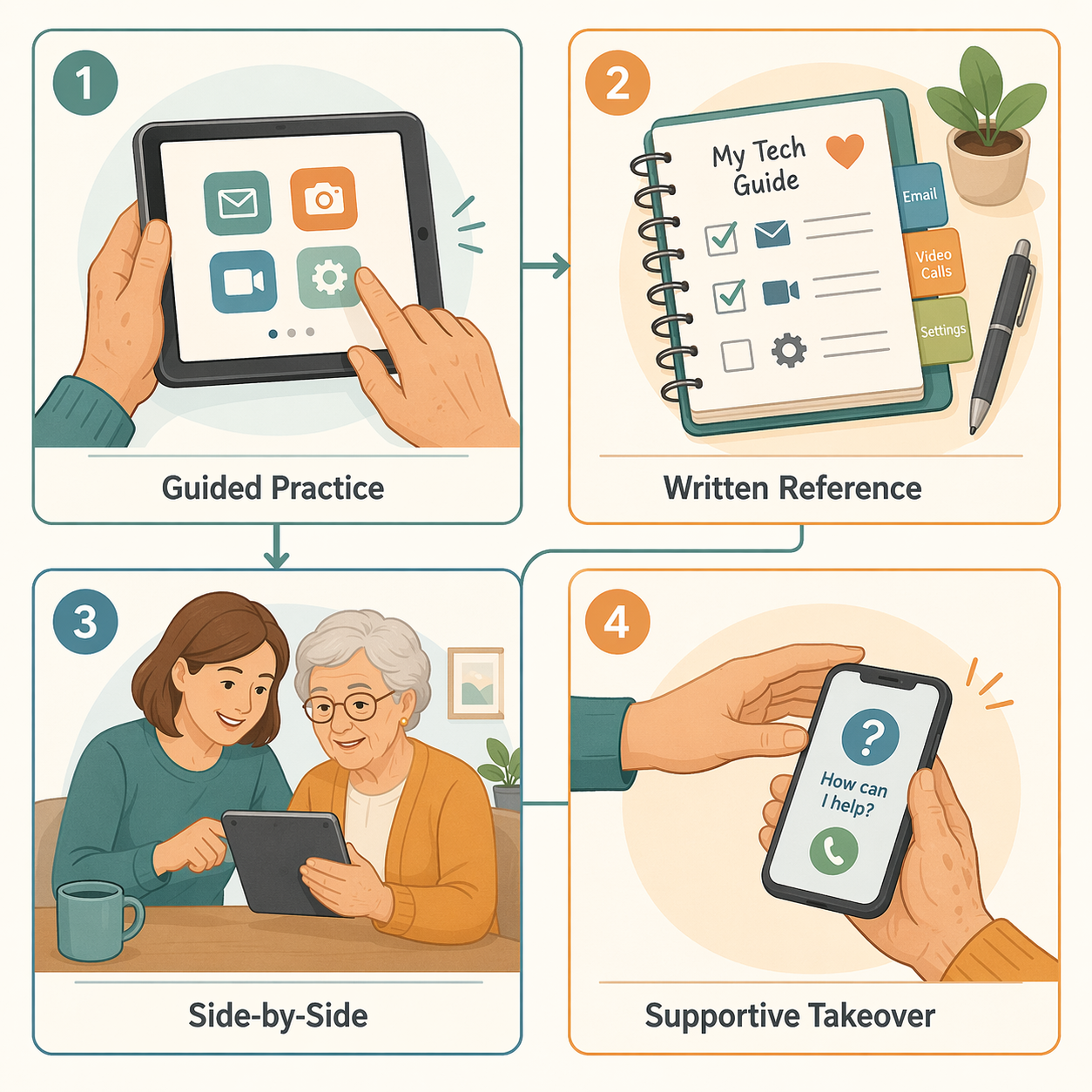
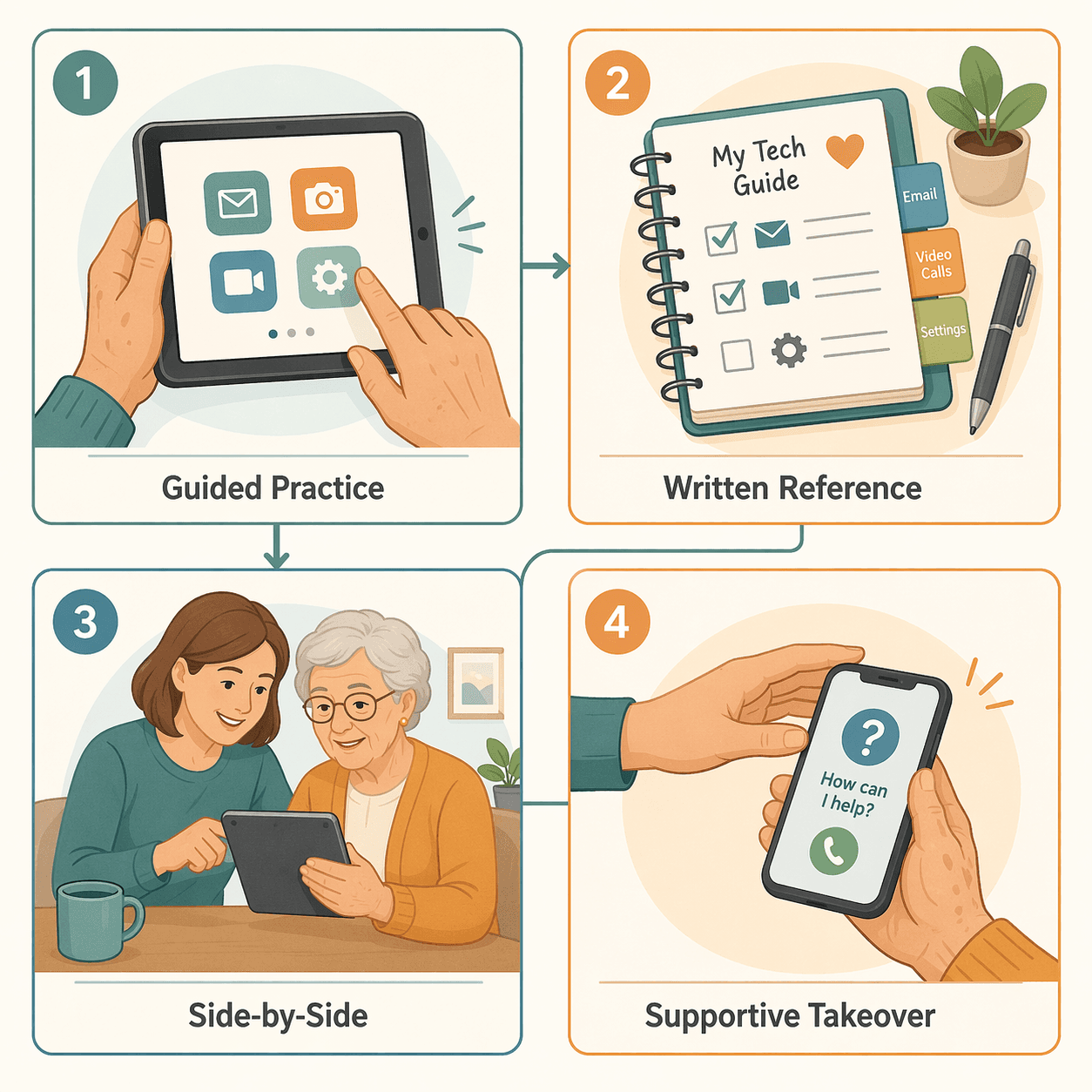
Dr. Douglas Scharre, a neurologist at the Ohio State Wexner Medical Center who specializes in cognitive disorders, has developed a practical framework for teaching technology to older adults that moves beyond the "fix it for them" model. His approach identifies four distinct teaching modes, each suited to a different situation and level of cognitive demand.
The four teaching modes for technology caregiving, adapted from clinical guidance by Dr. Douglas Scharre at Ohio State Wexner Medical Center.
Teaching Mode
What It Looks Like
Best Used When
Guided Practice
You talk the parent through each step while they perform the action themselves. You guide verbally; they tap, swipe, and type.
The parent is motivated and has some baseline familiarity with the device. You are teaching a new but learnable task.
Written Reference
You create a personalized, step-by-step guide with screenshots and simple instructions for core tasks. The parent refers to it independently.
The parent can follow written instructions but forgets sequences between sessions. Reduces repeat calls for the same issue.
Side-by-Side
You sit alongside the parent and use the device together — you handle one part, they handle the next. Shared screen, shared task.
The task is complex, the parent is anxious, or you are assessing whether they can handle a new feature safely.
Supportive Takeover
You take over specific tasks that are beyond the parent's current ability — online bill pay, password resets, software updates — while keeping them informed.
Cognitive decline makes independent task completion unsafe or deeply frustrating. The goal is safety and dignity, not independence.
The key insight is that these modes are not ranked from best to worst. Supportive Takeover is not a failure — it is the appropriate mode when cognitive decline has progressed to the point where independent use of certain functions is no longer realistic. The skill lies in matching the mode to the moment, not in always pushing toward independence.
The four teaching modes: Guided Practice, Written Reference, Side-by-Side, and Supportive Takeover.
Matching the Approach to Cognitive Status: Normal Aging vs. MCI vs. Dementia
One of the most valuable insights from Dr. Scharre's work is that struggles with technology can be an early sign of cognitive decline. When a parent who previously managed their email and online banking suddenly cannot remember how to open an app or starts confusing text messages with emails, the issue may not be a lack of practice — it may be a change in cognitive function.
Understanding where your parent falls on the cognitive spectrum is essential for choosing the right teaching mode. The table below maps each cognitive status to the most appropriate modes and strategies.
Matching teaching modes to cognitive status helps avoid frustration and ensures safety.
Cognitive Status
Typical Tech Struggles
Best Teaching Modes
Key Strategy
Normal Aging
Slower learning of new interfaces; occasional forgotten steps; discomfort with frequent updates.
Guided Practice, Written Reference
Focus on repetition and written guides. Simplify the interface once, then let them practice.
Mild Cognitive Impairment (MCI)
Frequent password confusion; mixing up apps; inability to follow multi-step instructions reliably.
Written Reference, Side-by-Side
Reduce complexity aggressively. Pre-program contacts. Use Side-by-Side for any task involving security or money.
Dementia (Early to Moderate)
Inability to learn new sequences; confusion between real and digital content; vulnerability to scams.
Side-by-Side, Supportive Takeover
Prioritize safety. Take over financial and security tasks. Keep familiar apps (photos, video calls) accessible.
If you are noticing a pattern of tech struggles that seems out of character, Dr. Scharre recommends the SAGE test (Self-Administered Gerocognitive Exam), a free online screening tool that can detect early cognitive changes. It is not a diagnosis, but it can provide a data point to discuss with a primary care physician.
Setting Up Devices for Success: Simplification and Accessibility
Before you begin any teaching session, the device itself should be configured to reduce friction. A stock smartphone or tablet is designed for a general audience — it assumes a certain level of visual acuity, dexterity, and cognitive flexibility that may not match your parent's abilities. Taking 30 minutes to customize the device can prevent hours of frustration.
Enable the device's built-in 'Easy Mode' or 'Senior Mode'. Most Android phones and many tablets offer a simplified home screen with larger icons, bigger text, and fewer options. On iPhones, use Display & Text Size settings to increase text size and enable Bold Text.
Remove everything non-essential. Delete unused apps from the home screen. Move rarely used apps into a single folder labeled 'Extras' or hide them entirely. The goal is a home screen with no more than six to eight visible icons.
Pre-program essential contacts. Add phone numbers for family members, the primary care doctor, and emergency services to Favorites or Speed Dial. Label contacts with clear names — 'Son John' rather than 'John D.'
Turn on accessibility features. Larger text, high-contrast mode, and reduced transparency reduce visual strain. Enable 'Speak Screen' or voiceover if reading is difficult. For dexterity issues, adjust touch sensitivity or enable AssistiveTouch.
Disable or limit notifications. Turn off notifications for all apps except calls, messages from contacts, and essential reminders. Notification overload is a common source of confusion and anxiety.
Set up automatic updates and backups. Configure the device to install updates overnight and back up photos and data automatically. This reduces the number of prompts and decisions the parent needs to make.
These steps address the physical and cognitive barriers that the NCIOM identifies as key obstacles to digital access for older adults — button size, font legibility, dexterity, and the overwhelming complexity of a standard device interface. Once the device is simplified, the teaching that follows has a much higher chance of sticking.
Creating a Customized 'Device Manual' for Your Parent
Verbal instruction is the least durable form of teaching for older adults learning technology. A parent may nod along while you explain how to start a video call, but 24 hours later the sequence is gone. Written, personalized instructions — tailored to the parent's specific device and habits — produce significantly better retention.
Dr. Scharre explicitly recommends writing out steps for each technology the parent uses. This is not a generic user manual — it is a living document that evolves as the parent's needs and abilities change.
Use a physical notebook or binder. A printed document that lives next to the device is more accessible than a PDF or a notes app. Use large font (16pt or larger) and high-contrast printing.
Cover only the core tasks. Most parents need help with five to seven recurring actions: make a call, send a text, take a photo, start a video call, check email, and charge the device. Do not include advanced features.
Use screenshots with arrows. Take screenshots of the actual device screen and add simple arrows or circles to indicate where to tap. Label each step with a number and a one-line instruction.
Include a password page. Write down the device passcode, Apple ID or Google account password, and Wi-Fi password in the manual. Many caregivers resist this for security reasons, but password confusion is one of the most common sources of tech support calls. Keep the manual in a secure location in the home.
Add a troubleshooting section. Include three to four common problems and their solutions — 'Screen is frozen: hold the power button for 10 seconds,' 'No sound: check the mute switch on the side.'
Review and update the manual every three months. As apps update their interfaces and the parent's abilities change, the manual needs to stay current. Set a recurring calendar reminder.
When to Bring in Outside Help: Resources for Tech-Savvy Support
No single caregiver can be the sole source of technology support for a parent, especially when caregiving responsibilities already include medication management, appointment coordination, and daily care tasks. Bringing in outside help is not a sign of failure — it is a strategic decision that preserves your energy for the aspects of caregiving that only you can provide.
Several organizations offer technology training and support specifically designed for older adults:
Cyber-Seniors: A nonprofit that provides free tech support via phone, staffed by trained student volunteers. The intergenerational model often works well — older adults may feel less pressure learning from a patient young person than from a stressed adult child.
Senior Planet from AARP: Offers free online classes and personalized tech help covering everything from smartphone basics to online safety. Classes are designed specifically for older adults and move at a comfortable pace.
Candoo Tech: Provides virtual tech coaching for older adults and their families. Sessions are one-on-one and can be tailored to the parent's specific device and needs. This is a paid service but offers more consistency than volunteer-based options.
Local library programs: Many public libraries offer free technology classes for seniors, one-on-one tech help appointments, and device lending programs. Call your parent's local library or check their website for a schedule.
These resources work best as a supplement to your own efforts, not a replacement. You remain the coordinator and the person who understands your parent's cognitive status, preferences, and history. The external resource handles the patient repetition of basic skills — a task that is often more effective coming from a neutral third party.
Protecting Your Parent Without Infantilizing: Scam Awareness and Privacy
Privacy and security concerns are the single largest barrier to technology adoption among older adults. An AARP study found that 85% of adults ages 50–64 express concern about their privacy and data protection while online, and roughly one-third of older adults cite privacy as the chief barrier to using more technology. These fears are rational — the FTC reported that seniors lose over $3 billion annually to fraud as of 2025.
The challenge for the technology caregiver is to address these risks without creating a climate of fear that shuts down all technology use. The goal is empowerment through knowledge, not restriction through control.
Teach the 'Stop. Think. Verify.' framework. Before clicking any link, responding to any email requesting personal information, or downloading any attachment, the parent should stop, think about whether the request makes sense, and verify by calling the person or organization using a known phone number.
Set up two-factor authentication on email and financial accounts. Use an authentication app rather than SMS when possible, as SIM-swapping attacks are increasingly common. Walk through the setup together and include the backup codes in the device manual.
Enable caller ID apps that flag scam calls. Video doorbells and call-screening apps add a layer of protection against phone-based fraud, which remains the most common attack vector for older adults.
Create a separate email address for newsletters and shopping. Keep the primary email address for family and trusted contacts only. This reduces the volume of phishing attempts that reach the main inbox.
Set up alerts for unusual account activity. Most banks and credit card companies offer text or email alerts for transactions over a certain amount. Set these up with the parent's phone number and your own as a backup.
The most important principle is transparency. If you need to take over financial tasks or change email addresses to reduce scam exposure, explain why you are doing it. Frame it as a partnership — 'We are going to set up some protections together' — rather than a unilateral decision. The parent who understands the reason for a security measure is far more likely to cooperate with it than the parent who feels they are being managed.
Adopting the technology caregiver mindset does not mean you will never feel frustrated again. It means you have a framework for understanding why the frustration happens and a set of tools for reducing it. When you shift from 'I need to fix this' to 'I need to teach this,' the entire dynamic changes — for you and for your parent.
For individualized recommendations:An occupational therapist or your primary care provider can assess your specific situation and recommend the monitoring category and feature set that best fits the person's functional level, living environment, and caregiver availability. This explainer provides educational context, not a personalized recommendation.

Comments
Join the discussion with an anonymous comment.