Caregiver decision guide
Configure iPhone Safety Features for Seniors in iOS 27
Set up or audit the iPhone your parent already owns on iOS 27 so it can summon help during a fall or medical emergency. Coverage includes Emergency SOS, Medical ID, satellite SOS, and Crash Detection setup, the Apple Watch fall-detection distinction, and a six-month review checklist.
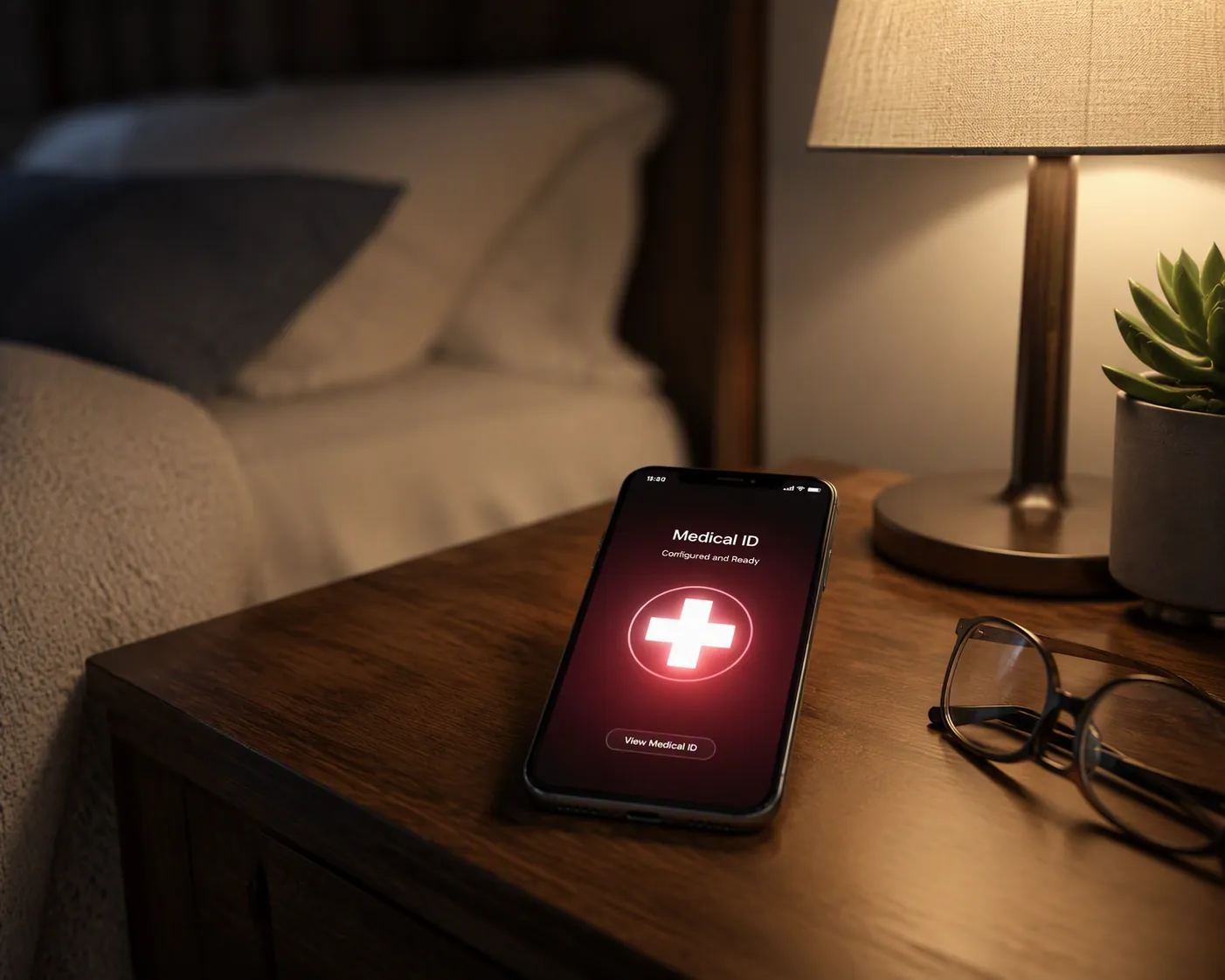
The correction that matters most in a fall plan is simple: an iPhone by itself does not detect falls. If your parent carries only an iPhone, its emergency job is connection and notification — helping the person call emergency services, relay location, show or share medical information where supported, and alert selected contacts. Fall detection belongs to Apple Watch Series 4 and later, and even there NCOA describes it as detection for hard falls, not every possible stumble, slide, or near-fall. [1]
That distinction changes the setup. Do not assume “the phone has safety features” means the emergency chain is ready. The caregiver task is to confirm the model, turn on the settings that need permission, make the lock-screen medical information useful, and then watch the older adult perform the action they would need at 2:00 a.m.
For iOS 27, the compatibility check is simple: iPhone 11 and later, plus iPhone SE 2nd generation and newer, are listed as compatible, and MacRumors reports that no iPhone models were dropped from the iOS 26 compatibility list. Emergency SOS via satellite is narrower: it is limited to iPhone 14 and newer. [2]
As of August 4, 2026, iOS 27 is still in public beta, and some Apple Support pages may still show iOS 26 selectors. Use Apple Support as the authority for how emergency features behave, but recheck the same settings after the final iOS 27 release and after any major update.
| Preflight question | What to check | Why it matters |
|---|---|---|
| Is the iPhone iOS 27-compatible? | iPhone 11 or later, or iPhone SE 2nd generation or newer. [2] | Prevents spending time on an update the phone cannot run. |
| Can this phone use satellite SOS? | iPhone 14 or newer. [2] | Useful only when the person is outside cellular and Wi-Fi coverage. |
| Does the family expect fall detection? | Only Apple Watch Series 4 and later provides fall detection. [1] | Prevents false confidence in the iPhone alone. |
| Who gets notified? | Emergency contacts in Medical ID and Emergency SOS. | A call to 911 is not the same as notifying family. |
| Can a stranger or first responder see medical details? | Only if Medical ID is completed and Show When Locked is enabled. | A locked phone is otherwise much less useful in an emergency. |
Set up Emergency SOS first
Emergency SOS is the setting to handle before the quieter comfort features. It is the path an older adult may need when they are frightened, short of breath, dizzy, or unable to unlock the phone cleanly. Apple describes two main iPhone actions for Emergency SOS: press and hold the side button with a volume button, or rapidly press the side button five times, depending on settings and model behavior. After a countdown, the iPhone calls emergency services. When the emergency call ends, the iPhone can text emergency contacts with the person’s location, and it can continue sending location updates for a period while SOS remains active. [3]
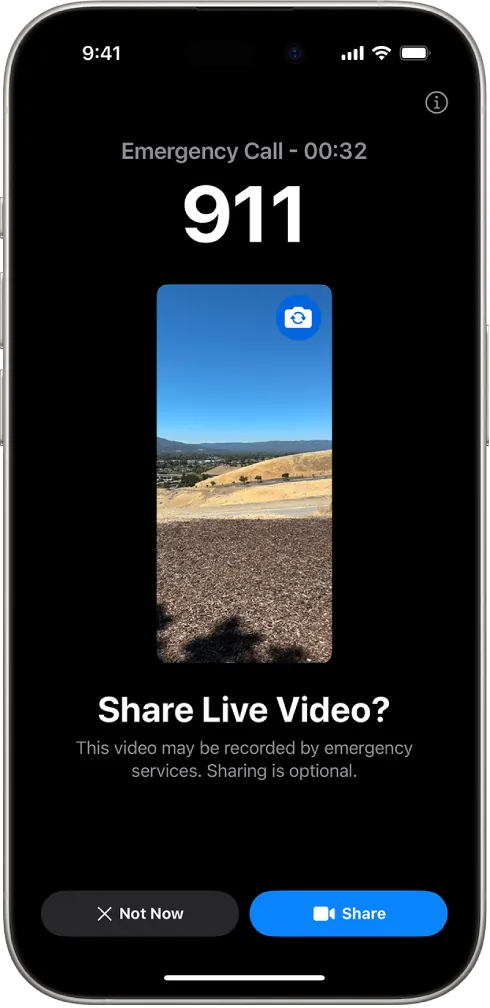
On the parent’s iPhone, open Settings, then Emergency SOS. Read the screen aloud rather than silently toggling things. The person who may need the feature should know which button sequence the family expects them to use.
- Confirm the available SOS trigger options on that exact phone. Do not rely on what another family member’s newer iPhone does.
- Turn on the trigger method the older adult can physically perform. If arthritis, tremor, grip weakness, or a bulky case makes one method unrealistic, choose the other if available.
- Check whether Countdown Sound is available and appropriate. A loud countdown may reassure one person and panic another; the tradeoff should be deliberate.
- Confirm the emergency contacts attached to SOS. These should be people who will answer, understand the location text, and know what to do next.
- Explain that Emergency SOS is for real emergencies. Do not place a live test call to emergency services unless local emergency authorities specifically instruct you to do so.
The most common family mistake is stopping after the toggle is on. The better test is physical: have the older adult hold the phone the way they normally carry it, find the side button without looking, and describe what they would do if they were on the floor. If they cannot remember the action after one explanation, write it in plain language and put it where they charge the phone.
Make Medical ID useful from the lock screen
Medical ID is not just a profile page. When completed and allowed on the lock screen, it can give first responders or a neighbor the information they need without knowing the passcode. Apple’s setup path is in the Health app: tap the profile picture, open Medical ID, choose Edit, and add the details that should be available in an emergency. Apple also provides a Show When Locked option, which makes Medical ID viewable from the lock screen without unlocking the iPhone. [4]
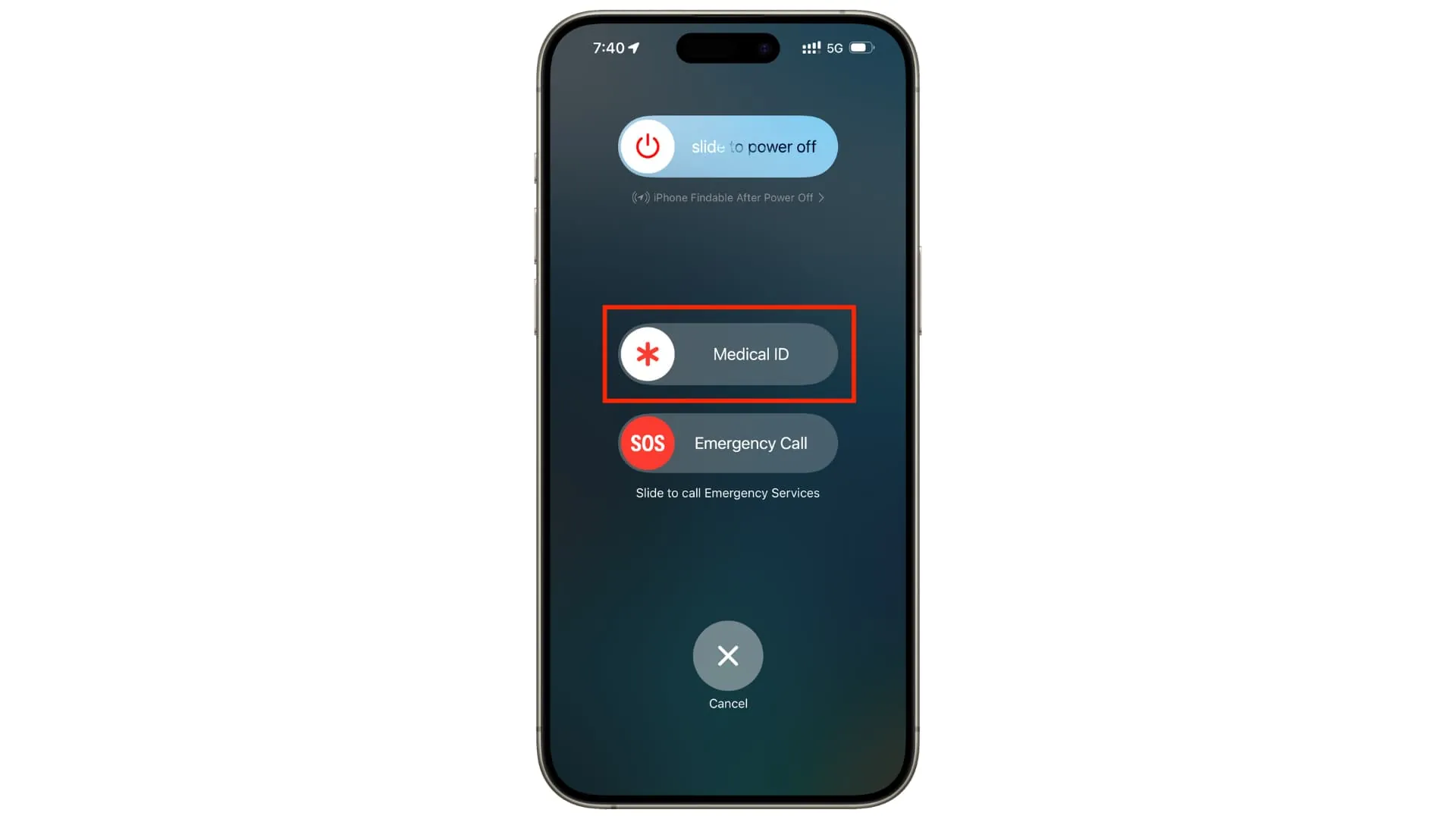
This is the place to be plain about privacy. If Show When Locked is on, the information you enter is intended to be reachable without the passcode. That can be exactly what the family wants during a stroke, fall, allergic reaction, or medication emergency. It also means the family should not enter extra history just because there is a blank field.
For most older adults aging at home, useful Medical ID information usually includes:
- Full name and date of birth.
- Emergency contacts in the order they should be called.
- Major diagnoses that change emergency care, such as diabetes, seizure disorder, anticoagulant use, implanted devices, or severe heart or lung disease.
- Medication list, especially blood thinners, insulin, rescue inhalers, seizure medicines, heart medicines, and medications with serious interactions.
- Severe allergies and reactions.
- Preferred language or communication needs, if relevant.
- Care notes that are short enough to be read under stress.
Apple also offers Share During Emergency Call, which can share Medical ID information with emergency services during emergency calls or texts in supported U.S. locations. The location limit matters. Do not tell a parent that Medical ID will automatically reach every dispatcher everywhere. Treat automatic sharing as a supported-location benefit, and treat Show When Locked as the fallback that may help someone physically handling the phone. [4]
After saving Medical ID, lock the iPhone and confirm that the Medical ID path is visible without the passcode. Then ask the parent whether each visible item is something they consent to show in an emergency. Consent is easier to handle during setup than after a neighbor has already seen more than the person intended.
Check the model-dependent safety features
Emergency SOS and Medical ID deserve the most attention because they apply broadly and fail quietly when families skip details. The next features are still worth checking, but each depends more heavily on model, setting, location, or situation.
Emergency SOS via satellite
On iPhone 14 and newer, Emergency SOS via satellite can help contact emergency services when the person is outside cellular and Wi-Fi coverage. Apple lists it among iPhone safety features, while the iOS 27 compatibility snapshot limits satellite SOS to iPhone 14 and newer. [5][2]
For a parent who gardens near the house, drives rural roads, walks in parks, or visits places with weak service, this is worth reviewing before it is needed. Open Settings, then Emergency SOS, and look for the satellite SOS information or demo if available on that model. The point of the demo is not to memorize every screen; it is to make the parent understand that satellite use may require going outside, holding the phone with a clear view of the sky, and following on-screen directions.
Crash Detection
Crash Detection is useful for driving risk, not fall risk. Apple includes Crash Detection in its safety-feature materials, and caregivers should check whether it is available and enabled on the parent’s iPhone. [5]
Open Settings, then Emergency SOS, and look for the Crash Detection setting if the model supports it. If the parent no longer drives, this may be less central. If they still drive alone, especially on rural or low-traffic roads, it belongs in the same six-month audit as emergency contacts and Medical ID.
Check In
Check In is not an emergency detector. It is a planning tool for situations where a caregiver wants to know whether someone arrived or completed an expected activity. Apple lists Check In among its safety features. [5]
This can fit ordinary independence: a parent walking to a neighbor’s house, driving home from an appointment, or returning from a community center. It works best when both people agree on when it will be used. If it becomes constant surveillance, the parent may stop using it; if it is reserved for specific higher-risk outings, it is easier to keep meaningful.
Walk through the fall scenario before you trust the setup
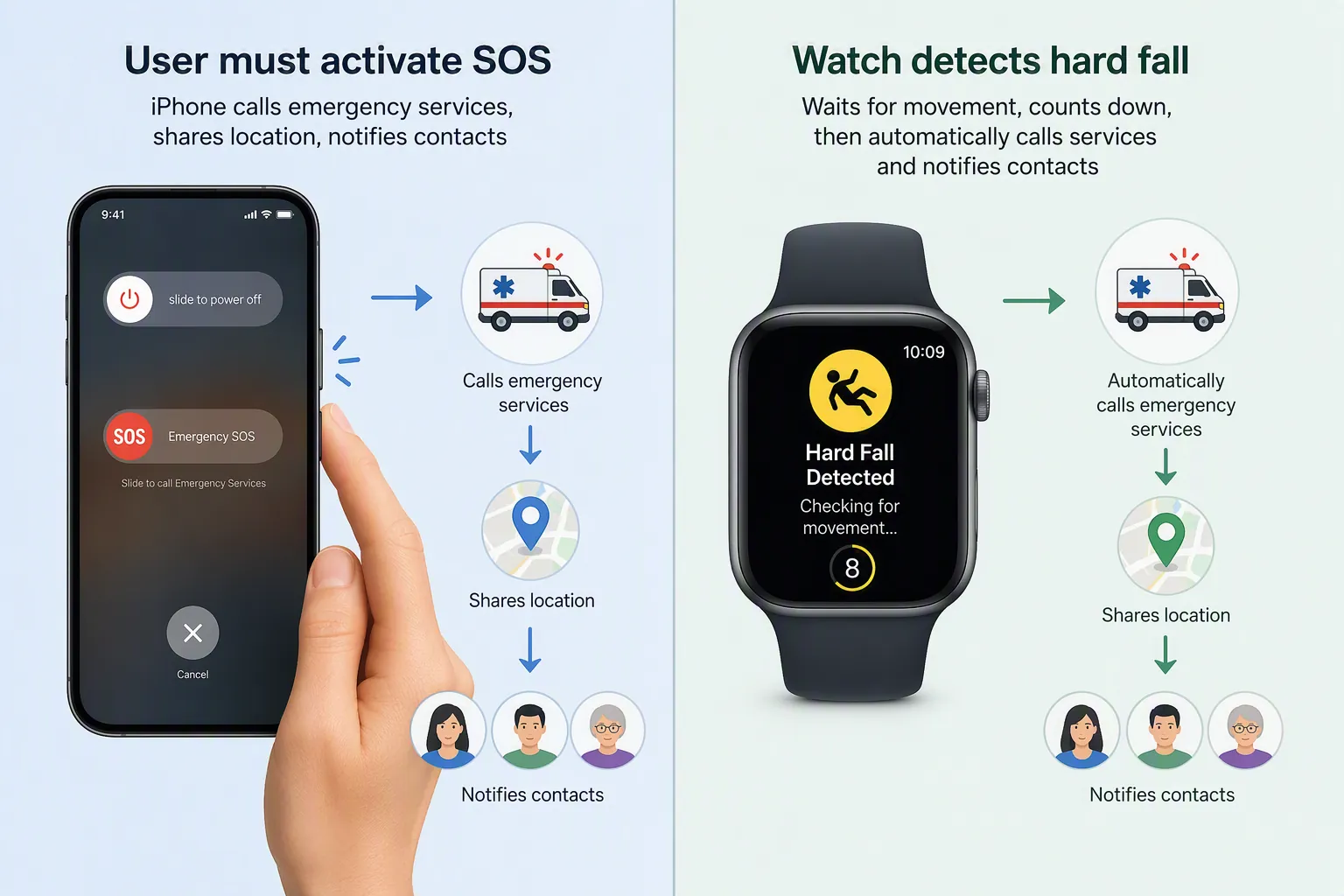
Settings are not ready until the family can describe what happens in a fall. Use two separate scripts, because mixing them up is where false confidence starts.
If the person has only an iPhone
The iPhone can help after the person activates help. They might use Emergency SOS, call 911 from the Phone app, use Siri if available and responsive, or contact a caregiver. Once Emergency SOS is triggered, the iPhone can call emergency services and then notify emergency contacts with location information, including updates while SOS remains active. [3]
The weak point is the human step. If the person is unconscious, separated from the phone, too confused to press the buttons, or physically unable to reach the iPhone, the phone alone may not start the emergency chain. That does not make the iPhone useless. It means the family should not describe it as fall detection.
If the person also wears an Apple Watch with fall detection
The watch changes the first step. NCOA describes Apple Watch fall detection as a hard-fall feature on Series 4 and later. If the watch detects a hard fall and the wearer does not move for about one minute, it starts a 30-second countdown, can call emergency services, and can message emergency contacts with the wearer’s location. [1]
That sequence is closer to what many families imagine when they hear “fall detection,” but it still depends on the watch being worn, charged, set up correctly, and able to communicate. If the parent leaves the watch on the charger overnight or removes it when gardening, the family is back to the iPhone-only path for those hours.
This is also where the home itself matters. A phone or watch can summon help, but it does not remove loose rugs, improve bathroom lighting, or add a grab bar. For a practical room-by-room prevention pass, use the fall-prevention handout for seniors after the phone audit, not instead of it.
Practice without creating a false emergency
A safe practice session should prove that the older adult knows the action and that the caregiver knows what the settings say. It should not accidentally call emergency services.
- Ask the parent to show where the side button and volume buttons are with the screen off.
- Have them explain the Emergency SOS action in their own words. Stop before completing any countdown or live emergency call.
- Lock the phone and open Medical ID from the lock screen to confirm it is visible.
- Read the emergency contacts aloud and confirm the order still makes sense.
- If the phone supports satellite SOS, use Apple’s demo or information screen rather than waiting until a real no-service event.
- If Crash Detection is available, confirm the setting and whether the parent still drives enough for it to matter.
- If Check In will be used, practice it during a low-stress outing so both people know what notifications look like.
If the parent freezes during the practice, simplify the plan. A perfect set of settings is not as useful as one action the person can remember under stress.
Repeat the audit every six months
Put the review on a calendar twice a year. Do it after major health changes, medication changes, moves, new caregivers, a new phone, or a fall. The six-month rhythm matters because emergency settings age quietly: contacts change jobs, adult children move, prescriptions change, and a parent who once remembered the SOS gesture may no longer remember it.
| Audit item | What to confirm |
|---|---|
| iPhone model and iOS version | The phone still supports the expected iOS 27 safety features, and settings did not move after an update. |
| Emergency SOS | The trigger method is enabled, physically usable, and understood by the older adult. |
| Emergency contacts | Names, phone numbers, order, and availability are still correct. |
| Medical ID | Diagnoses, medications, allergies, language needs, and care notes are current. |
| Show When Locked | Medical ID is visible from the lock screen, if the person still consents. |
| Share During Emergency Call | Enabled if desired, with the reminder that automatic sharing works only in supported U.S. locations. [4] |
| Satellite SOS | Checked on iPhone 14 or newer if the person spends time outside cellular or Wi-Fi coverage. [2][5] |
| Crash Detection | Checked where available, especially if the person still drives alone. [5] |
| Check In | Used only for agreed situations where arrival or completion monitoring is helpful. |
| Apple Watch fall detection, if used | Watch is worn, charged, paired, and understood as hard-fall detection rather than a guarantee. [1] |
Also review the surrounding emergency plan. A phone that works during ordinary weeks may be less useful during power outages, evacuations, smoke events, or overloaded networks. If weather or regional hazards are part of the family’s risk picture, extend this audit with a power-outage fall-prevention checklist and a wildfire and heat-dome safety plan for older adults.
This setup guide is educational and practical, not medical advice and not a guarantee of rescue. It is not a substitute for a monitored medical alert service when a clinician, caregiver team, or family risk assessment suggests that a monitored service is needed. The safer standard is not owning the newest phone; it is knowing exactly what the current phone will do, who it will contact, and what still depends on the person being able to ask for help.
References
- Apple Watch as a Medical Alert System? What to Know — NCOA.
- Which iPhones Support Every iOS 27 Feature? — MacRumors, July 20, 2026.
- Use SOS to contact emergency services on your iPhone — Apple Support.
- Set up and view your Medical ID — Apple Support.
- Safety Features — Apple Support.
Questions to bring to a clinician or OT
This is not medical, legal, or a family's final decision — only a framework. Bring these questions to a clinician, occupational therapist, or your local Area Agency on Aging.
Find Local HelpRelated reading
Noticed something outdated or inaccurate on this page? Flag a correction. We review every report against CDC, NIA, and AARP HomeFit guidance before updating a page.