
Caregiver decision guide
How to Help Seniors Adjust to iOS 27 Safari Changes
Most of the iOS 27 Safari changes that confuse an older user are moved buttons, not removed features. A caregiver can restore the familiar layout with three settings, then teach the new browser one task at a time — without the frustration of a full re-explanation.
The kitchen-table version of helping seniors adjust to iOS 27 Safari changes usually starts with a sentence like, “Safari is broken.” It usually is not. In the iOS 27 beta available as of August 3, 2026, the confusing parts are mostly moved controls, not removed features, and Apple is still expected to release final iOS 27 in September 2026, so today’s beta layout should not be treated as the last word.[1]
That distinction matters. If your parent or spouse thinks bookmarks disappeared, the first job is not to praise the redesign or explain every new Safari option. The first job is to get the browser close enough to familiar that they can breathe, read the page, and repeat one routine without feeling foolish.

Start by naming what moved
Before changing settings, it helps to know the three Safari changes most likely to cause the “where did it go?” moment. In hands-on coverage of the iOS 27 Safari beta, the old three-dot menu is now represented by the All Tabs or Tabs button, bookmarks, Reading List, and History are reached from a picker at the top of the new-tab page, and Share has moved into the scrolling page menu near the address bar.[2]
| What the older user may say | What probably happened | What to show them |
|---|---|---|
| “The three dots are gone.” | The old menu control has changed into the All Tabs or Tabs button in the iOS 27 beta. | Tap the Tabs button and say, “This is the new place for that group of page controls.” |
| “My bookmarks are gone.” | Bookmarks, Reading List, and History are now inside the picker at the top of a new-tab page. | Open a new tab, tap the picker, then choose Bookmarks together. |
| “I can’t send this page anymore.” | Share moved into the scrolling page menu near the address bar. | Open the page menu, scroll if needed, then point out Share without asking them to memorize the whole menu. |
Keep this part short when you are sitting with someone. A map is useful; a feature tour is not. If the person came to you because the pharmacy site, church bulletin, saved recipe, or local news page suddenly looks “wrong,” they are not asking for a guided tour of Apple’s browser design. They are asking to get back to a page they trust.
Before handing the phone back, restore the familiar shape
Do the settings work before the teaching work. If the toolbar is unfamiliar and the text is too small, every explanation will land on top of irritation. Spend a few minutes making Safari look and read closer to the way it did before, then teach the moved controls.
1. Put Safari back on the Bottom tab layout
On the iPhone, open Settings, then go to Apps > Safari > Tabs and choose Bottom. Apple’s Safari layout settings let users choose where the tab bar appears, and the Bottom option is the one to try first for someone who is thrown off by the more compact iOS 27 look.[3]
Do not describe this as “putting everything back.” It is better to say, “I’m putting the main bar back where your hand expects it.” That is honest. The phone may look close enough again, but bookmarks, Share, and tab controls still need to be shown in their new places.
2. Make Safari text easier to read
If Safari is the main problem app, adjust Safari instead of making the whole phone enormous. Go to Settings > Accessibility > Per-App Settings, add Safari, then adjust the text size for Safari. Apple also documents Safari-specific customization from within the browser, including page controls such as text size options for individual websites.[4][5]
This is where a caregiver can prevent a lot of repeat calls. Open one real site the person uses, enlarge the text until they stop squinting, and let them read a few lines aloud or silently. Do not ask, “Is that better?” while they are still hunting for the words. Give their eyes a moment to decide.
3. Use Bold Text and Larger Text if the whole phone is hard to read
If the problem is bigger than Safari, go to Settings > Display & Brightness and look at Bold Text and text size. Apple’s readability settings also include Larger Text options for people who need more than the standard slider provides.[5]
| If you see this | Change this first | Why it helps |
|---|---|---|
| They keep tapping the wrong Safari control | Settings > Apps > Safari > Tabs > Bottom | It restores a more familiar bottom toolbar before you teach the moved controls. |
| They can find the page but cannot comfortably read it | Accessibility > Per-App Settings > Safari > text size | It improves Safari without disrupting the entire phone layout. |
| They struggle with small text across Messages, Settings, Safari, and Mail | Display & Brightness > Bold Text or text size, then Larger Text if needed | It treats readability as a phone-wide access issue, not a Safari lesson. |
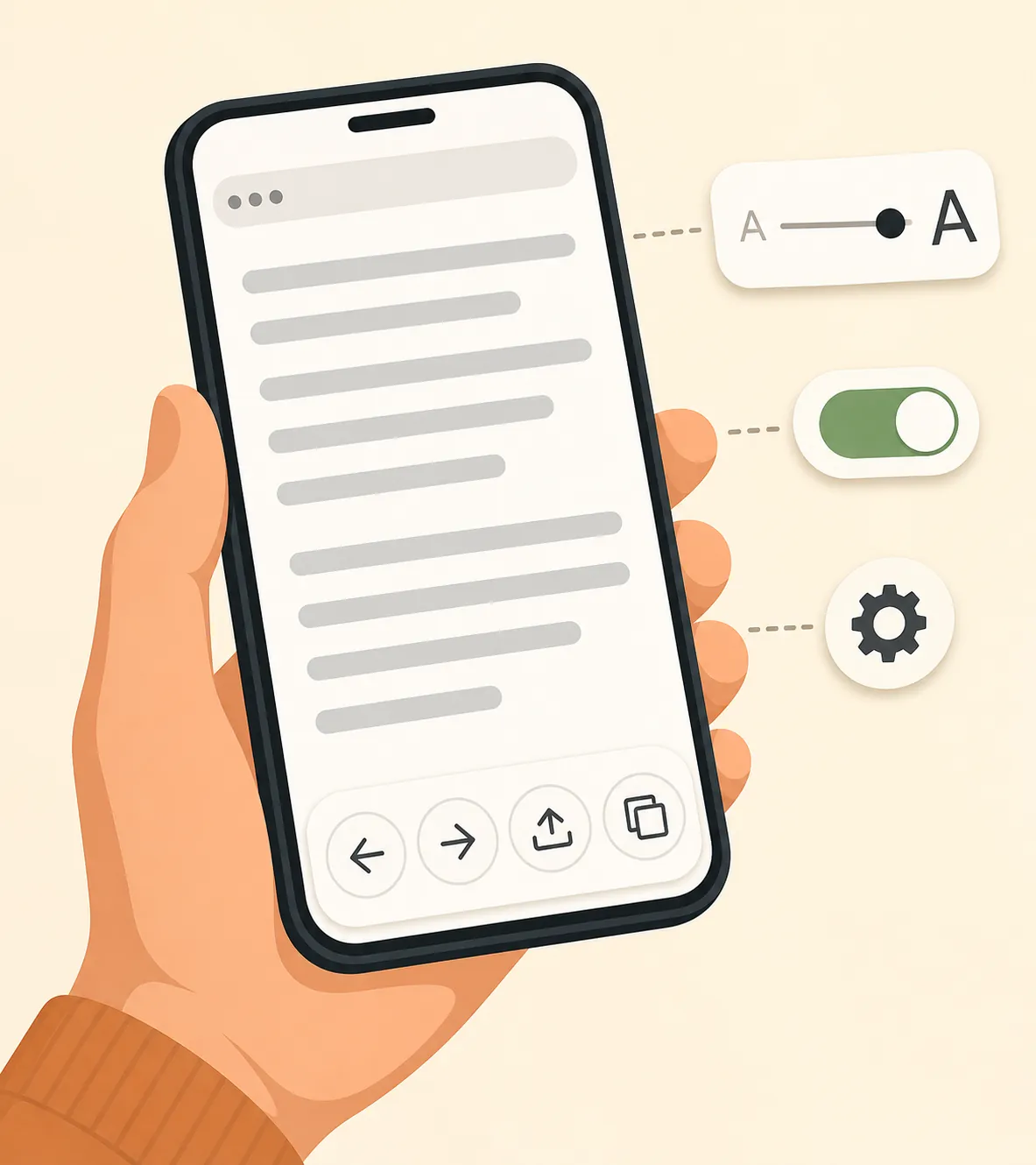
Make one setting change, then pause. If you change the tab layout, text size, bold text, home screen, and notification style in one sitting, you may fix five technical problems and create one emotional one: the phone no longer feels like theirs.
Then practice one real Safari routine
After the layout and text are calmer, pick one thing the person already does. Not “learn Safari.” One thing. Open the saved church bulletin. Find the pharmacy refill page. Read the recipe they use on Sundays. Go back to yesterday’s local news article.
A practical senior-smartphone teaching guide gives the right kind of advice here: go step by step, use familiar tasks, and repeat patiently rather than turning the session into a general technology class.[6] That matches what you learn the hard way after enough kitchen-table phone repairs. The older person is not failing a browser exam. A button moved during a routine they had already earned.
- Opening a saved bookmark: Have them open Safari, tap the new-tab control, find the picker at the top, choose Bookmarks, and open one familiar saved page. Narrate only the next action.
- Using Reader for a long article: Open an article they actually want to read, use the page or AA control, turn on Reader if available, and stop there. Do not explain every other item in the menu.
- Going back a page: Let them tap a link, then practice using Back once. If they tap the wrong icon, do not grab the phone immediately. Point, wait, and let the finger do the learning.
- Sharing a page: Open the page menu near the address bar, scroll to Share, and send the page to you as a low-stakes practice run.
Use plain narration: “Tap this.” “Now wait.” “Now choose Bookmarks.” “Good, that is the new spot.” Avoid narrating the whole chain before they begin. Most people do not need to understand the architecture of Safari to check a prescription refill; they need enough repetition for the new movement to stop feeling risky.
It also helps to explain why the update happened without selling it. Try: “The phone gets updates for fixes and protection. This one moved some Safari buttons, so we’re going to put the main bar back and practice the few things you actually use.” That sentence lowers the temperature better than “It’s easy” or “You’ll get used to it.”
Do not treat one successful try as the end
The first successful practice run is encouraging, but it is not proof the adjustment has stuck. Check back after a few days, then again after the first week. Ask a narrow question: “Can you still open your bookmarks?” or “Is the text big enough on the recipe site?” A broad “How’s the phone?” often invites either a polite “fine” or a complete list of unrelated annoyances.
If they are still upset, resist the urge to redo everything. Watch the routine once. The problem may be one missed gesture: they are opening a new tab but not seeing the picker, or they are opening the page menu but not scrolling far enough to find Share. Fix the one broken step and practice it twice.
For broader iPhone setup beyond Safari, it can help to review safety and accessibility basics separately, not during the Safari rescue session. A guide to 2026 iPhone safety features for seniors aging at home is a better place for that larger pass.
What you can probably ignore for now
Most iOS 27 Safari coverage spends time on the new or clever parts: performance claims, Notify Me, automatic tab topics, Describe Extension, and other Apple Intelligence additions. Those are not the right starting point for many older iPhone owners, especially if they use an iPhone SE or an iPhone 11, 12, 13, or 14. Apple Intelligence features are tied to newer hardware such as iPhone 15 Pro or later, so a large share of older hand-me-down or budget iPhones will not show the full feature set anyway.[1]
If you see “Ask to Browse” mentioned, treat it as a parental-control item, not a Safari problem your older parent needs to learn today. If you want to talk about AI tools with an older adult, make that a separate conversation after Safari feels normal again; the same goes for broader questions about AI chatbots for seniors and caregivers.
There is one ordinary safety topic worth keeping nearby: if the older person browses from links in texts or email, make sure they know not every familiar-looking page is safe. That belongs in a separate calm session too, using a practical guide to protecting seniors from email scams, not while they are already upset about where bookmarks went.
The iOS 27 change is smaller if you sequence it correctly
The larger Safari shock for many people came with the previous round of iPhone interface changes; iOS 27 is being discussed partly in the context of Apple restoring or softening some controls that users missed after iOS 26.[7] That does not mean an older user will experience the update as small. A moved button can feel like a removed doorway when the routine is muscle memory.
The workable order is simple: restore the Bottom layout, enlarge Safari or system text, show where the moved controls live, then practice one familiar task. Leave the advanced Safari features alone until the person can once again open the page they came for.
References
- iOS 27: New iPhone features, release date, beta, compatibility, Apple Intelligence, Siri, Macworld.
- I’ve Been Running the New Safari on iOS 27 and My Thumbs Are Already Happier, CNET.
- Change the layout in Safari on iPhone, Apple Support.
- Customize your Safari settings on iPhone, Apple Support.
- Make text easier to read on iPhone, Apple Support.
- Teaching Seniors to Use Smartphones: Step-by-Step Guide, SeniorThrive.
- 5 ways iOS 26 makes your iPhone act more like it used to, Fast Company.
Questions to bring to a clinician or OT
This is not medical, legal, or a family's final decision — only a framework. Bring these questions to a clinician, occupational therapist, or your local Area Agency on Aging.
Find Local HelpRelated reading
Noticed something outdated or inaccurate on this page? Flag a correction. We review every report against CDC, NIA, and AARP HomeFit guidance before updating a page.