
Caregiver decision guide
How to Protect Your Parent's Devices From Dark Patterns
Remove the single-click danger from an older parent's phone, browser, email, and payment accounts with this plan-ahead, product-neutral setup checklist. It covers deleting stored payment cards, adding a confirmation step, blocking pop-up entry points, and switching on alerts — the structural changes that stop dark patterns before they can do their worst.
The fastest way to protect elderly parents from dark patterns online is to change what can happen after the tempting button is pressed. If a purchase, subscription, renewal, or “security fix” can move from panic or persuasion to payment in one tap, the setup is too permissive. A calm afternoon is the right time to remove that single-click danger: delete stored cards, require a deliberate confirmation before money leaves, block common pop-up entry points, and turn on alerts that make a charge visible quickly.

That order matters. Recognition helps, and a parent can learn to spot suspicious urgency, fake scarcity, confusing cancellation paths, and other tricks. But the better first move is to make the transaction itself harder to complete by accident. A 2025 Cambridge experiment found that dark patterns were most effective when payment details were already stored and the manipulated choice could lead straight to purchase; when a payment step came after the manipulation, the dark patterns lost effectiveness. The study does not prove that every structural safeguard always beats education, but it gives a practical reason to trust friction at checkout more than a promise to “be careful.” [1]
This article is the setup layer. For help naming the pattern families themselves, use How to Protect Your Parent From Online Dark Patterns. Here, the goal is narrower and more mechanical: make the phone, browser, email, and payment accounts less able to turn one confused moment into a charge.
The afternoon setup checklist
Do this with your parent’s permission, while they are present, and without framing the work as a test they have failed. The point is not to take over their digital life. It is to leave them with a setup that gives them a pause before money moves and gives someone a chance to notice if something slips through.
| Area | What to change | Why it matters |
|---|---|---|
| Phone and tablet | Require a passcode, fingerprint, face unlock, or account password before purchases; review wallet and app-store payment settings. | A tap should not be enough to buy, subscribe, or approve an add-on. |
| Browser | Delete saved payment cards; turn off payment autofill; block pop-ups; review site notification permissions. | Many dark patterns depend on a stored card and a low-friction checkout. |
| Shopping, delivery, travel, and entertainment accounts | Remove saved cards where possible; disable express checkout; review active subscriptions and trials. | The easiest purchase paths are often inside accounts the parent already trusts. |
| Make receipts and account notices easy to find; reduce promotional clutter; flag suspicious security messages for review. | Dark patterns and scam prompts often arrive disguised as ordinary account messages. | |
| Bank and card accounts | Turn on transaction alerts; consider lower-risk payment options with a financial professional if needed. | If a charge happens anyway, it should become visible quickly. |
If the device itself is hard for your parent to use, fix that separately instead of compensating with more stored shortcuts. A readable phone, a simple laptop, or well-scoped voice commands can support independence without leaving every checkout door open. The related setup guides on senior smartphones, easy-to-use laptops, and Alexa voice commands belong beside this checklist, not in place of it.
Start by deleting stored payment cards
A stored card is convenient on an ordinary day and dangerous on a hurried one. It lets a design trick skip the moment when your parent would have to stand up, find the card, read the screen again, and decide whether the purchase still makes sense. That small interruption is not an annoyance here. It is the protection.
Work through each place where a card may have been saved. The obvious accounts are only the beginning.
- Browser payment autofill: remove saved cards and turn off payment-method autofill if the browser allows it.
- Phone wallet and app-store accounts: review which cards are connected and whether purchases require authentication.
- Shopping marketplaces: delete saved cards and disable one-click or express checkout options where available.
- Delivery, travel, ticketing, pharmacy, streaming, audiobook, news, and game accounts: check for stored cards, default payment methods, trial subscriptions, and auto-renew settings.
- Payment apps: review linked cards and bank accounts, notification settings, and whether transfers or purchases require a passcode or biometric confirmation.
Do not stop after deleting the card from one browser. A parent may use the same shopping site inside an app, inside a mobile browser, and on a laptop. If the account itself stores the card, deleting browser autofill will not remove the payment method from the retailer. If the browser stores the card, deleting it from the retailer will not necessarily remove autofill. The cleanup has to happen in both places.
There is no need to make online shopping impossible. If your parent regularly buys groceries, prescriptions, transportation, or household items online, the safer target is deliberate checkout. They can still enter a card manually, use a payment method that requires authentication, or ask you to sit with them for larger purchases if that is their preference. The setup should preserve normal life while removing the instant path from persuasion to payment.
If a card must stay saved
Sometimes deleting every stored card is not realistic. A parent may rely on recurring deliveries or accessibility tools that are tied to one account. In that case, narrow the risk instead of leaving the whole setup open.
- Keep the card saved only in the account where it is truly needed.
- Remove it from browsers and unrelated apps.
- Turn on purchase authentication for that account.
- Set transaction alerts for that card.
- Write down, in plain language, why that card is saved so the family does not forget and leave it there forever.
Add a confirmation step before purchases can complete

Removing stored cards is the strongest move because it changes the checkout path. The next strongest move is to require a confirmation step wherever a purchase, download, upgrade, or subscription can happen.
On phones, tablets, app stores, browsers, and major accounts, look for settings that require a passcode, fingerprint, face unlock, or account password before purchases. The exact wording varies by product, but the principle is the same: a button inside an app or website should not be the final act. Something separate should ask, in effect, “Do you really want to pay?”
Pay special attention to these purchase paths:
- In-app purchases, game upgrades, premium features, and paid add-ons.
- Subscriptions started inside an app rather than on the company’s website.
- Express checkout buttons on shopping, travel, food delivery, ride, and ticketing services.
- Browser payment autofill that fills card details so quickly that the checkout screen barely slows down.
- Voice purchases, if a smart speaker or voice assistant can place orders.
The confirmation step should be something your parent can actually perform. A password they cannot remember will push them back toward unsafe workarounds. A biometric prompt may be easier for some people; a written password kept in a secure family password system may be better for others. If the family is also setting up credit freezes, broader account alerts, and password management, keep that work in the financial plan rather than trying to solve it all inside the device checklist. The companion guide, A Family Plan to Protect Aging Parents From Online Scams, covers that wider layer.
It is also worth agreeing on a family rule for unusual purchases before anything is wrong. For example: “If a screen says the computer is infected and asks for payment, close the device and call me from your contacts — not the number on the screen.” Or: “If a subscription costs more than you expected, we look at it together before entering the card.” A rule made calmly is easier to follow than a lecture remembered during pressure.
Block pop-up and fake-alert entry points
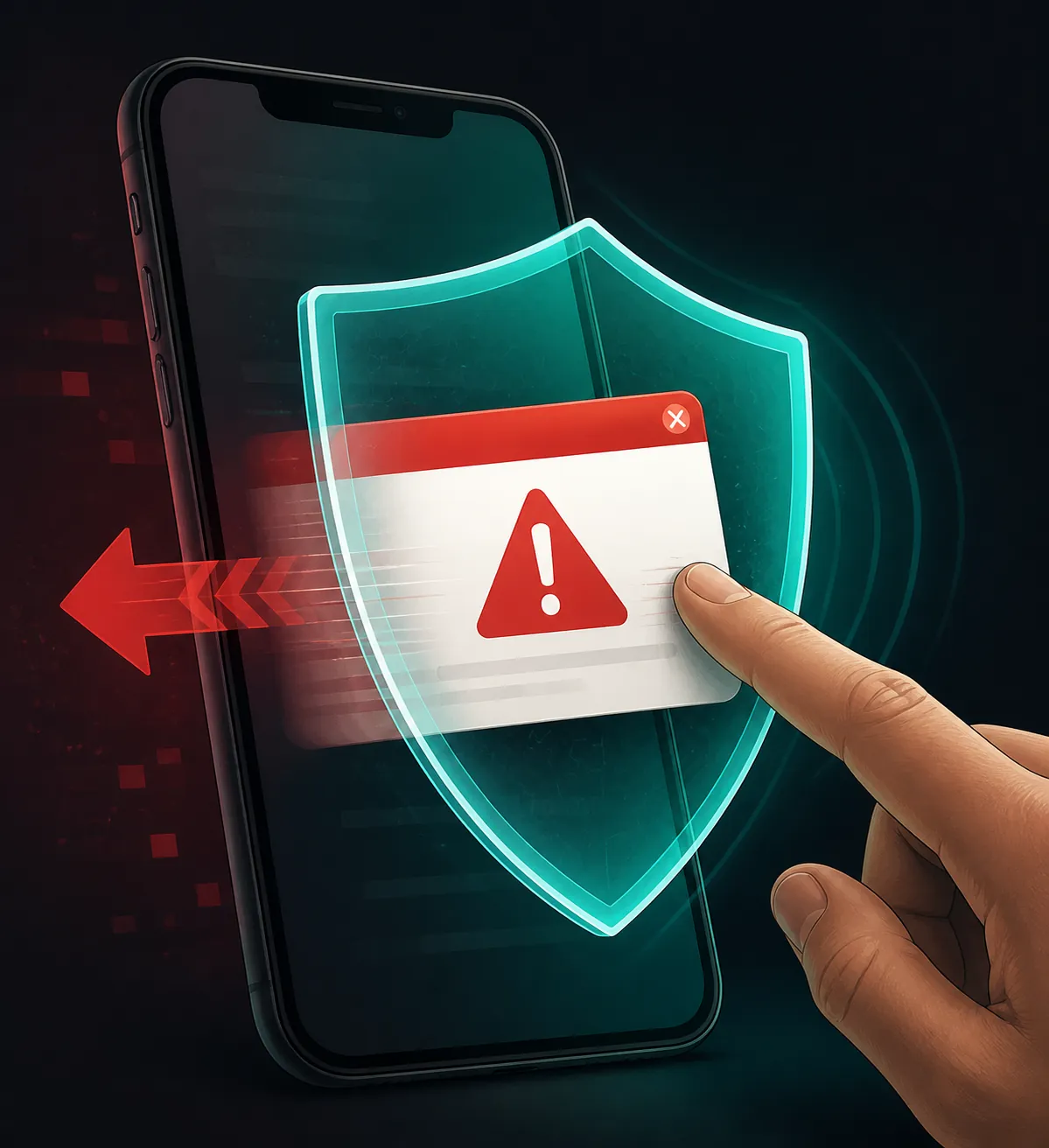
A dark-pattern checkout is one problem. A fake security warning that supplies its own phone number is another route to the same rushed moment. In the FTC’s 2025 Data Spotlight, 15% of older adults who reported losing $10,000 or more to business or government imposter scams in 2024 said the scam began with an online ad or pop-up, often a fake Microsoft or Apple security alert with a call-back number. That is not a risk rate for all older adults; it is a clue about a dangerous entry point in high-loss reported cases. [2]
Older adults have also been hit hard by tech-support scams more broadly. In the FTC’s 2019 tech-support data, adults 60 and older were about five times more likely than younger adults to report losing money to tech-support scams, with a median reported loss of $500 for older adults, 25% higher than for younger people. [3] The FTC’s 2025 report to Congress said adults 80 and older reported median fraud losses exceeding $1,600 in 2024, and older adults reported $159 million in tech-support-scam losses. [4]
The device work is straightforward:
- Turn on the browser’s pop-up blocker.
- Review site notification permissions and remove any site your parent does not recognize or need.
- Keep the operating system, browser, and security updates current.
- Remove browser extensions your parent does not use or recognize.
- Bookmark the real support pages for important services so your parent does not have to search during a scare.
- Teach one narrow rule: a real security warning does not require calling the phone number inside a pop-up.
This is where malware, phishing, and dark-pattern protection overlap. If the screen is trying to create panic, supply the contact method, and move quickly toward payment or remote access, the family should treat it as an entry-point problem first. The detailed fake-virus and phishing setup belongs in Protecting Elderly Parents From Malware and Phishing Scams. If your parent is already on the phone with someone, already sharing a screen, or already moving money, switch to the act-now guide: What to Do If Your Parent Is Being Scammed.
Make receipts and alerts impossible to miss
Alerts do not prevent the first tap, but they shorten the time between a charge and a conversation. That matters because unwanted purchases often become expensive through silence: a trial renews, a small charge repeats, or a parent feels embarrassed and waits.
Turn on alerts where they are most likely to be seen and understood:
- Card and bank transaction alerts for purchases, online charges, card-not-present transactions, transfers, and unusual activity.
- Receipts from app stores, shopping accounts, delivery services, travel sites, and subscription platforms.
- Account-change alerts for password resets, new devices, new payment methods, and shipping-address changes.
- Shared or forwarded receipt folders, if your parent wants help reviewing charges.
The alert should name the action plainly. A vague email buried between promotions will not help much. Create an email folder for receipts and account notices, add safe senders for banks and frequently used services, and reduce promotional clutter where possible. If your parent agrees, you can set a routine: once a week, review the receipt folder together for anything unfamiliar. The routine should feel like housekeeping, not surveillance.
Be careful with shared access. Some families need a trusted contact, view-only access, or duplicate alerts; others do not. The right arrangement depends on your parent’s preferences, capacity, and financial situation. This article is not legal or financial advice. For account ownership, powers of attorney, credit products, freezes, disputes, or liability questions, use qualified legal or financial guidance.
Find the subscriptions already running
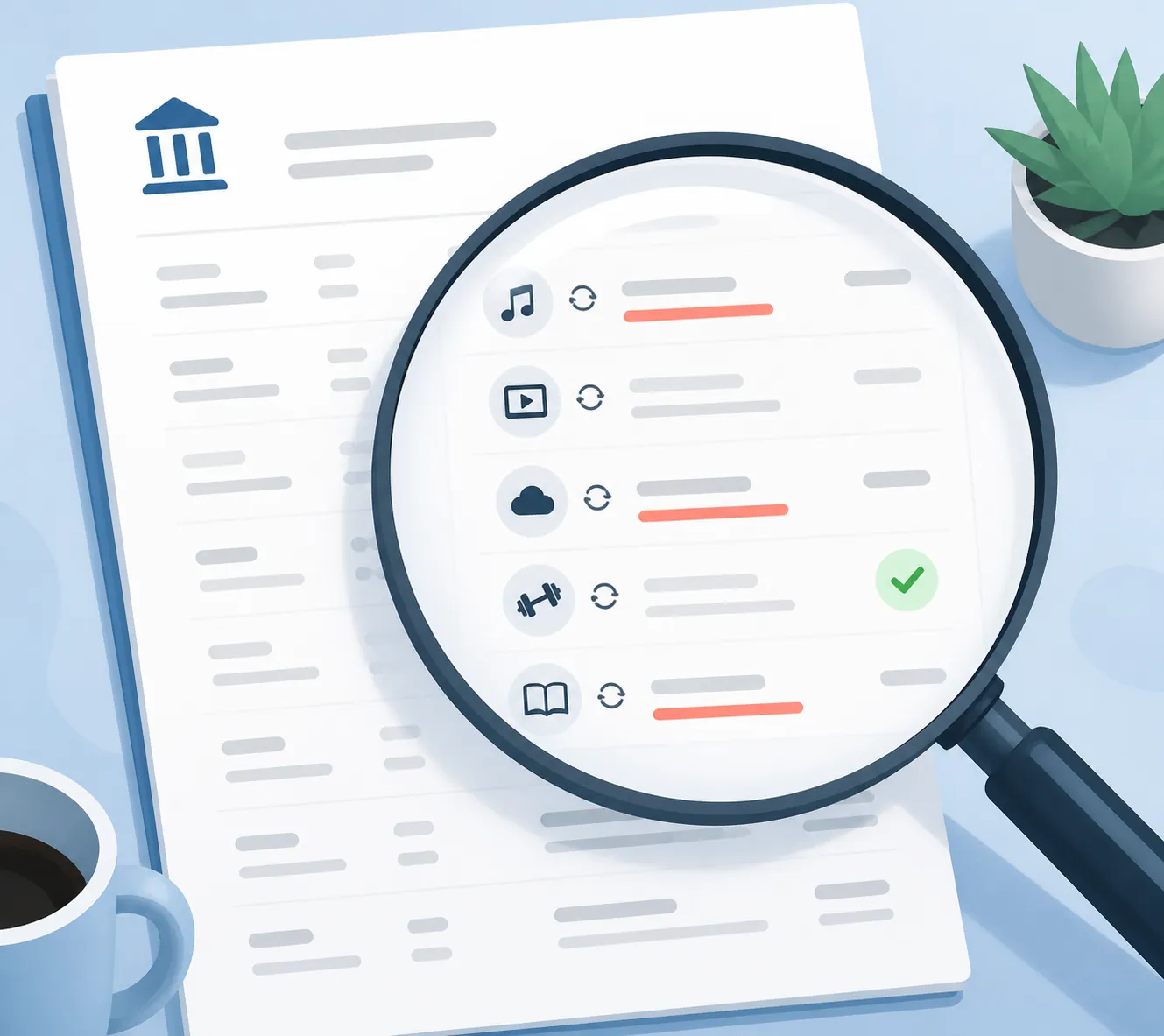
The cleanest setup still leaves the past behind: old trials, forgotten streaming accounts, recurring donations, cloud storage, premium apps, news sites, device-protection plans, and memberships no one remembers starting. Consumer Reports recommends using bank and credit-card statements to find and cancel unwanted online subscriptions, rather than relying only on memory or searching email. [5]
Use the statements as the source of truth. Pull several recent statements for each card and bank account your parent uses online. Then mark every recurring or unfamiliar charge. Do not assume a small amount is harmless; the point is to identify what is still active and who controls cancellation.
| Statement clue | What to check next |
|---|---|
| Same merchant, same amount, monthly | Look for a subscription, membership, storage plan, app charge, or delivery service. |
| Same merchant, different amounts | Check for usage-based billing, add-ons, tips, fees, or multiple plans under one account. |
| Unfamiliar billing name | Search the statement descriptor and compare it with receipts, but do not call a number from a suspicious pop-up or email. |
| Annual charge | Check whether renewal notices went to an old email address or into a promotions folder. |
| Charge through an app store or payment platform | Cancel through the platform or account that manages the subscription, not only through the merchant website. |
When you find something unwanted, cancel it from the account that controls billing, save the confirmation, and take a screenshot or printout if your parent prefers paper. Then add a note in a simple list: service name, cancellation date, confirmation number if one exists, and which card was charged. If another charge appears, the family has the trail ready.
What the law does and does not give you in 2026
Do not count on a single federal “click to cancel” rule to solve this for you. The FTC’s 2024 Click-to-Cancel Rule was vacated by the Eighth Circuit in 2025 on procedural grounds, so it is not in effect federally as of Q3 2026. The FTC launched a March 2026 advance notice of proposed rulemaking to revive the effort, continues to bring enforcement under existing law including Section 5 and ROSCA, and roughly 30 states have their own automatic-renewal laws. [6]
That legal context is useful leverage when a cancellation path is confusing, but it is not a substitute for statement review. If a company makes cancellation difficult, document the steps, keep copies of confirmations and chats, and consider contacting the card issuer or the appropriate consumer-protection agency. The practical task remains the same: find the recurring charge, identify who bills it, cancel through the right channel, and watch the next statement.
Leave behind a setup your parent can live with
After the cleanup, do one pass from your parent’s point of view. Can they still buy what they need? Can they recognize the confirmation step? Do they know what to do if a warning screen appears? Do receipts land somewhere visible? If the answer is no, adjust the setup before you leave.
The best version is simple: fewer saved cards, fewer express checkouts, fewer pop-ups, clearer alerts, and a short family agreement about unusual purchases. It does not require your parent to become a fraud expert. It gives them a digital environment that pauses before payment and speaks up after a charge.
References
- Dark patterns and consumer vulnerability, Behavioural Public Policy, 2025.
- False alarm, real scam: How scammers are stealing older adults’ life savings, Federal Trade Commission, August 7, 2025.
- Older adults hardest hit by tech support scams, Federal Trade Commission, March 2019.
- FTC Issues Annual Report to Congress on Agency’s Actions to Protect Older Adults, Federal Trade Commission, December 2025.
- How to Find and Cancel Unwanted Online Subscriptions, Consumer Reports.
- FTC Revives Click-to-Cancel Rule: New Risks for Subscription Businesses, Jones Day, May 2026.
Questions to bring to a clinician or OT
This is not medical, legal, or a family's final decision — only a framework. Bring these questions to a clinician, occupational therapist, or your local Area Agency on Aging.
Find Local HelpRelated reading
Noticed something outdated or inaccurate on this page? Flag a correction. We review every report against CDC, NIA, and AARP HomeFit guidance before updating a page.