Helping Elderly with Technology: A Research-Based Guide to the Real Barriers
This article presents a framework based on the 2026 JMIR Aging scoping review that identifies seven interconnected barriers to technology adoption among older adults. Caregivers will learn how to move past generic advice and tailor their support to the specific mix of barriers their parent faces — from health limitations and fear to privacy concerns and lack of support.
By Editorial Team
PERS
medical alert system
fall detection
GPS tracker
passive sensors
motion monitoring
wearable monitor
telehealth
smart home
privacy and consent
Medicare coverage
battery life
two-way communication
automatic fall detection
The hard part of helping elderly with technology often begins after the device is already in the room.
Your parent has the smartphone. The portal account exists. The video visit link arrived. You have shown them where to tap, maybe more than once. Then the next week, the same problem returns: the password is wrong, the notification looks suspicious, the text is too small, the Wi-Fi dropped, or they say, quietly but firmly, “I don’t want to use that thing.”
That moment is easy to misread. Families often treat it as a teaching failure: explain it again, write bigger instructions, buy a simpler device, try to be more patient. Sometimes those help. Often they do not, because repetition is not a diagnosis.
The old story that older adults are simply “not online” is no longer accurate enough to guide family decisions. AARP’s 2026 technology trends report found that 90% of adults age 50 and older own smartphones, while 2 in 5 planned a technology purchase in 2026; the same report identified data privacy and security as the top barrier to adoption among older adults.[1] Access has improved. The harder work has shifted toward trust, usability, health limitations, support, and knowing what kind of help is actually needed.
This matters because technology is no longer a side hobby for people who happen to like gadgets. More than 75% of adults 50 and older want to age in place, according to UCLA Health.[2] Staying home now often means using patient portals, medication reminders, telehealth links, monitoring devices, online banking alerts, ride apps, smart speakers, or at least a phone that can handle messages from doctors and family.
So the question is not whether every older adult should become “tech savvy.” The better question is: what is blocking this particular person from using this particular tool for a task that matters to them?
The seven barriers that explain why repeating instructions often fails
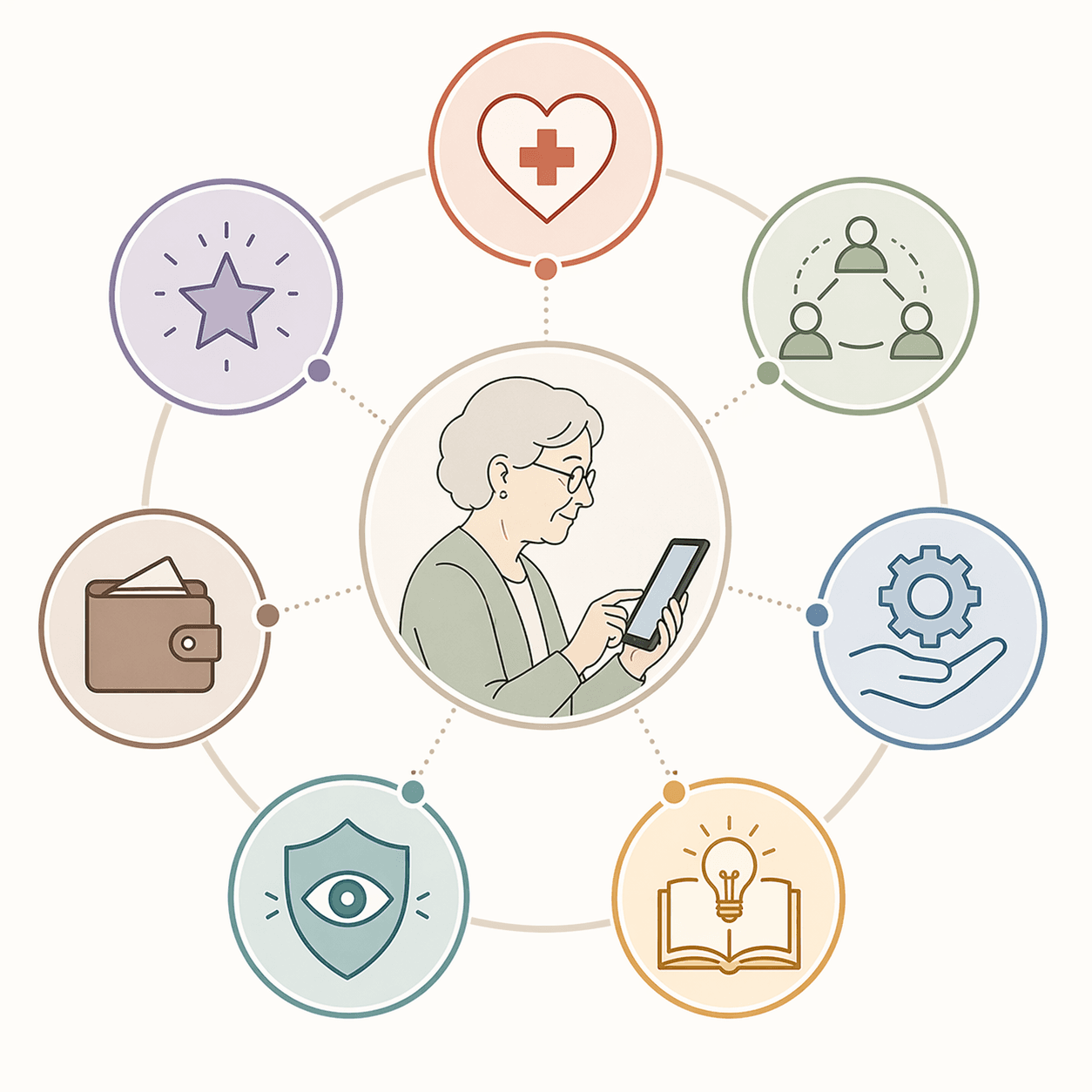
A 2026 scoping review in JMIR Aging offers a useful map. The review identified seven interconnected categories of barriers that affect digital literacy and technology adoption among older adults: health, support networks, convenience and ease of use, knowledge and information, perception, resources, and special-population needs.[3]
The value of this framework is that it stops families from treating every problem as a memory problem, an attitude problem, or a lack of practice. A parent may forget a portal password because the login flow is badly designed, because arthritis makes typing hard, because a previous scam made them afraid to click anything, because no one is available when the problem occurs, or because cognitive changes are beginning to affect multi-step tasks. Those are different problems. They need different responses.
Barrier category
What it can look like at home
Caregiver’s first question
Health
Vision, hearing, tremor, pain, fatigue, medication effects, or cognitive changes interfere with use.
Is the body or brain being asked to do something the device design assumes will be easy?
Support networks
The older adult has someone to call, but that person is rushed, impatient, unavailable, or too far away when the problem happens.
Who is actually available at the moment of confusion?
Convenience and ease of use
Small text, confusing menus, dropped connections, inaccessible websites, or too many steps make the task feel unreliable.
Is the tool harder than the task it is supposed to simplify?
Knowledge and information
The person does not know what an alert means, what a permission request allows, or how to tell a real message from a scam.
What exact knowledge is missing?
Perception
Fear, embarrassment, low confidence, privacy concerns, or feeling watched makes the person avoid the device.
What does this technology seem to mean to them?
Resources
Cost, internet access, device quality, transportation, or paid support limits continued use.
Is the setup affordable and stable enough to maintain?
Special-population needs
Standard coaching no longer fits because dementia, major cognitive impairment, language barriers, disability, or other needs change the support model.
Has this moved beyond ordinary coaching?
The categories overlap. A video visit can fail because the Wi-Fi is weak, the portal uses small text, the caregiver is at work, and the older adult is afraid that clicking the wrong button will expose personal information. Solving only one piece may still leave the person stuck.
Start with health before calling it resistance
Health barriers are easy to underestimate because they rarely announce themselves as “technology problems.” They appear as slow tapping, missed buttons, giving up halfway through a form, avoiding video calls, misreading a notification, or saying the device is “too much trouble.”
A hand tremor changes what “just tap here” means. Low vision changes whether a portal is usable at all. Hearing loss changes whether a voice assistant, video visit, or phone-based verification code is practical. Pain and fatigue change how long someone can sit through a setup session. Cognitive changes can make multi-step sequences collapse even when the person still understands each individual step.
This is where many family teaching sessions go wrong. The caregiver explains the sequence again; the older adult experiences the same physical or cognitive friction again; both people leave feeling worse. The caregiver thinks, “They are not trying.” The parent thinks, “I am being treated like a child.”
Before changing the teaching method, watch the task without narrating over it. Notice whether the problem happens at the same physical point each time: reading the screen, touching a small target, hearing an instruction, remembering a code, switching between apps, or recovering from an error message. The goal is not to test them. It is to locate the friction.
If vision is the barrier, increase text size, contrast, lighting, and screen timeout before teaching the same steps again.
If dexterity is the barrier, try a stylus, tablet instead of phone, voice input, simplified home screen, or fewer required taps.
If hearing is the barrier, turn on captions, use written instructions, test speaker volume, and avoid audio-only verification when possible.
If fatigue is the barrier, shorten coaching sessions and teach one meaningful task at a time.
If memory or sequencing is the barrier, reduce steps, use consistent routines, and watch for broader signs that ordinary coaching may no longer be enough.
Technology struggles can sometimes be one of several signs of cognitive change, especially when a person who previously managed devices begins having new trouble with familiar tasks. For that narrower question, it is worth reading When Tech Struggles Signal Cognitive Decline rather than treating every repeated mistake as a coaching issue.
Support networks are not the same as “having family nearby”
The JMIR Aging review found that support networks influence whether older adults adopt technology, including evidence that older adults without family support are less likely to adopt internet use. It also noted that negative interactions, including impatience or condescension from family members, can reinforce feelings of inadequacy and discourage future attempts.[3]
That finding lands uncomfortably close to home for many families. The presence of a helper does not automatically create useful support. A daughter who can fix the phone in ninety seconds may not be able to teach the task calmly after a long workday. A son who understands passwords may not notice that his father is embarrassed. A spouse may be available all day but just as confused by the app.
The support-network barrier has two parts: whether help exists, and whether the help preserves confidence. A parent who feels scolded may avoid asking the next question. A caregiver who becomes the family help desk may start dreading every notification sound. Neither reaction means anyone is failing morally. It means the support design is too thin.
A better support plan names the task, the backup person, and the kind of help expected. For example: one person handles portal passwords, another practices video calls once a week, and a local library class or paid tech helper covers basic device skills. This is slower to set up than simply “showing Mom again,” but it prevents every problem from becoming one exhausted caregiver’s emergency.
Replace “Call me if you have trouble” with “If the pharmacy app asks for a password, call me before trying three times.”
Decide which problems can wait and which ones need same-day help, such as a medical portal message or a fraud alert.
Use remote support carefully, with consent and clear boundaries, so help does not feel like surveillance.
Bring in outside helpers when one family member has become the only interpreter for every device, app, and login.
If the main problem is the teaching interaction itself, the practical next step is a coaching method, not another lecture. The Caregiver’s Tech Coaching Playbook is a better companion for the how-to-teach side once you know which barrier you are addressing.
Usability problems are not character flaws
Ease of use deserves more respect than it usually gets in family conversations. When an app has tiny text, unclear buttons, multi-factor authentication, pop-ups, ads, permission requests, and inconsistent menus, the problem is not solved by telling an older adult to “just explore.” Exploring is exactly what many people have been warned not to do.
A 2026 statistics compilation by WifiTalents reported that 40% of adults 65 and older had at least one online usability barrier, 58% struggled with small text, and 41% had difficulty using health service websites.[4] Those figures should be read with some care because the compilation draws from multiple sources, but the pattern matches what caregivers see every week: the hardest tools are often the ones tied to essential services.
Health care websites are a perfect example. A patient portal may be technically available, but if the sign-in page times out, the lab results are buried under unfamiliar labels, and a security code arrives in a separate app, availability has not become usable access. The older adult may own the phone and still be effectively blocked from the task.
This is the point where buying a new device can help, but only if the new device removes the actual friction. A larger tablet may help with vision and touch targets. A simplified launcher may help if too many icons cause confusion. A smart speaker may help with reminders if speech is easier than typing. But a “senior-friendly” label does not guarantee that the device fits the person’s real task, home, Wi-Fi, hearing, hands, or privacy expectations.
For aging in place, it helps to think in categories before brands: communication, safety monitoring, medication support, health access, transportation, household management, and social connection. Beyond the Panic Button is useful when the question is not “Which gadget should I buy?” but “What kind of support is missing from daily life?”
A quick usability audit before you teach again
Can they read the screen without leaning, squinting, or guessing?
Are the buttons large enough for their hands on a bad day, not just a good day?
Does the task require switching between apps, email, text messages, and passwords?
Does the app use labels your parent understands, or labels only the institution understands?
What happens when they make a mistake? Can they recover without panic?
Is the internet connection stable in the chair, bedroom, kitchen, or apartment corner where they actually use the device?
Knowledge gaps include scam judgment, not just button pushing
Families often define technology knowledge too narrowly. They teach the steps: open the app, tap messages, enter the code. But many older adults are also trying to answer a harder question: “Is this safe?”
That question is not paranoia. AARP identified data privacy and security as the No. 1 adoption barrier for older adults in its 2026 technology trends report.[1] If someone has been warned constantly about scams, then a permission screen, a password reset email, a browser pop-up, or a request for location access can stop the whole process. From the caregiver’s side, it looks like refusal. From the older adult’s side, it may feel like the only responsible choice.
Knowledge support should therefore include categories of messages, not just instructions for one app. Teach the difference between a routine notification, a security alert, a marketing message, a permission request, and a likely scam. Use real examples from their own device when possible, but avoid rushing them through a confusing screen just to finish the task. The screen they do not understand today is the screen they may avoid tomorrow.
It also helps to create a household rule for uncertainty. For example: if a message asks for money, gift cards, banking information, Social Security information, remote access, or urgent secrecy, stop and call the designated helper. If a medical app asks for notification permission during setup, that is a different category of decision. The point is to reduce the number of moments where every unfamiliar prompt feels equally dangerous.
Perception barriers: fear, identity, embarrassment, and being watched
Perception barriers are the emotional and meaning-making layer around technology. They include fear, anxiety, low confidence, embarrassment, distrust, privacy concerns, and the feeling that a device represents decline rather than independence.
This is where well-meaning caregivers can accidentally make the barrier stronger. A parent who hears “You need this so we can keep an eye on you” may hear loss of authority. A parent who struggles while three adult children stand around the kitchen may feel exposed. A parent who has always managed their own affairs may experience a password manager or medication dispenser as evidence that other people no longer trust them.
The JMIR Aging framework treats perception as one of the major barrier categories, and it belongs there.[3] A device can be affordable, accessible, and useful on paper, yet still fail because the older adult dislikes what it seems to say about them. Monitoring technology is especially sensitive. A fall sensor may feel reassuring to one person and intrusive to another. A camera may be acceptable in an entryway and unacceptable in a living room. Location sharing may feel like safety after a health scare and like surveillance during an ordinary day.
The practical move is to separate the goal from the tool. “I want you to use this app” is a tool-centered conversation. “You said you want to keep going to appointments without me calling the office for every detail; this portal may help with that” is a goal-centered conversation. The second version gives the older adult a reason to tolerate the learning curve and a basis for saying no to features that feel excessive.
When resistance is mostly emotional, more information can backfire. A long explanation about why the device is safe may sound like pressure. A calmer approach is to ask what the device seems to threaten: privacy, money, competence, independence, dignity, or control. The answer determines whether you need a privacy setting, a different device, a slower teaching plan, or a decision to postpone.
Resource barriers include money, internet access, device quality, transportation to classes or support, and the time available for setup and maintenance. These barriers can be quieter than fear or vision problems, but they determine whether a solution survives past the first week.
A family may buy a tablet and forget the monthly data plan. A monitoring device may require Wi-Fi in an apartment where the router barely reaches the bedroom. A parent may agree to telehealth but lack a private, well-lit place to sit. A caregiver may choose an app that works beautifully on a newer phone, while the older adult’s device no longer updates reliably.
Before assuming a parent is not committed, ask whether the setup is maintainable. Who pays for it? Who updates it? Who replaces batteries? Who notices when the subscription renews? Who fixes it after a router change? If the answer is always one already-overloaded caregiver, the resource barrier has simply been moved from the older adult to the family system.
When special-population needs change the rules
The seventh category in the JMIR Aging framework covers barriers for special populations.[3] In family caregiving, this is the point where ordinary coaching may not be the right model anymore.
That does not mean every older adult who struggles with technology has dementia, and it does not mean families should jump to frightening conclusions. It means some situations require a different standard: cognitive impairment, dementia, significant disability, language barriers, low literacy, serious mental health concerns, or complex medical needs can make mainstream instructions inadequate.
In these cases, the goal may shift from independent use to supported use, shared access, environmental design, or caregiver-managed technology with consent and safeguards. A person with mild difficulty may still learn a simplified video-call routine. A person with progressing dementia may need fewer choices, locked-down settings, automatic updates, and professional guidance about safety and consent. Those are not the same teaching problem.
If the technology struggle is new, worsening, or paired with missed bills, medication errors, getting lost online, falling for suspicious messages, or inability to follow familiar routines, move beyond tech coaching and consider a clinical conversation. The device may be revealing a broader change rather than causing the problem.
How to match your help to the barrier
Once you stop treating technology trouble as one generic problem, the next step becomes more practical. Watch the failed task and name the active barriers. Most situations will have more than one.
If the main barrier is...
Do less of this
Try more of this
Health
Repeating the same steps louder or slower
Adapt the device to vision, hearing, dexterity, fatigue, or cognitive load
Support networks
Assuming one family helper can cover everything
Create a small support system with named roles and backup options
Ease of use
Blaming the user for getting lost
Reduce steps, enlarge targets, improve connectivity, or choose a better-fitting tool
Knowledge
Teaching only where to tap
Teach what alerts, permissions, passwords, and scam signals mean
Perception
Arguing that the device is obviously helpful
Connect the tool to the older adult’s own goal and address fear, privacy, and dignity directly
Resources
Buying technology without a maintenance plan
Plan for cost, internet, updates, batteries, subscriptions, and ongoing help
Special needs
Using standard coaching after it has clearly stopped working
Shift to supported use, simplified environments, clinical input, or dementia-specific guidance when appropriate
A simple example: an older adult stops using a blood pressure monitoring app. Generic coaching says, “Show them again.” A barrier-based approach asks what happened. If the cuff hurts, that is health. If the Bluetooth pairing fails, that is usability. If they do not understand who sees the readings, that is knowledge and privacy. If they feel monitored by their children, that is perception. If no one checks whether the app still syncs after an update, that is support. The same abandoned app can have several different explanations.
This approach also helps families decide when not to push. If a device solves no problem the older adult recognizes, creates privacy discomfort, and requires constant caregiver maintenance, rejection may be reasonable. If the device supports a goal the person values but fails because of small text and fear of scams, it is worth adapting the setup and trying again.
A better question than “How do I explain this again?”
Patience still matters. Tone matters. Practice matters. But patience without diagnosis can turn into a loop where the caregiver keeps explaining and the older adult keeps absorbing the message that they are the problem.
The more useful habit is to pause at the failed moment and ask which barrier is active. Is this a body problem, a design problem, a trust problem, a knowledge problem, a support problem, a money or access problem, or a sign that ordinary coaching no longer fits?
Helping elderly with technology works best when the caregiver stops asking, “How do I explain this again?” and starts asking, “Which barrier is actually blocking this person, and what kind of support would lower that barrier?”
For individualized recommendations:An occupational therapist or your primary care provider can assess your specific situation and recommend the monitoring category and feature set that best fits the person's functional level, living environment, and caregiver availability. This explainer provides educational context, not a personalized recommendation.

Comments
Join the discussion with an anonymous comment.